YSD_Users_E.pdf - 第271页
6-2 6 Using the advanced functions 1.1.1 Loading the saved data Even w hen you ha ve reset the mounting operation during board production, the machine sa ves the mounting operation data that w as in progress. Y ou can lo…
6-1
6
Using the advanced functions
1. Setup parameters
1.1 Halfway Continue function
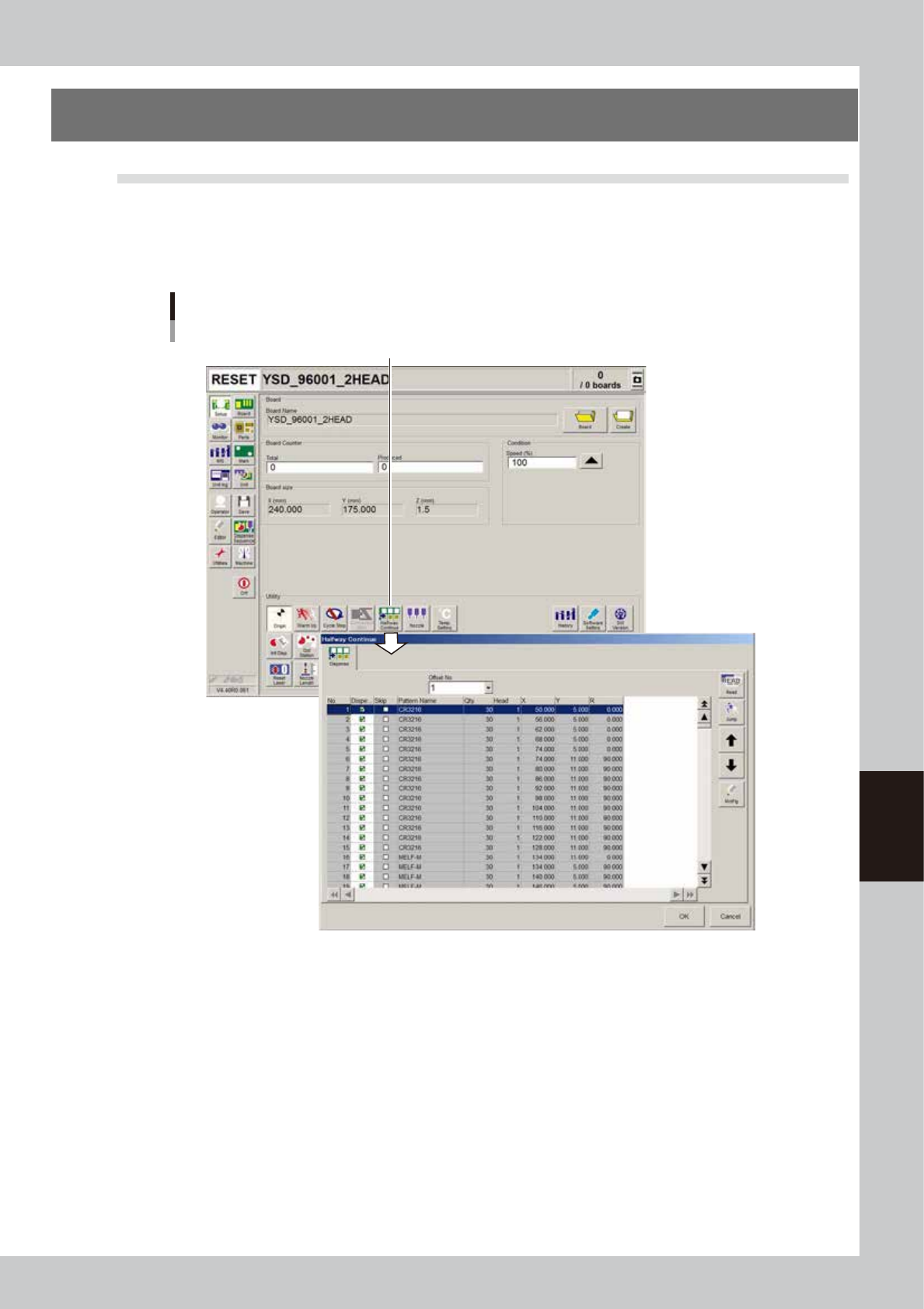
Pressing the [Halfway Continue] button on the Setup screen opens the Halfway Continue dialog box as shown
below. Even after resetting the mounting data, the Halfway Continue function allows you to load that mounting
data to mount components again at a specific block or mount point. Note that the Halfway Continue function
can be used just for the first board, with routine mounting operation beginning from the next board.
[Halfway Continue] button
Halfway Continue screen
64600-N7-00
6-2
6
Using the advanced functions
1.1.1 Loading the saved data
Even when you have reset the mounting operation during board production, the machine saves the mounting
operation data that was in progress. You can load that data by pressing the [Read] button on the Halfway
Continue dialog box, to resume the operation from the stopped point. Since the last mounting data including
error information is saved, mounting is also performed at the mounting points at which errors occurred.
Restarting component mount by Halfway Continue function
Automatic operation restarts
after loading the save data.
1
5
BLOCK NO.1 BLOCK NO.2
2
6
3
7
4
8
1
5
2
6
3
7
4
8
1
5
BLOCK NO.1 BLOCK NO.2
2
6
3
7
4
8
1
5
2
6
3
7
4
8
:mounted
:not mounted
Reset
63600-N7-00
1.1.2 Editing mount flags
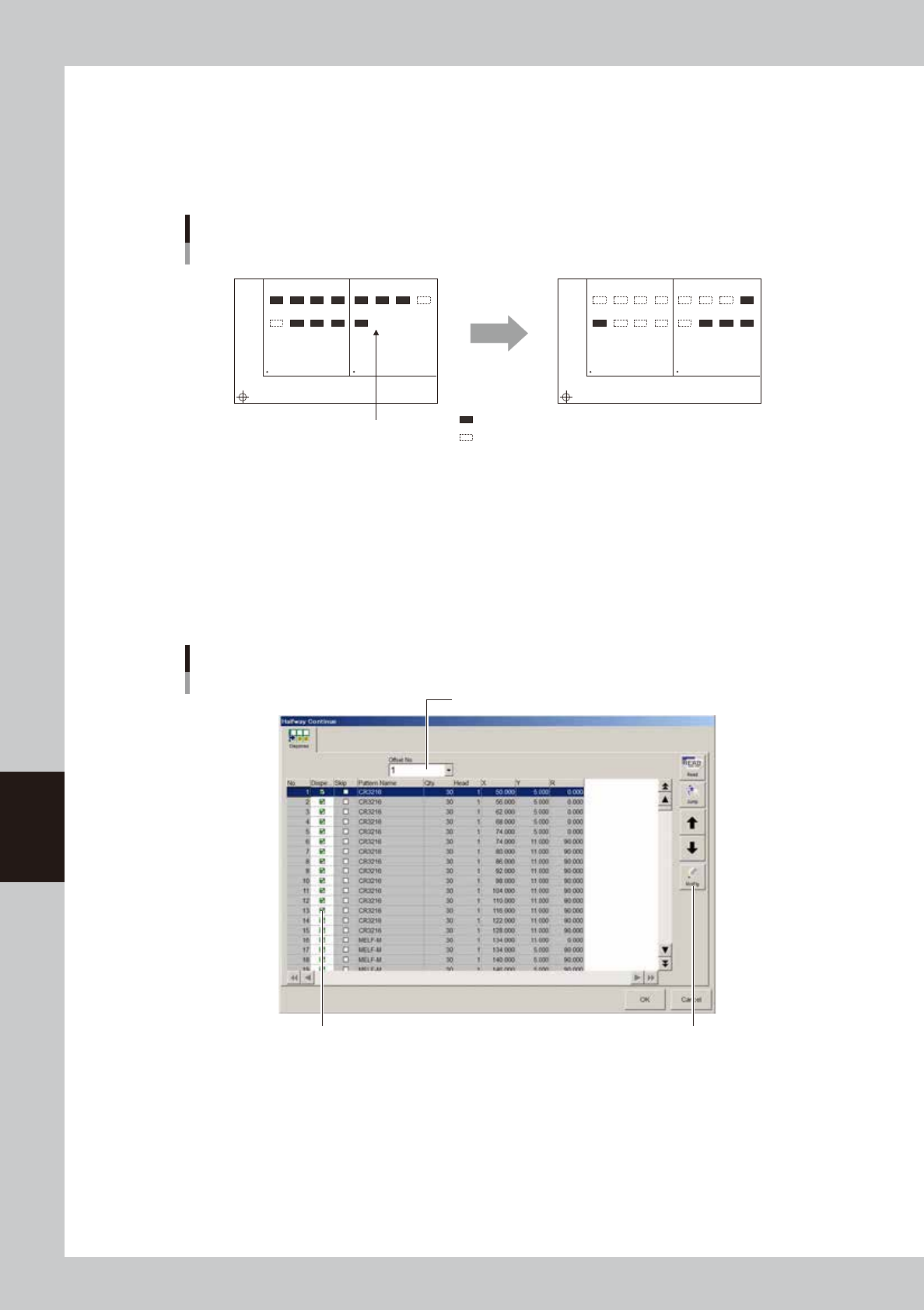
The Halfway Continue function can also be used to perform mounting for a specific mounting point by
specifying the mount data number. For example, when you have paused mounting operation and reset the
mount data, press the [Read] button to reload the data and edit each mounting point as necessary by using the
[MntFlg] button. When the offset function for multi-block boards is used, the mount data in each block can
also be edited. Note that this function is used only for the first board, with routine mounting operation
beginning from the next board.
[MntFlg] button
Editing mount flags
Offset No. selection box
Mounted flag (checkmark)
64601-N7-00
6-3
6
Using the advanced functions
2. Teach and trace
2.1 Trace function
The trace function automatically moves the teaching unit such as the camera or head to the target position.
This is mainly used to check the input XY coordinate data.
1
Clamp a board on the conveyor.
Use the [Width] button and other buttons on the Unit screen to clamp a board on the conveyor.
2
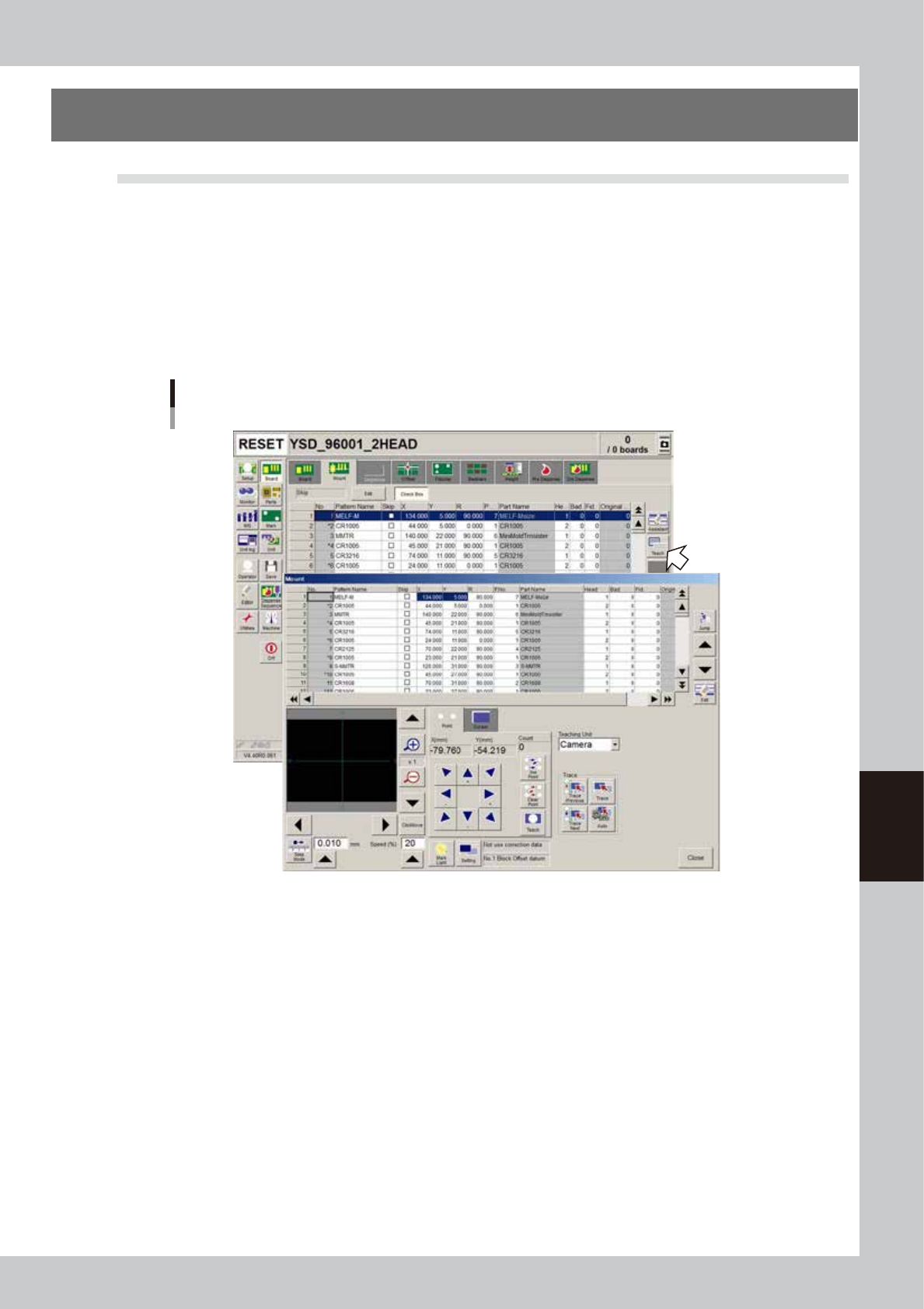
Press the [Teach] button to open the Teach (trace) screen.
A [Teach] button is available on the [Mount], [Offset], [Fiducial], [Badmark], [Height], [Pre Dispense] and
[Dot Dispense] tabs of the Board screen. Press the [Teach] button to open the Teach (trace) screen.
Opening the Teach (trace) screen
64402-N7-00