YSD_Users_E.pdf - 第320页
Chapter 8 Managing the data Contents 1. Data backup 8-1 1.1 Making a backup of board data 8-1 1.1.1 Backing up onto a USB flash drive 8-2 1.2 Copying and moving the board data 8-7 1.3 Making a backup of system data 8-10 …
7-25
7
Editing the board data
4.2 Deleting the dispensing points
n
Using a dispense distribution
1
Delete the mount parameters.
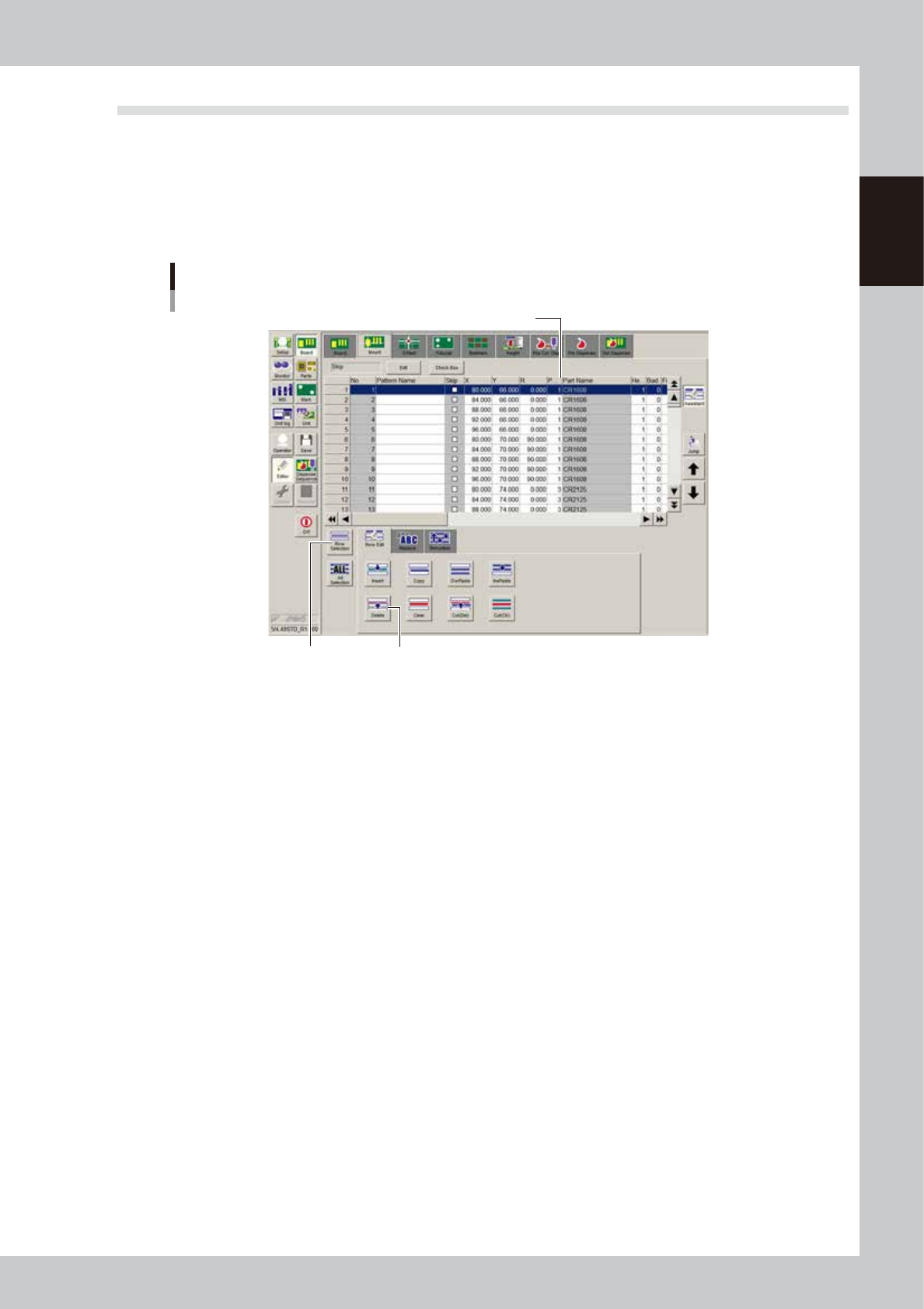
Open the [Board]-[Mount] screen and press the [Assistant] button. Press the “Part Name” label to sort in
order of the part name. Select the row of the target part and press the [Delete] button. If you want to
delete two or more rows, select the [Row Select] button, select the rows, and press the [Delete] button.
Deleting the mount parameters
[Delete] button[Row Select] button
Press “Part Name” to sort by part name.
64728-N7-00
2
Save the board data.
Press the [Save] button to open the “Board data save" dialog box and save the board data.
3
Execute the “All Setting Dialog” command.
Press the [Edit] button to open the Editor screen. From the “Tool” menu, select “Dot Dispense” – “All
Setting Dialog”, and make the “Distribute” and “Sort” settings. Then execute the “All Setting Dialog”
command. For more details, see “
n
All Setting Dialog command” in “7.2 Dispense distribution” in Chapter
5.
n
Not using a dispense distribution
Delete the dot dispense parameters.
Open the [Board]-[Dot Dispense] screen and press the [Assistant] button. Select the row of the parts you
want to delete and press the [Delete] button.

Chapter 8 Managing the data
Contents
1. Data backup 8-1
1.1 Making a backup of board data 8-1
1.1.1 Backing up onto a USB flash drive 8-2
1.2 Copying and moving the board data 8-7
1.3 Making a backup of system data 8-10
1.3.1 System backup settings 8-11
1.3.2 Making a backup 8-13
1.4 Restoring the system data 8-17
1.4.1 Restoring a system backup 8-17
1.4.2 Restoring a system full backup 8-20
2. Creating the user database 8-23
2.1 Registering data into the user database 8-23
3. Production log management 8-25
3.1 Production log types 8-25
3.1.1 Production log (MIS) 8-25
3.1.2 Operation log (Unit Log) 8-27
3.1.3 Other operations 8-29
3.2 Production and operation log settings 8-31
3.2.1 Setting to store production logs per board data 8-31
3.2.2 Specifying the auto-save destination 8-32
3.2.3 History Utility 8-35
8-1
8
Managing the data
1. Data backup
Production board data and system data can be backed up. This section explains how to make a backup of
these data.
1.1 Making a backup of board data
A backup copy of board data can be stored on a USB flash drive or on a network drive (including on-line
software). When board data is saved in YGX format, it can be stored in any location. However, when using a
USB flash drive, the data should be stored in a predetermined location.
n
When using a USB flash drive
When using a USB flash drive, you need to create a "board folder" to make a directory named "No 1". Backup data
should be stored in that directory. Refer to "1.1.3 Backing up onto a USB flash drive".
c
CAUT ION
Use a USB flash drive (supplied with the machine or purchased from YAMAHA sales reps) specified by YAMAHA Motors
C o., L td. U sing a USB flash drive other than specified might cause problems. D o not use any other type of USB flash
drive with YAMAHA surface mounters and related machines.
c
CAUT ION
Before operating the USB drive to copy data, always close the media access door to prevent dust from adhering to
the USB port and to protect the USB flash drive from electrostatic noise.
c
CAUT ION
After copying board data or system data into a USB flash drive, do not leave that data in the USB flash drive for a long
time. U se the USB flash drive just as a copy medium for backup data. Prepare other backup media (CD , DVD , MO ,
etc.) to store the backup data.