YSD_Users_E.pdf - 第264页
5-75 5 Creating the board data 3 Set the height correction mode. On the [Board]-[Height] tab screen, enter the comment in the Comm ent column and set the height correction mode (number of height measurement points) in th…
5-74
5
Creating the board data
8. Height correction (option)
As an optional function, this machine has a laser displacement meter to correct the dispensing or component
mounting height relative to the board surface. This function is mainly used with the nozzle height correction
function using a touch sensor.
8.1 Creating the board data for height correction
Data format for the height correction function resembles the 2-point local fiducial mark setting. Make the
settings as explained below.
1
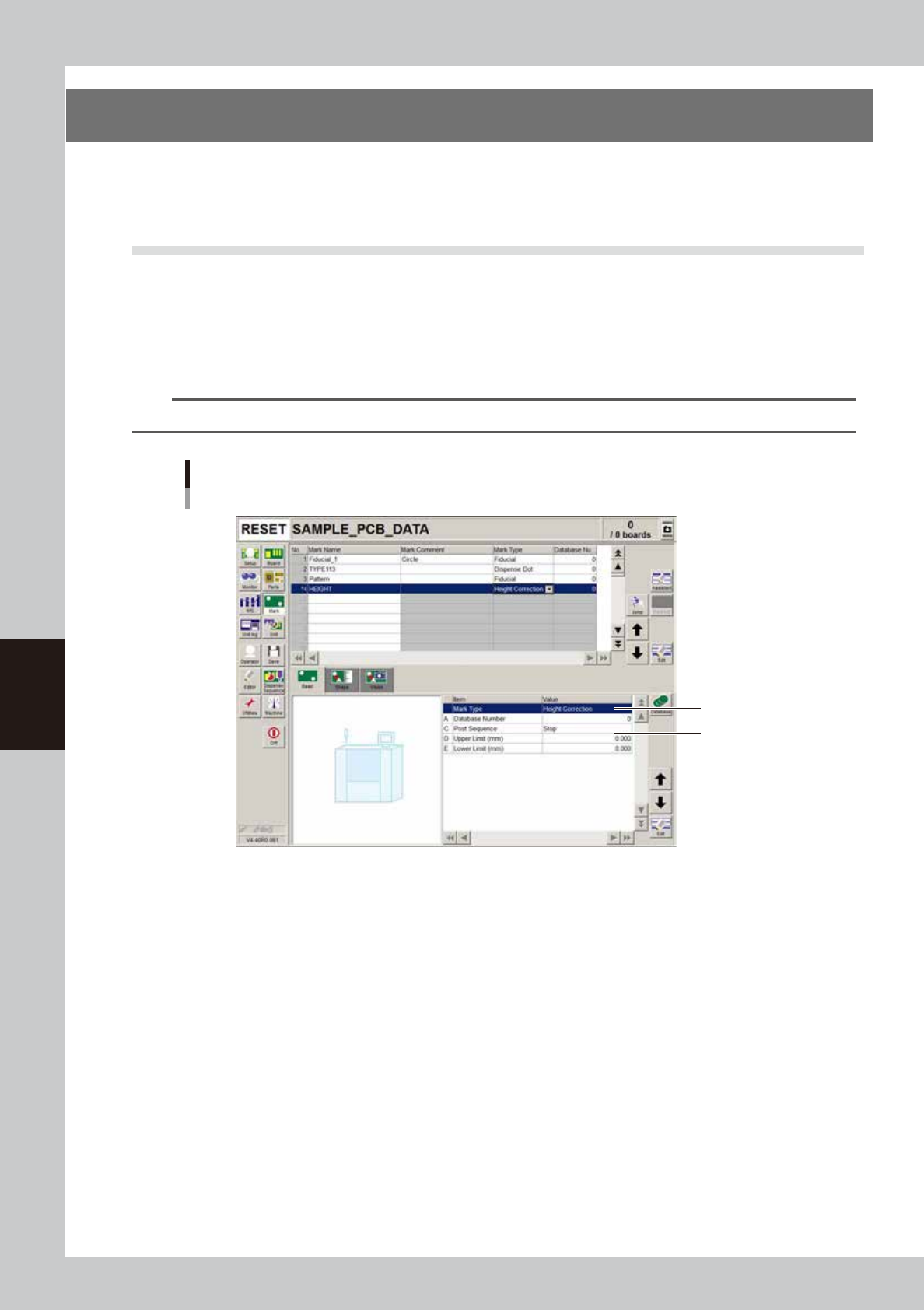
Set the Mark Type parameter.
On the [Mark]-[Basic] tab screen, enter the name in the Mark Name column and set the Mark Type
parameter to "Height Correction".
n
NOTE
When the Mark Type parameter is set to "Height Correction", the [Mark Adj] button is grayed out.
Step 1
Step 2
Mark screen
Setting Mark Type to "Height Correction"
64548-N7-00
2
Set the upper and lower limits.
Enter the upper and lower limits in millimeters to set an acceptable measurement result range. The
downward direction is positive (+) and the upward direction is negative (-), just as with the head
coordinate system.
5-75
5
Creating the board data
3
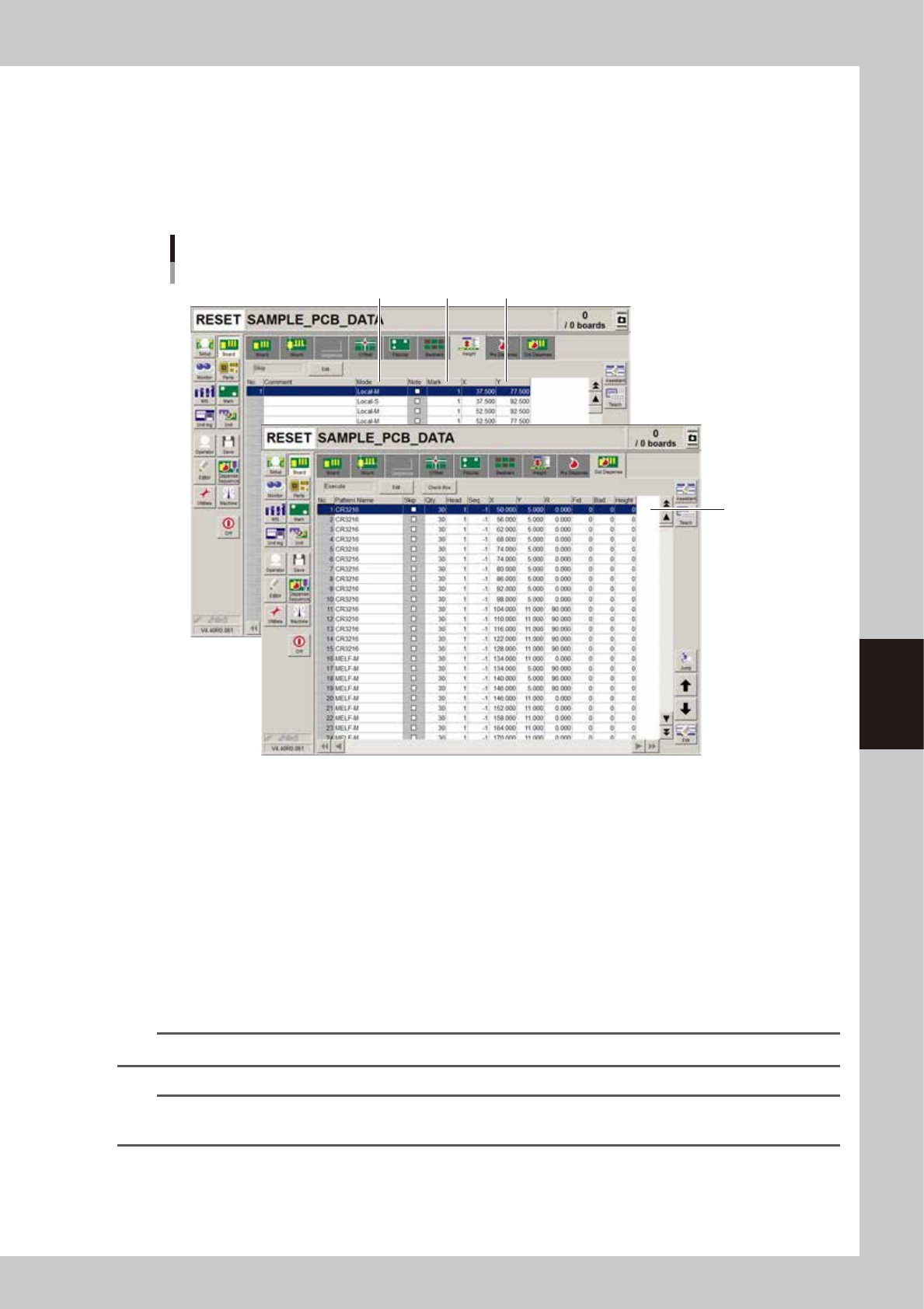
Set the height correction mode.
On the [Board]-[Height] tab screen, enter the comment in the Comment column and set the height
correction mode (number of height measurement points) in the Mode column.
• When measuring 1 point, set to "Local-M".
• When measuring 2 points to take an average, make the settings in 2 rows. Set the first row to
"Local-M" and the second row to "Local-S".
Mode setting
Height correction
Step 6
Step 3 Step4 Step5
64549-N7-00
4
Enter the mark No.
In the Mark column, enter the mark No. you set in steps 1 to 2.
5
Enter the XY coordinates.
Enter the XY coordinates to be measured. You can use the [Teach] button to open the Laser Height
window and enter the XY coordinates by teaching. After entering the XY coordinates, press the [Trace]
button in the Laser Height window to make a height measurement at that position and display the
results.
6
Enter the height correction No.
Select the [Dot Dispense] tab and, in the Height column, specify the number you set on the [Height] tab
in step 4.
n
NOTE
When using an average of 2-point measurements, enter the number for "Local-M".
n
NOTE
During automatic operation, the height correction measurement data is retained like local fiducial mark data. This
means that one item of height correction data is measured only once.
5-76
5
Creating the board data
8.2 Height correction distribution
As the height correction distribution is executed using the dot dispense data of the board data, height
correction data is created automatically.
This section describes how to distribute the height correction.
c
CAUTION
Data once distributed cannot be restored. We recommend saving the original board data before performing height
correction distribution.
n
NOTE
• The numbers in the "Mark" column on the [Height] tab are set to "0" by default, so you must re-enter the correct
numbers after height correction distribution.
• The Height Correction Distribution function does not work for 2-point height correction.
• If information exists in some data rows on the [Height] tab, then height correction distribution is sequentially
performed on the other rows that are not used.
1
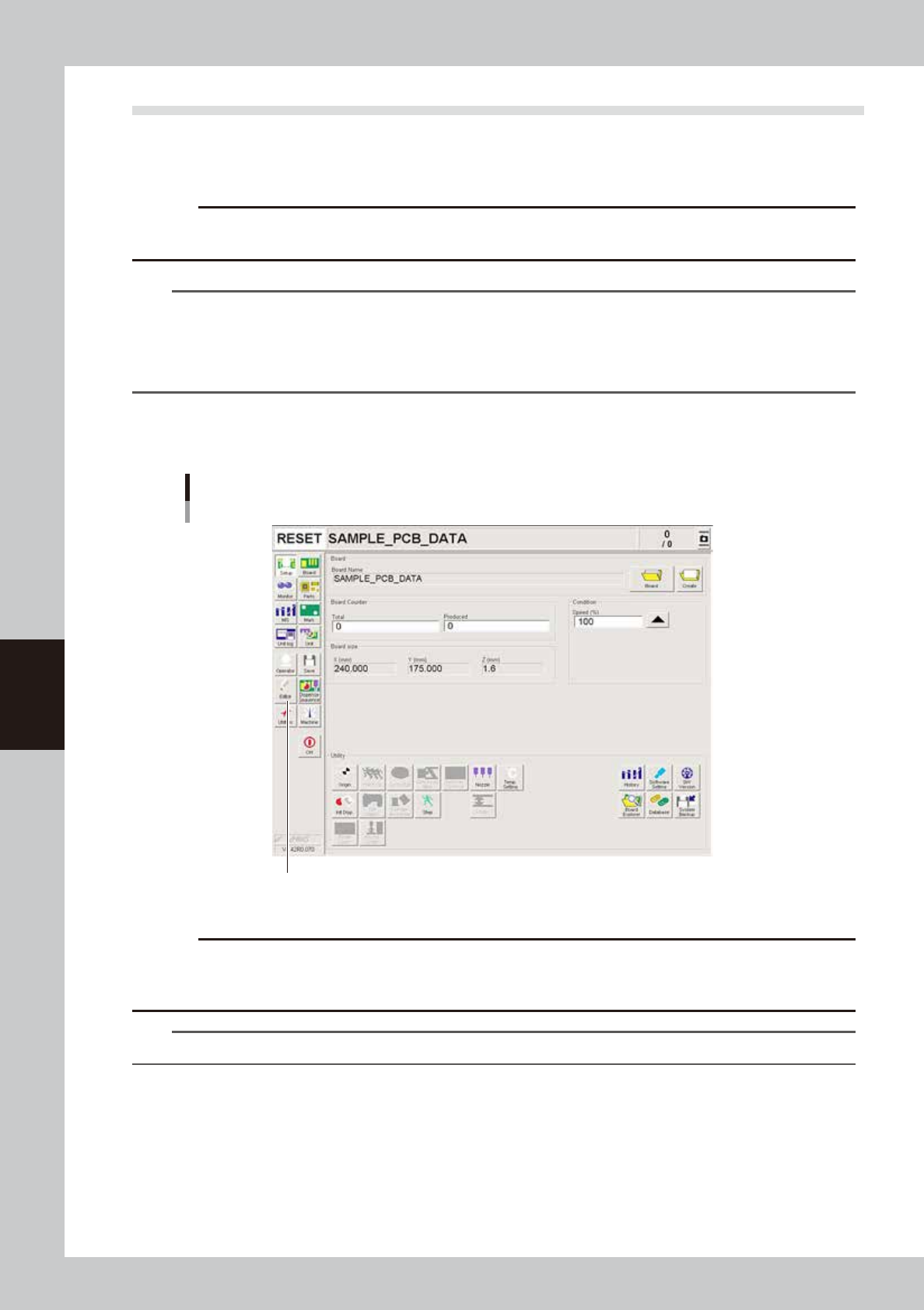
Start the Editor.
Press the [Editor] button.
Starting the editor
Press the [Editor] button.
64550-N7-00
c
CAUT ION
The height correction distribution cannot be executed for the file that is currently edited. When you are editing the
board data to be subjected to height correction distribution, save the board data, execute the height correction
distribution, and then open the board data again.
TIP
For detailed information on the Editor window, see "1.2 Editor window" in Chapter 7.