YSD_Users_E.pdf - 第375页
3-1 3 Periodic maintenance items 1. W eekly inspection 1.1 Checking the conveyor sensor condition and operation T his machine uses a transmission mode fiber sensor as the conv eyor sensor . Check w hether the sensor oper…

Chapter 3 Periodic maintenance items
Contents
1. Weekly inspection 3-1
1.1 Checking the conveyor sensor condition and operation 3-1
1.2 Checking the board clamp condition and operation 3-2
1.2.1 Checking the board clamp condition 3-2
1.2.2 Checking the board clamp operation 3-2
2. Monthly inspection 3-3
2.1 Cleaning and greasing the X and Y axes 3-4
2.1.1 Cleaning and greasing the X-axis ball screw 3-4
2.1.2 Cleaning and greasing the X-axis guide 3-5
2.1.3 Cleaning and greasing the Y-axis ball screws 3-6
2.1.4 Cleaning and greasing the Y-axis guides 3-7
3. Six-month inspection 3-8
3.1 Cleaning the base section filter 3-8
4. One-year inspection 3-9
4.1 Cleaning and greasing the W axis 3-9
4.1.1 Cleaning and greasing the W-axis ball screws 3-9
4.1.2 Cleaning and greasing the W-axis guides 3-9
4.2 Cleaning and greasing the Z axis 3-10
4.2.1 Cleaning and greasing the Z-axis guide, ball screw and shafts 3-10
4.3 Cleaning and greasing the push-up (PU) axis 3-11
4.3.1 Cleaning and greasing he PU-axis ball screw and ball guide 3-11
4.4 Inspecting the board conveyor unit 3-12
4.4.1 Inspecting and cleaning the conveyor belt 3-12
4.4.2 Replacing the conveyor belt 3-13
4.5 Cleaning and greasing the hexagonal spline 3-14
4.6 Inspecting and cleaning the air/mist filters 3-15
4.6.1 Cleaning the filter cup 3-15
4.6.2 Cleaning the air filter and mist filter 3-16
4.7 Controller unit 3-17
4.7.1 Cleaning the filter 3-17
3-1
3
Periodic maintenance items
1. Weekly inspection
1.1 Checking the conveyor sensor condition and operation
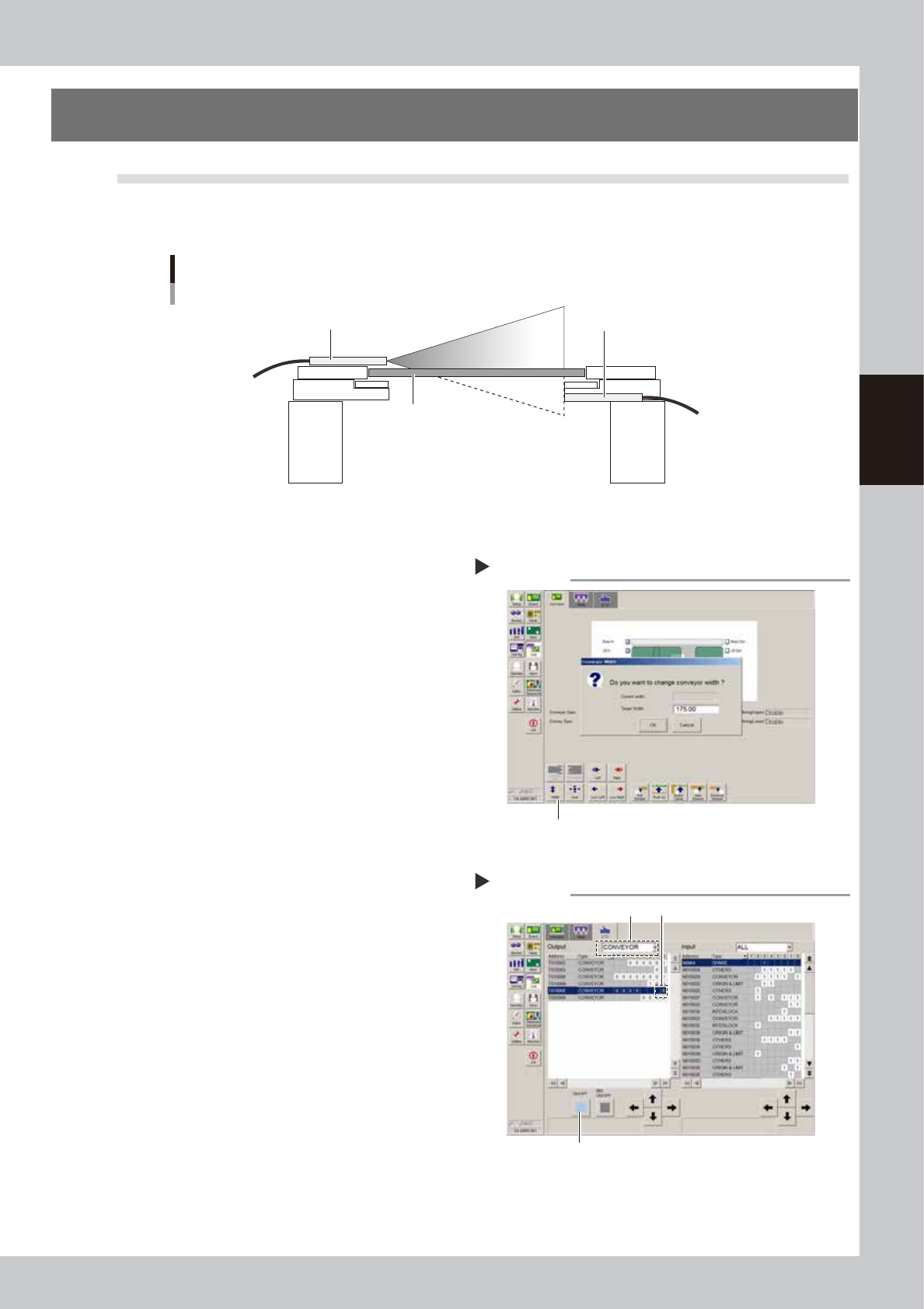
This machine uses a transmission mode fiber sensor as the conveyor sensor.
Check whether the sensor operates correctly even when the conveyor rail width is changed.
Checking the conveyor sensor condition and operation
Light emitter
Light receiver
Board
53353-N7-00
1
Open the [Unit] – [Conveyor] tab.
2
Press the [Width] button to change
the conveyor width.
In the "Conveyor Width" dialog box that
appears, enter a conveyor width and press
[OK].
The conveyor is changed to the width that
was just entered.
3
Check whether an error has
occurred.
The conveyor sensor is operating properly
unless an error message appears when the
conveyor width is changed. No further
check is necessary.
If an error message appears, then adjust the
sensor with the procedure below.
54301-N7-00
n
Adjusting the conveyor sensor
If an error occurred when the conveyor width was
changed, check the output status of the conveyor
sensor.
1. Open the [Unit] – [I/O] tab.
2. From the "Output" drop-down list, select
"CONVEYOR".
3. Select "CONV SENSOR TUNING" (T01000E) in the
output I/O list.
4. Press the [ON/OFF] button to switch the I/O status
from "0" (OFF)
→
"1" (ON)
→
"0" (OFF) to perform
auto tuning.
5. On the [Unit] – [Conveyor] tab, press the [Width]
button again and change the conveyor width. The
sensor is operating properly unless an error message
appears.
54302-N7-00
Conveyor screen
Step 2
Width button
Conveyor sensor tuning
Step 3
2 3
4
3-2
3
Periodic maintenance items
1.2 Checking the board clamp condition and operation
1.2.1 Checking the board clamp condition
Check the following points to see the board clamp condition.
1. The board is clamped without play when the board clamp is raised.
2. There is no clearance between the board and the board hold plate when the board clamp is raised.
3. The board is flush with the upper surface of the conveyor rails when the board clamp is raised.
4. The board clamp unit moves smoothly.
1.2.2 Checking the board clamp operation
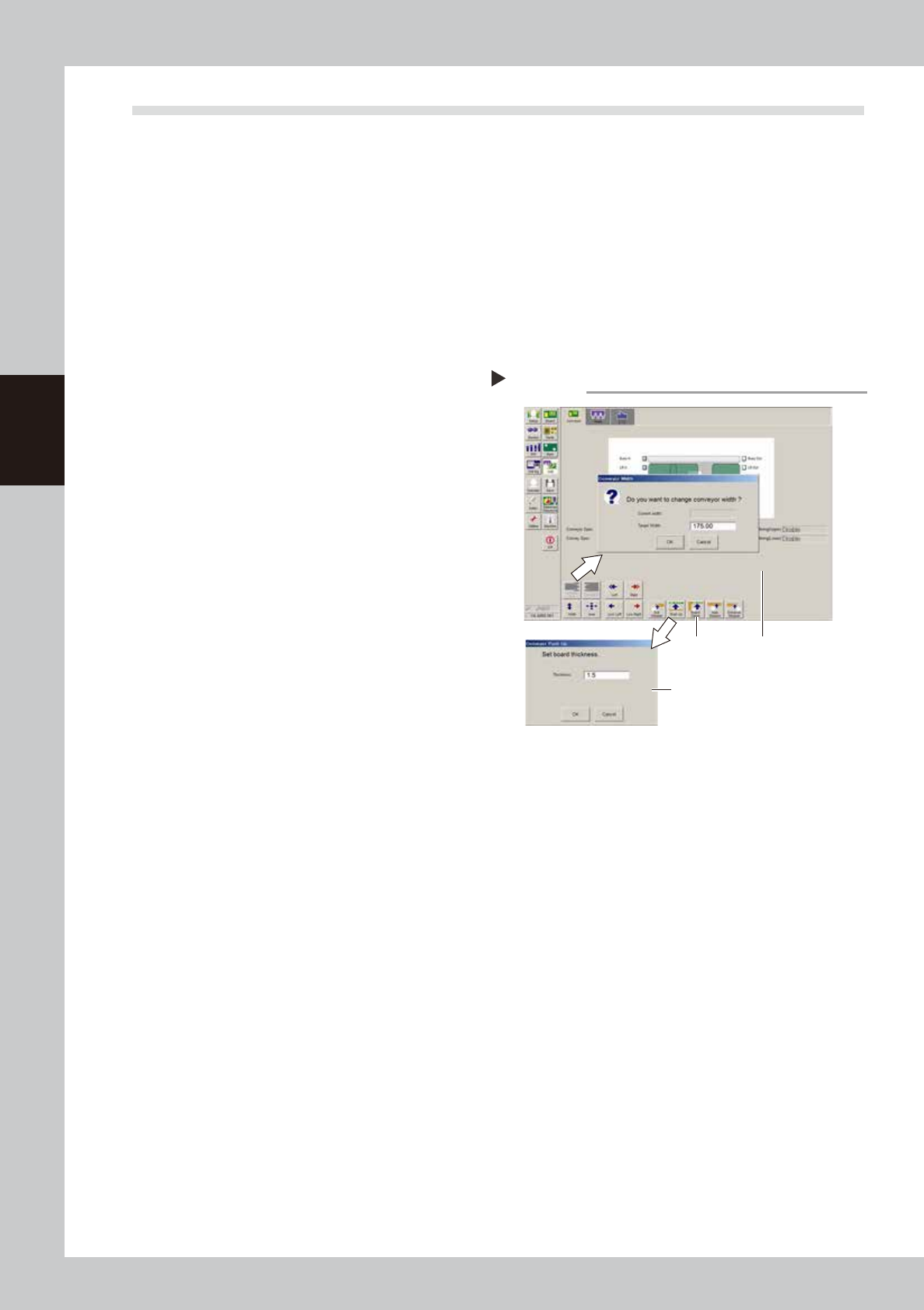
1
Open the [Unit] – [Conveyor] tab.
2
Press the [Width] button to set the
conveyor width.
In the "Target Width" box in the "Conveyor
Width" dialog box that appears, enter the
board width and press [OK]. The conveyor is
changed to the width that was just entered.
3
Press the [Push Up] button to enter
the board thickness.
In the dialog box that appears, enter the
board thickness and press [OK].
4
Press the [Board Clamp] button to
clamp the board.
5
Press the [Board Clamp] button
again to unclamp the board.
54303-N7-00
Repeat steps 4 and 5 to clamp and unclamp the
board to make sure the clamp unit operates
smoothly.
Checking the clamp operation
Step 2-5
Step4, 5
Step3
Step2