YSD_Users_E.pdf - 第354页
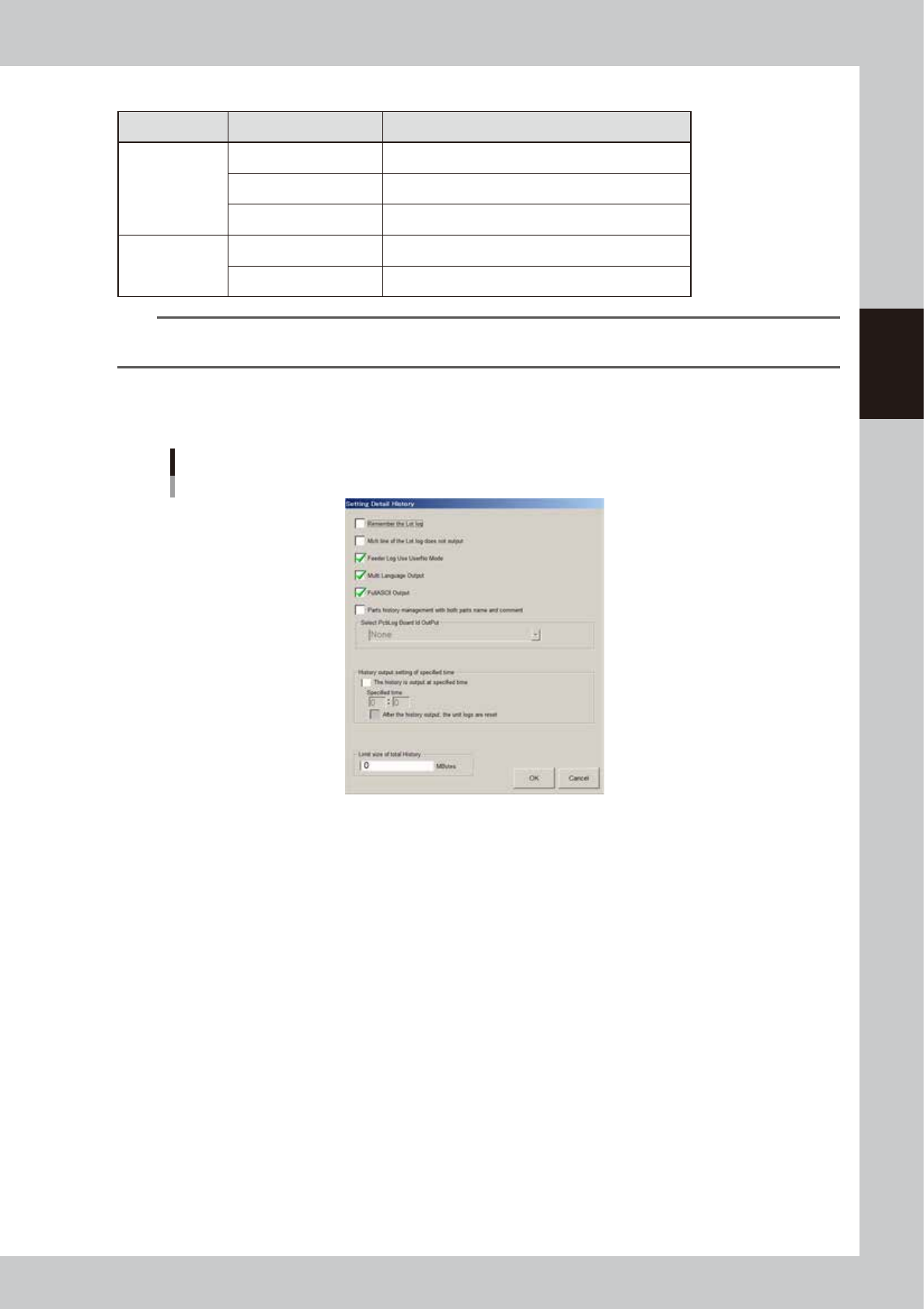
8-34 8 Managing the data 5 Select the check box es as needed. • “Remember the lot log” check box When this check box is selected, the board data that had been used when the power was last turned off is loaded when the po…
8-33
8
Managing the data
n
File names automatically saved
Item Display item File name example
MIS
Error log ErrLog20080422.csv
Board log PcbLog20080422.csv
Program log LotLog20080422.csv
Unit log
Head Head20080422.csv
Conveyor Conv20080422.csv
TIP
Each file is automatically named when saved. It consists a predetermined log name (ErrLog, PcbLog, Part, Feeder,
etc.) followed by a number representing the date such as "20080422" (April 22, 2008). A new file is created each day.
4
Press the [History] button on the “Setting” screen.
The “Setting Detail History” dialog box then appears.
“Setting Detail History” dialog box
64833-N7-00

8-34
8
Managing the data
5
Select the check boxes as needed.
• “Remember the lot log” check box
When this check box is selected, the board data that had been used when the power was last
turned off is loaded when the power is next turned on. The production lot data will be taken over.
• “Mch line of the Lot log does not output” check box
The lot logs of machines equipped with multiple stages or dual lanes include the “Stage” or “Lane”
column. Select this check box if you do not want to display the “Mch” row in the “Stage” or “Lane”
column.
• “Multi Language Output” check box
When this check box is selected, the production log data can be saved and loaded in multi-
language mode.
• “FullASCII Output” check box
When this check box is selected, incorrect character strings (character strings that cannot be used
with the machine) will be automatically converted into appropriate characters when a file is loaded.
Incorrect character strings (examples): !#$%&@*<>?/
• “History output setting of specified time” check box
Make this setting when specifying the time to output production log data.
Select the “History output setting of specified time” check box and enter the time in 24-hour format
in the ”Specified time” box. Production log data will be output at the specified time every day and
automatically saved.
When the “After the history output, the unit logs are reset” check box is selected, the machine
operation log data (Unit log data) will be reset at the time when production log data is output.
• “Limit size of total history” box
A limit can be set on the total amount of production log data to be saved. An alarm will be issued
when the free space remaining in the destination reaches the limit specified here. Setting this item to
“0” does not place any limit.
6
When finished setting, press the [OK] button.
The display returns to the “Setting” screen, and press the [Close] button to close it.
8-35
8
Managing the data
3.2.3 History Utility
The History Utility allows you to save production logs to an external storage medium at one time or clear/reset
them at one time.
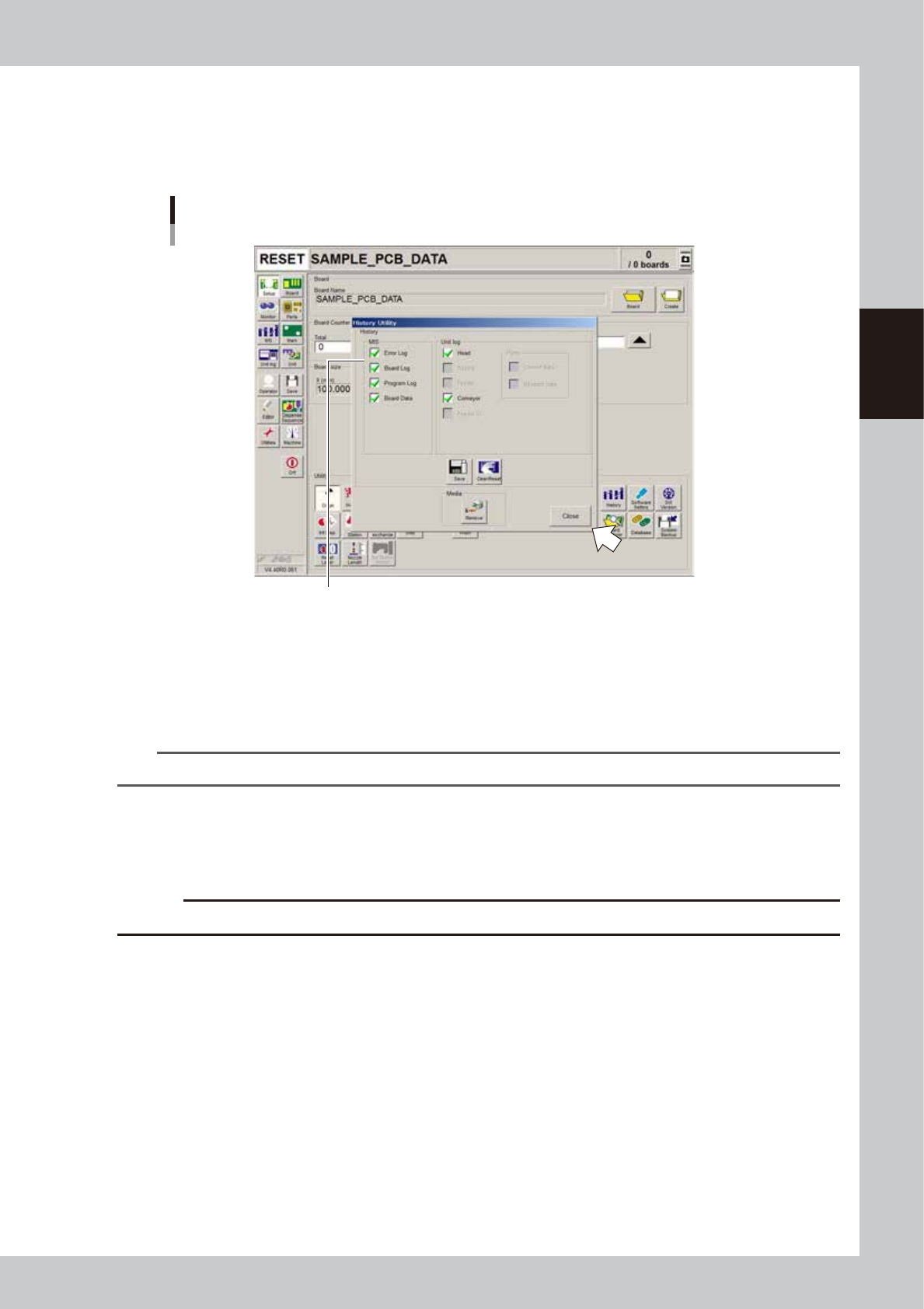
On the Setup screen, pressing the [History] button opens the "History Utility" screen as shown below.
History Utility
Check the necessary items.
64834-N7-00
To save logs at one time:
1. Check the check boxes next to the items you want to save, and press the [Save] button.
2. When the "Media Select" screen appears, check or select the storage medium and press the [OK] button.
3. A confirmation dialog appears. Press the [Yes] button to save the selected items.
4. Another dialog appears when the selected items have been saved. Press the [OK] button to close the dialog box.
TIP
Production logs are saved in a folder named "My History" in the external storage medium.
To clear/reset logs at one time:
1. Check the check boxes next to the items (MIS) you want to clear or the items (Unit log) you want to reset, and press the
[Clear/Reset] button.
2. A confirmation dialog appears. Press the [Yes] button to clear/reset the selected items.
c
CAUT ION
Deleted data cannot be restored, so be careful.