YSD_Users_E.pdf - 第334页
8-14 8 Managing the data 4 Start making a backup. n T o make a system backup: 1. Press the [Backup] button. 2. A confir mation message appears asking if you want to make a backup file. Check the backup destination and th…
8-13
8
Managing the data
1.3.2 Making a backup
The following steps describe how to back up system data using a USB flash drive.
1
Insert a USB memory into the USB port.
Insert the USB memory into the USB port of the machine.
2
Check the USB memory connection.
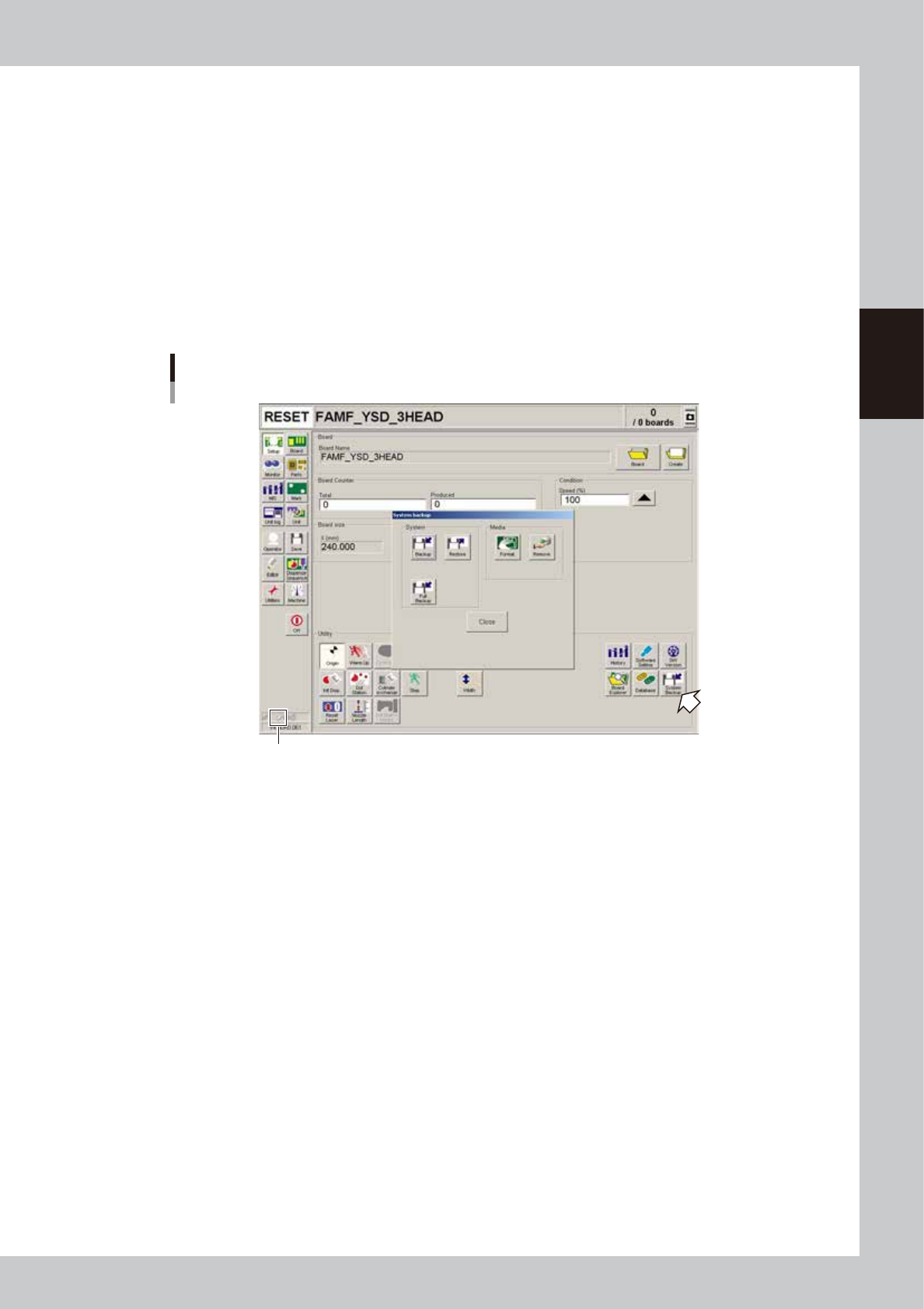
The indicator on the lower left of the operation screen shows the connection status.
The connection is complete when the USB memory icon appears red.
The connection is incomplete if the USB memory icon is grayed out. Try reconnecting the USB memory.
3
Open the “System backup” screen.
On the Setup screen, press the [System Backup] button under “Utility”.
“System backup” screen
USB memory icon
64808-N7-00
8-14
8
Managing the data
4
Start making a backup.
n
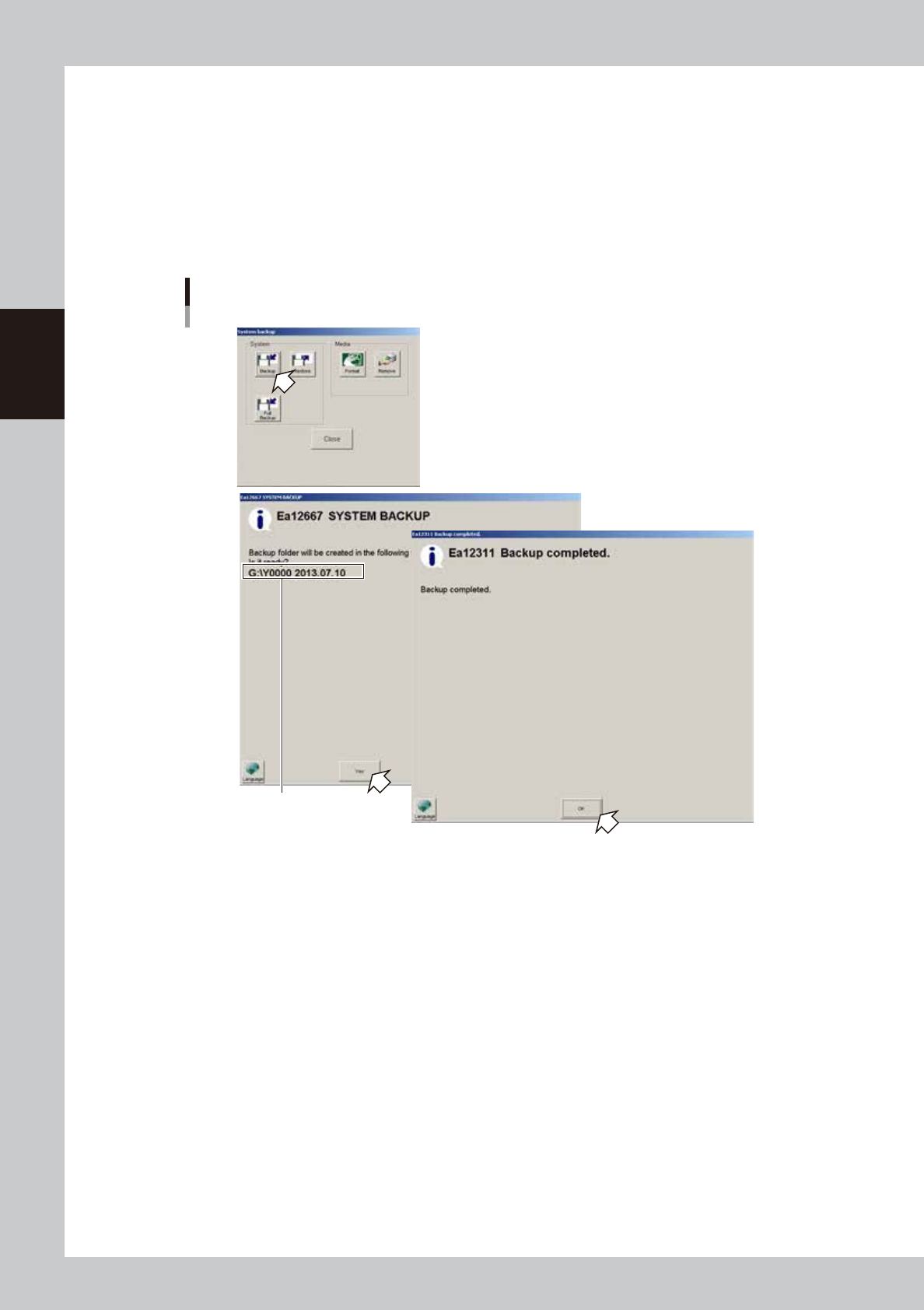
To make a system backup:
1. Press the [Backup] button.
2. A confirmation message appears asking if you want to make a backup file. Check the backup
destination and then press the [Yes] button.
System backup will start.
3. Another message appears when system backup is complete. Press the [OK] button to close the
message screen.
System backup
Check the backup destination.
64809-N7-00
4. When returned to the “System backup” screen, press the [Close] button to exit it.
8-15
8
Managing the data
n
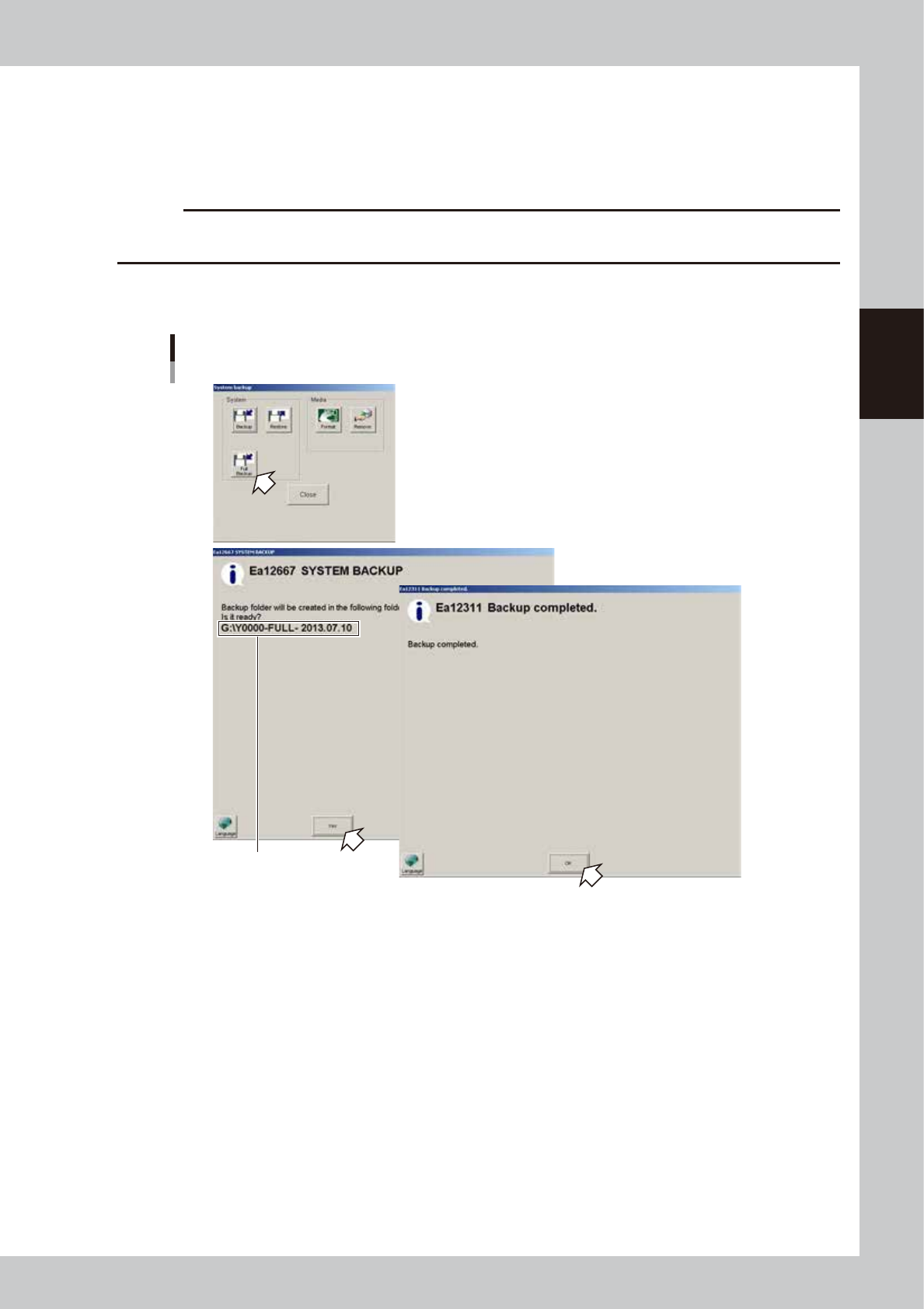
To make system full backup:
1. Press the [Full Backup] button.
2. A confirmation message appears asking if you want to make a backup file. Check the backup
destination and then press the [Yes] button.
System full backup will start. It will take about 20 minutes to complete.
c
CAUTION
If you want to cancel the backup, press the ESC key on the keyboard.
The data being created will not be deleted even if the backup is cancelled (or fails).
3. Another message appears when system full backup is complete. Press the [OK] button to close the
message screen.
System full backup
Check the backup destination.
64810-N7-00
4. When returned to the “System backup” screen, press the [Close] button to exit it.