YSD_Users_E.pdf - 第93页
2-33 2 Basic operation 3 Check the test results and adjust the air pressure. Check that the “Error” column shows “Success”. When an error is issued , check the dispensing state. If the dispensed amount is low, the air pr…
2-32
2
Basic operation
3.7 Performing a dispensing test
After bleeding air from the nozzle, perform a dispensing test to check the dispensing state. The dispensing test will be
performed based on the predispense information in the board data. This section describes how to perform a dispensing test.
For more details, see “2. Dispensing test function” in Chapter 4.
1
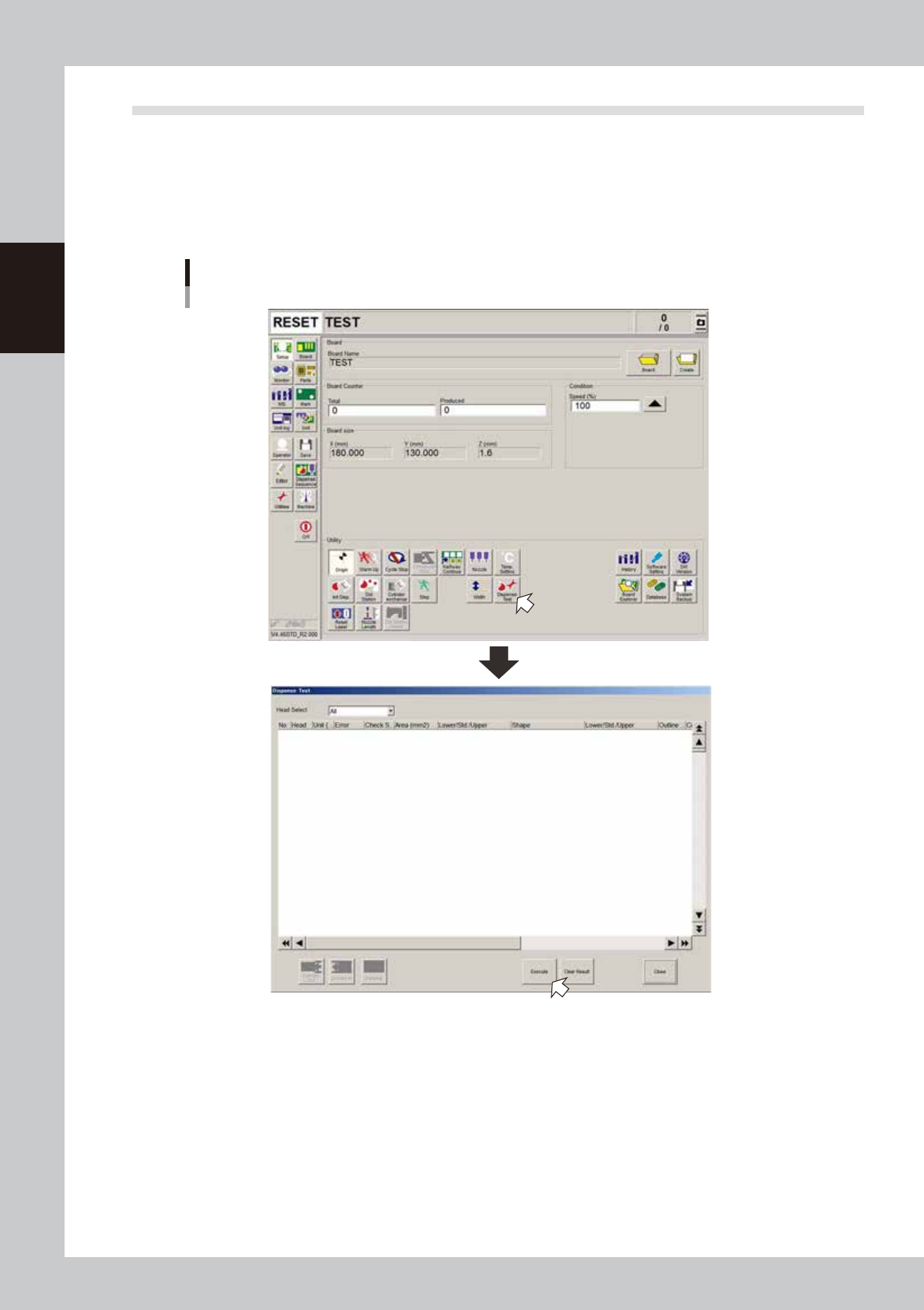
On the Setup screen, press the [Dispense Test] button.
The “Dispense Test” window appears.
”Dispense Test” window
64237-N7-00
2
Press the [Execute] button.
A dispensing test will be performed.
To perform a dispensing test on a board, press the [Conveyor in] button to set the board on the
conveyor and then press the [Execute] button.
2-33
2
Basic operation
3
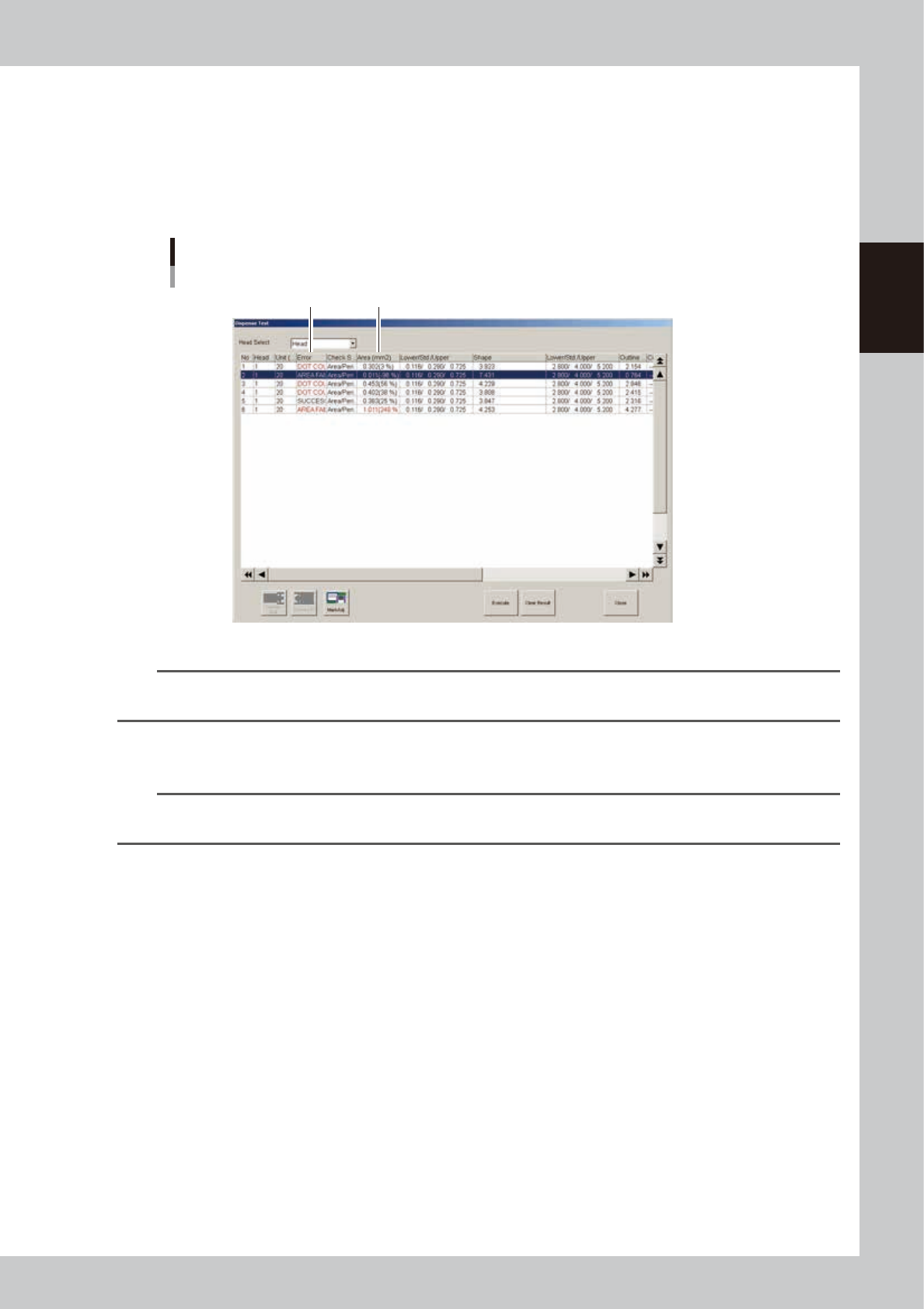
Check the test results and adjust the air pressure.
Check that the “Error” column shows “Success”. When an error is issued, check the dispensing state. If
the dispensed amount is low, the air pressure should be increased so that the test result will be
“Success”. To adjust the air pressure, check the percentage values in the “Area (mm2)” column. Raise
the air pressure for a minus value or lower the air pressure for a plus value. After adjusting the air
pressure, press the [Execute] button again to perform a dispensing test. Check the test results and adjust
the air pressure as needed until the percentage values are within ±20%.
Dispense test results
Error
Area (mm
2
)
64238-N7-00
n
NOTE
The “A: Check Shape” parameter in the [Mark]-[Shape] information should be set to “Area/Peri.”. In this case, an error
will be issued when “D: Area Tol. (%)” or “E: Shape Tol. (%)” with respect to “B: Std. Area (mm2)” is exceeded.
4
Finish the task.
Press the [Close] button to close the “Dispense Test” window.
TIP
To check the dispensing state with the camera, specify the head from the “Head Select” drop-down list, select the
dispensing No. you want to view, and press the [Mark Adj] button.
2-34
2
Basic operation
3.8 Starting board production
Start operation.
1. Check safety and press the [START] button on the operation panel.
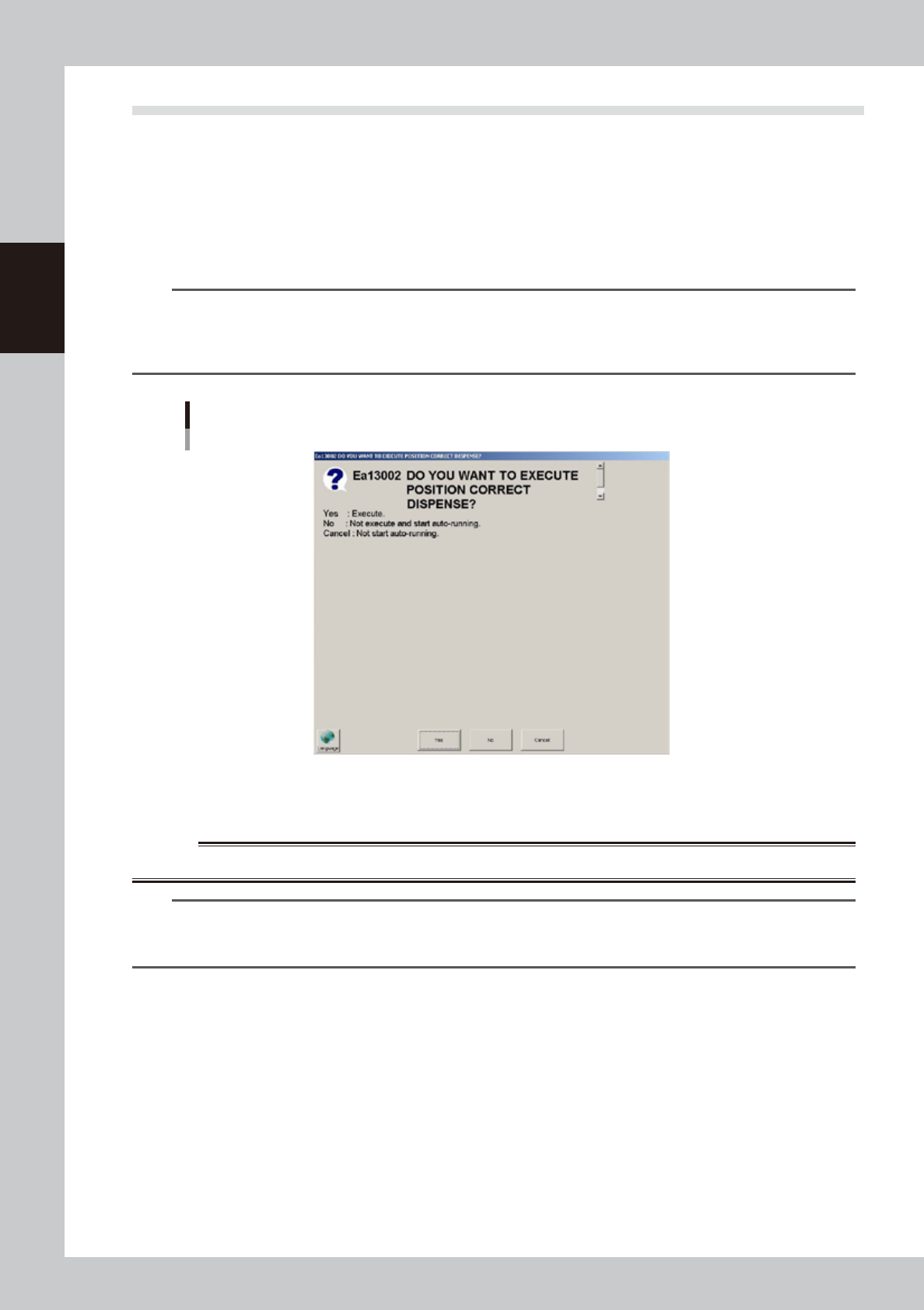
When the position correction dispense function is used, after pressing the [Dispense] button in the
“Cylinder exchange” window or the [Blow] button on the [Unit]-[Head] tab, pressing the [START]
button displays a dialog box for correcting the dispensing positions.
If a nozzle has been detached and reattached, press the [Yes] button. If not, press the [No] button.
For detailed information, see “4. Position correction dispense function” in Chapter 4.
TIP
Dispensing for position correction is automatically performed when starting production immediately after power is
turned on. So in this case, the dialog box for correcting the dispensing positions does not appear even when the
[START] button is pressed. The dialog box may appear after the board data is changed or the safety cover is opened/
closed, although depending on the setting.
Dialog for position correction dispense
64239-N7-00
2. When the entrance sensor detects the board, the conveyor belt will start rotation. The board will be
transferred to the work position, and dispensing operation will start.
w
WARNING
NEVER ENTER THE MOVABLE AREA OF THE HEAD WHILE THE GREEN LAMP IS LIT (MACHINE IS IN AUTOMATIC OPERATION).
TIP
Operation will not start until the target syringe temperature is reached.
Whether the target syringe temperature is reached can be checked on the [Unit]-[Head] tab. After the temperature
rises to the target temperature, press the [START] button on the operation panel to start production.