YSD_Users_E.pdf - 第198页
5-9 5 Creating the board data 3 Select the board data to be copied. 1. Press the [Select File] button on the right of the "Copy from other file" box. The "Board data select" screen appears. Check the …
5-8
5
Creating the board data
2.1.2 Utilizing board data already registered
1
Press the [Create] button on the Setup screen.
The "Create Board Data" dialog box appears.
2
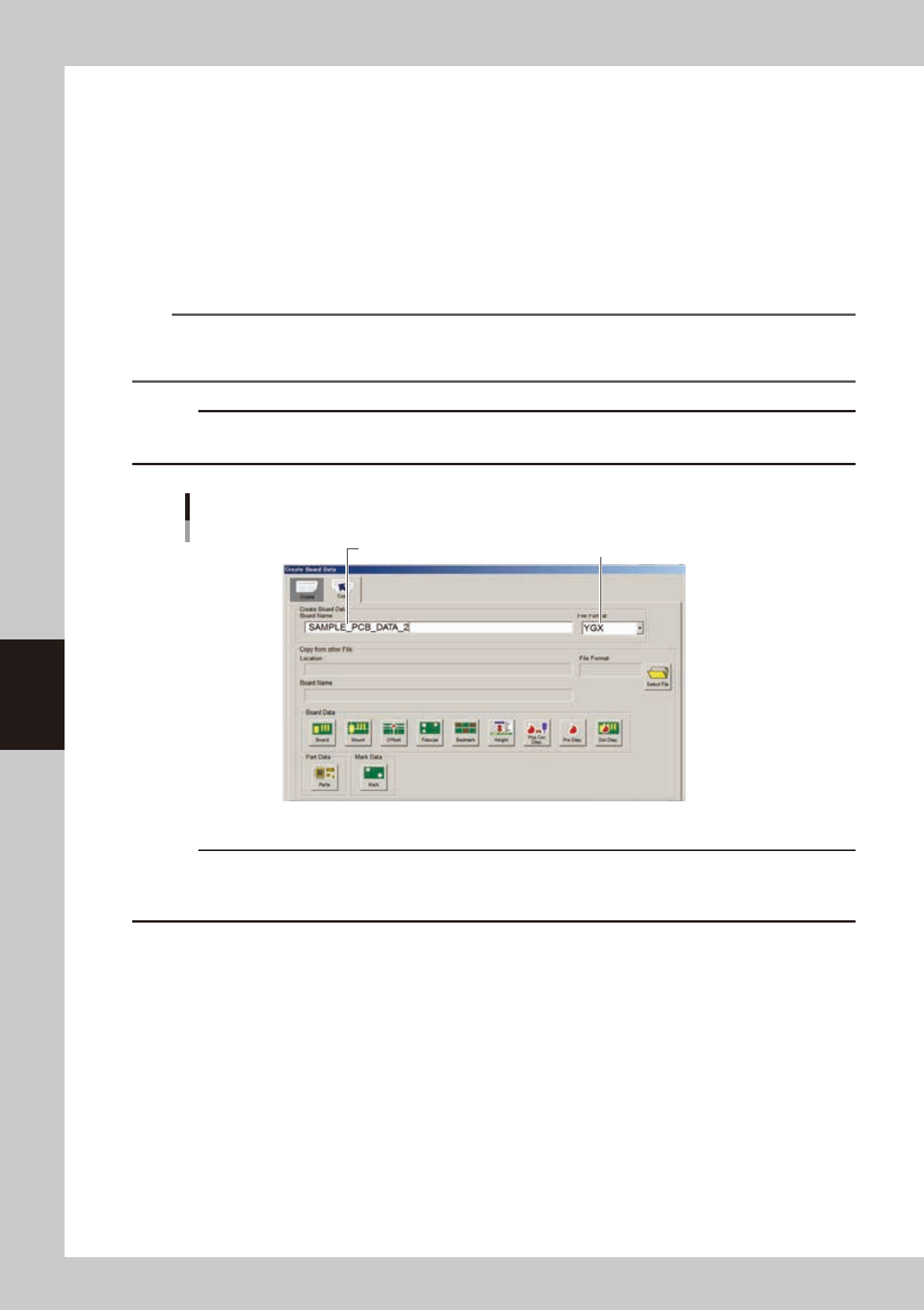
Open the [Copy] tab and enter a board name in the "Board Name" box.
Select the file format and enter a board name from the keyboard.
• When the file format is VIOS, enter the board name within 20 alphanumeric characters.
• When the file format is YGX, up to 260 alphanumeric characters can be entered, but about 40
characters are displayed in the status area.
n
NOTE
The following characters can be used in board names.
abcdefghijklmnopqrstuvwxyzABCDEFGHIJKLMNOPQRSTUVWXYZ0123456789_ Spaces cannot be included in a board
name. Use underbars instead.
c
CAUT ION
When a file format other than "YGX " is selected, some information cannot be stored. T he functions regarding those
information might not be used.
Enter board name. Select the “YGX” file format.
Entering a board name
64582-N7-00
c
CAUT ION
An alert dialog appears if board data with the same name has already been registered. Register it with another board
name in this case. Pressing the [OK ] button in the alert dialog box will overwrite the existing board data with the same
name.
5-9
5
Creating the board data
3
Select the board data to be copied.
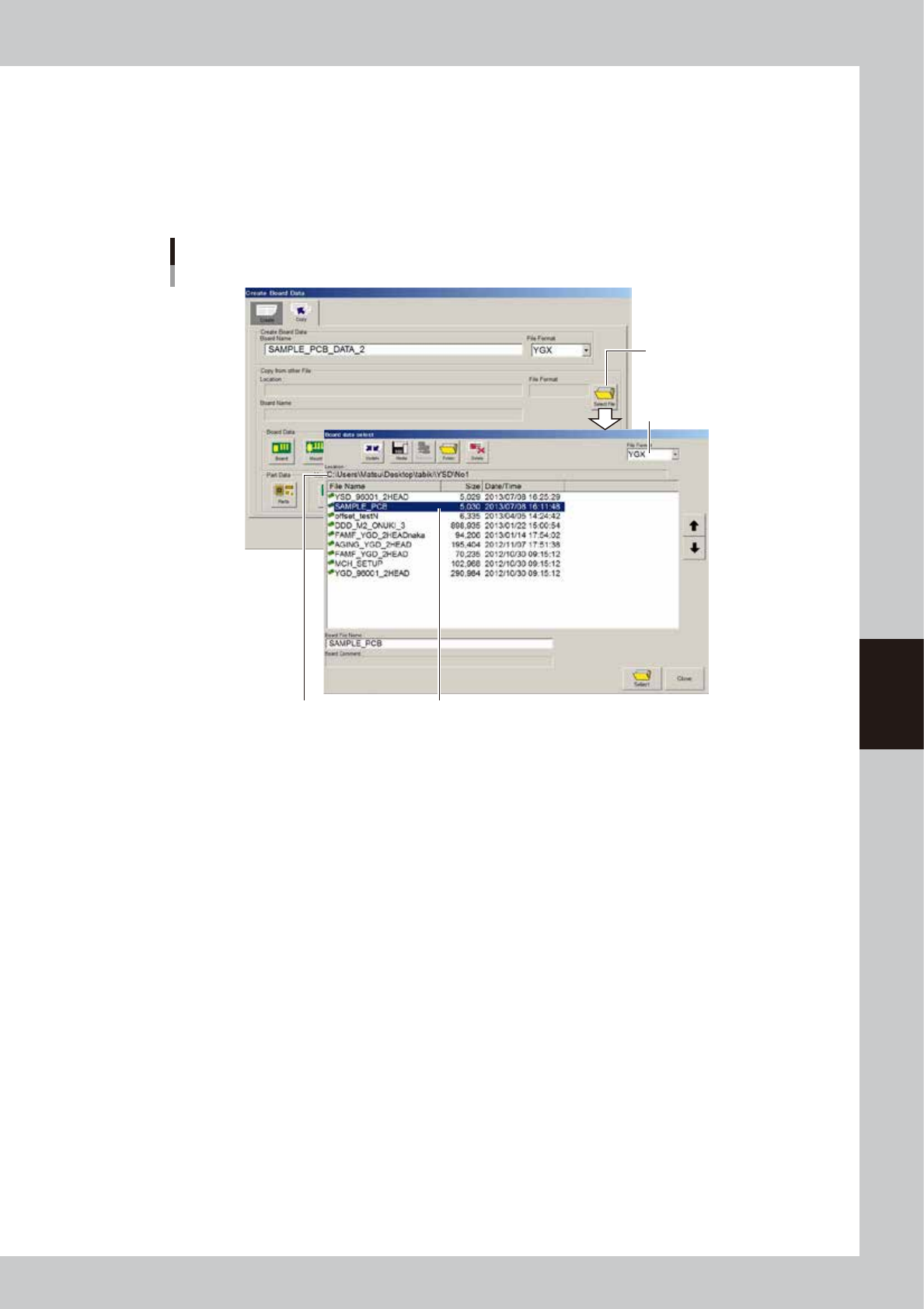
1. Press the [Select File] button on the right of the "Copy from other file" box.
The "Board data select" screen appears. Check the file location and file format.
2. Select the board data to be copied and press the [Select] button.
3. The display returns to the [Copy] tab after the board data is selected. The information on the
selected board data is displayed in the "Copy from other file" box.
[Select File] button
Check "Location". Select board data.
Selecting the data to be copied
Select file format.
64583-N7-00
5-10
5
Creating the board data
4
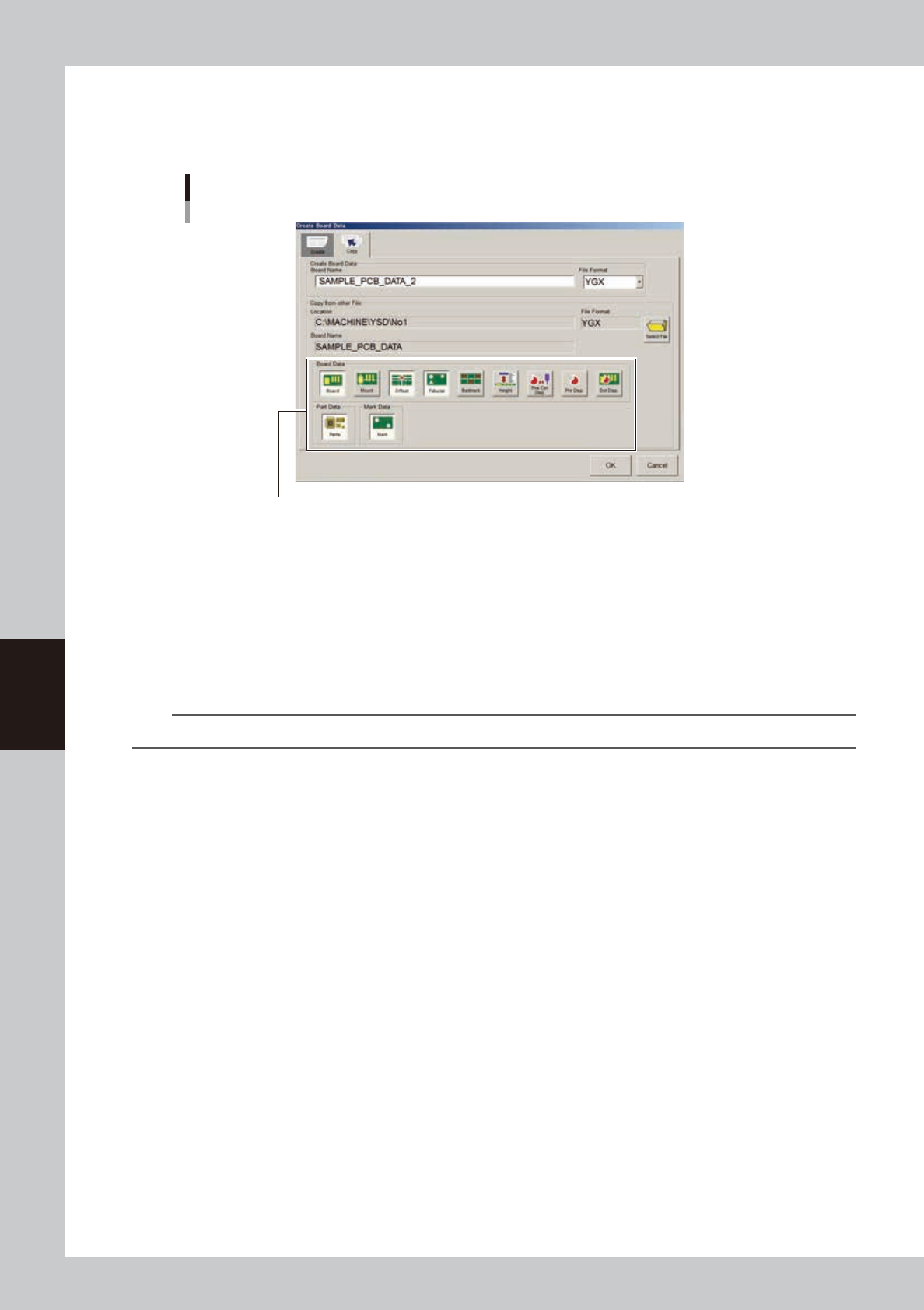
Select the data to be copied.
Among the board data, parts data, and mark data, select the data you want to copy by pressing their
buttons.
Selecting data to be copied
Select data to be copied.
64584-N7-00
5
Press the [OK] button to start copying.
The display returns to the Setup screen when the copying is complete.
6
Save the board data.
1. Press the [Save] button in the main menu button area.
The "Board data save" dialog box appears.
2. Check the location and file format to save the board data, then press the [Save] button.
n
NOTE
VIOS format data must be saved in the "No 1" folder.