YSD_Users_E.pdf - 第187页
4-59 4 Making the dispensing stable 5 C orrect the XY data. If the center cursor in the vision monitor is off center of the dispense position, correct t he XY data. Two kinds of correction methods are available: by enter…
4-58
4
Making the dispensing stable
4
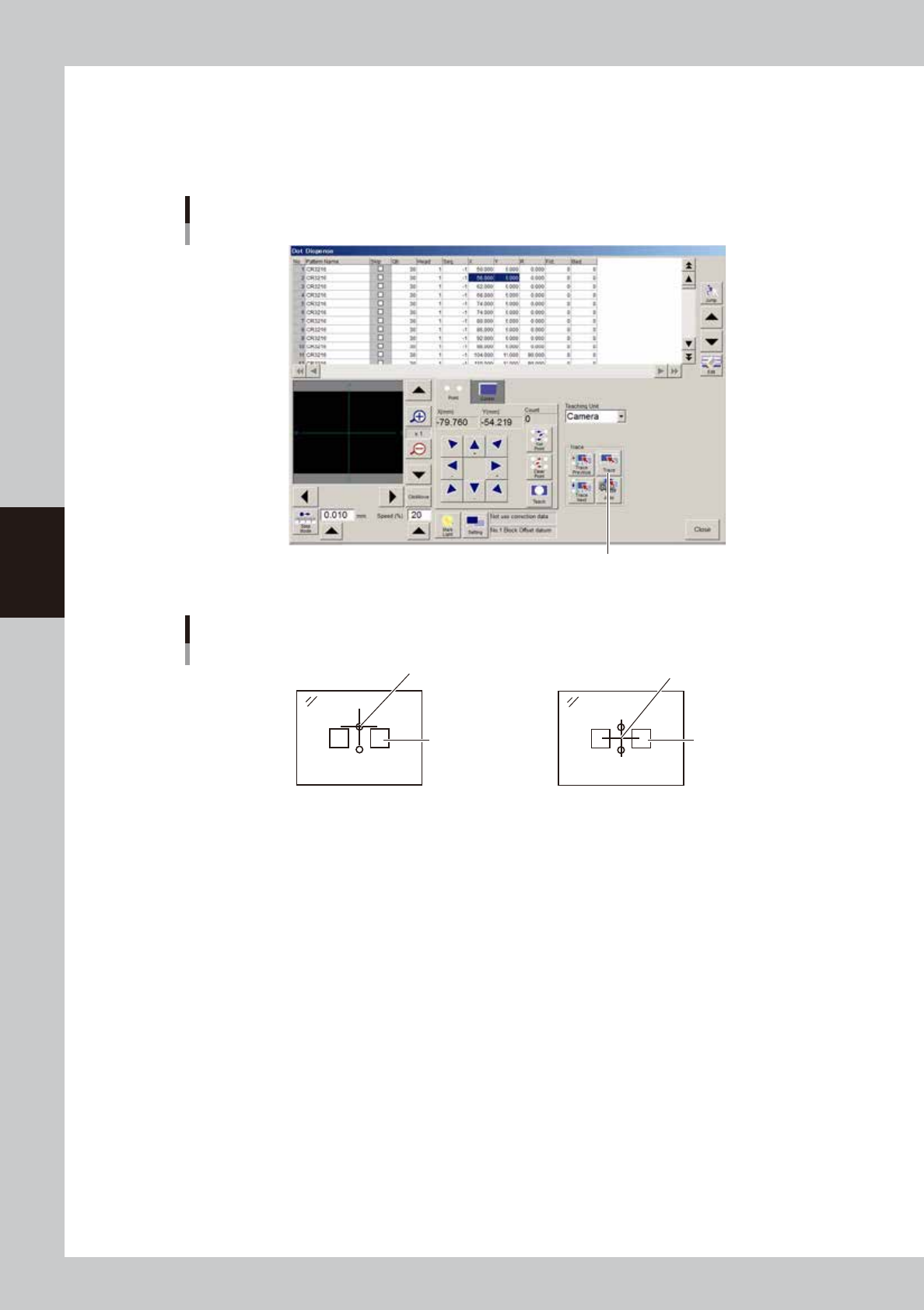
Check dispense positions.
1. Press the [Trace] button.
2. The camera moves to the selected dispense position. Check that the center cursor in the vision
monitor is located at the center of the dispense position.
[Trace] buttons
[Trace] button
64457-N7-B0
Displaying in the vision monitor
Land pattern
Center cross cursor
2-shot nozzle1-shot nozzle
Land pattern
Center cross cursor
63422-N7-00
4-59
4
Making the dispensing stable
5
Correct the XY data.
If the center cursor in the vision monitor is off center of the dispense position, correct the XY data.
Two kinds of correction methods are available: by entering values directly and by teaching.
Correcting by entering values directly
In the vision monitor, find how much correction is required in the X and Y directions, and then enter the
necessary X and Y values.
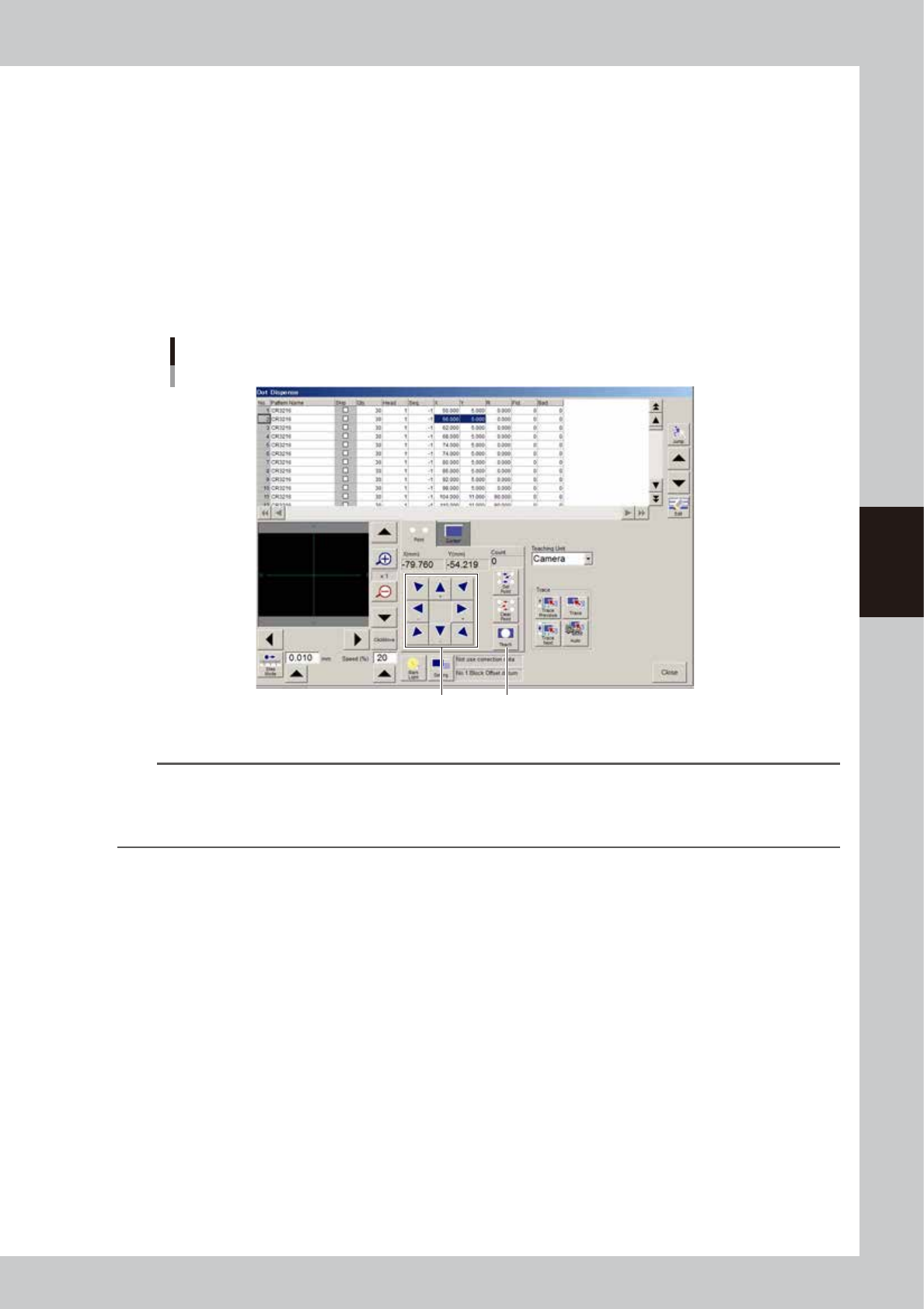
Correcting by teaching
Proceed as follows.
1. Using the [move camera] buttons (arrow buttons), move the camera to locate the center cursor in
the vision monitor to the center of the dispense position.
2. Press the [Teach] button. The coordinate data will be updated to match the camera position.
Teaching
Use these arrow buttons
to move the camera.
[Teach] button
64458-N7-C0
TIP
If all the dispense positions at a certain angle are off for a certain head, make adjustments using "Precision Zigzag"
parameter.
For instance, if all the 90-degree dispense positions in Y direction for head 1 are 0.08 mm off, subtract 0.08 from the
"Precision Zigzag" parameter (Head 1: 90° Y(mm)) and enter the result.
6
Check the land pattern name.
Check whether the component names (e.g. R23, U12) printed on the board matches the land pattern
name registered in the dot dispense information. If the name has not been entered, enter it now. If the
component names printed on the board are not within the camera's view field, use the [move camera]
buttons (arrow buttons) to adjust the camera position.

Chapter 5 Creating the board data
Contents
1. Overview 5-1
1.1 Creating the board data from mounter data 5-2
1.2 Creating the board data from CAD data 5-3
1.3 Creating the board data by manual input 5-4
2. Registering and selecting board name 5-5
2.1 Registering board names 5-5
2.1.1 Registering a new board name 5-5
2.1.2 Utilizing board data already registered 5-8
3. Creating the setup information 5-11
3.1 Nozzle information 5-11
3.2 Temperature setting 5-12
4. Creating the board information 5-13
4.1 Board parameters 5-14
4.2 Mount parameters 5-16
4.3 Offset parameters 5-18
4.3.1 Pitch distribution function 5-20
4.4 Fiducial parameters 5-22
4.4.1 Board fiducial function 5-23
4.4.2 Block fiducial function 5-23
4.4.3 Local fiducial functions 5-24
4.5 Badmark parameters 5-26
4.5.1 Using the badmark functions 5-27
4.6 Height correction parameters (option) 5-29
4.7 Position correction dispense parameters 5-30
4.8 Pre-dispense parameters 5-31
4.9 Dot dispense parameters 5-33