YSD_Users_E.pdf - 第222页
5-33 5 Creating the board data 4.9 Dot dispense parameters T his section explains how to set dot dispense parameters required when performing dispense using the dispense head. Press the [Board] button, and then the [Dot …

5-32
5
Creating the board data
4. Qty.
Set the quantity of adhesive to be dispensed.
5. Head
Set the head No. to be used for dispense.
6. Sequence
Used to refer to a dispense sequence for which predispensing quantity, head's up/down speed etc. have been set.
If "-1" is entered, an appropriate sequence will be selected automatically according to the nozzle type and adhesive
quantity.
7. X, Y
Set the predispensing XY coordinates so that dots are not overlapped.
8. R
Set the dispense angle. "+" indicates counter-clockwise, and "-" indicates clockwise.
If "Check" is selected for the Skip parameter, this parameter will be ignored and cannot be changed.
9. Mark
If "Check" is selected for the Skip parameter, dot dispense condition is checked. Set the mark No. to be used to check the
dispensed dot.
If you are not checking dot dispense condition, set "0".
If "Check" is not selected for the Skip parameter, this parameter will be ignored and cannot be changed.
10. Feedback
Select the check box to check and correct the dispense dot size.
5-33
5
Creating the board data
4.9 Dot dispense parameters
This section explains how to set dot dispense parameters required when performing dispense using the
dispense head.
Press the [Board] button, and then the [Dot Dispense] tab. The dot dispense screen will appear, so check or set
dot dispense parameters.
TIP
• When parts information and mount information are available, the dispense information can be automatically
created by using the dispense distribution (see “7.1 Dispense distribution” in this chapter).
• The teach function can also be used to enter the coordinates. For details, see “7. Checking and correcting the
dispensing positions” in Chapter 4.
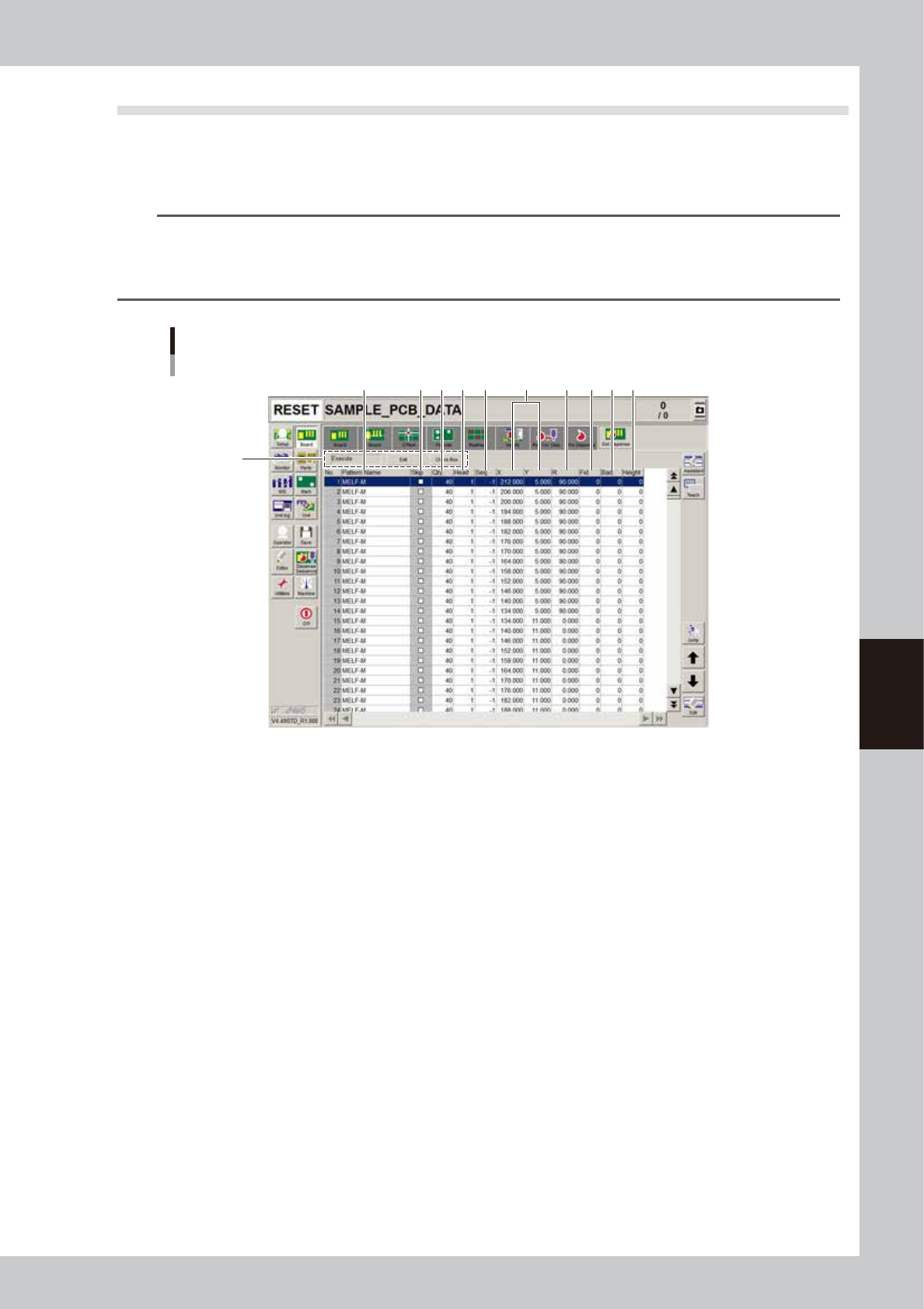
Dot dispense parameter screen
2
1
3 7 94 5 6 108 11
64516-N7-00
1. Dot dispense parameters
Set whether to perform dot dispense.
To change the current setting, press the [Edit] button. If skip is selected, dot dispense will be skipped.
2. Pattern Name
Enter the desired dot dispense name.
3. Skip
Set whether to perform dot dispense for each component.
4. Qty
Set the quantity of dot dispensing liquid.
5. Head
Set the head No. to be used for dot dispense.
6. Sequence
Specify the desired dispense operation sequence number for which dot dispense quantity, head up/ down speeds, etc.
have been set beforehand.
If "-1" is entered, an optimal dispense operation sequence will be selected automatically according to the nozzle type
and adhesive quantity.
7. X, Y
Set the dot dispense XY coordinates so that dots are not overlapped.
8. R
Set the dispense angle. "+" indicates counter-clockwise, and "-" indicates clockwise.

5-34
5
Creating the board data
9. Fid.
Set the fiducial No. to be used for dot dispense.
If you are not using the fiducial function, set "0".
10. Bad
Set the badmark No. to be used for dot dispense.
If you are not using badmarks, set "0".
11. Height Correction
This parameter appears only when the machine is equipped with an optional laser displacement meter.
Enter the data No. that was set on the [Height Correction] tab.
Enter “0” if not using the height correction function.