YSD_Users_E.pdf - 第66页
2-6 2 Basic operation 3 Mo ve the machine to the origin position. When the move-to-origin dialog box appears, press [OK]. 4 Pr ess the [OK] button when the shutdown confirmation dialog bo x appears. e 5 Pr ess the emerge…
2-5
2
Basic operation
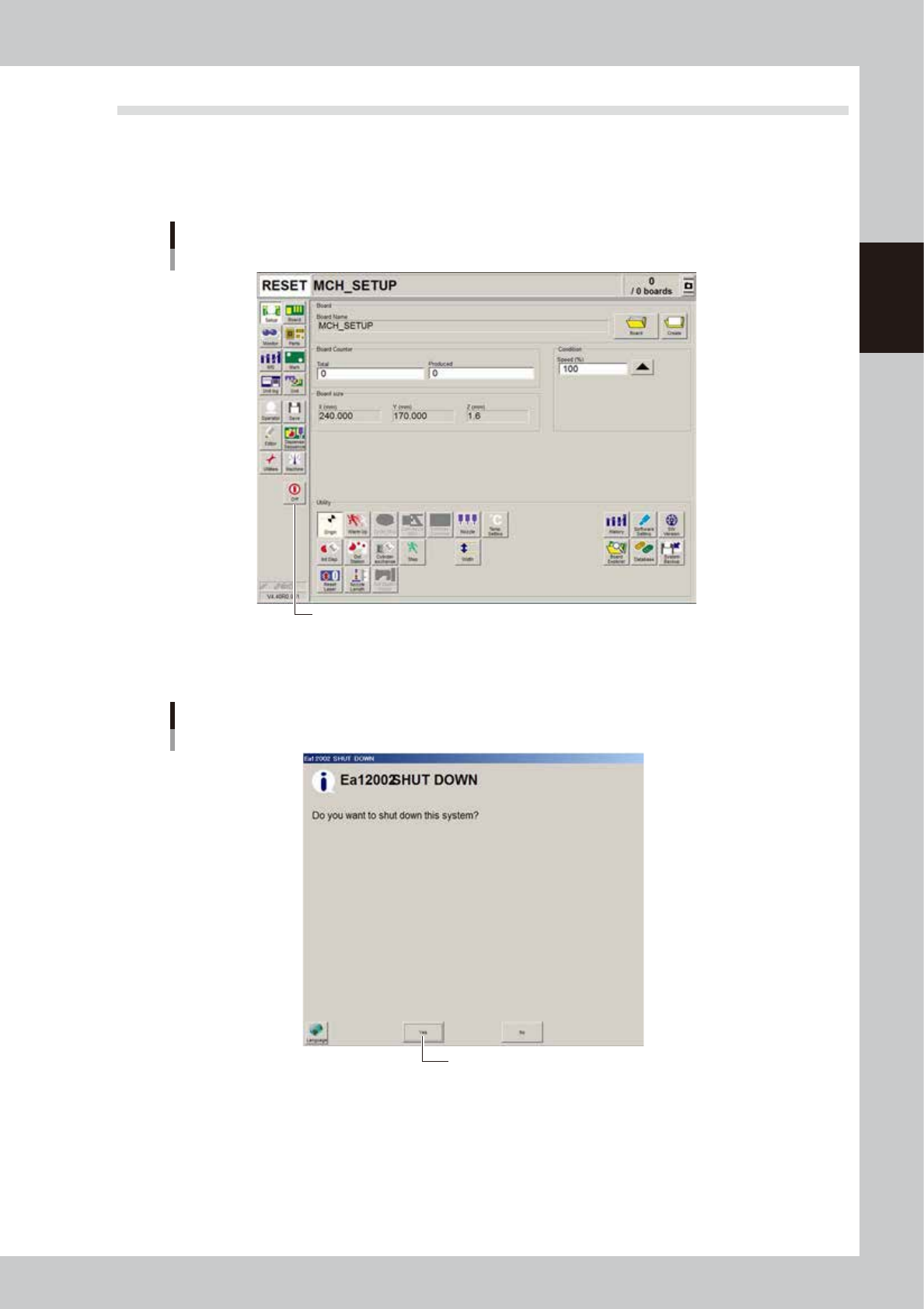
1.4 Turning off the machine power
Follow these steps to turn off the machine power.
1
Press the [Off] button.
Press the [Off] button located in the button area.
[Off] button
[Off] button
64223-N7-00
4
Press “Yes” when the confirmation dialog box appears.
Confirmation dialog box
Press [Yes].
64224-N7-00

2-6
2
Basic operation
3
Move the machine to the origin position.
When the move-to-origin dialog box appears, press [OK].
4
Press the [OK] button when the shutdown confirmation dialog box appears.
e
5
Press the emergency stop button.
When the emergency stop dialog box appears, press the emergency stop button and then press the
[OK] button.
6
Turn off the power switch on the machine.
When the message "Ready to shut down" appears, press the [OK] button and then turn off the power
switch on the lower right of the machine.
c
CAUTION
If you turn off the power without following the correct sequence, the data may be damaged.
2-7
2
Basic operation
2. Operation screen and buttons
The basic configuration and operation methods of the software screens are explained in this section. Please
read through this section before operating the machine.
n
NOTE
Because standard specification systems have no keyboard or mouse, all operations are performed from the touch-
panel. A dialog box displays at parameter input operations, and the desired operations and inputs can then be
performed with the touch-pen.
2.1 Basic configuration of operation screen
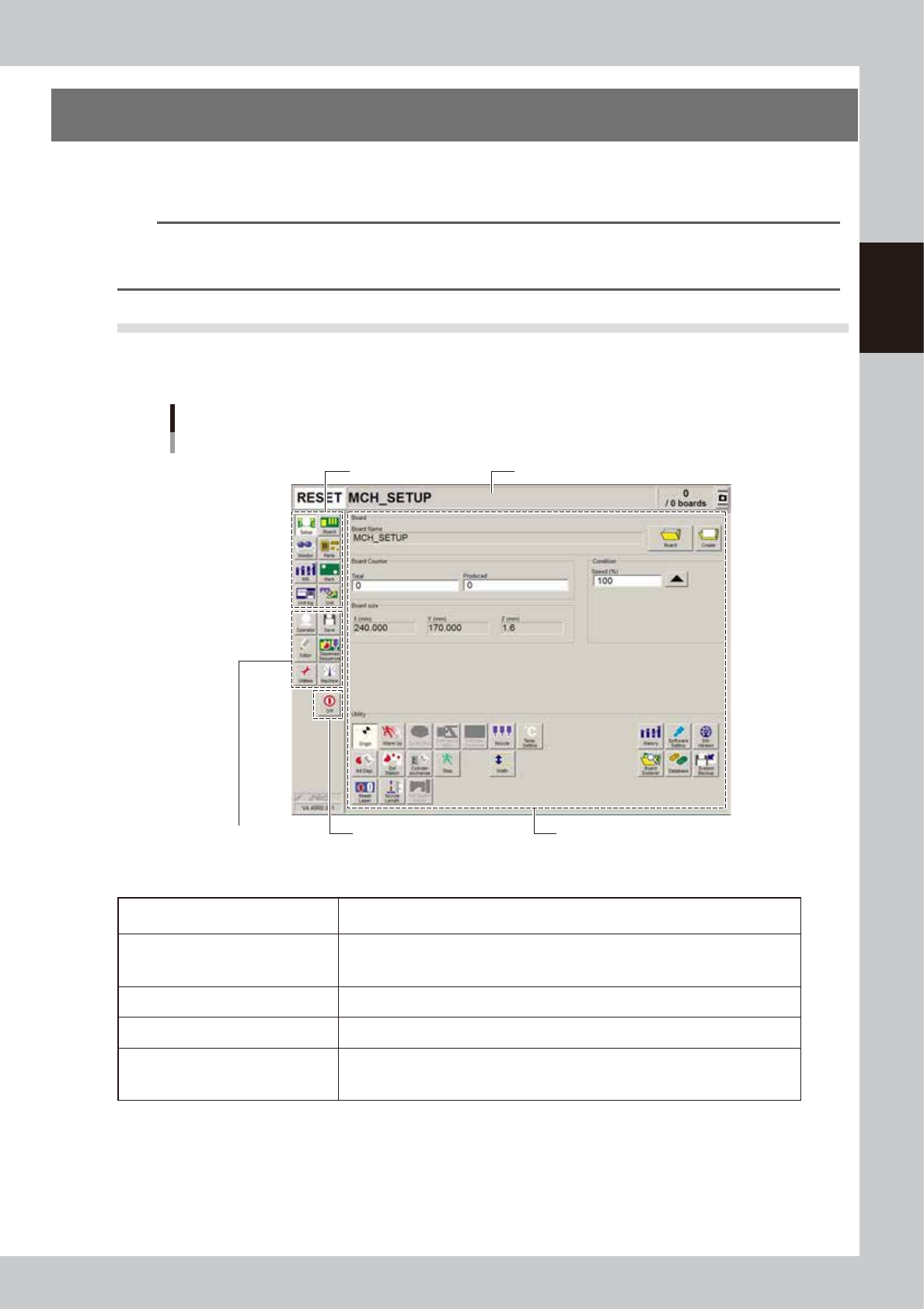
The operation screen can be divided into the "Status area", "Main menu button area" and "Submenu button and
parameter area" as shown below.
Operation screen basic configuration
Setup screen
Main menu button area 1
Main menu button area 2
Status area
Submenu button and parameter areaa
Main menu button area 3
64200-N7-10
n
Screen areas
Status area
Displays the current machine status on the left end, the selected board name in the
middle and the number of boards that have been produced on the right end.
Main menu button area 1
Shows the main menu buttons used to operate the machine.
The submenu button and parameter area will change according to the selected main
menu button.
Main menu button area 2 Shows the menu buttons used to call up auxiliary functions of the machine.
Main menu button area 3 Shows the [Off] button to turn off the machine.
Submenu button and parameter area
Displays the submenu buttons and parameters for machine operation and data
setting.
This area will change according to the selected main menu button.