YSD_Users_E.pdf - 第295页
7-1 7 Editing the board data 1. Using the Editor The Editor allows you to edit board data or create new board data. This section explains how to use the Editor available with the YGD operation software. 1.1 Star ting the…

Chapter 7 Editing the board data
Contents
1. Using the Editor 7-1
1.1 Starting the Editor 7-1
1.2 Editor window 7-2
1.3 Jump 7-5
1.3.1 Specifying the row to jump 7-5
1.3.2 Jump to the first row 7-6
1.3.3 Jump to the last row 7-6
1.3.4 Moving one row up or down 7-6
1.4 Copying and pasting the data 7-7
1.5 Find and replace 7-9
1.5.1 Find 7-9
1.5.2 Replace 7-10
1.6 Renumbering the parts number 7-12
1.7 Sort 7-13
2. Block offset 7-14
2.1 Creating the block offset data 7-14
2.2 Block offset distribution and return 7-17
2.2.1 Block offset distribution 7-17
2.2.2 Returning to the block offset data 7-19
3. Board file format conversion 7-20
3.1 Converting VIOS data into YGX data 7-20
3.2 Converting YGX data into VIOS data 7-22
4. Adding or deleting the dispensing points 7-24
4.1 Adding the dispensing points 7-24
4.2 Deleting the dispensing points 7-25
7-1
7
Editing the board data
1. Using the Editor
The Editor allows you to edit board data or create new board data. This section explains how to use the
Editor available with the YGD operation software.
1.1 Starting the Editor
1
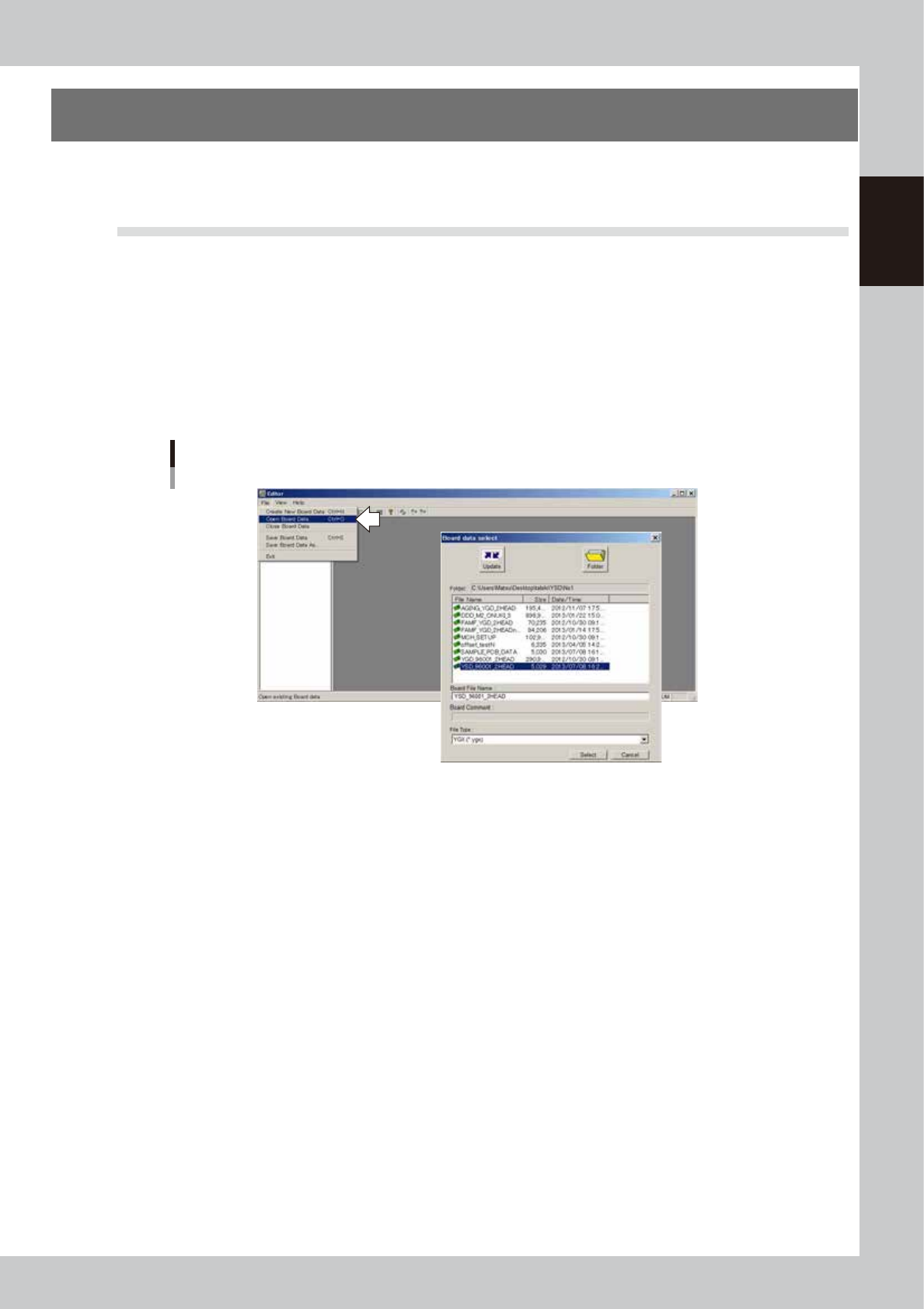
Press the [Editor] button to start the Editor.
The Editor window appears.
2
Select the board data you want to edit.
1. Select "Open Board Data" from the File menu or click the "Open Board Data" button on the toolbar.
The "Board select data" dialog box then appears.
2. Select the board data and click the [Select] button.
The selected board data is loaded and displayed in the Editor window.
Selecting the board data
64700-N7-00
7-2
7
Editing the board data
1.2 Editor window
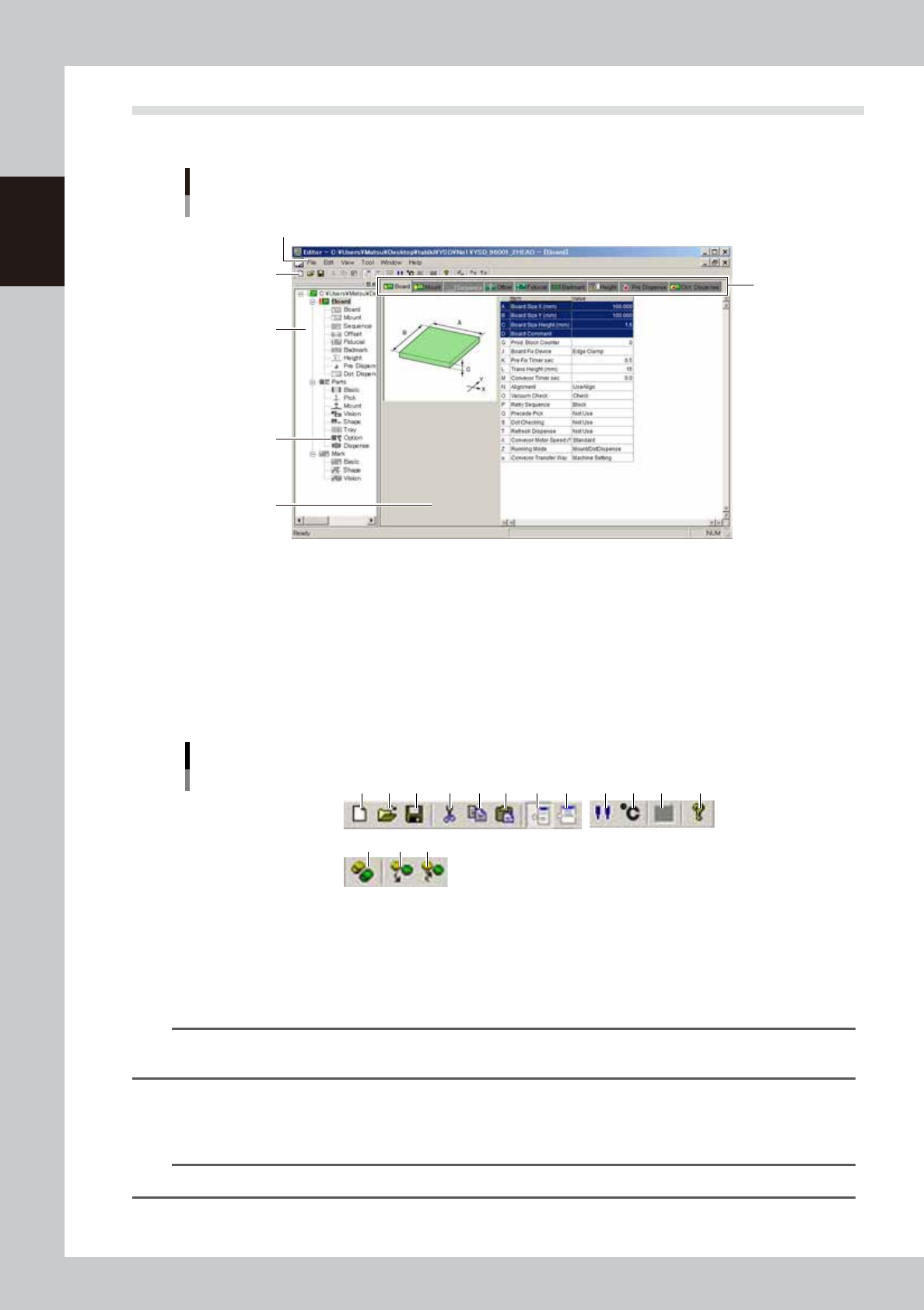
The Editor window consists of the following elements when board data is loaded.
Editor window
Board tab showing board data setting
Menu bar
Toolbar
Item icon
Tab
Tree view
Main view
64701-N7-00
Menu bar
The menu bar at the top of the Editor window contains pull-down menus with commands grouped by function.
Toolbars
Among the Editor functions, those frequently used are registered as the toolbar buttons. There are "Standard toolbar",
"Database toolbar" and "Library toolbar".
Each toolbar can be hidden or redisplayed by selecting it from the "Toolbar" submenu on the View menu.
Toolbars
Standard toolbar
Database toolbar
1 2 3
1 2 3
4 5 6 7 9 10 11 128
64702-N7-00
Standard toolbar
1. [New Board Data] button
Click this button to create new board data.
The initial data is loaded for creating new board data.
TIP
The [New Board Data] button performs the same function as the "Create New Board Data" command in the File
menu.
2. [Open Board Data] button
Click this button to load board data that is already registered.
The "Board data select" dialog box appears. Select the board you want to load in the Editor window.
TIP
The [Open Board Data] button performs the same function as the "Open Board Data" command in the File menu.