YSD_Users_E.pdf - 第99页
2-39 2 Basic operation n Monitor: Vision When the fiducial mark, badmark or dispensed dot is recognized during automatic operation, the recognized image is display ed. Monitor Vision 64219-N7-00 • Enlarge/reduce buttons …

2-38
2
Basic operation
• Delay Time (sec/board or seconds)
Shows the time that the machine has waited for board unloading. The average unloading delay time per board (sec per
board) or the cumulative unloading delay time (sec) can be displayed by pressing the unit change button on the right.
• Max. Output (boards/h)
• boards/h
This is the number of boards that can be produced in an hour. This is calculated in reverse from the average dispensing
time and average board transfer time. The board supply delay time and error stop time are not included.
• block/h
This is the number of blocks that can be produced in an hour. This is calculated in reverse from the average dispensing
time and number of blocks per board in the board information.
• shot/h
This is the number of shots that can be dispensed in an hour. This is calculated in reverse from the "Cycle Time (sec/
shot)" displayed on the [Main] tab screen.
• [Reset] button
Resets the production control information, including the various data, current production quantity, current unloader
quantity, scheduled production quantity and scheduled unloader quantity displayed on the screen. The "Board Counter"
value on the [Setup] screen is also reset when this production data is reset.
2-39
2
Basic operation
n
Monitor: Vision
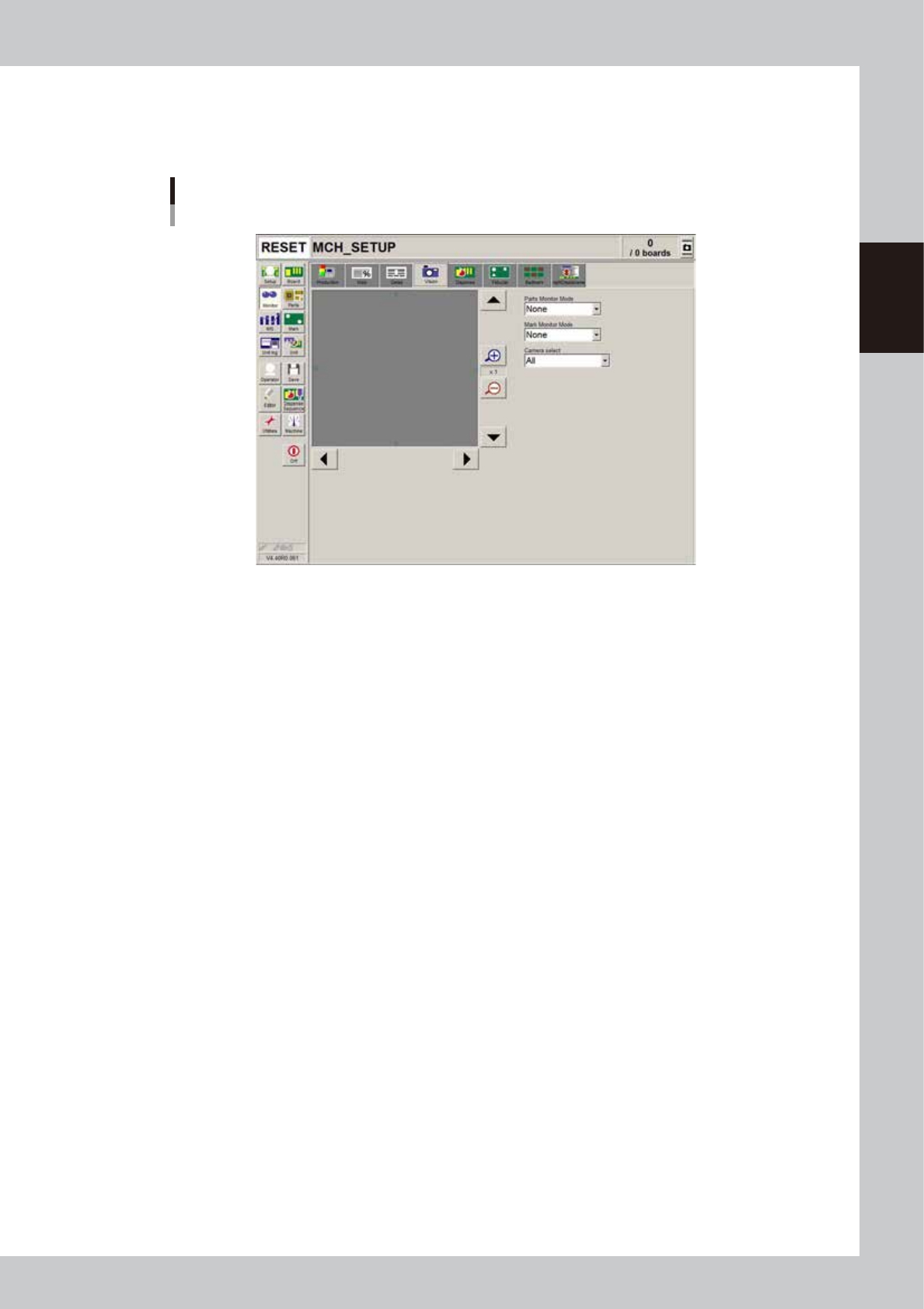
When the fiducial mark, badmark or dispensed dot is recognized during automatic operation, the recognized image is
displayed.
Monitor
Vision
64219-N7-00
• Enlarge/reduce buttons
The recognition results image can be enlarged from 1 to 16 times by pressing the enlarge (+) button. The image can be
reduced to 1/16 by pressing the reduce (-) button. Note that when the image is enlarged, the smooth part edges may
appear jagged, and when reduced, gray sections may appear around the edges. But this is not a fault.
• Up/down/left/right buttons
The arrow buttons at the right top and bottom of the screen are used to move the image vertically. The buttons at the
bottom left and right of the screen are used to move the image horizontally. Use these arrow buttons to view a section of
the image that is not displayed on the screen.
• Parts Monitor Mode
This function is not used with this machine.
• Mark monitor mode
This specifies the monitor display mode during mark recognition. The recognition results and binary image will appear
on the image according to the selected item. This monitor mode can be changed during operation.
"None" Displays the image taken by the camera. The recognition result values are not displayed.
"Result" Displays the center position coordinates (pixels) of the detected mark.
"Binary Image" Displays the image taken by the camera as a binary image.
"Grey Image" Displays the grey image after processing the image taken by the camera.
"Search Result" Draws a line to make an approximate circle around the mark.
"Datum Circle" Draws a mark of the specified diameter from the center of the detected mark. (Possible only in
specific recognition modes.)
"Tangent Circle" Draws an inscribed circle and circumscribed circle from the center of the detected mark. (Possible
only in specific recognition modes.)
"Error Image" Displays the error image. (Possible only in specific recognition modes.)
"Individual data" Displays the individual data when multiple objects are detected. (Possible only in specific recognition
modes.)
2-40
2
Basic operation
n
Monitor: Dispense
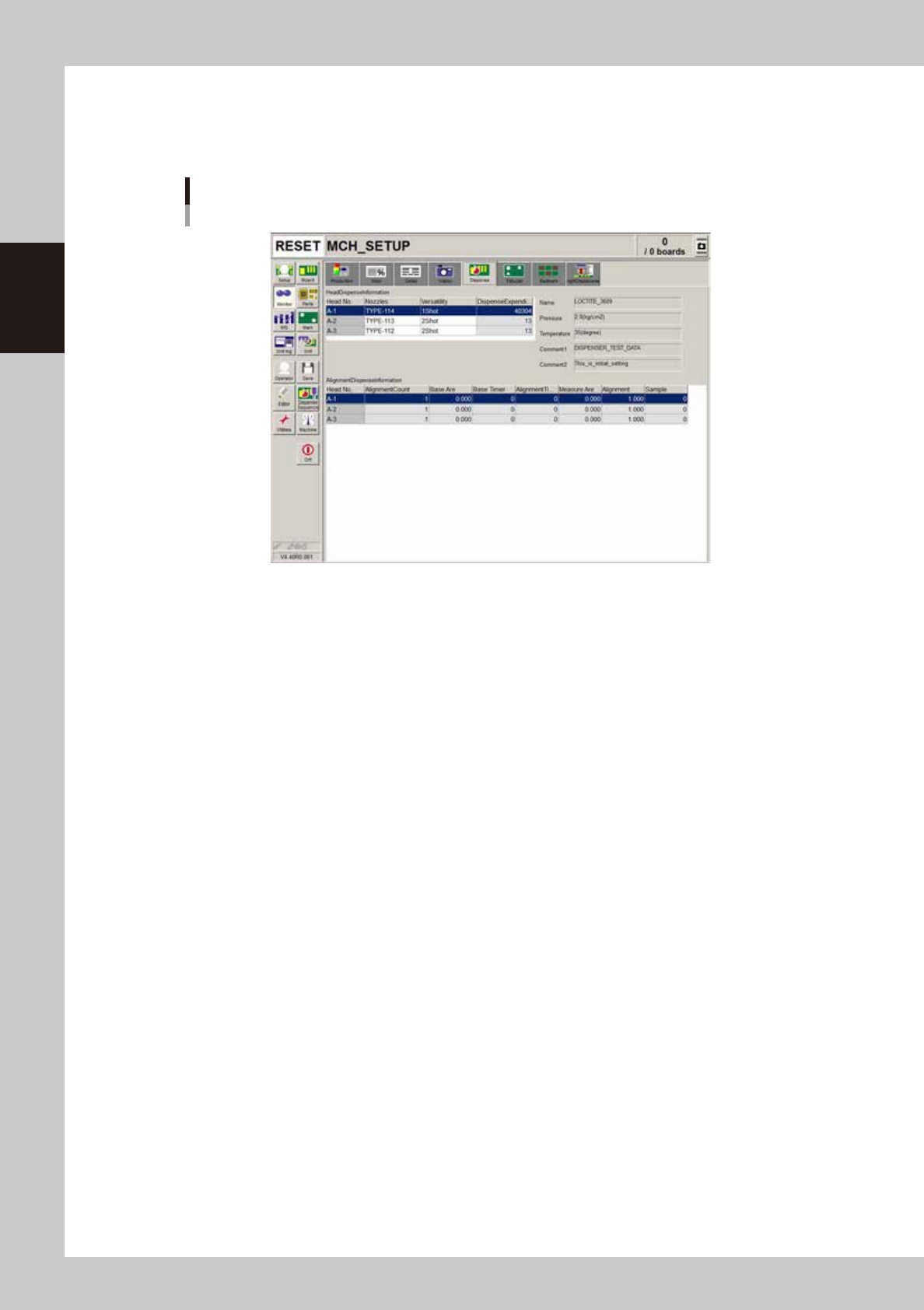
The total dispense expenditure and alignment dispense information for automatic operation are displayed in a table
format.
Monitor
Dispense
64220-N7-00
• Base Area
Shows the standard area specified in the mark information.
• Base Timer
Shows the amount of predispensing liquid used for correction. (Normally, the standard amount of liquid is set to 20.)
• Measure Area
Shows the average area of all the dots when alignment is performed.
• Alignment
Proportion type: Shows the magnification used for correction.
Addition type: Shows the difference between the standard area and the correction area.
• Sample
Shows the number of measured samples.