YSD_Users_E.pdf - 第131页
4-3 4 Making the dispensing stable 2.2 Per forming a dispensing test Use the following procedure to perform a dispensing test. 1 Open the “Dispense T est” window . On the Setup screen, press the [Dispense T est] button. …
4-2
4
Making the dispensing stable
2. Dispensing test function
2.1 Overview
This function does predispensing according to the predispense information specified in advance, and shows a
list of the results on the operation screen to make it easier to check the dispensing state and set the correct air
pressure. Optimal dispensing can easily be maintained by using this function to check and adjust the
dispensing state such as before starting daily production or when a recognition error occurs during operation.
The object here is a dispensing test so that unlike normal predispensing, there is no offset (correcting)
operation. The dispensing test can be started with the dedicated button on the Setup screen while in a reset
state, or started from the screen for selecting the next action that appears after a predispensing recognition
error occurs during automatic operation.
If making a specified number of dispensings at any liquid amount, see “4.1 Dispensing test (adjustment
screen)” in Chapter 6 for information on how to make the desired dispensing settings.
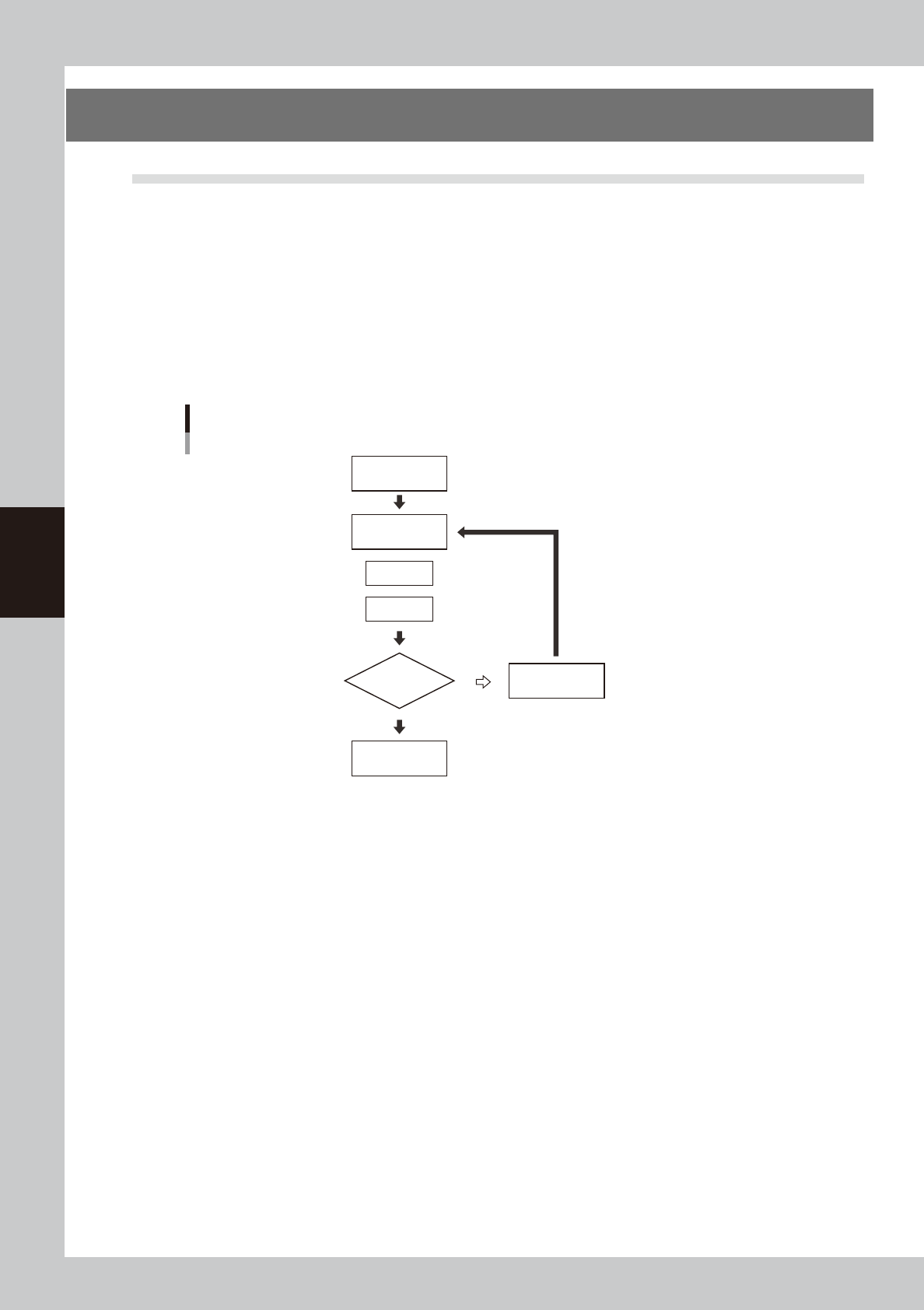
Dispensing test flowchart
Perform
dispensing test
Start
End
Dispense
Area is large ⇒ Lower air pressure
Area is small ⇒ Raise air pressure
Recognize
Check recognized
results
Adjust air pressure
NG (fail)
OK (pass)
63400-N7-00
4-3
4
Making the dispensing stable
2.2 Performing a dispensing test
Use the following procedure to perform a dispensing test.
1
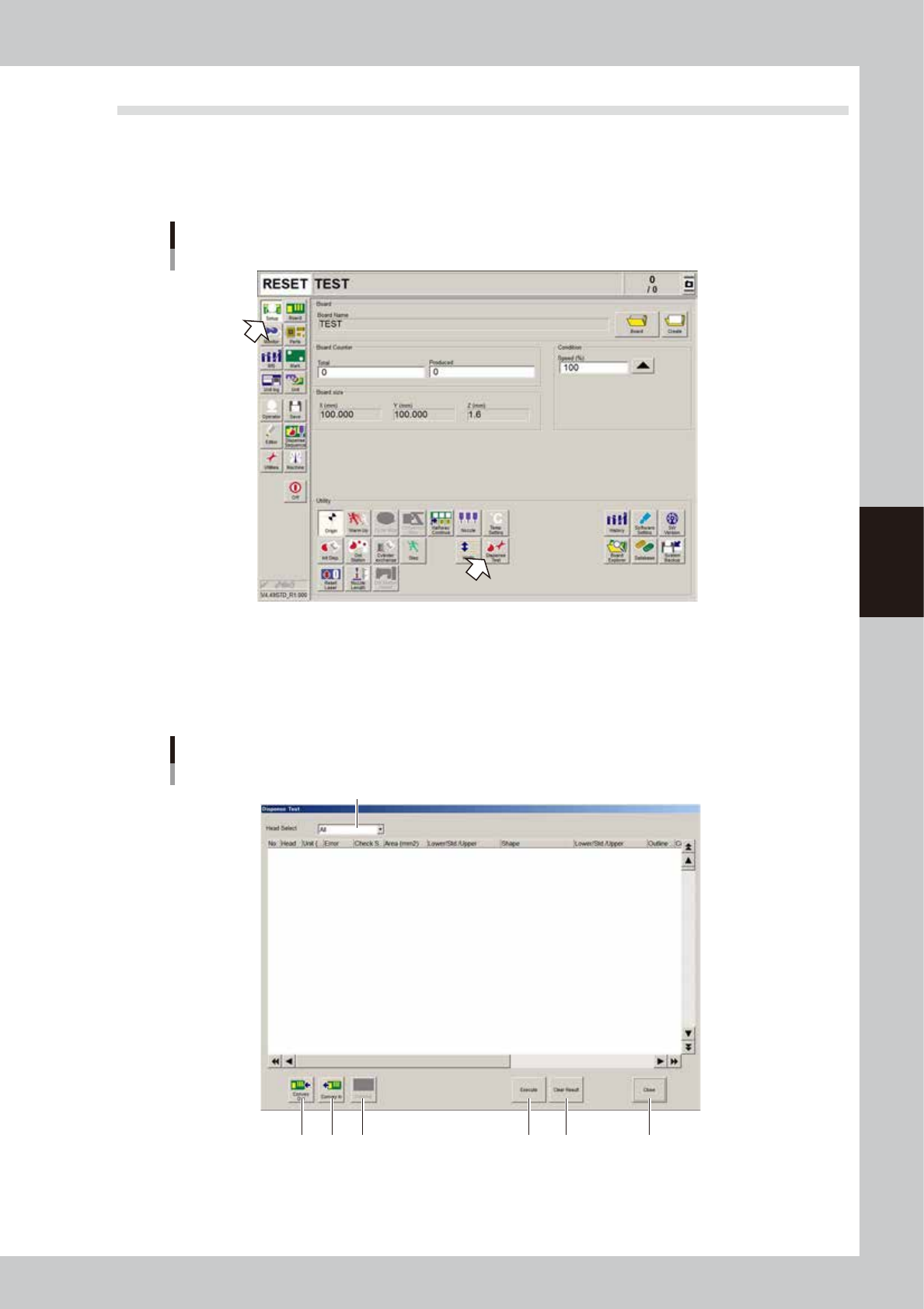
Open the “Dispense Test” window.
On the Setup screen, press the [Dispense Test] button.
Dispensing test
64400-N7-00
2
Perform a dispensing test.
To dispense liquid on the dot station, press the [Execute] button.
To dispense liquid on a board, press the [Conveyor In] button to set a board in position, and then press
the [Execute] button.
”Dispense Test” window
1
2 3 54 6 7
64401-N7-00
4-4
4
Making the dispensing stable
1. Head Select
Select the head to use for dispensing and recognition. (Head 1, Head 2, Head 3, All)
Default setting
“All” when started from the Setup screen
The head that failed recognition when started from automatic operation
2. Conveyor Out
Carries out the board from the machine.
3. Conveyor In
Carries in a board and clamp it in the work position.
4. MarkAdj
Pressing this button performs a trace check for the selected row. The Mark Adjust window appears only when “Yes” is
selected. However, when all heads have been used to check the correction amount, only the last head is used for trace.
Operation is possible after the recognition results are displayed in the window.
5. Execute
Performs recognition and dispensing by referring to the data on the head selected in the predispense information.
6. Clear Results
Clears the recognition results displayed in the window.
7. Close
Clears the recognition results and closes the window.
TIP
The [Conveyor Out] and [Conveyor In] buttons can be used when the predispensing setting is “Execute” (on board)
and the test was started from the Setup screen.
3
Check the recognition results of the dispensing test.
If an error is found in the recognition results, adjust the air pressure and then press the [Execute] button
again.
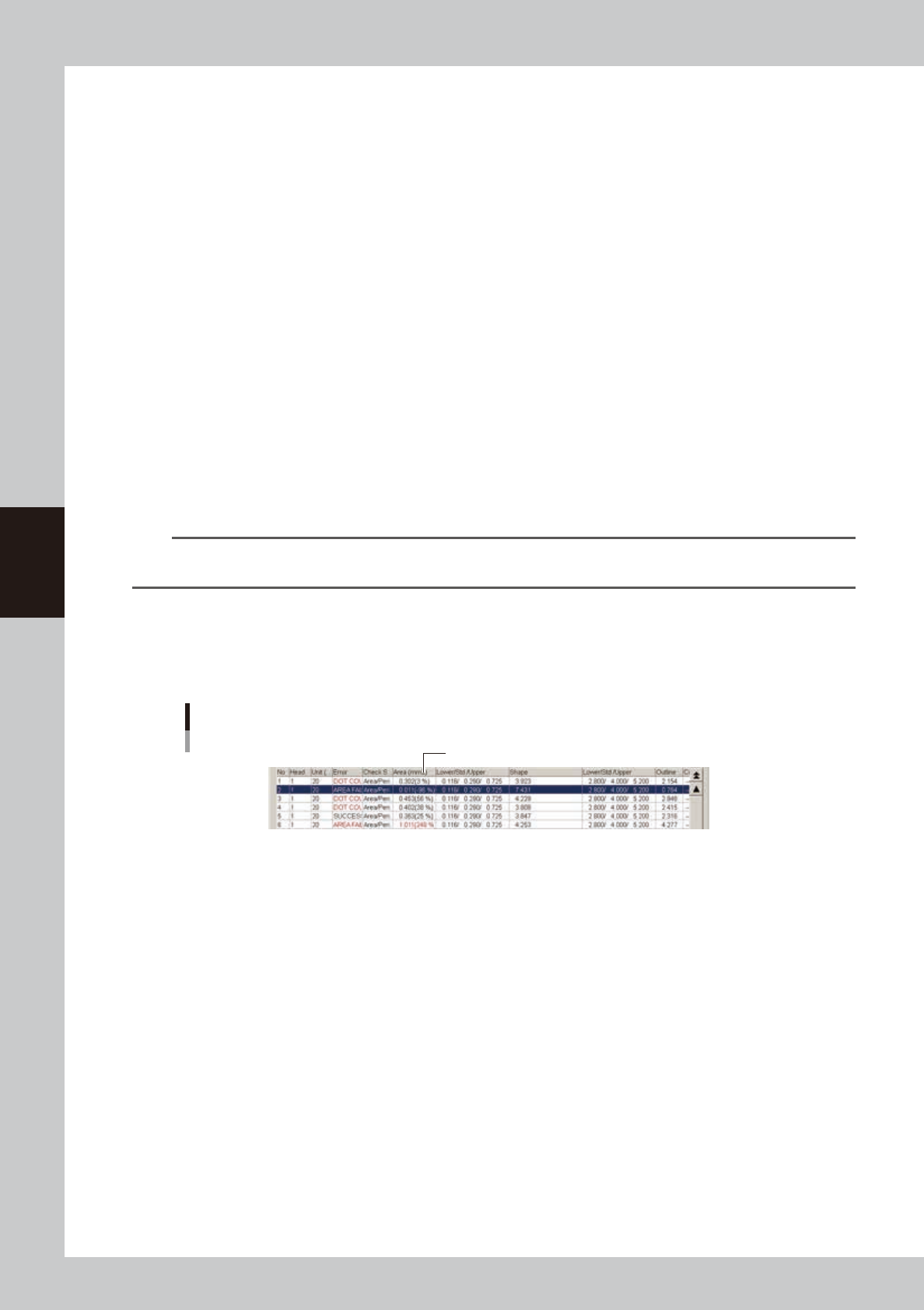
Adjust the air pressure so that the tolerance for “Area (mm2)” is within ±20%.
Dispensing test recognition results
Adjust air pressure so that tolerance is within ±20%.
64402-N7-00
• No.
Shows sequential numbers for recognition results.
• Head
Shows head numbers.
• Liquid amount
Shows the dispensing liquid amount.
• Error (red when in error)
Shows recognition results.
SUCCESS : Successfully recognized.
DOT COUNT FAILURE : Recognized, but the number of recognized dots does not match.
AREA FAILURE : Failed to recognize due to out of the area tolerance range.
SHAPE FAILURE : Failed to recognize due to out of the shape tolerance range.
OTHER FAILURE : Errors other than above