YSD_Users_E.pdf - 第158页
4-30 4 Making the dispensing stable 7 Set the calculation type. Open the [Machine] - “Specification Information” - “Dispense Correction” screen, and select the correction type and the calculation type. ”Dispense Correcti…
4-29
4
Making the dispensing stable
6
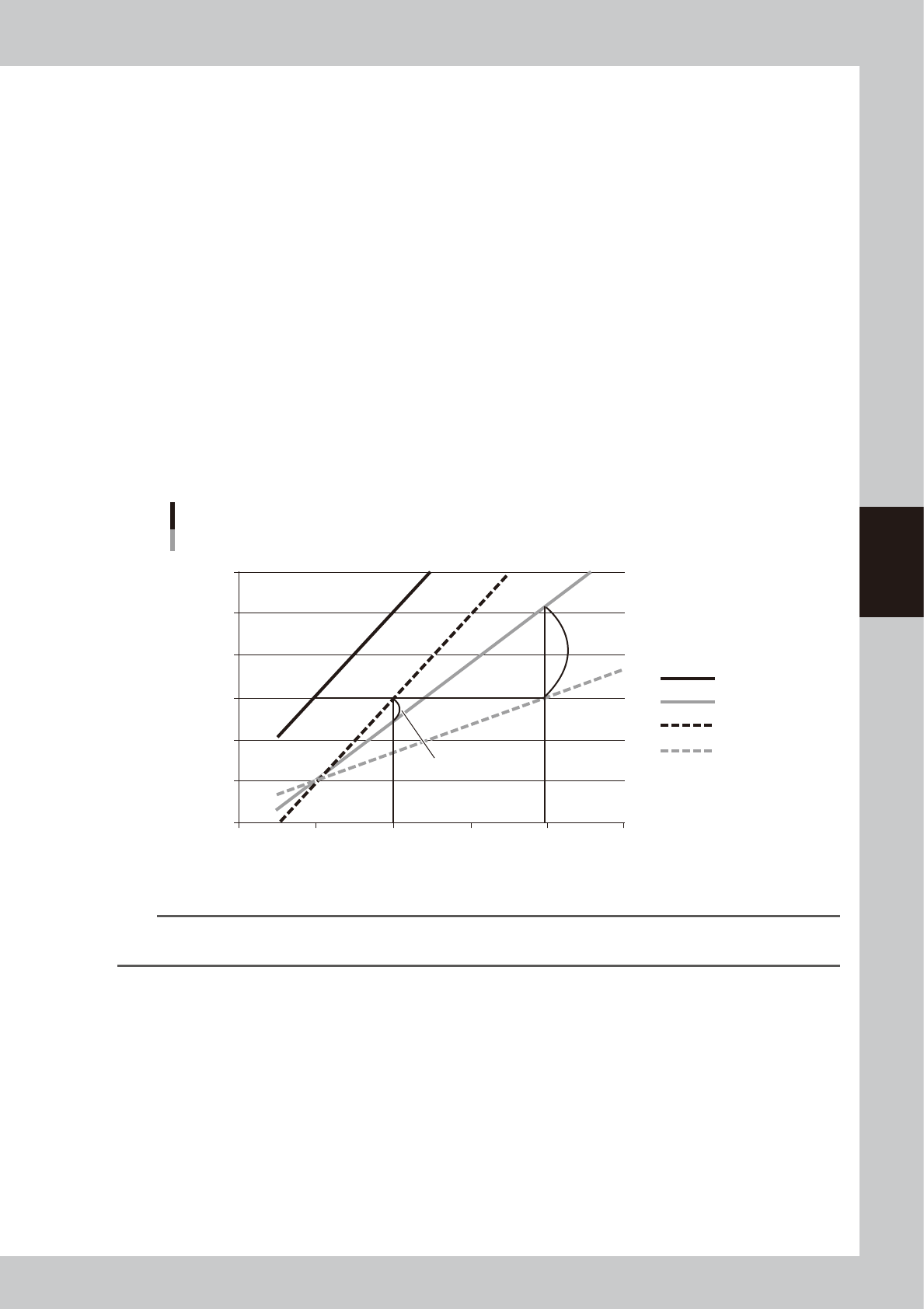
Make a graph of the measurement results.
1. Make a graph of the areas measured with a new syringe full of liquid (100%) and a used syringe (50%).
2. Make a graph using the proportion type and constant type values that were obtained from the
following calculation formulas.
• Proportion type
Dispensed area of proportion type correction = 0.1 / 0.3 × Dispensed area obtained when the
remaining amount is 100%
• Constant type
Dispensed area of constant type correction = Dispensed area obtained when the remaining amount
is 100% + (0.1 - 0.3)
The value 0.3 is the dispensed area obtained when the remaining amount is 100% and the dispensing
liquid amount is 20.
The value 0.1 is the dispensed area obtained when the remaining amount is 50% and the dispensing
liquid amount is 20.
For details on the proportion type and constant type, see the descriptions in “
n
Proportion type” and
“
n
Constant type”.
3. Draw the lines by plotting the dispensed areas obtained with proportion type and constant type
corrections applied when the remaining amount is 50% and the dispensing liquid amount is 20. In the
case of this graph, the difference of the constant type is smaller, so use the constant type.
0
0.1
0.2
0.3
0.4
0.5
0.6
0 20 40 60 80
100
Measurement result graph
Example
Dispensing liquid amount [msec]
Dispensed area [mm2]
Difference of constant type
Difference of proportion type
Remaining amount 100%
Remaining amount 50%
Constant type correction
Proportion type correction
63412-N7-00
n
NOTE
If it is difficult to select the calculation type within the dispensing liquid amount range specified by dispense correction,
then use the calculation type that shows a smaller difference in the area at the maximum dispensing liquid amount.
4-30
4
Making the dispensing stable
7
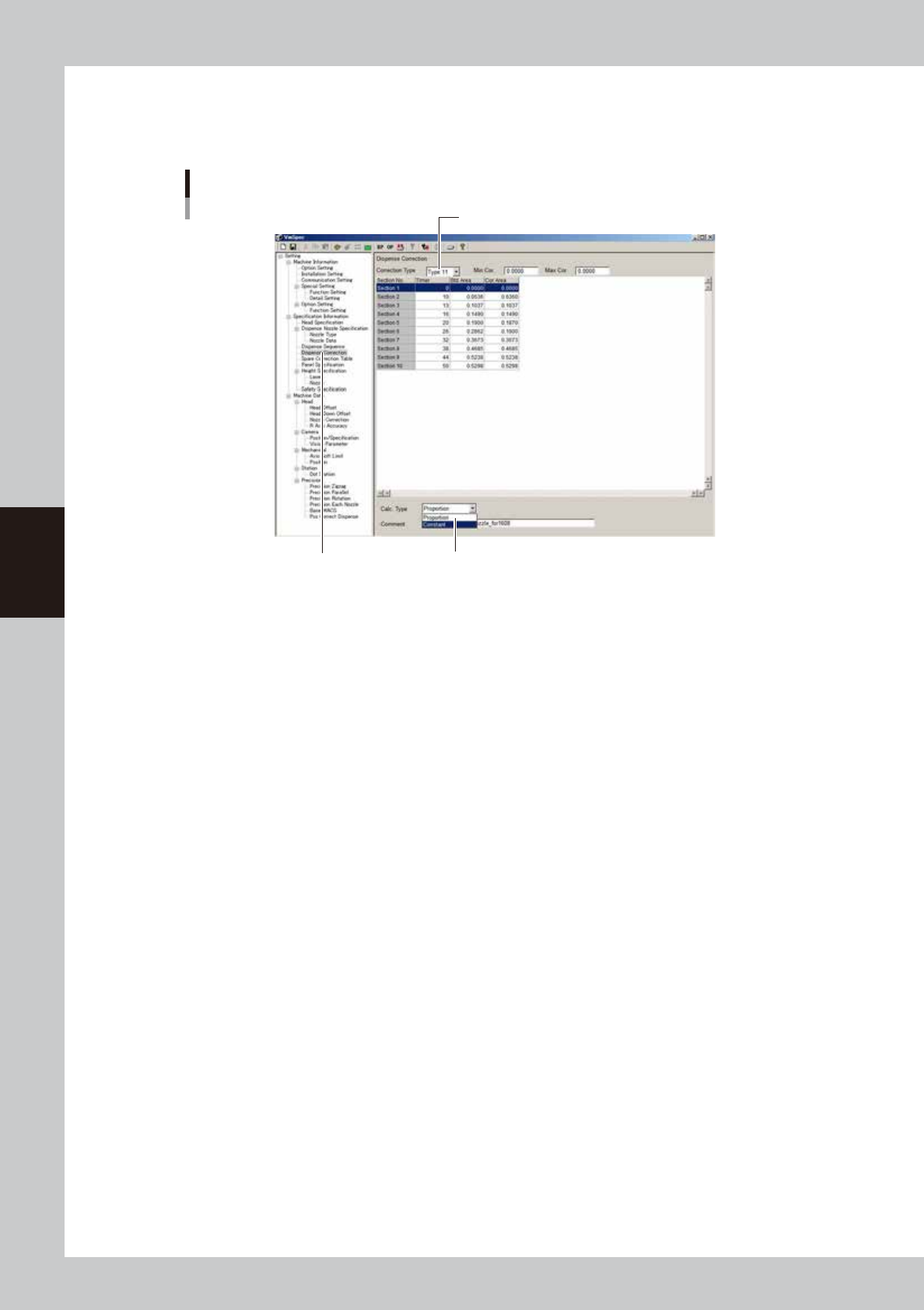
Set the calculation type.
Open the [Machine] - “Specification Information” - “Dispense Correction” screen, and select the
correction type and the calculation type.
”Dispense Correction” screen in VmSpec window
Select “Dispense Correction”.
Select the correction type to edit.
Select the calculation type.
64446-N7-00
4-31
4
Making the dispensing stable
n
Proportion type
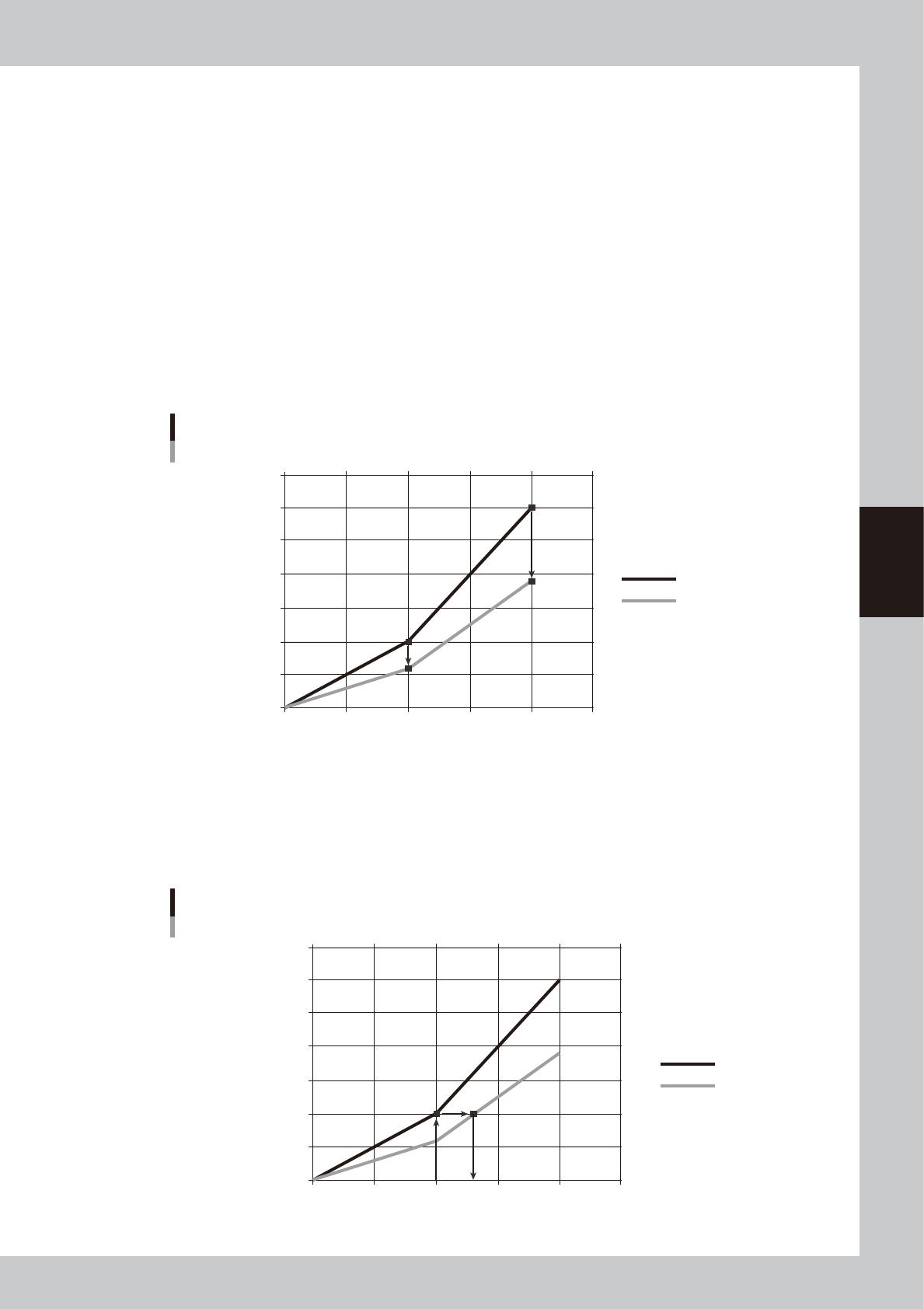
The proportion type uses the following calculation formulas to calculate and correct the area. The dispensing liquid
amount is then corrected based on this calculated results.
(Correction ratio) = (Area obtained by recognition) / (Standard area calculated from liquid amount used)
(Correction area) = (Standard area of table) × (Correction ratio)
Example of proportion type correction
For example, if a liquid amount of 20 is dispensed to check the dot area and the measured dot area is 0.60, then the
correction value is calculated as follows:
(Correction ratio) = (Area recognized) / (Standard area calculated from liquid amount timer used)
= 0.60 / 1.00
= 0.60
The correction ratio obtained is applied to all sections. The graph below shows the relation between the liquid amount
and the correction area.
0
0.5
1.0
1.5
2.0
2.5
3.0
3.5
0 10 20 30 40 50
Proportion type correction graph
Example
Dispensing liquid amount [msec]
Dispensed area [mm2]
Standard area
0.6 times
0.6
times
Correction area
63413-N7-00
Dispense correction is automatically performed based on the standard area and correction area.
1. Find the standard area using the same dispensing liquid amount of 20 [msec] as used for checking the dispensed area.
(=1)
2. Find the point where the graph of the area found in step 1 intersects with the graph of the correction area.
3. The liquid amount at the point found in step 2 is the correction value.
0
0.5
1.0
1.5
2.0
2.5
3.0
3.5
0 10 20 30 40 50
26.7
Correction value
Proportion type correction graph 2
Example
Dispensing liquid amount [msec]
Dispensed area [mm2]
Standard area
Correction area
1
2
3
63414-N7-00