YSD_Users_E.pdf - 第134页
4-6 4 Making the dispensing stable 2.3 Star ting a dispensing test during automatic operation If a dot recognition error occurs during predispensing, perform a dispensing test with the following procedure. Dispensing tes…

4-5
4
Making the dispensing stable
• Method
Shows the check mode specified in the mark information. (Area/Peri., RoundLevel, Matching)
• Area (mm2) (red when in error)
Shows the area (mm2) of each dot. (Difference from standard area [%] = (Area – Standard area) / Standard area)
• Lower limit / Std. / Upper limit
Shows the lower and upper limits calculated from the standard area and area tolerance.
Lower limit = Standard area × (1 – Area tolerance / 100)
Upper limit = Standard area / (1 – Area tolerance / 100)
When the area tolerance is 100: (0.000 / Standard area / ----)
c
CAUTION
The calculation formula differs from that for normal fiducial mark recognition.
• Shape (red when in error)
Shows the following calculated values. The displayed item differs depending on the “Shape Check” setting.
Area/Peri. : Perimeter /
√
Area
RoundLevel : Radius of inscribed circle / Radius obtained from inscribed and circumscribed circles / Radius of
circumscribed circle
Matching : Area ratio of irregularities (concavities/protrusions)
• Lower limit / Std. / Upper limit
Shows the following calculated values. The displayed item differs depending on the “Shape Check” setting.
Area/Peri. : Upper limit calculated from the shape constant and shape tolerance.
Lower limit = Shape constant × (1 – shape tolerance / 100)
Upper limit = Shape constant × (1 – shape tolerance / 100)
RoundLevel : Upper and lower limits calculated from inscribed and circumscribed circles and shape tolerance
Radius obtained from inscribed and circumscribed circles × (1 – shape tolerance / 100)
Upper limit = Shape constant × (1 - shape tolerance / 100)
Matching : Area ratio of irregularities (concavities/protrusions) is within shape tolerance (upper limit only) <
Shape tolerance
• Perimeter
Shows the perimeter of each dot.
• RoundLevel
Shows the roundness of each dot when the “Shape Check” setting is “RoundLevel”.
• Radius (mm)
Shows the radius of each dot when the “Shape Check” setting is “RoundLevel” or “Matching”.
RoundLevel : Radius of each dot, obtained from inscribed and circumscribed circles
Matching : Radius of each dot, obtained from area.
• X, Y
Shows the XY coordinates specified in the predispense information.
• dX, dY
Shows the difference from the recognized coordinates in the X and Y directions.
4-6
4
Making the dispensing stable
2.3 Starting a dispensing test during automatic operation
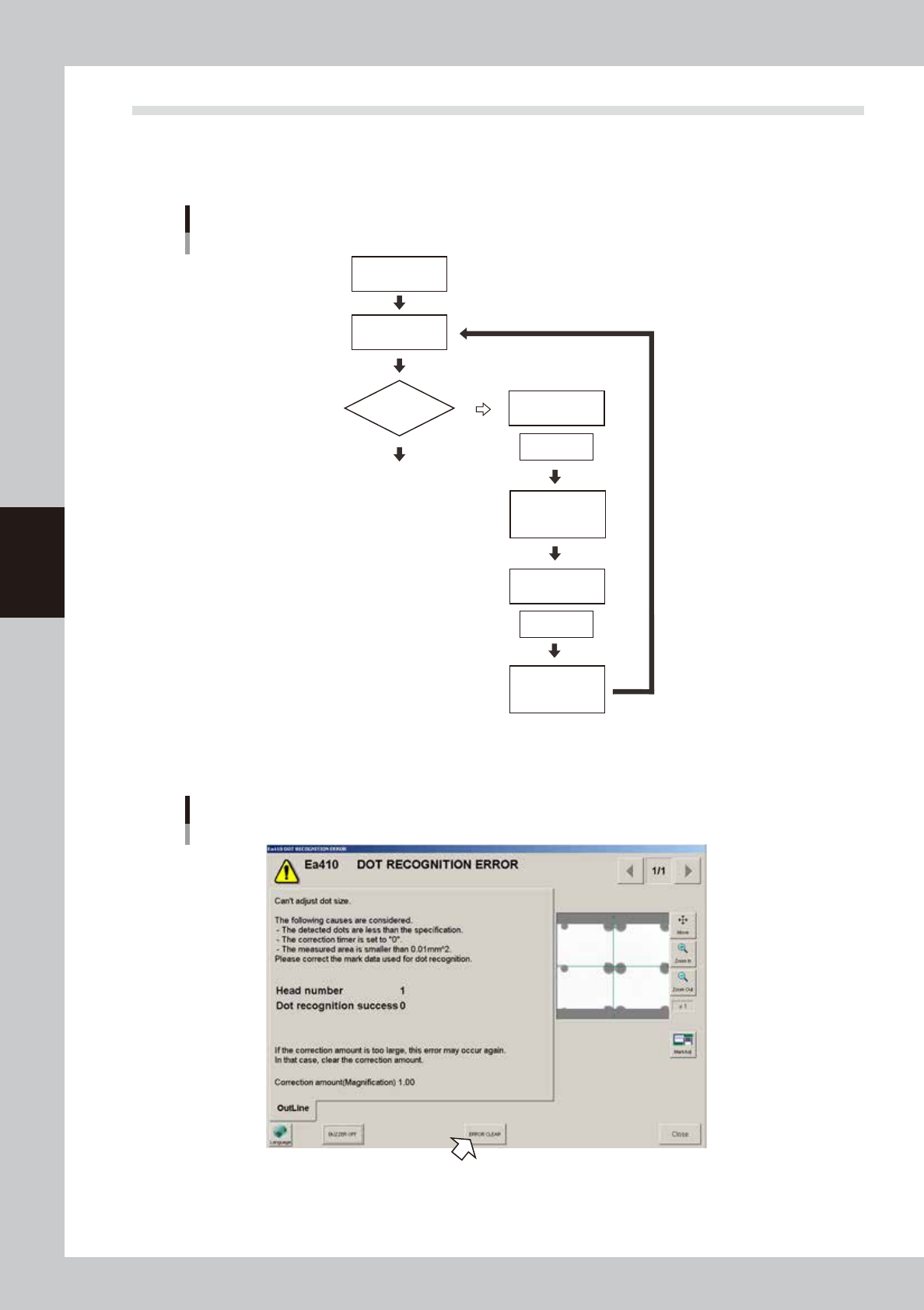
If a dot recognition error occurs during predispensing, perform a dispensing test with the following procedure.
Dispensing test cannot start unless the machine is equipped with a dot station or the predispensing is set to “On
dot station”.
Flowchart when error occurs
Predispense
Start operation
Dot dispensing
Perform
dispensing test
Select action
(dispensing test)
Select action
(retry)
Clear error
Adjust
air pressure
Check recognition
results
Recognition error
NG (fail)
OK (pass)
63401-N7-00
1
Press the [ERROR CLEAR] button.
Dot recognition error
64403-N7-00
4-7
4
Making the dispensing stable
2
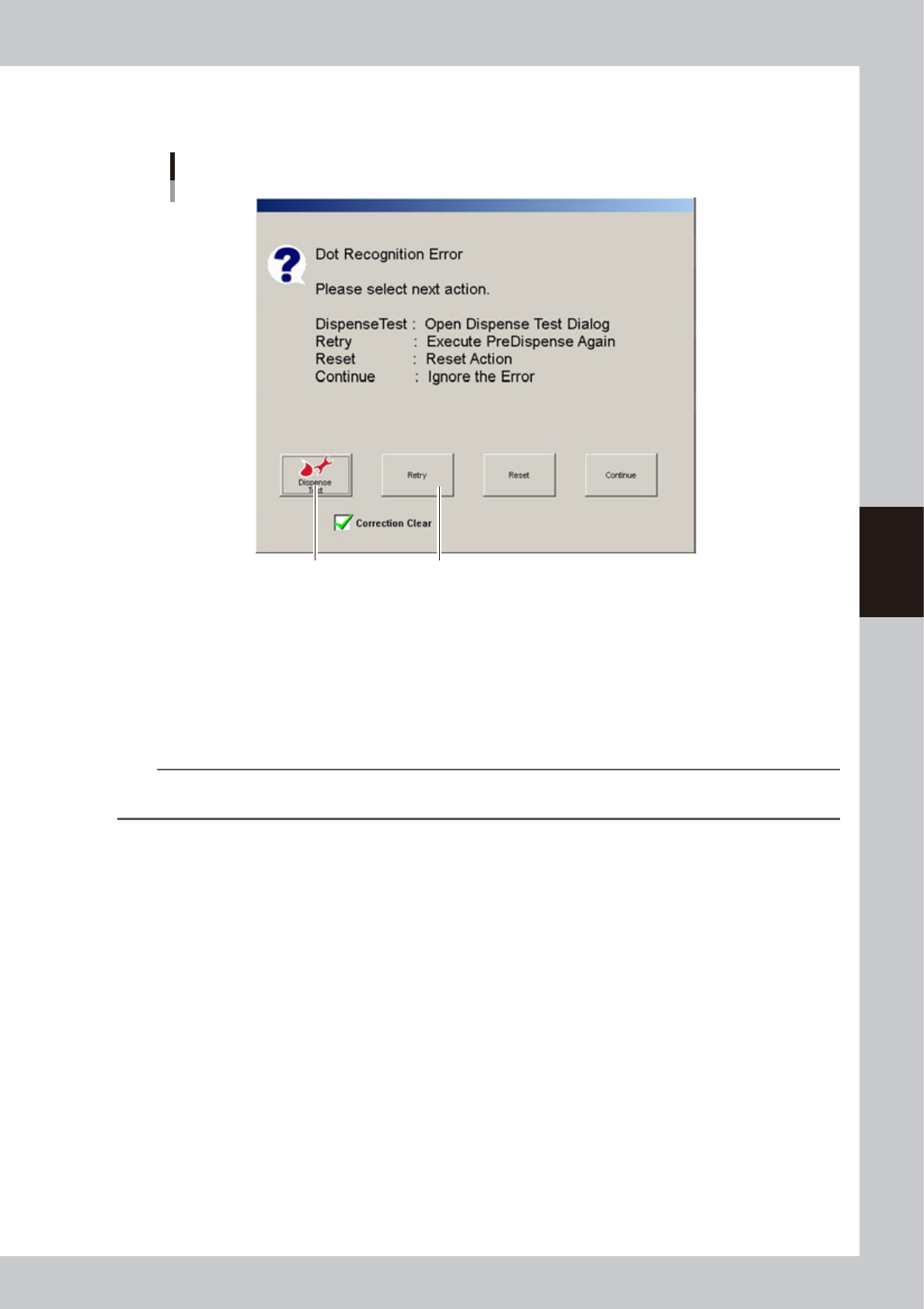
Press the [Dispense Test] button.
The “Dispense Test” window will appear.
”Select action” screen
Step2 Step4
64404-N7-00
3
Perform a dispensing test.
When the test is finished, adjust the air pressure as needed. For more details, see “2.2 Performing a
dispensing test” in this chapter. When the adjustment is complete, press the [Close] button to return to
the “Select action” screen.
4
Press the [Retry] button.
Press the [Retry] button to perform predispensing again.
n
NOTE
After making correction by predispensing, make sure that a check is placed in the “Clear correction amount” check
box and then press the [Retry] button.