YSD_Users_E.pdf - 第335页
8-15 8 Managing the data n T o make system full backup: 1. Press the [Full Backup] button. 2. A confir mation message appears asking if you want to make a backup file. Check the backup destination and then press the [Y e…
8-14
8
Managing the data
4
Start making a backup.
n
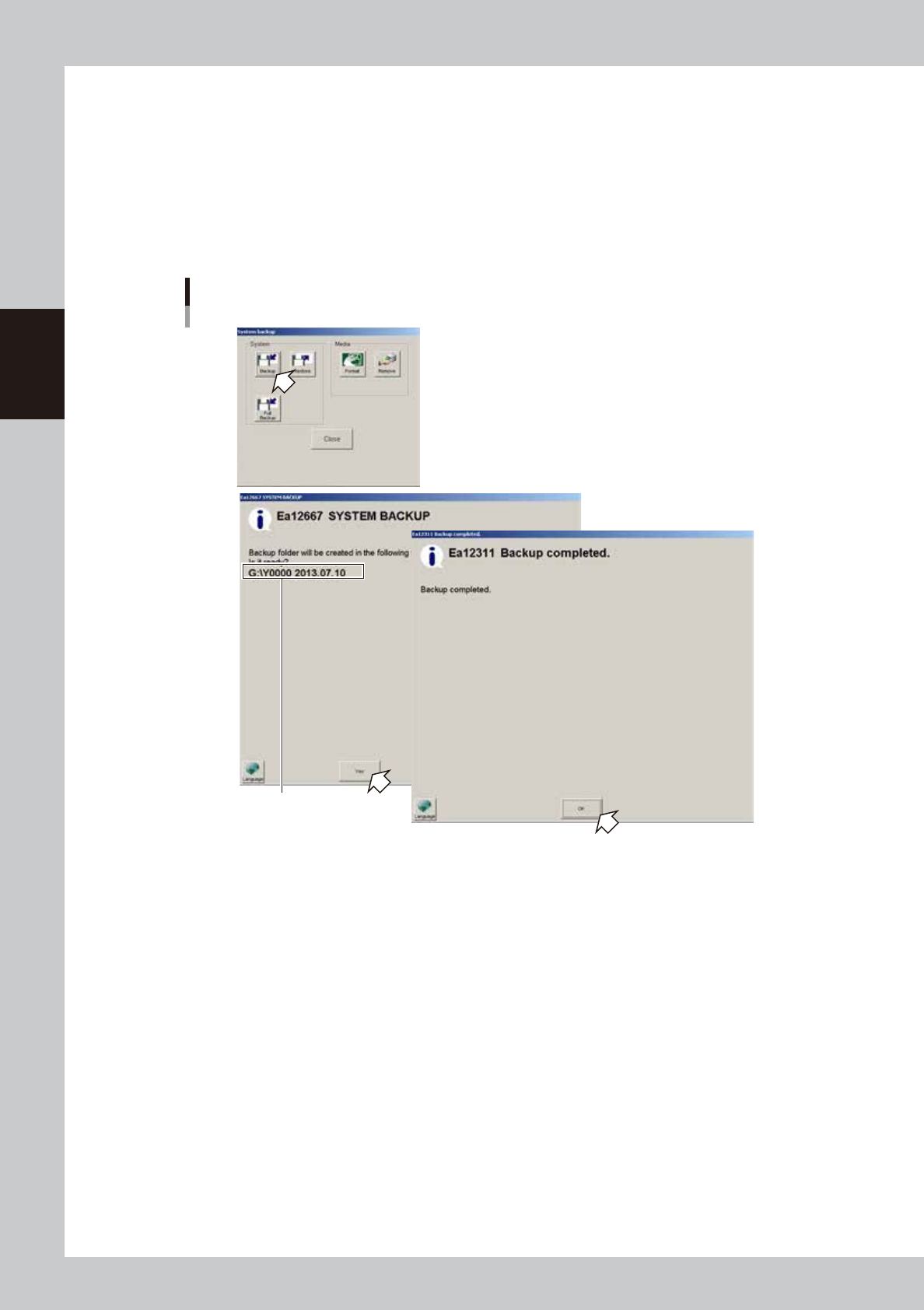
To make a system backup:
1. Press the [Backup] button.
2. A confirmation message appears asking if you want to make a backup file. Check the backup
destination and then press the [Yes] button.
System backup will start.
3. Another message appears when system backup is complete. Press the [OK] button to close the
message screen.
System backup
Check the backup destination.
64809-N7-00
4. When returned to the “System backup” screen, press the [Close] button to exit it.
8-15
8
Managing the data
n
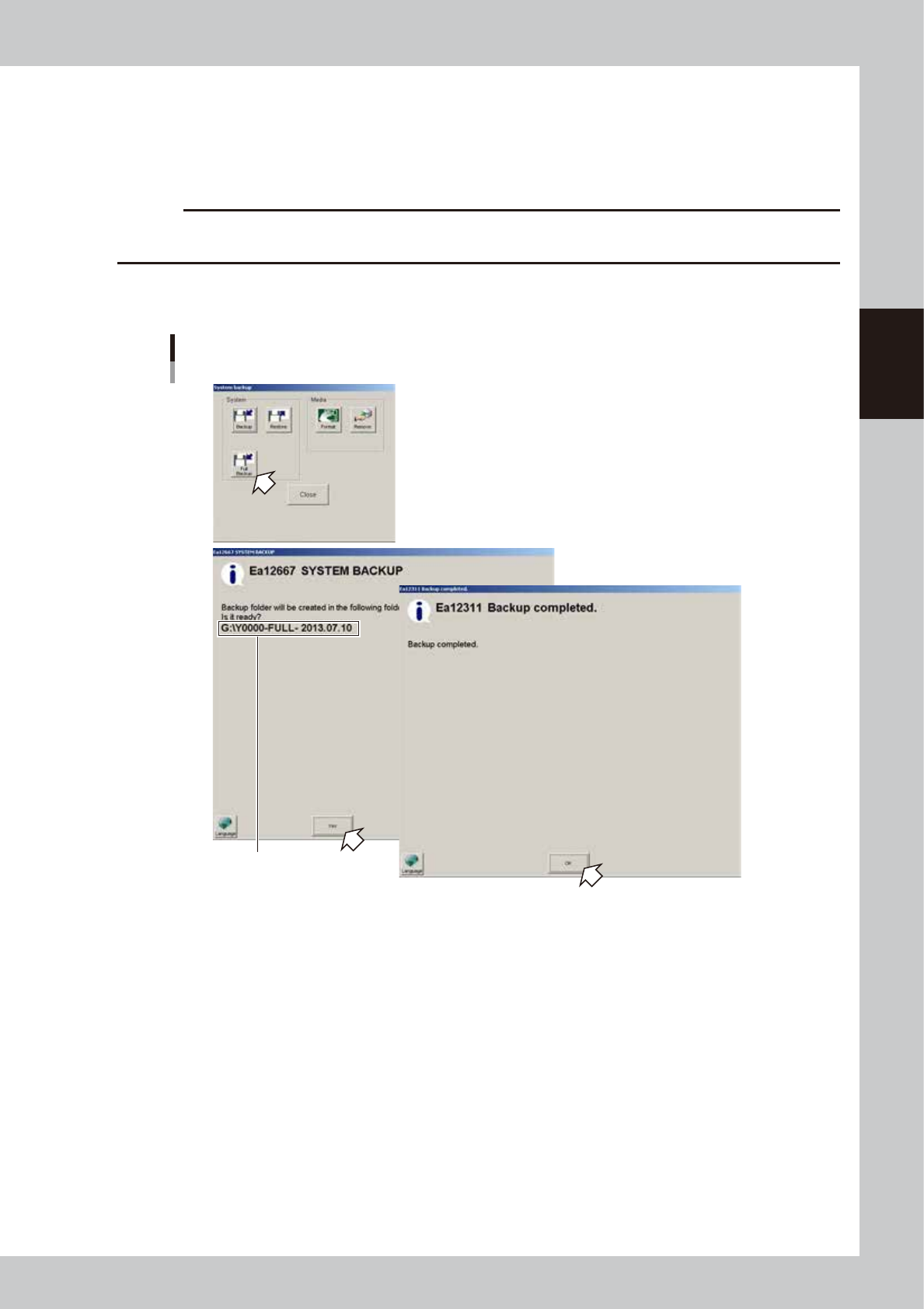
To make system full backup:
1. Press the [Full Backup] button.
2. A confirmation message appears asking if you want to make a backup file. Check the backup
destination and then press the [Yes] button.
System full backup will start. It will take about 20 minutes to complete.
c
CAUTION
If you want to cancel the backup, press the ESC key on the keyboard.
The data being created will not be deleted even if the backup is cancelled (or fails).
3. Another message appears when system full backup is complete. Press the [OK] button to close the
message screen.
System full backup
Check the backup destination.
64810-N7-00
4. When returned to the “System backup” screen, press the [Close] button to exit it.
8-16
8
Managing the data
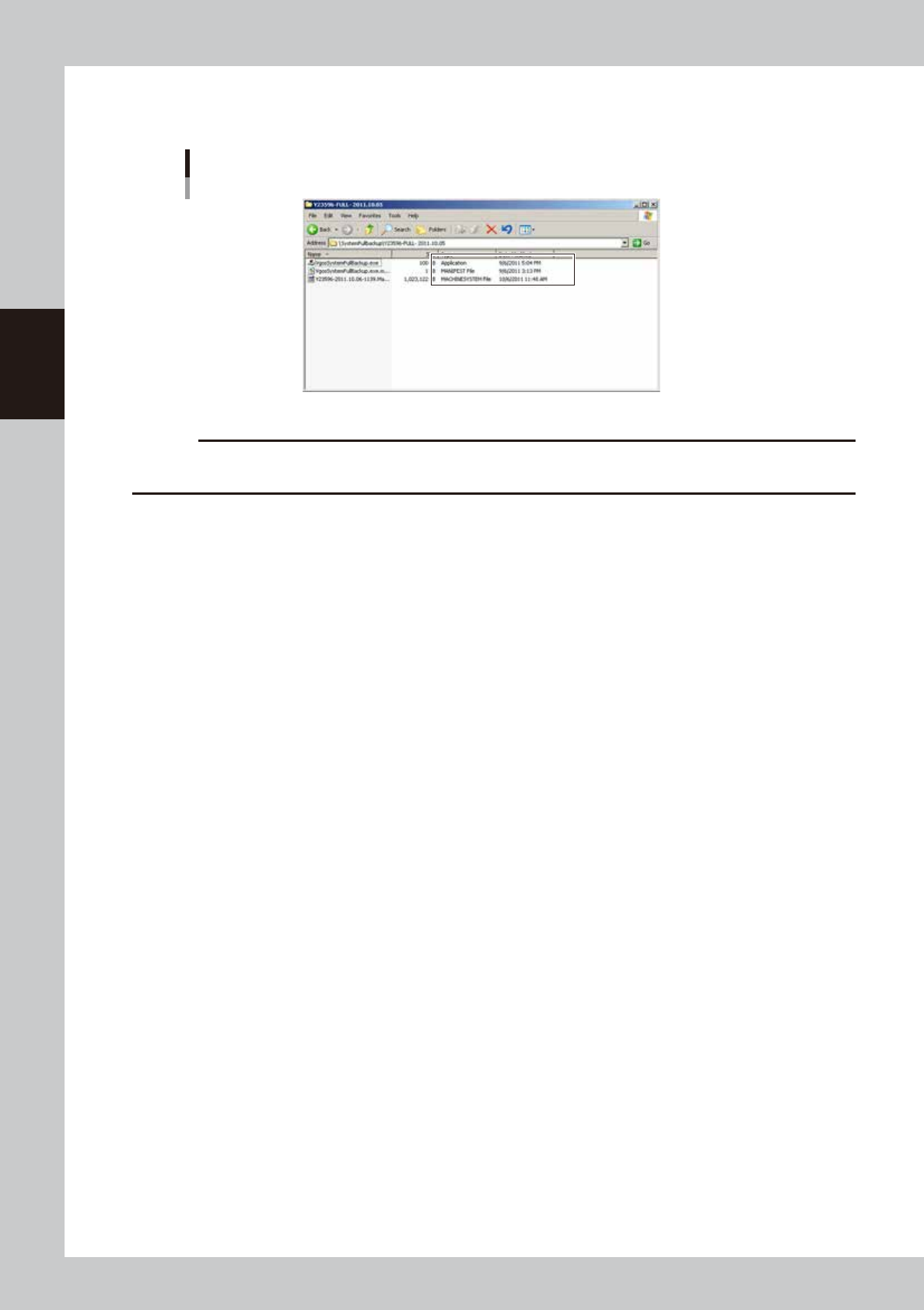
5. Check that three files were created in the destination folder.
These files are used to restore the system full backup.
Full backup data
64811-N7-00
c
CAUTION
The files created by system full backup contain the machine settings, network settings, and board data, so keep them
very carefully.