Smart Graphical User Interface (SmartG) Overview_rev1.pdf - 第105页
Copyright © ViT rox All Rights Reserved . Delete Component After clicking Delete Component on tool box, the Component Deletion Editor pops up. The window acquire the component information that a user wishes to delete. Cl…
Copyright © ViTrox All Rights Reserved.
Move Panel
104
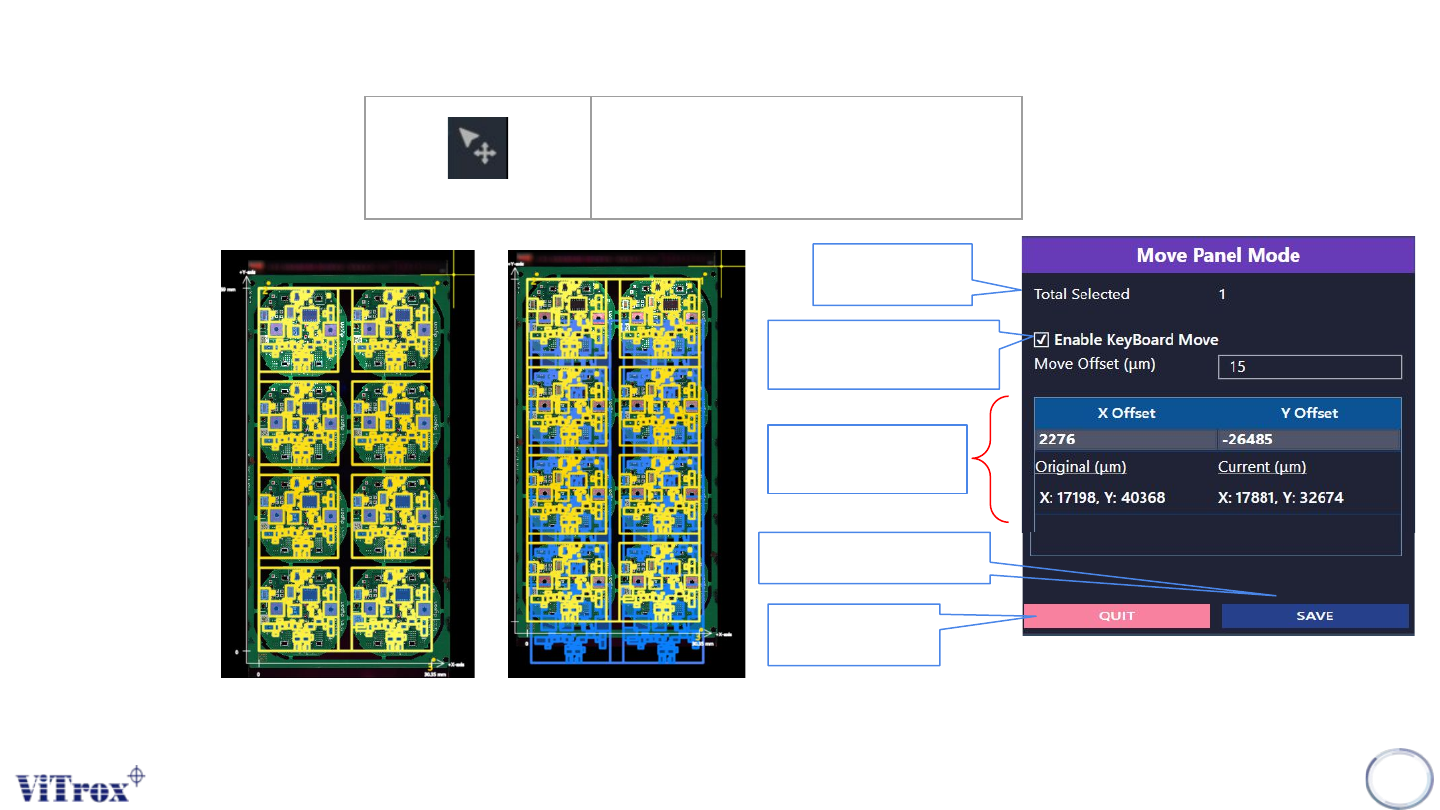
Move Panel
Move and Drag Whole Panel
Figure 92: Before and after Move Board
Total number of
Panel to be move
This is used to move the
Panel by using arrow
keyboard
The total Panel moved
and its offset parameter.
Save after move Panel
have been made.
Quit the add Panel
configuration
Figure 93: Move Panel Mode Tab
Copyright © ViTrox All Rights Reserved.
Delete Component
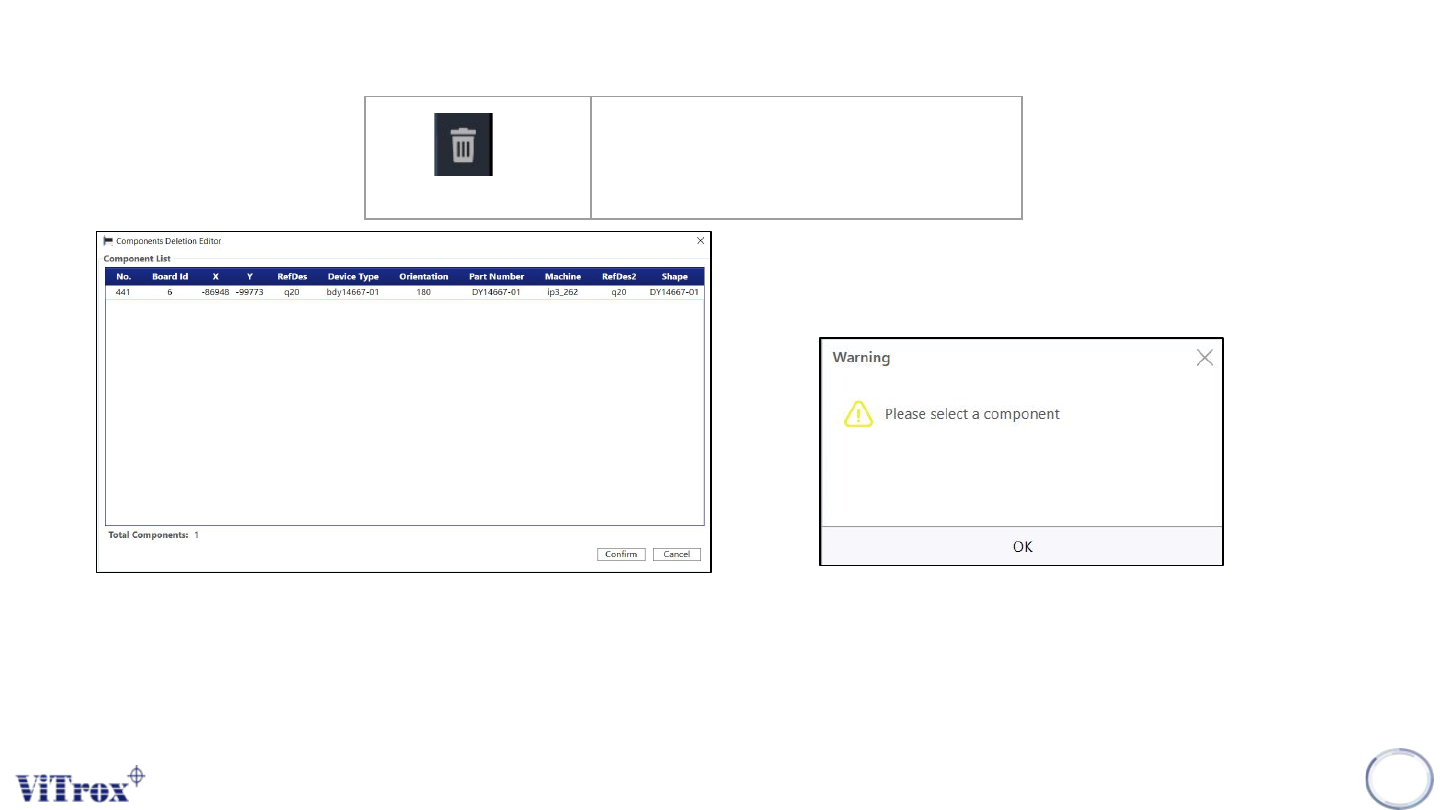
After clicking Delete Component on tool box, the Component Deletion Editor pops up. The window acquire the
component information that a user wishes to delete. Click Confirm to delete the component from the program.
Note: User must select component first in order to delete the component otherwise it will prompt warning message
105
Delete Component
Delete Component
Figure 94: Components Deletion Editor
Figure 95: Warning message
Copyright © ViTrox All Rights Reserved.
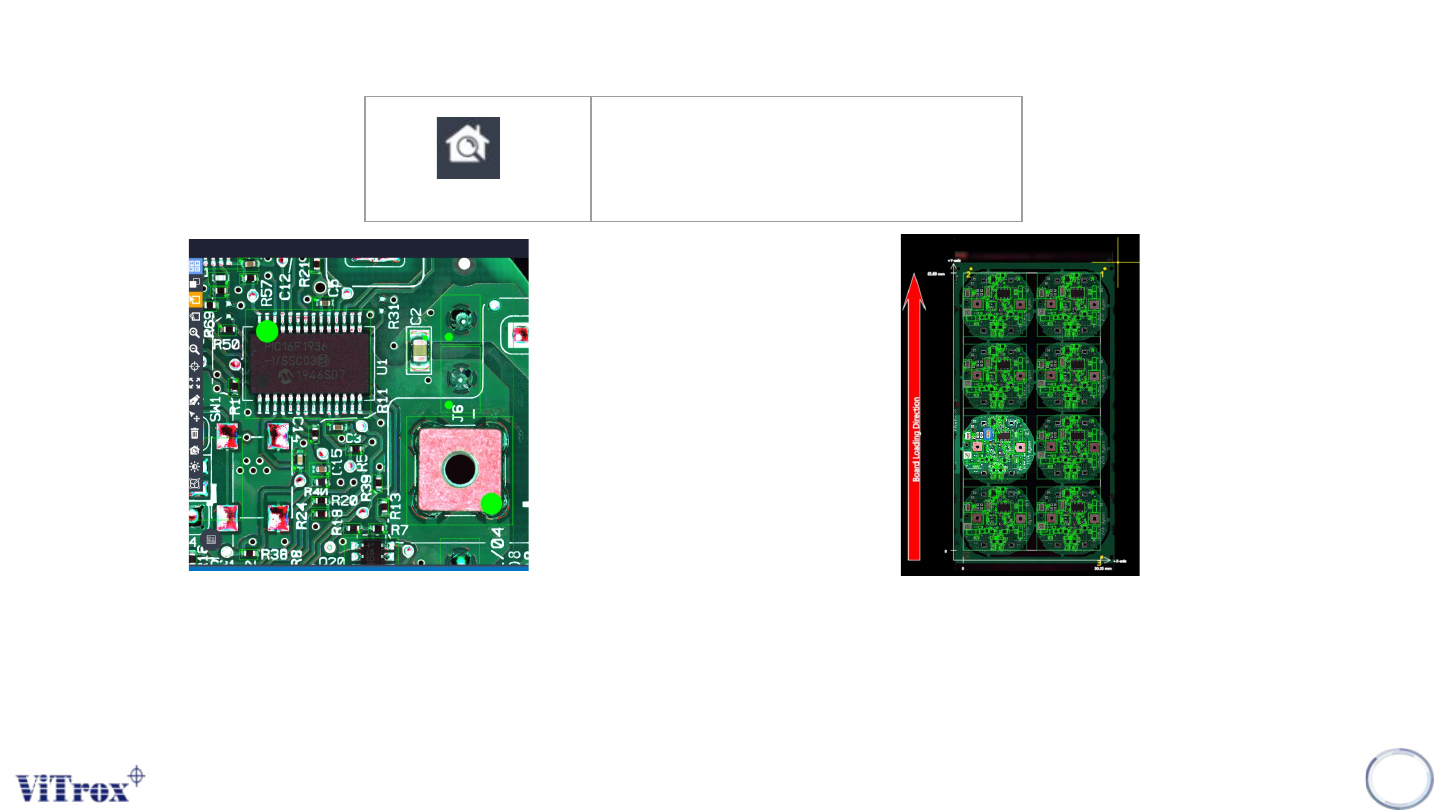
Fit To Screen
Fit to Screen is a feature to set the current FOV into full screen camera view. This feature helps user to find out the
full-board image.
Note: This button is very useful when user need to see the entire program.
106
Fit to Screen
Fit the current FOV into camera
view
Figure 96: Before selecting Fit to Screen (Zoom In) Figure 97: After selecting Fit to Screen