Smart Graphical User Interface (SmartG) Overview_rev1.pdf - 第9页
Copyright © ViT rox All Rights Reserved . Inspect • Auto T rain - This feature that applied to Artificial Intelligence (A.I) technology . This feature is specially used to train the component automatically by using A.I t…
Copyright © ViTrox All Rights Reserved.
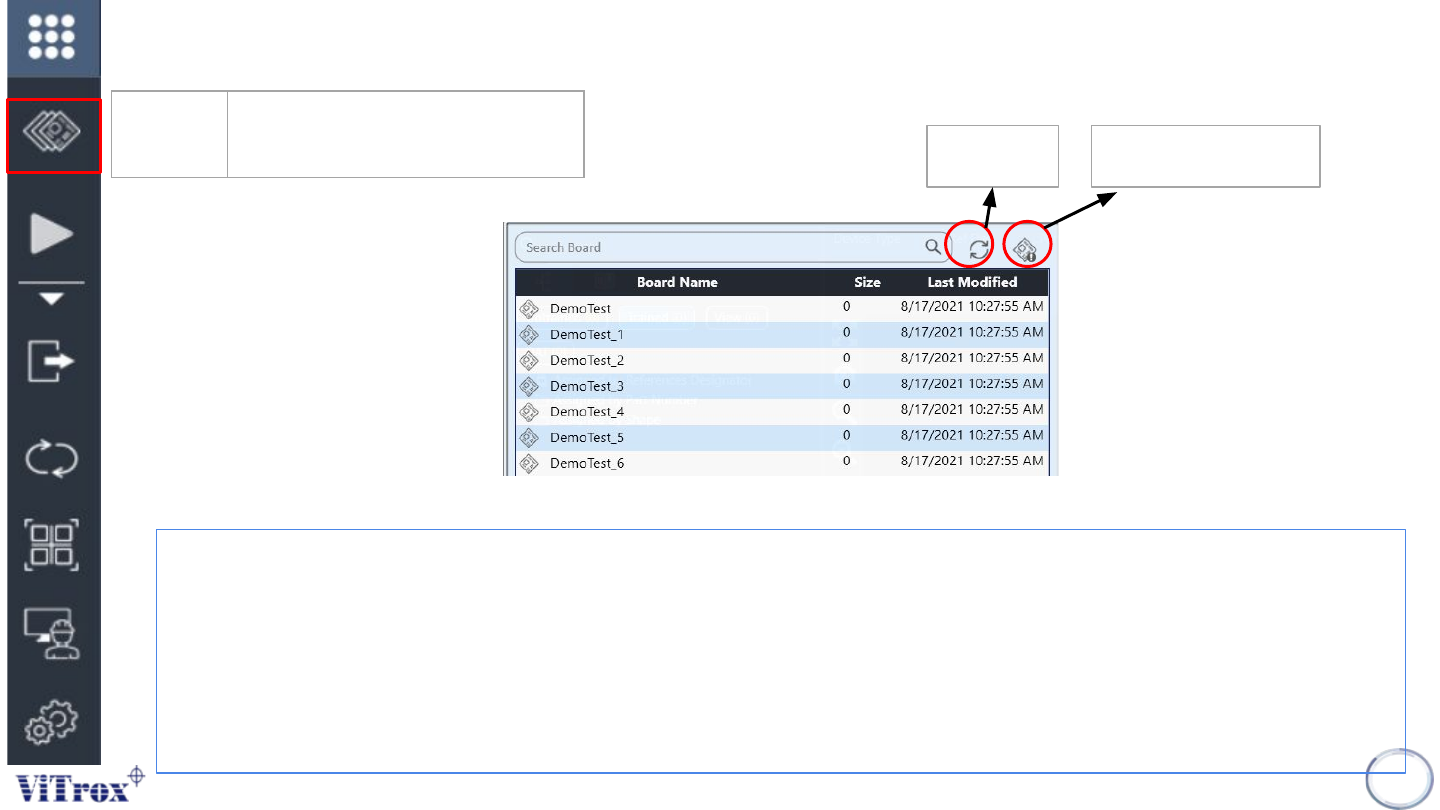
Boards
There are three features in the board list which are:
● Search tab: This is used to search board names with characters and symbols in the board list.
● Refresh Programs: This is used to refresh the board list when a new board is created or a new cad file is being
replaced in c:\cpi\cad folder.
● View Program Details: This is used to View Program details button is to set all specific measurement/information
about the board program including board side, panel width, panel length, board clearance, board thickness and board
weight.
8
Refresh
View Program details
Figure 4: Boards List Show
Boards Show the board list and allow
user to change the program
Copyright © ViTrox All Rights Reserved.
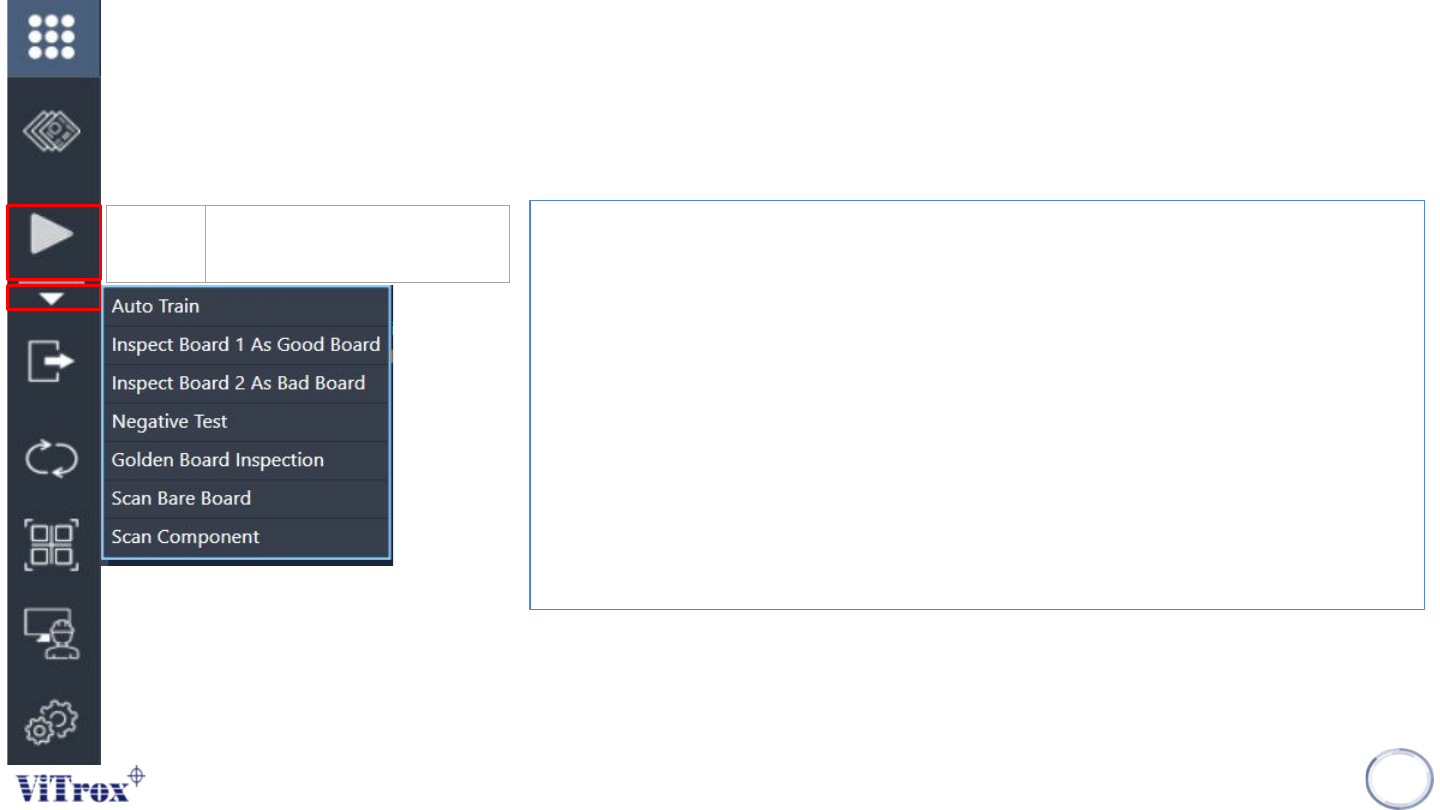
Inspect
• Auto Train- This feature that applied to Artificial Intelligence (A.I) technology. This
feature is specially used to train the component automatically by using A.I
technology.
• Inspect Board 1 As Good Board- To inspect the program as a good board
• Inspect Board 2 As Bad Board- To inspect the program as a bad board
• *Negative test- This is a quality checking tool of component orientation in the
program that includes:
● Test and measure the program quality
● Reduce false calls and escapee rate
● Reduce CAD errors
• **Golden Board Inspection- Golden Board is used to be a quality checking tool
of all trained component in the program.
• Scan Bare Board- To scan the program as Bare Board
• Scan Component- To scan all the component for entire board program.
9
Inspect Manual run one board
inspection
*Negative test must be applied to a good board.
**Golden board inspection must be applied when a component detected as a
defect is a true defect and the component is fine-tuned correctly.
Copyright © ViTrox All Rights Reserved.
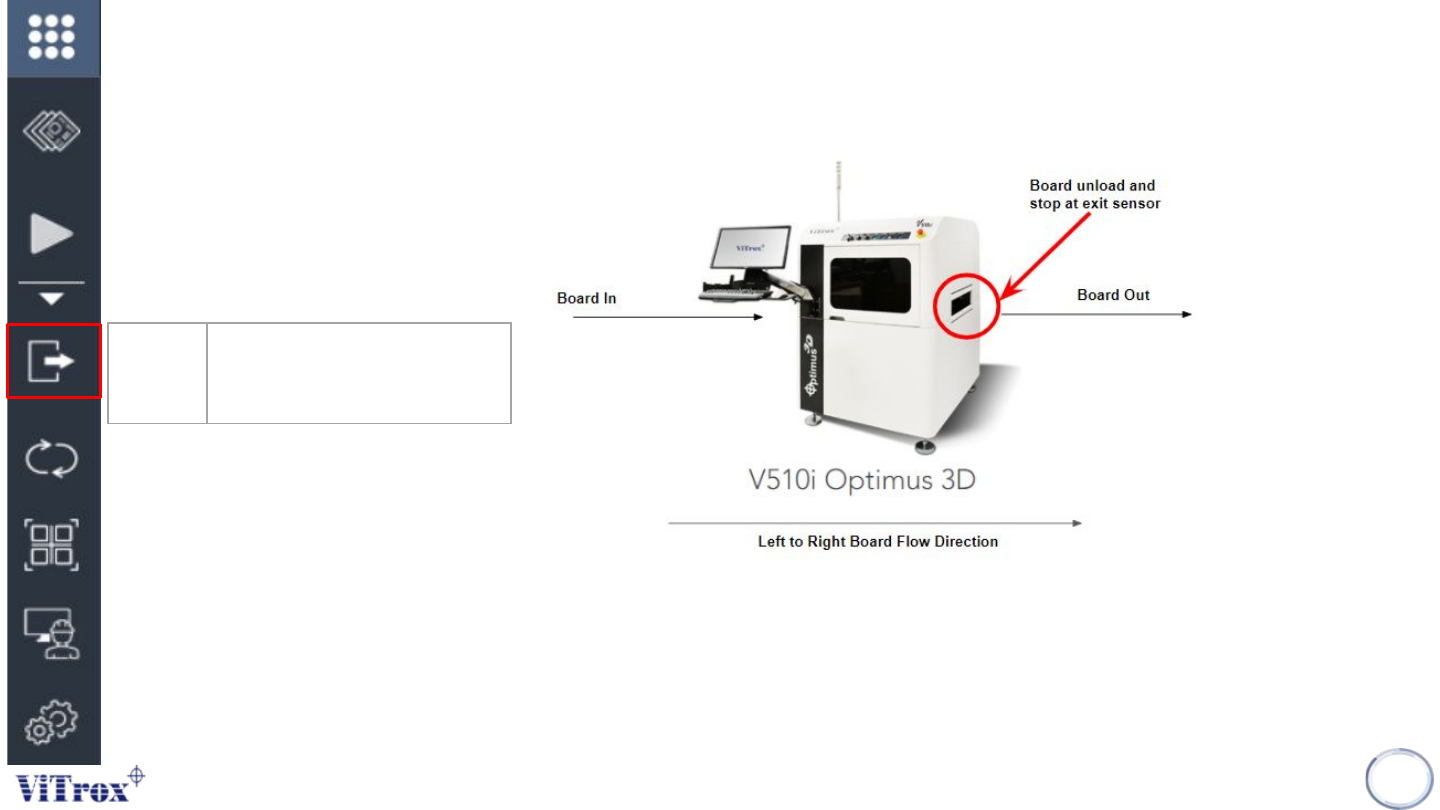
Unload
• Unload is a feature used to unload the board from a board clamp position to exit sensor. A board must be
clamped in the clamp position in order to unload the board. When there is no board in clamping condition,
no action will be taken.
10
Unload Unload board from board
clamp position to exit sensor
position
Figure 5: Left to right board flow direction