Smart Graphical User Interface (SmartG) Overview_rev1.pdf - 第150页
Copyright © ViT rox All Rights Reserved . Filter Display Filter Display of Component Geometry is used to set the display in board graphic. A drop-down menu shows after clicking the button and comes with four selections w…
Copyright © ViTrox All Rights Reserved.
View Pad
149
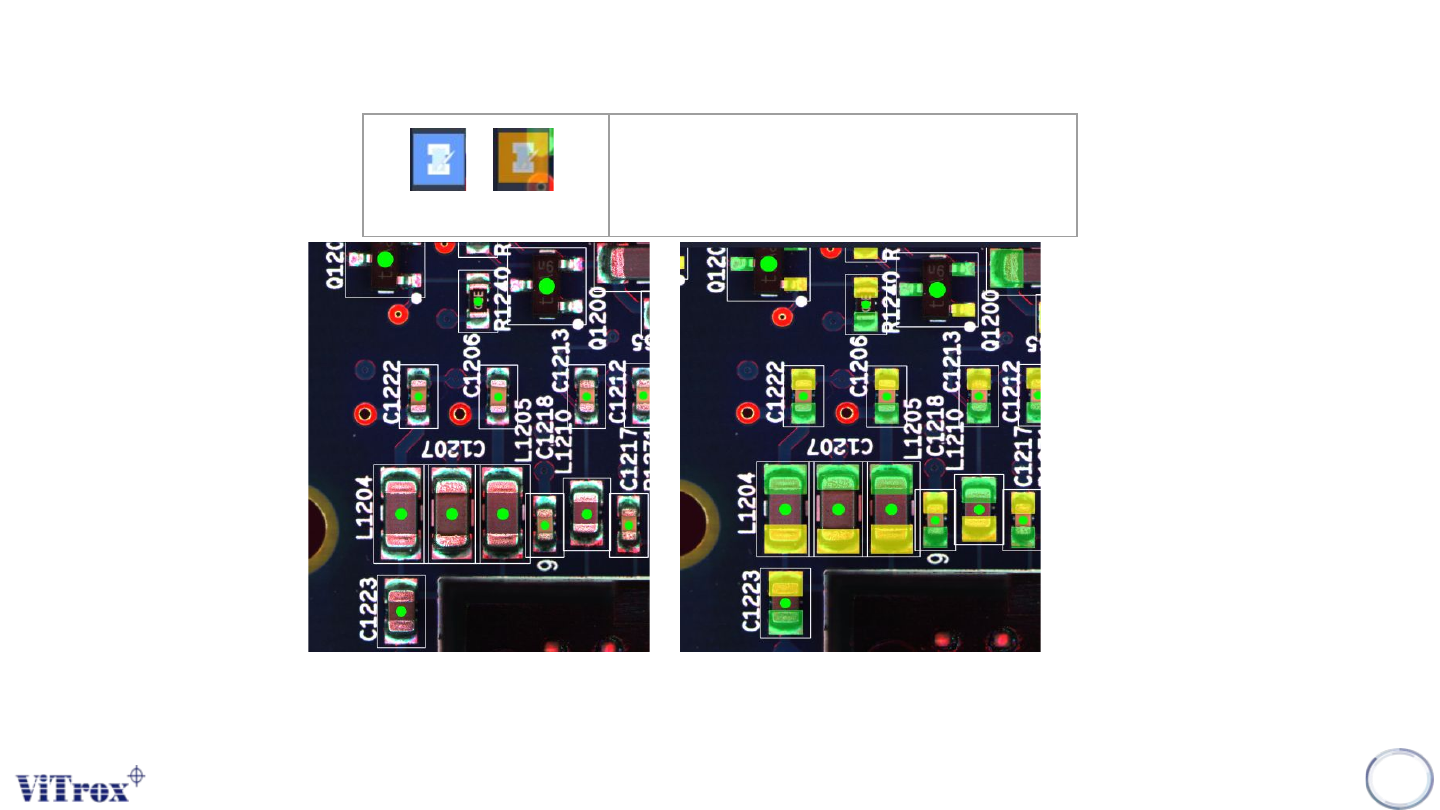
View Pad
Display Pad Coverage
Figure 135: Before and After click View Pad Tools
Note: User can see the Pad coverage of each components.
Copyright © ViTrox All Rights Reserved.
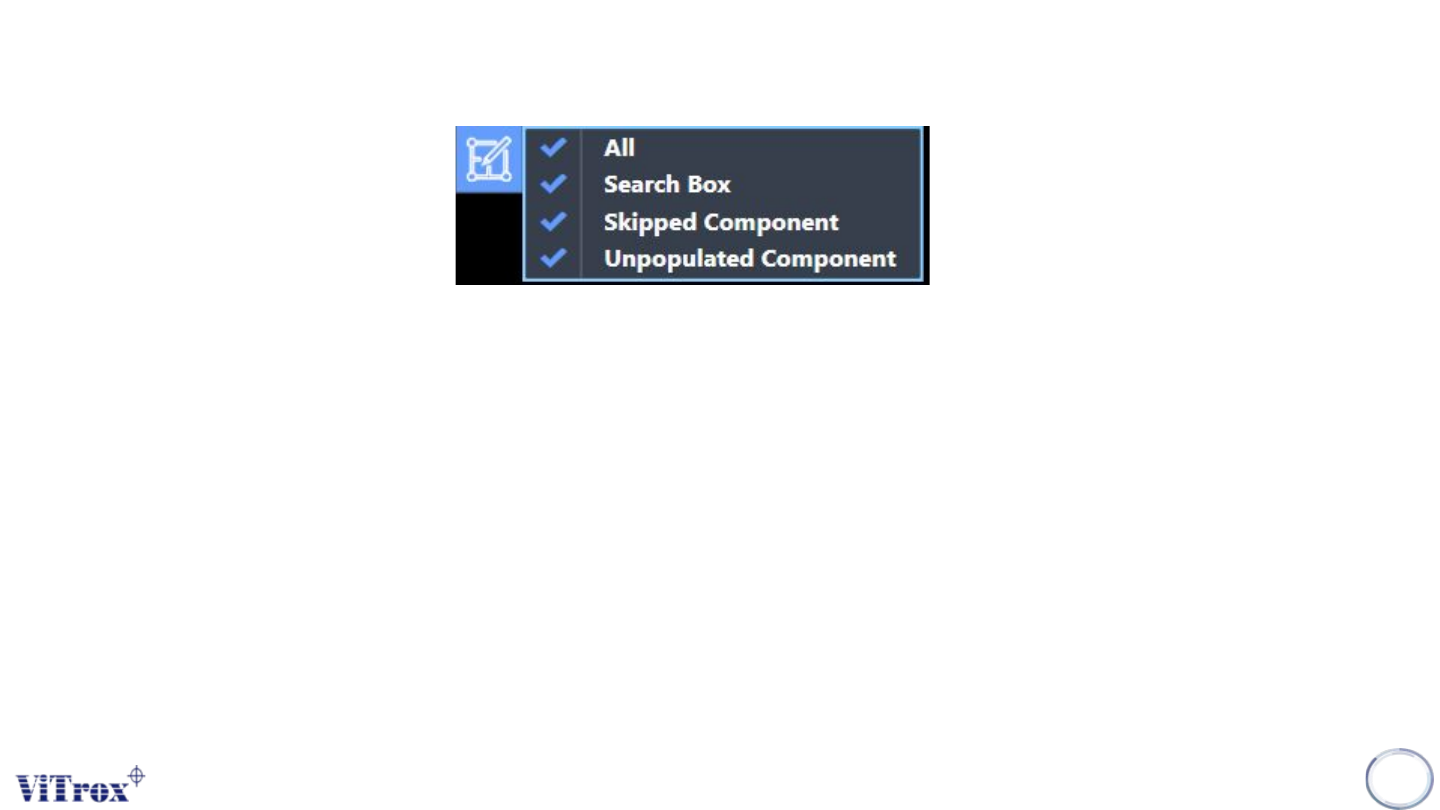
Filter Display
Filter Display of Component Geometry is used to set the display in board graphic. A drop-down menu shows after
clicking the button and comes with four selections which are:
● All
● Search Box
● Orientation Indicator
● Skipped Component
● Unpopulate components
Note: User can filter unnecessary item to display.
150
Figure 136: Train History tab
Copyright © ViTrox All Rights Reserved.
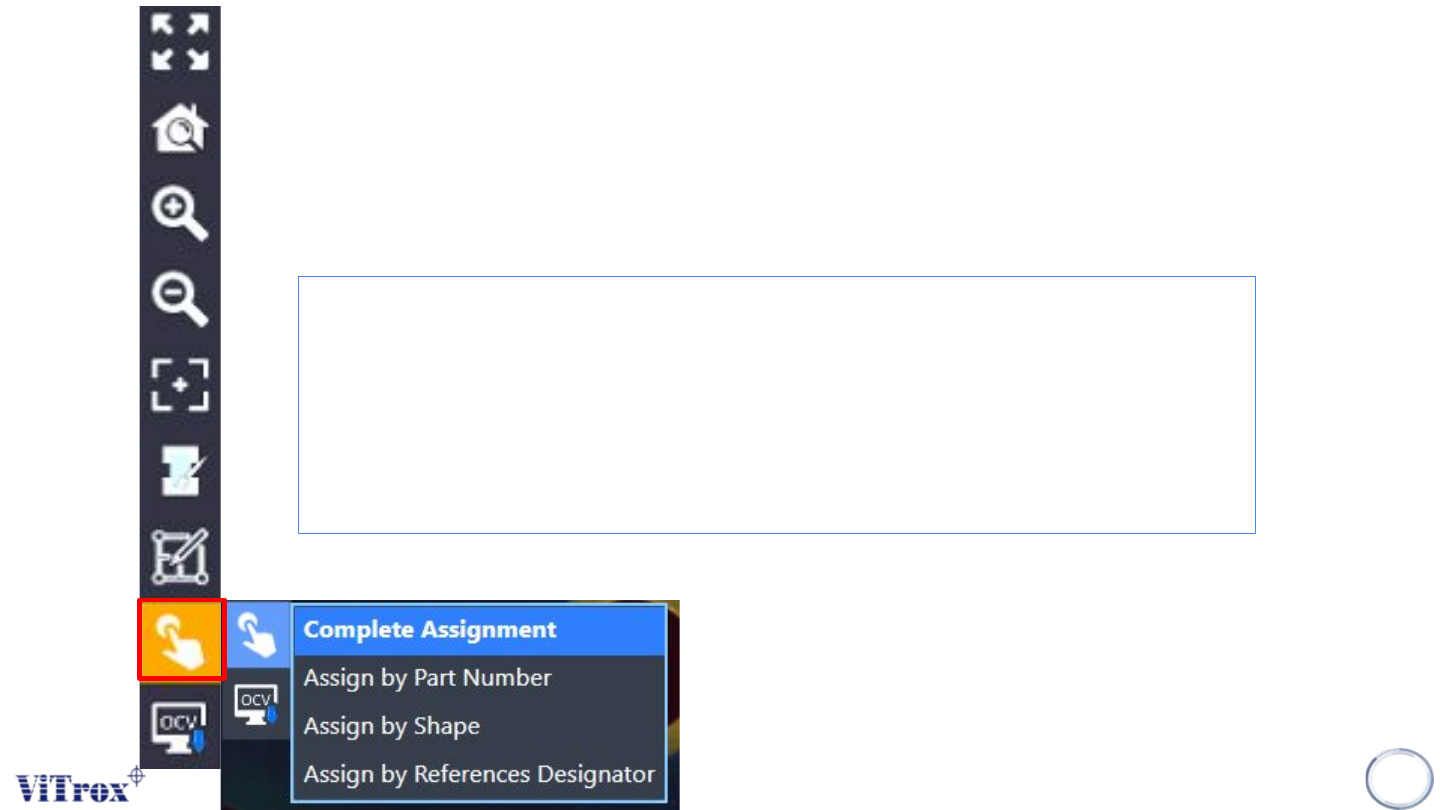
Drag and Drop Algorithm
Shortcut button to train the component.
Note: Shortcut Key press ‘D’ for enable this mode, For select on source component, hold ‘Ctrl’
151