Smart Graphical User Interface (SmartG) Overview_rev1.pdf - 第30页
Copyright © ViT rox All Rights Reserved . General Setting (Engineer Setting) Enable W arning if Defect Packager Off 30 Figure 21: Engineer Settings This feature is used to prevent a user setting the defect packager to Of…
Copyright © ViTrox All Rights Reserved.
General Setting (Engineer Setting)
29
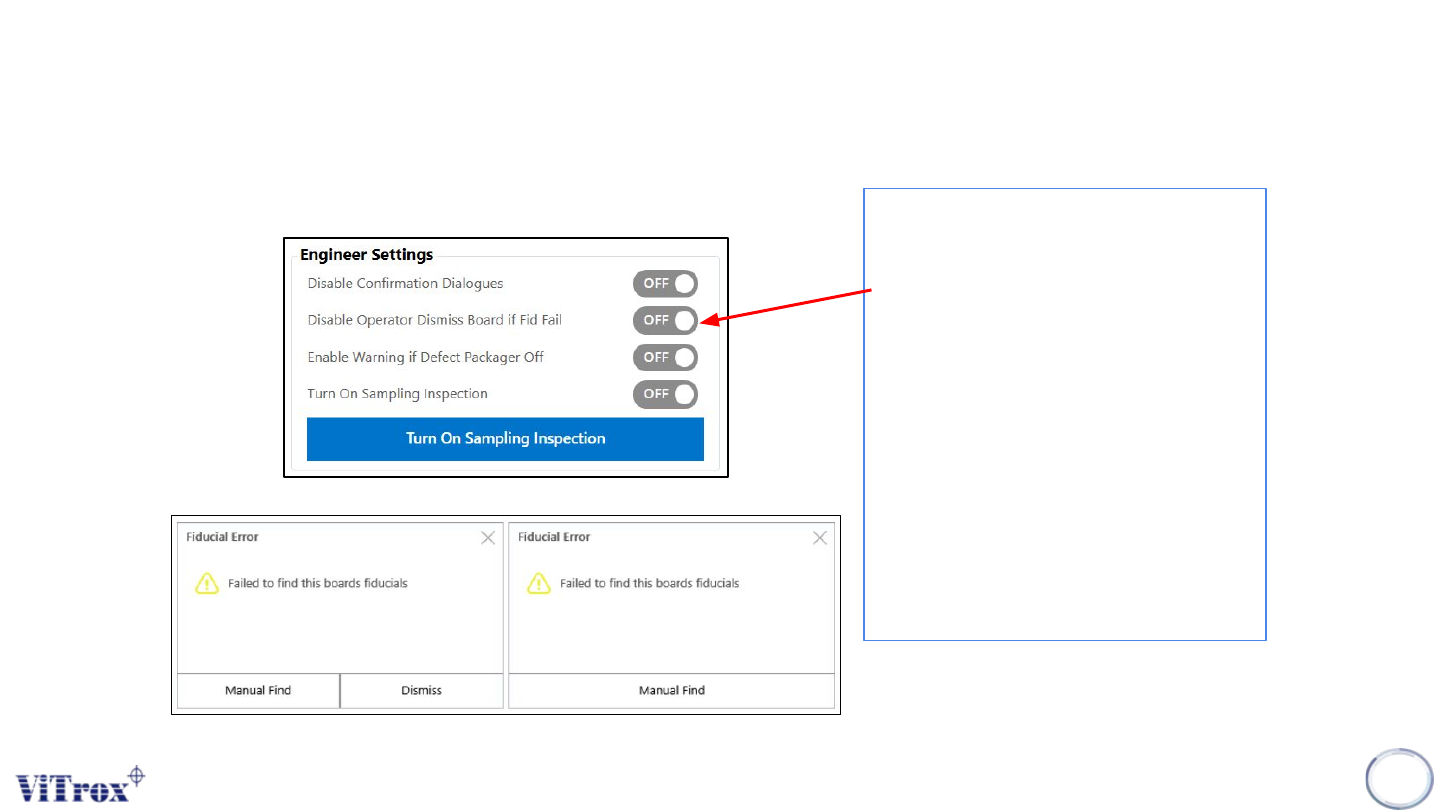
Disable Operator Dismiss Board if Fid Fail
This feature is used to disallow the
operator to unload boards from machine
during fiducial fail in operator mode.
After turning on Auto Inspect and Release
in engineer or operator mode, a board
remains clamped and an error message
appears for a user to select manual find
only once fiducial failed. It forces the user
to go back to fiducial editor to perform
fiducial fine-tuning. Figures below show
the fiducial error message before and
after turning on this feature.
Note: This feature is available in engineer
and operator mode.
Figure 19: Engineer Settings
Figure 20: Failed to find this board fiducials
Copyright © ViTrox All Rights Reserved.
General Setting (Engineer Setting)
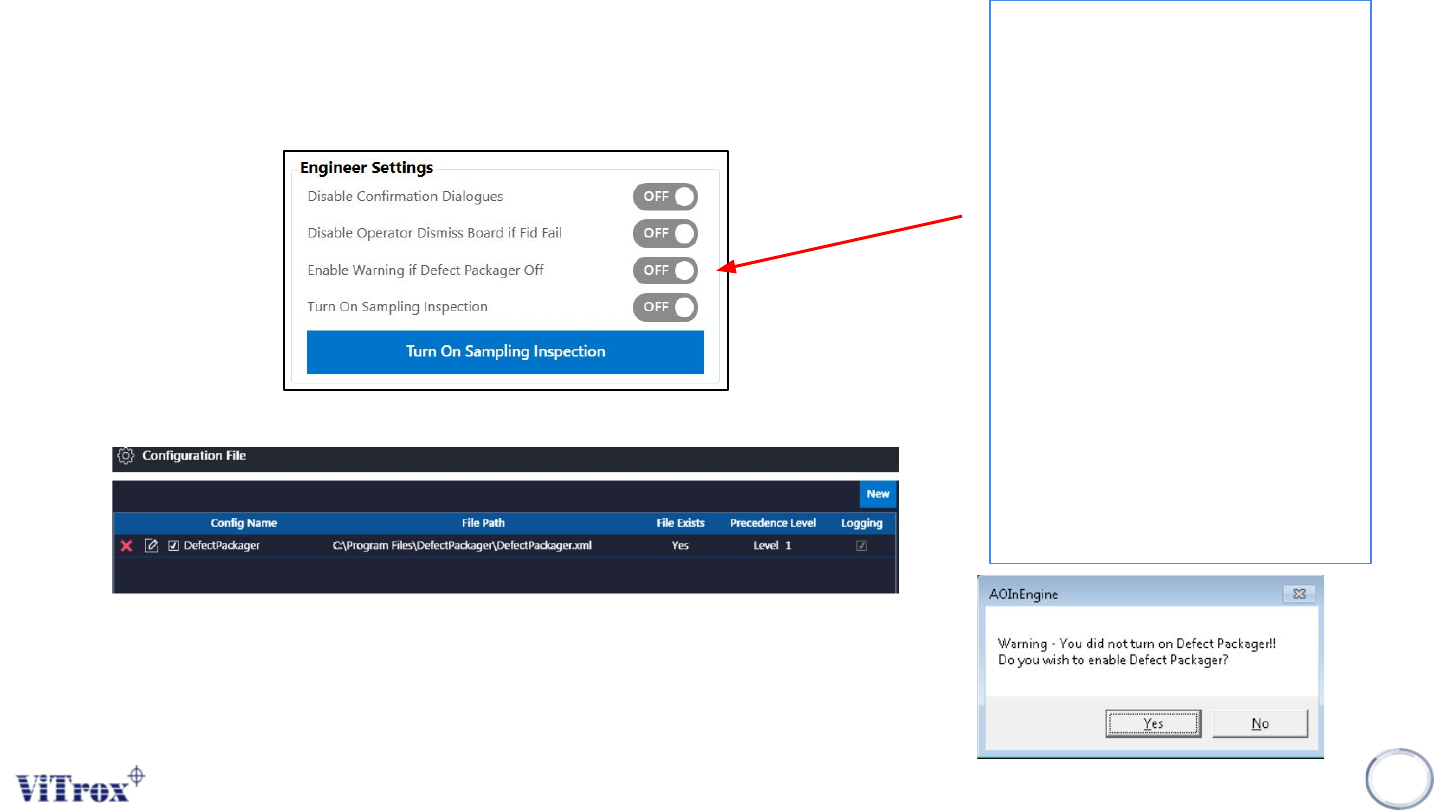
Enable Warning if Defect Packager Off
30
Figure 21: Engineer Settings
This feature is used to prevent a user
setting the defect packager to Off in
configuration files. This is because
when the defect packager set to Off, it
will induce the data to be unpacked and
VVTS will not display result.
Once the inspection started, a warning
window prompt the user to select
enable or disable the defect packager
setting. If defect packager is enabled,
the next inspection will not show the
warning message and the defect
packager will set to ON in configuration.
If defect packager is disabled, the
warning message will show for all
incoming boards.
Note: This feature is available in
engineer and operator mode.
Figure 22: After Selecting ‘’Yes’’, defect packager will be selected
Figure 22: Defect Packager warning message
Copyright © ViTrox All Rights Reserved.
General Setting (Engineer Setting)
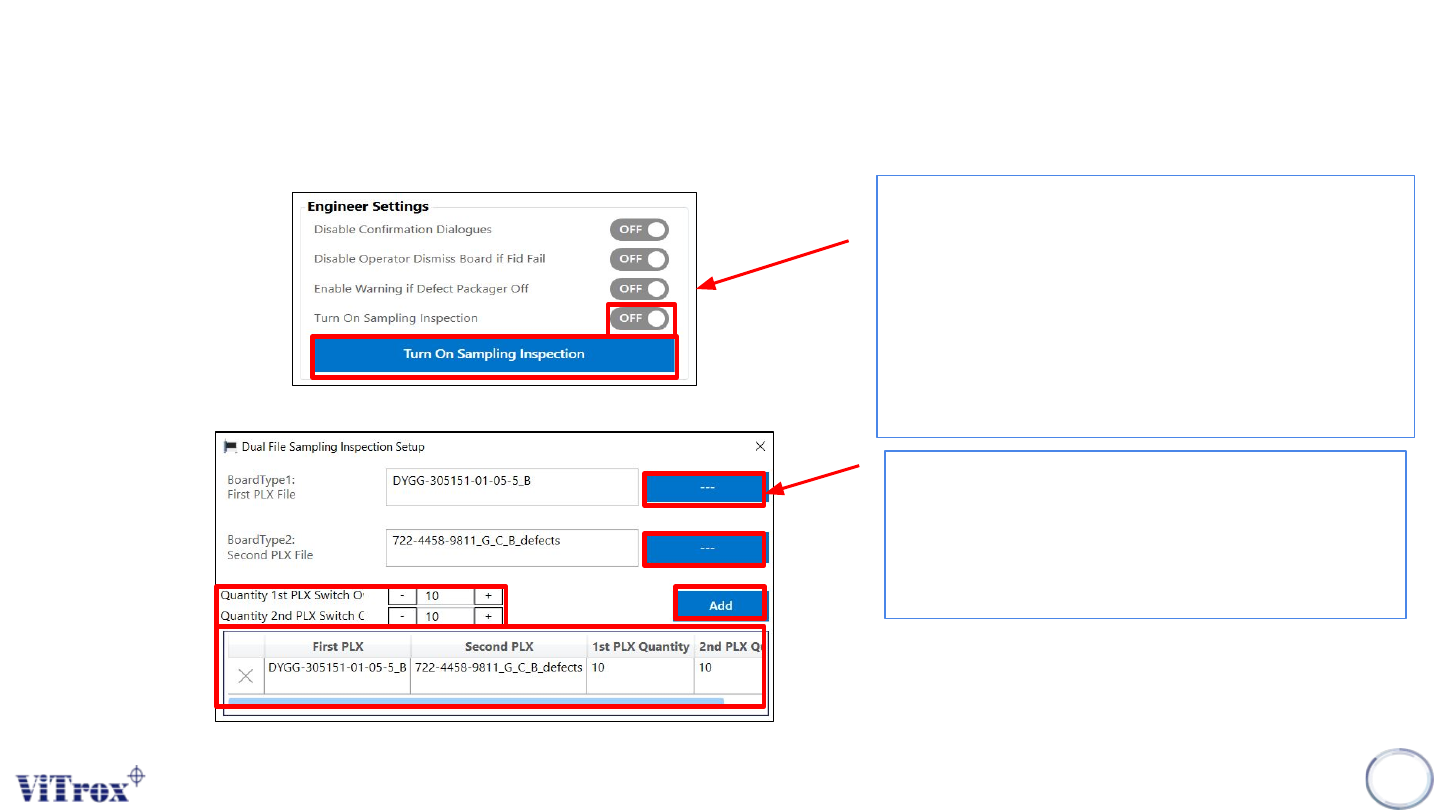
Turn On Sampling Inspection
31
This feature is used to run the sampling inspection for the
first and second program, or vise versa. Set the sampling
inspection to On, and click the sampling inspection button
as shown in the figure below.
Note: This feature is applicable to single lane and dual
lane.
Figure 23: Engineer Settings
Figure 24: Dual file sampling inspection setup
1) Load the PLX file for first and second program
2) Set the quantity of first and second program
and click at add button.
3) After add, the information will be added in the
table.