Smart Graphical User Interface (SmartG) Overview_rev1.pdf - 第12页
Copyright © ViT rox All Rights Reserved . Scan Full Board • Scan Full Board is a feature to inspect the full board without inspect components. • After scanning the full board, the board graphic is displayed in full-board…
Copyright © ViTrox All Rights Reserved.
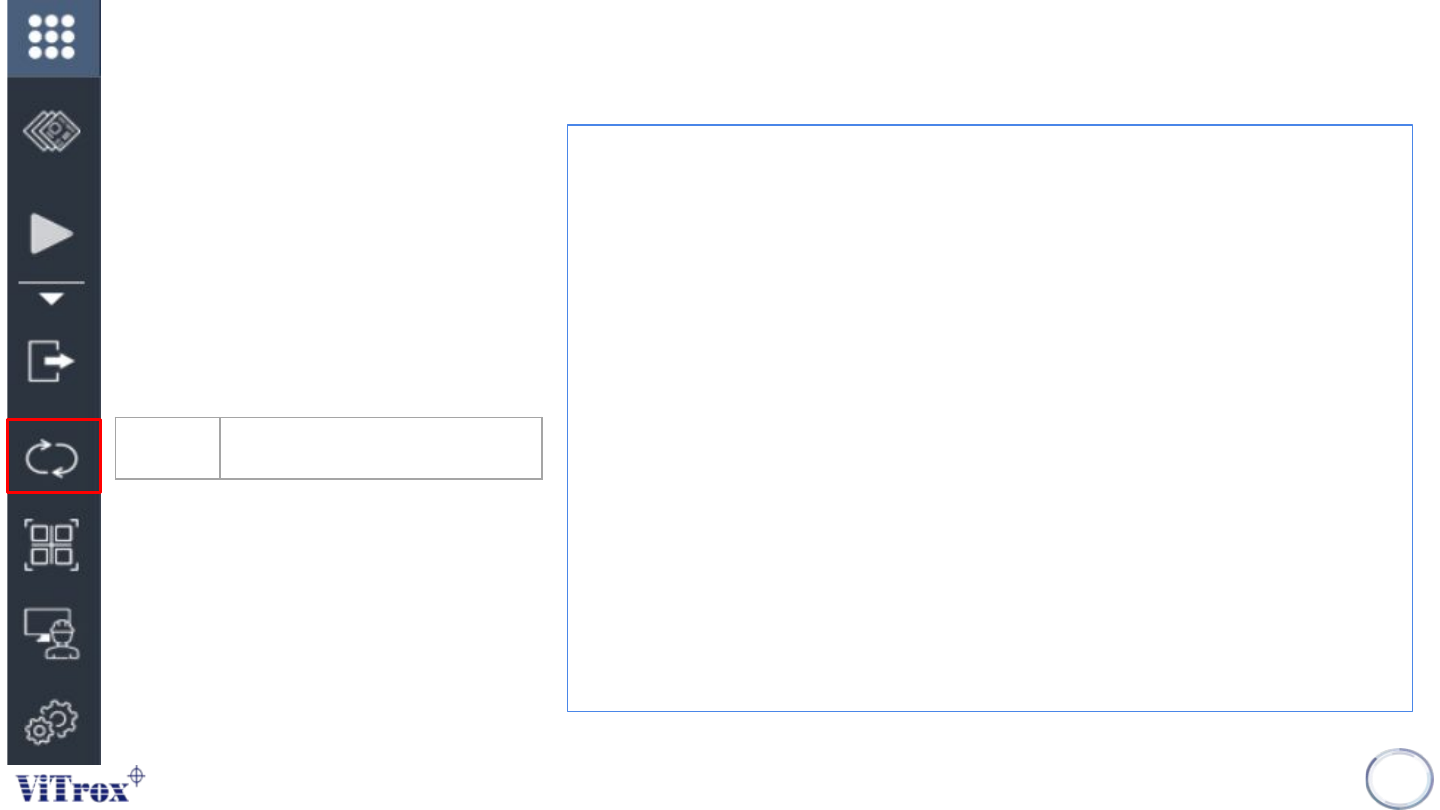
Compile
• Compile is a feature to compile, update and save the parameter
or setting change.
• Generally the compile button applied by SmartG software
automatically during entering or exiting engineer, fiducial, trainer,
and edit page.
When to used?
The conditions that are recommended to compile the program are:
● Parameter or setting change to the files in c:\cpi\cad
○ Edit the component search area, ref des and part number.
○ Edit the fiducial setting.
○ Edit the trainer and editor setting.
○ Edit the setting in Utilities
11
Compile Perform compile for the program
Copyright © ViTrox All Rights Reserved.
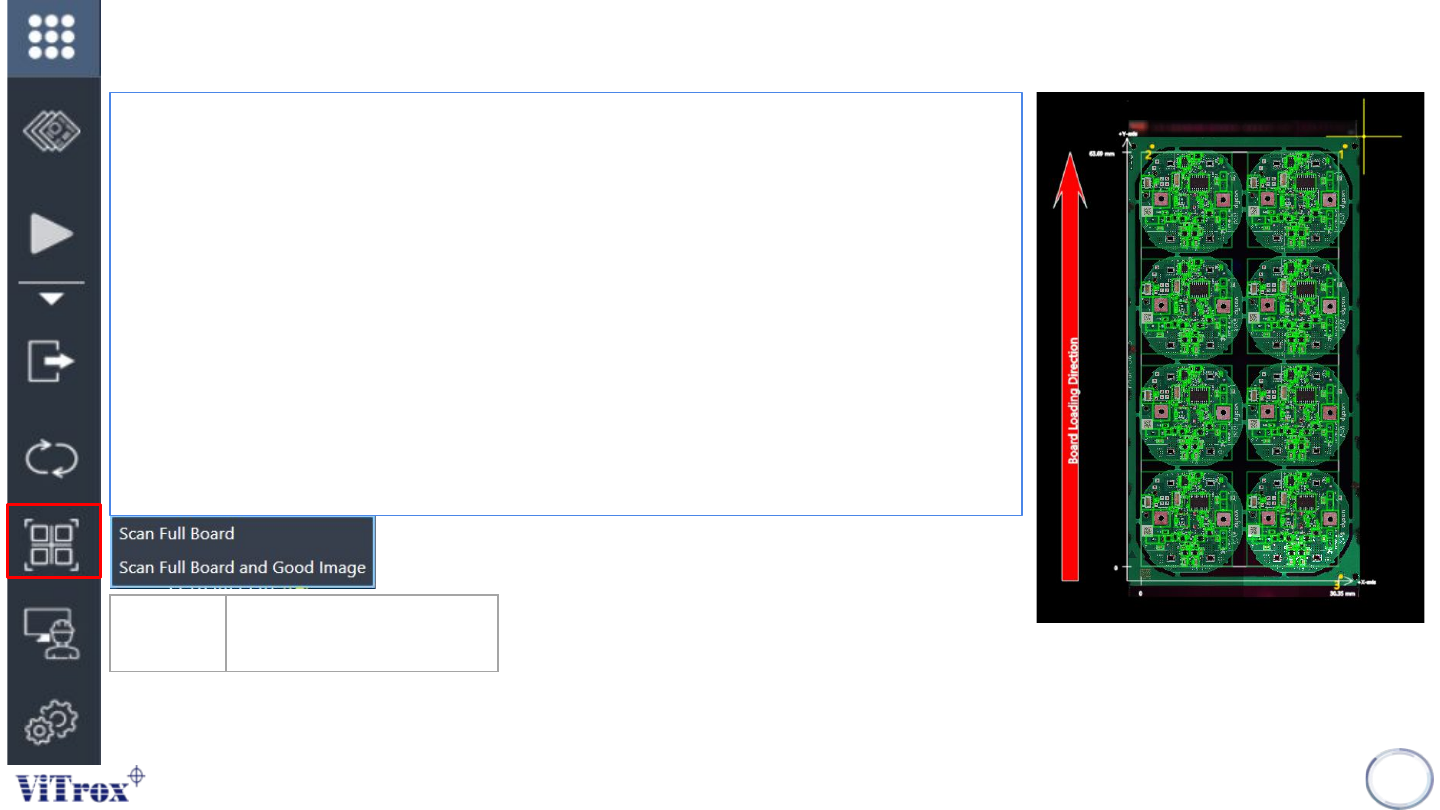
Scan Full Board
• Scan Full Board is a feature to inspect the full board without inspect
components.
• After scanning the full board, the board graphic is displayed in full-board view.
• It normally takes approximately 1-2 minutes to complete the full board
inspection.
The figure 6 shows several information after scan full board:
• Panel loading direction
• Y axis and board length
• X Axis and board width
• Component search region (green bracket)
Scan full board with good image performs the same action as scan full board.
Additionally, the feature perform good image saved in the C:\Goodimages folder. The
good image is mainly used for repair station to display the good comparison images.
12
Scan Full
board
Scan full board image and
display in full board view
Figure 6: Full board View
Copyright © ViTrox All Rights Reserved.
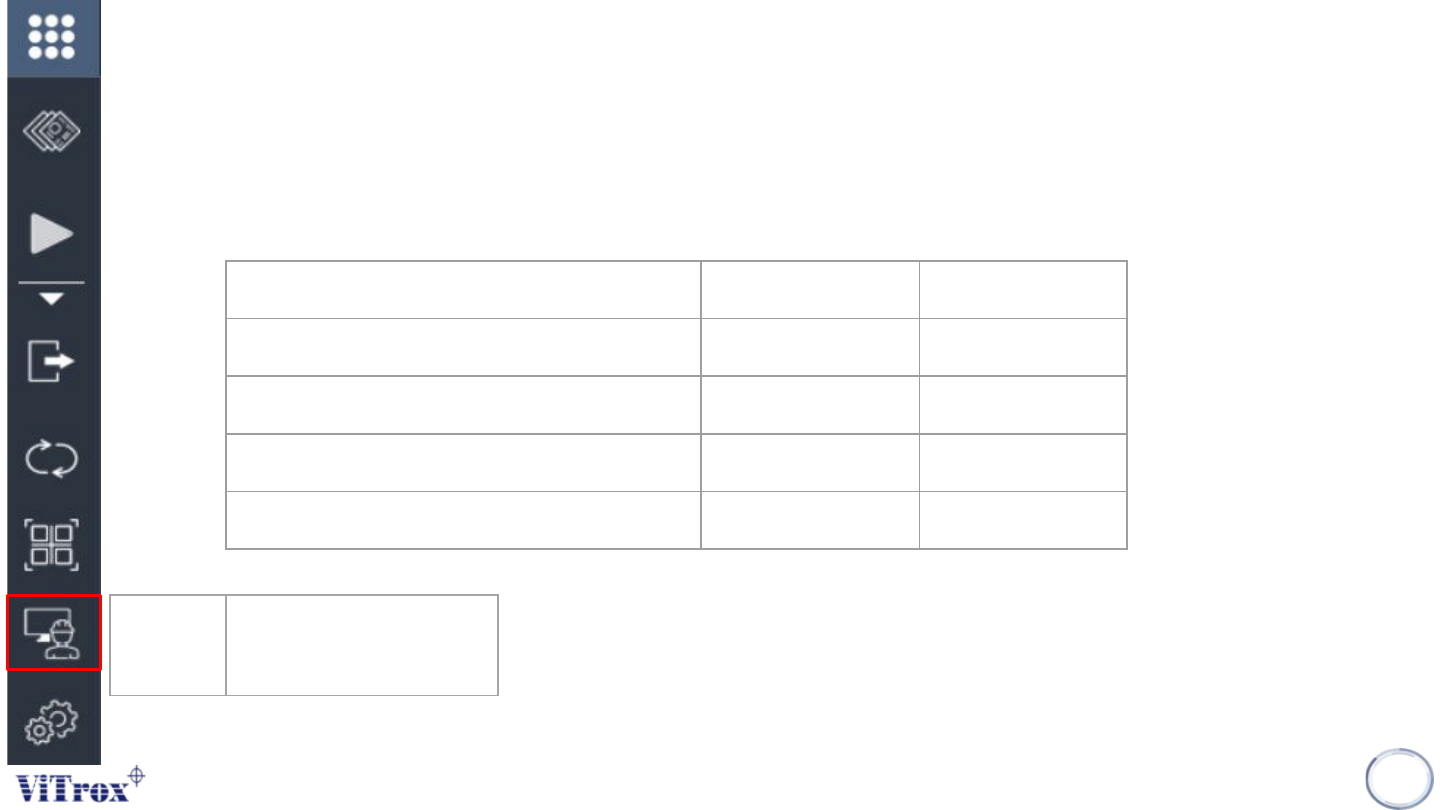
Operator Mode
• Operator Mode is a navigator from engineer page to operator page. Engineer page is used to perform
programming and fine tuning to the board while operator page is used to support production running and limited
control access to line operator.
13
Operator
Mode
Operator Mode with limited
control access to line
operator
Action Operator Mode Engineer Mode
Run and Stop Inspection ✓ ✓
Edit setting in engineer page ✘ ✓
Perform programming or fine tuning ✘ ✓
Move camera view and set fiducial ✘ ✓
Table 1: Comparison acces