Smart Graphical User Interface (SmartG) Overview_rev1.pdf - 第95页
Copyright © ViT rox All Rights Reserved . Select Component 95 Select Component Select Multiple Components Figure 82: Select Multiple components Note: User can also use ctrl+left click or drag selected region to select mu…
Copyright © ViTrox All Rights Reserved.
View Cad
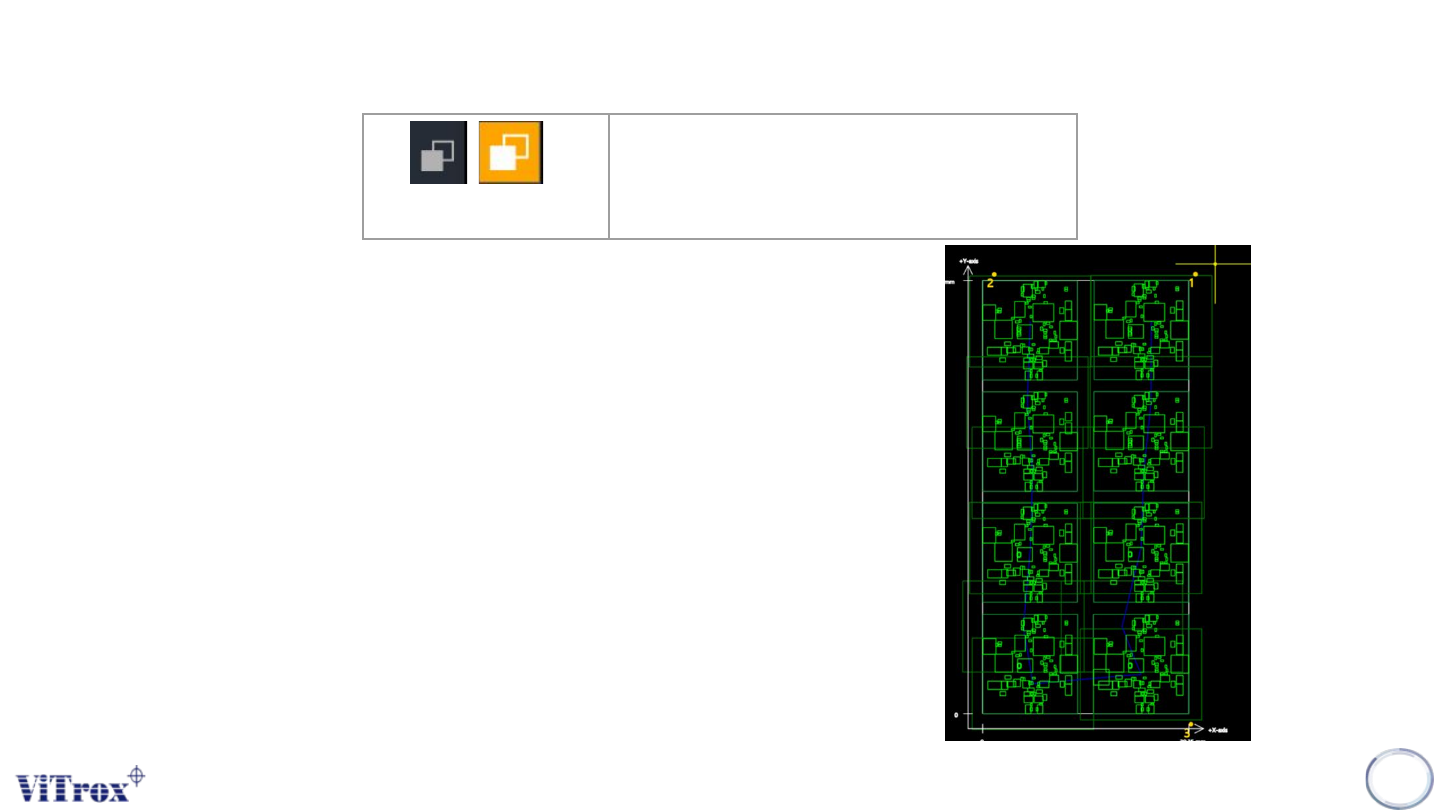
View Cad is used to show the view inspection sequence among all field of
view. The panel board becomes transparent in full-board view, while two
additional information pieces appear in board graphic which are:
● Blue Line (View inspection sequence)
● Green box (Current field of view size)
Note: In order to check which FOV of a component falls under, select the
component and the inspection FOV shows turn into actual board status.
94
View Cad
Display inspection sequence/path
among all field of view
Figure 81: View Inspection sequence
Copyright © ViTrox All Rights Reserved.
Select Component
95
Select Component
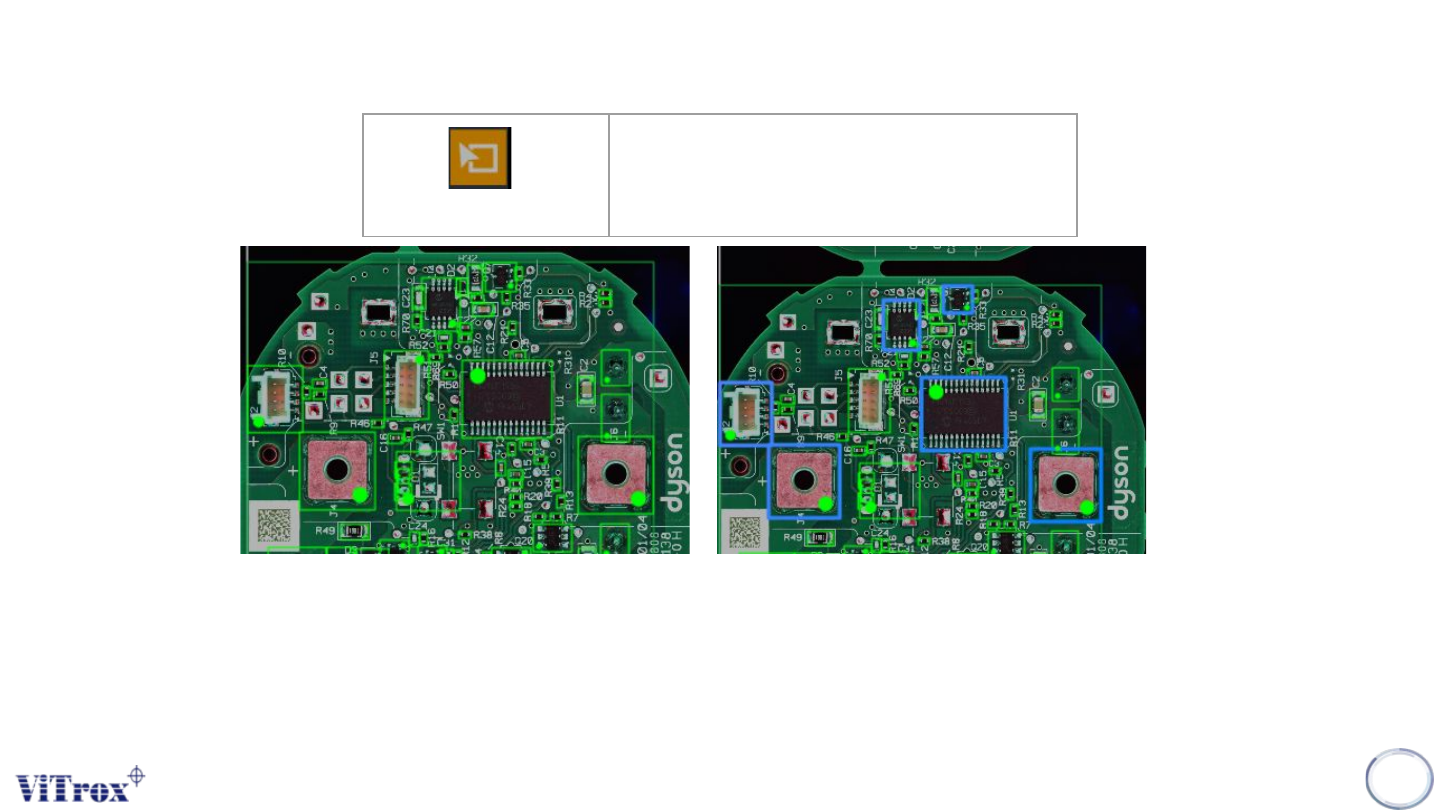
Select Multiple Components
Figure 82: Select Multiple components
Note: User can also use ctrl+left click or drag selected region to select multiple components
Copyright © ViTrox All Rights Reserved.
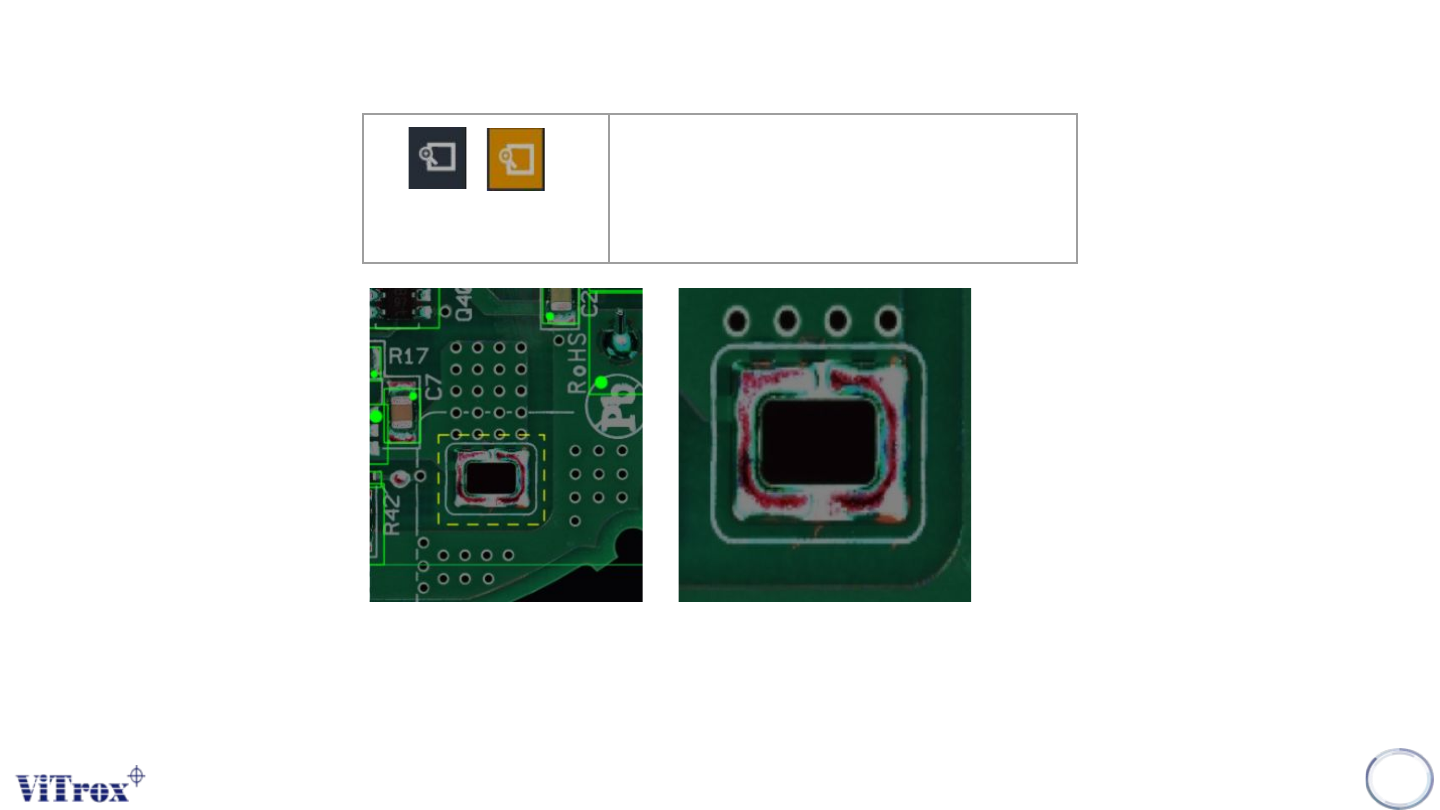
Zoom in Selected region
Note: User can drag any region to zoom in whether components or boards.
96
Zoom in Selected
Region
Zoom in with specific location or
components.
Figure 83: Example ‘yellow’ Selected region to zoom in