Smart Graphical User Interface (SmartG) Overview_rev1.pdf - 第146页
Copyright © ViT rox All Rights Reserved . Fit to Home Screen 146 Fit T o Home Screen Zoom out to entire Home Screen Figure 132: Before and After Click Fit T o Home Screen Fit to Screen is a feature to set the current FOV…
Copyright © ViTrox All Rights Reserved.
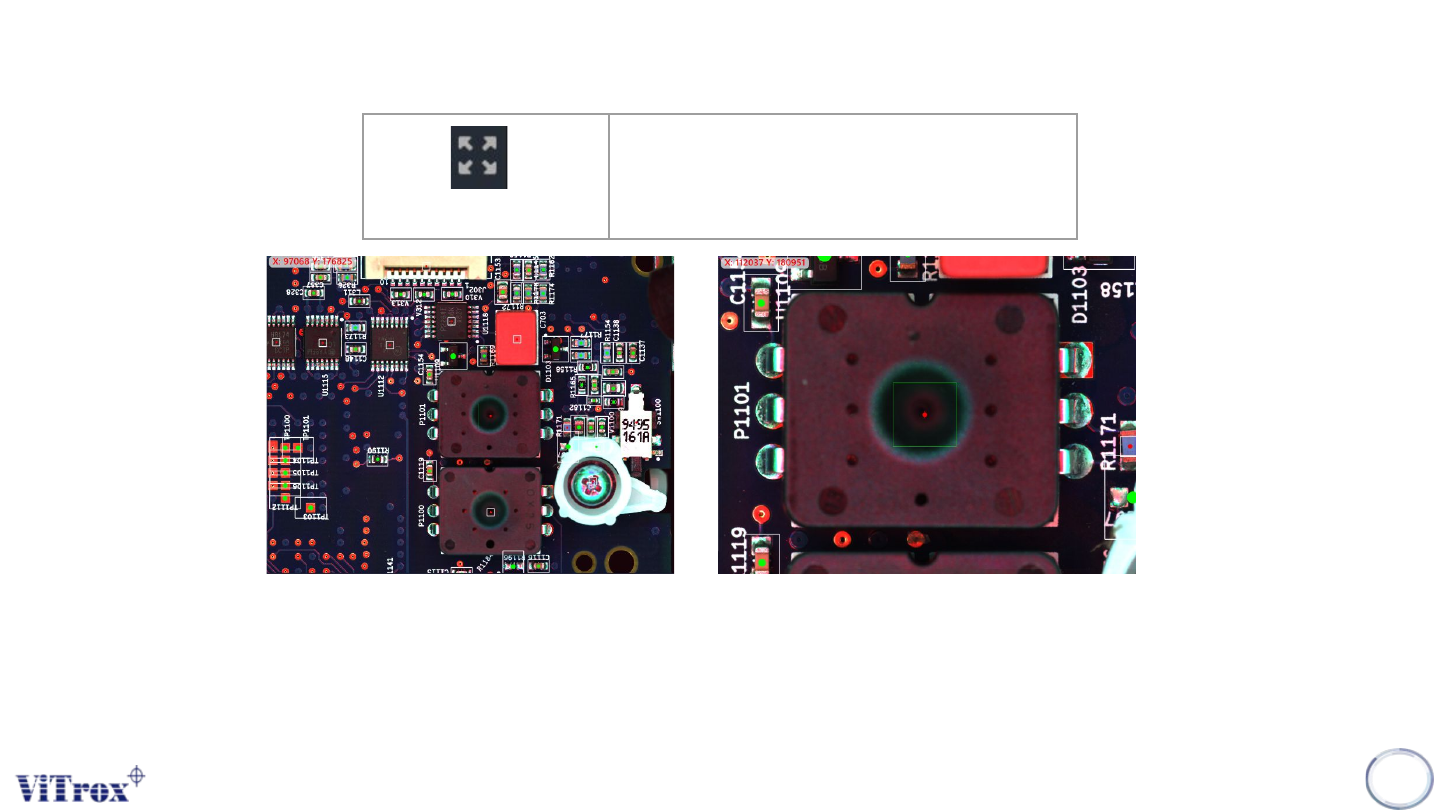
Zoom 1 to 1
145
Zoom 1 to 1
Zoom at component in centroid of
camera view
Figure 131: Before and after click Zoom 1 to 1
When click at the Zoom 1 to 1 button in the tool box, the camera view moves to the selected component (Blue bracket) and this
component stays in center of camera view.
Note: If there is no component selected, no action will be performed. Zoom 1 to 1 performed in component camera view and full
board view shows different sizes.
Copyright © ViTrox All Rights Reserved.
Fit to Home Screen
146
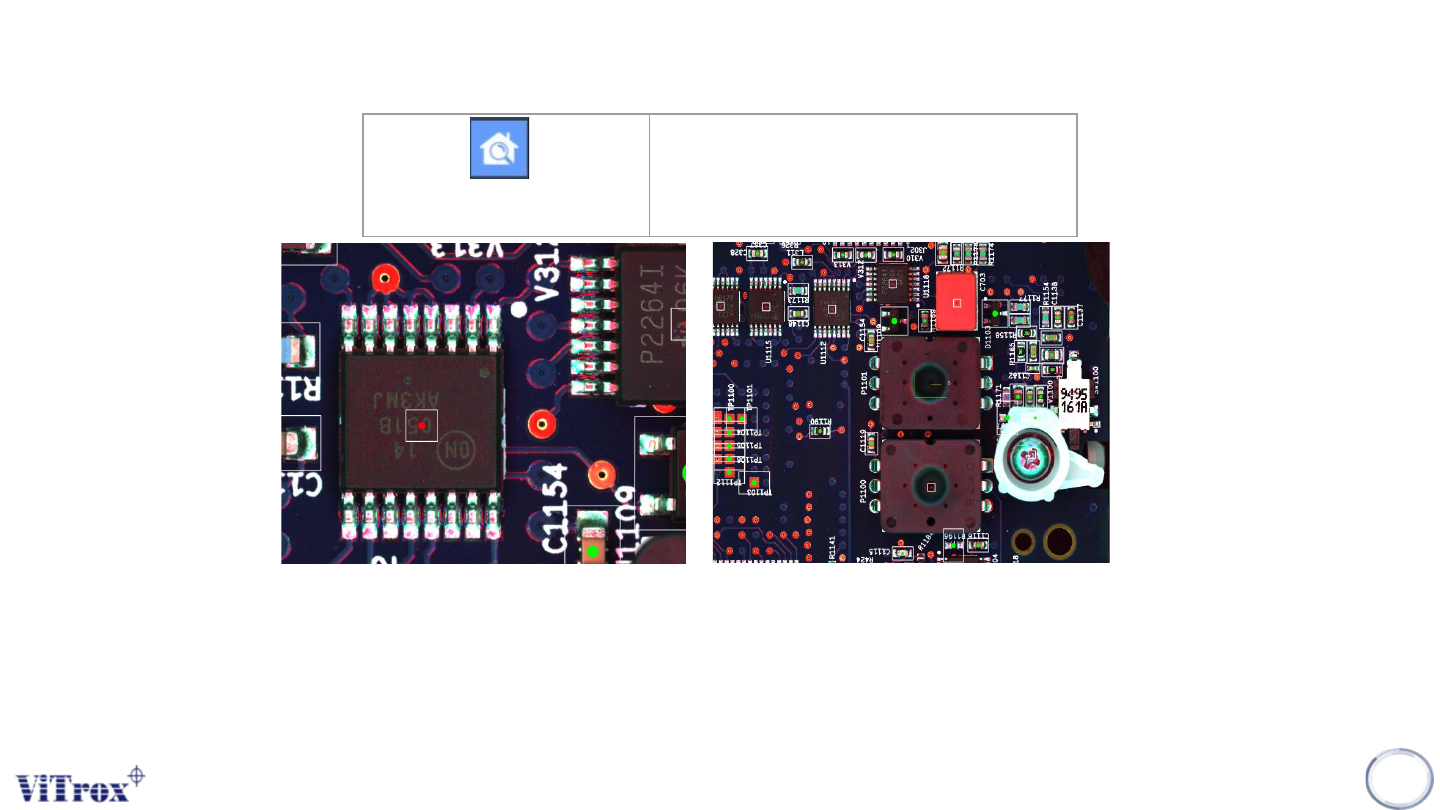
Fit To Home Screen
Zoom out to entire Home Screen
Figure 132: Before and After Click Fit To Home Screen
Fit to Screen is a feature to set the current FOV into full screen camera view. This feature helps user to find out the
full-board image.
Note: This button is very useful when user need to see the entire program.
Copyright © ViTrox All Rights Reserved.
Zoom In and Out
147
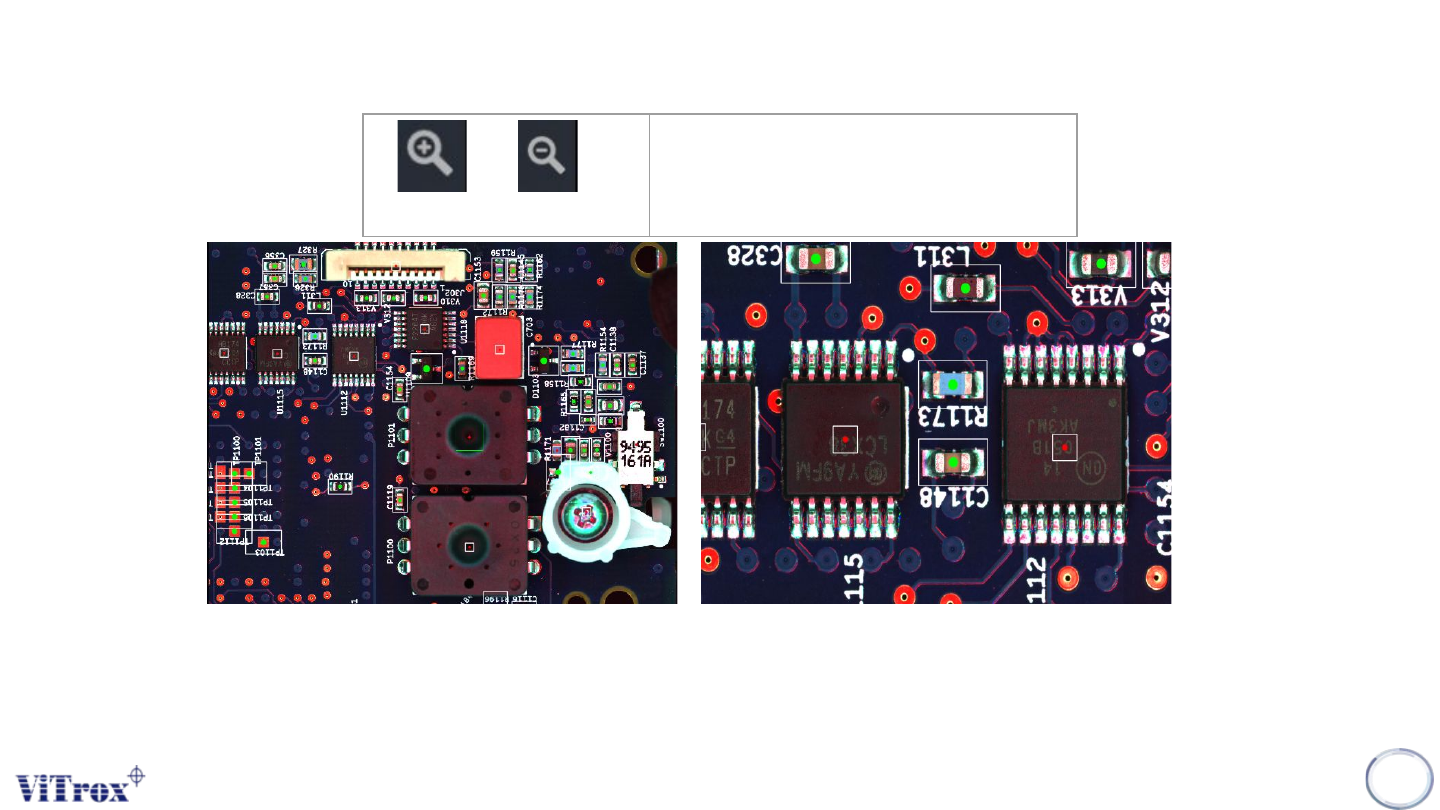
Zoom in (+), Zoom Out (-)
Zoom in the camera view
Figure 133: (Zoom out and Zoom in) pointed at any location
Note: User can use mouse wheel to zoom in and out at any location