Smart Graphical User Interface (SmartG) Overview_rev1.pdf - 第156页
Copyright © ViT rox All Rights Reserved . Assign Alternate Device T ype Note: Alternate device type is to alternate more than one device type in one components. This software will be auto pick the best algorithm to match…
Copyright © ViTrox All Rights Reserved.
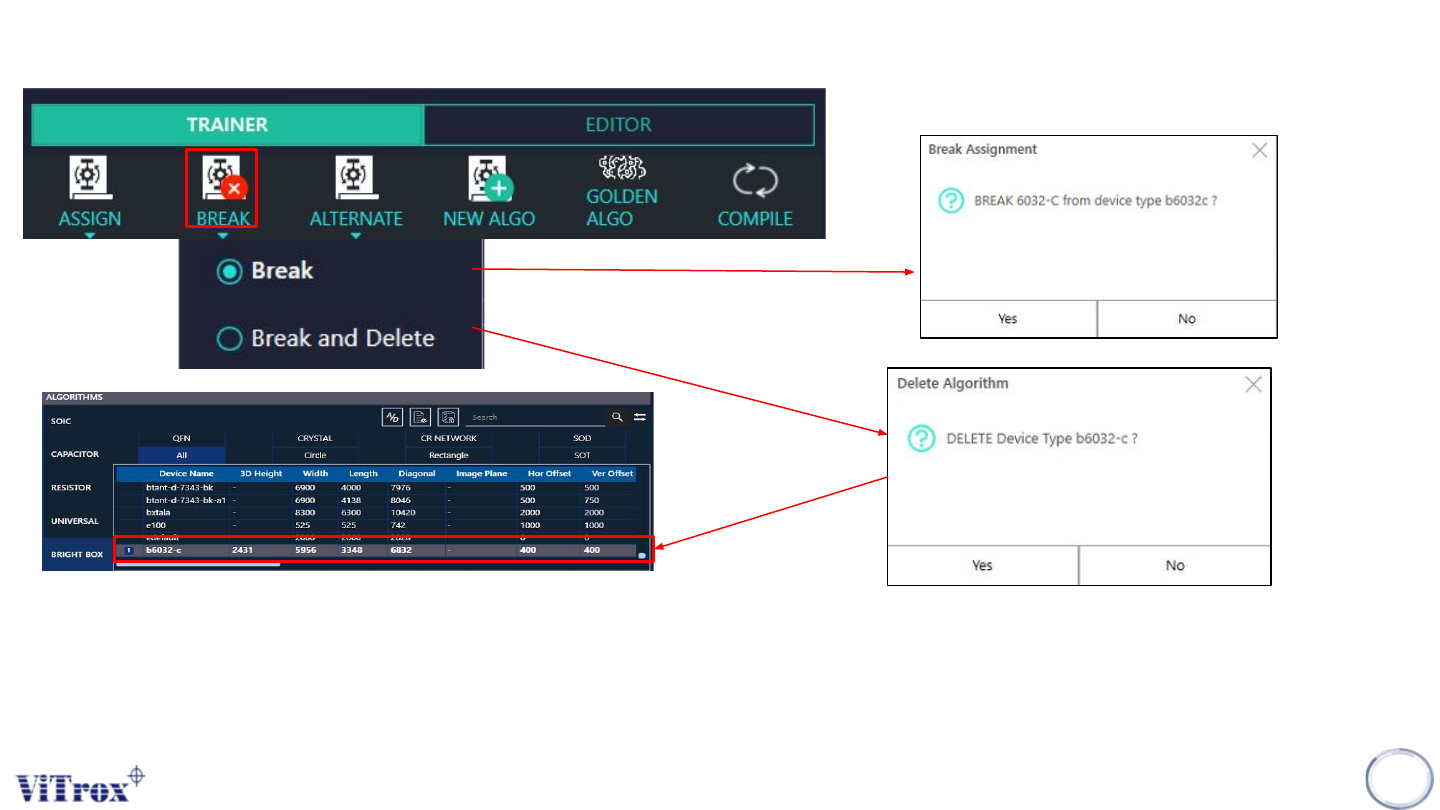
Break Main Device Type Assignment
• There are 2 options to break the trained component, it can be Break, it can be Break and Delete.
• The Break means selected trained component will be switch to Untrain the selected device type without delete
the device name in list of algorithms
• For the Break and Delete means selected trained component will be delete the current device type and, it will
totally be delete in list of algorithms.
155
Figure 139: Break Main device type
Copyright © ViTrox All Rights Reserved.
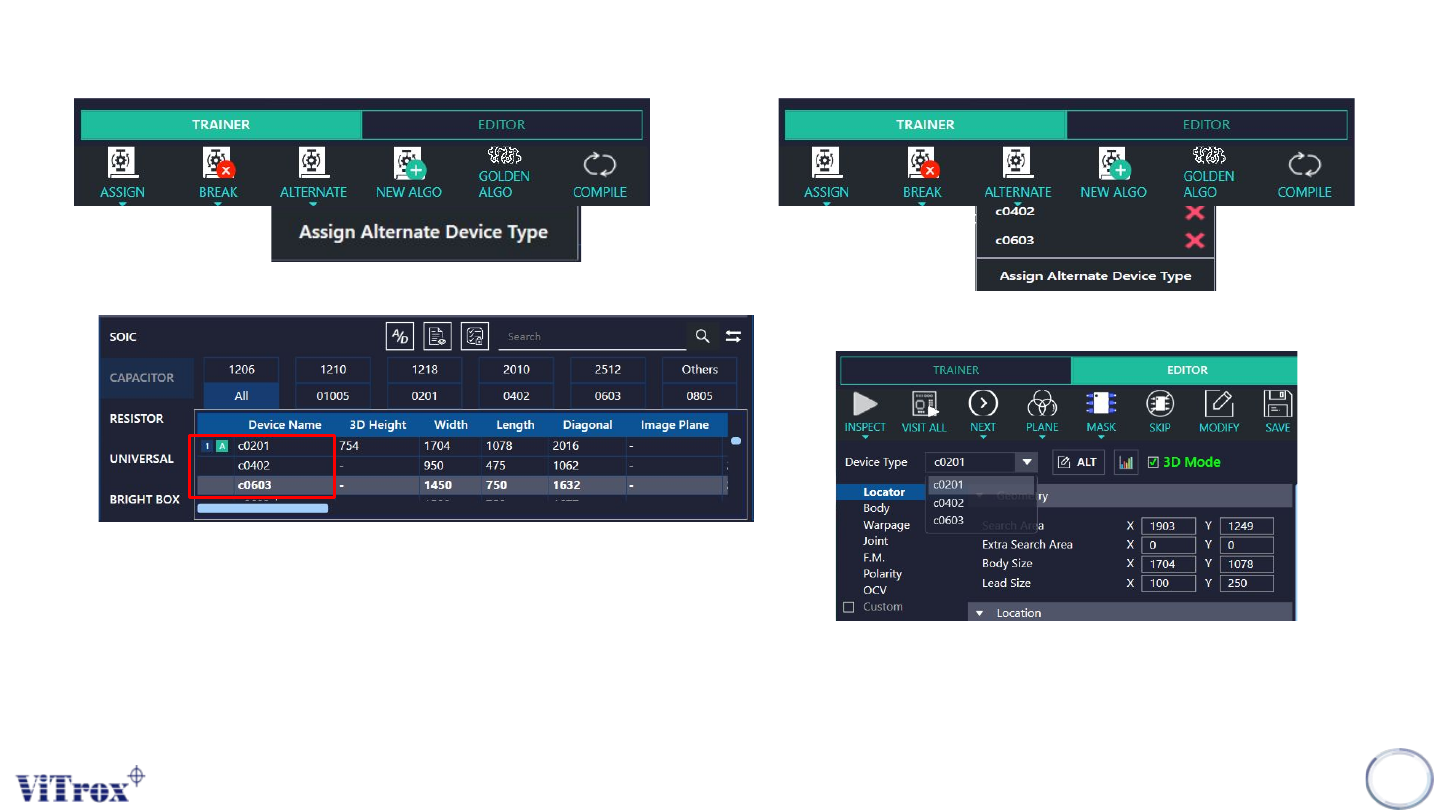
Assign Alternate Device Type
Note: Alternate device type is to alternate more than one device type in one components. This software will be auto pick the best
algorithm to match with components
*Depend on the user whether want to set alternate or not.
156
Figure 140: Assign Alternate device type
Figure 143: In algorithm editor will shows three alternating device type
Figure 141: Example choose 3 different device type
Figure 142: Two others alternative device type
Copyright © ViTrox All Rights Reserved.
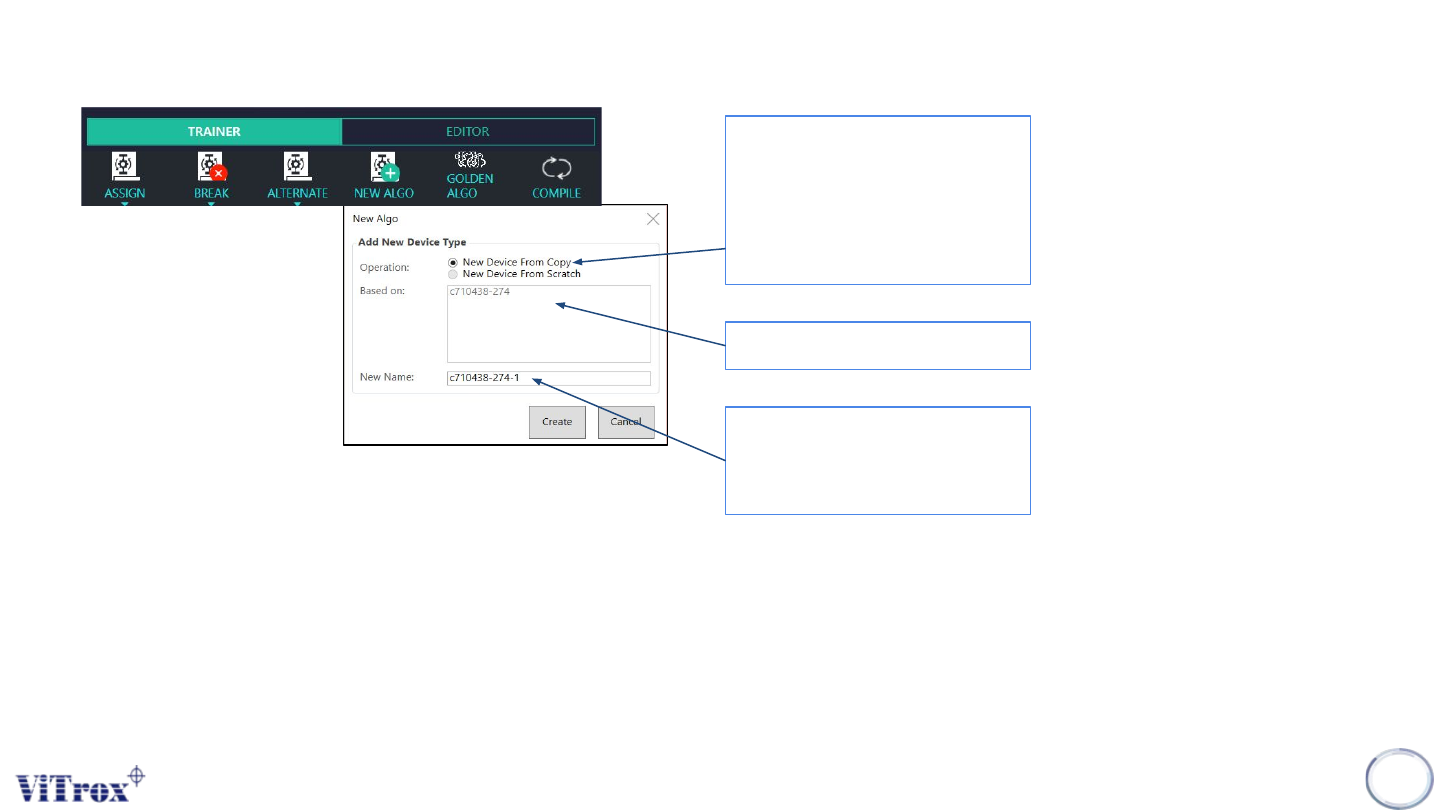
Create New Device Type
Note: To create new device from copy or create new device from raw.
157
Figure 144: Create New device
Two Options:
• New Device from
copy
• New Device from
scratch
Copy from another device
New Name
*Cannot be same with copy
device’s name