Smart Graphical User Interface (SmartG) Overview_rev1.pdf - 第99页
Copyright © ViT rox All Rights Reserved . Zoom 1 to 1 When click at the Zoom 1 to 1 button in the tool box, the camera view moves to the selected component (Blue bracket) and this component stays in center of camera view…
Copyright © ViTrox All Rights Reserved.
View origin Location
View origin location is used display full-board view and the original location. When clicking the View Origin Location
button in the tool box, the camera view always moves to the original location of the board.
98
View Origin Location
View the origin location of the panel
board
Copyright © ViTrox All Rights Reserved.
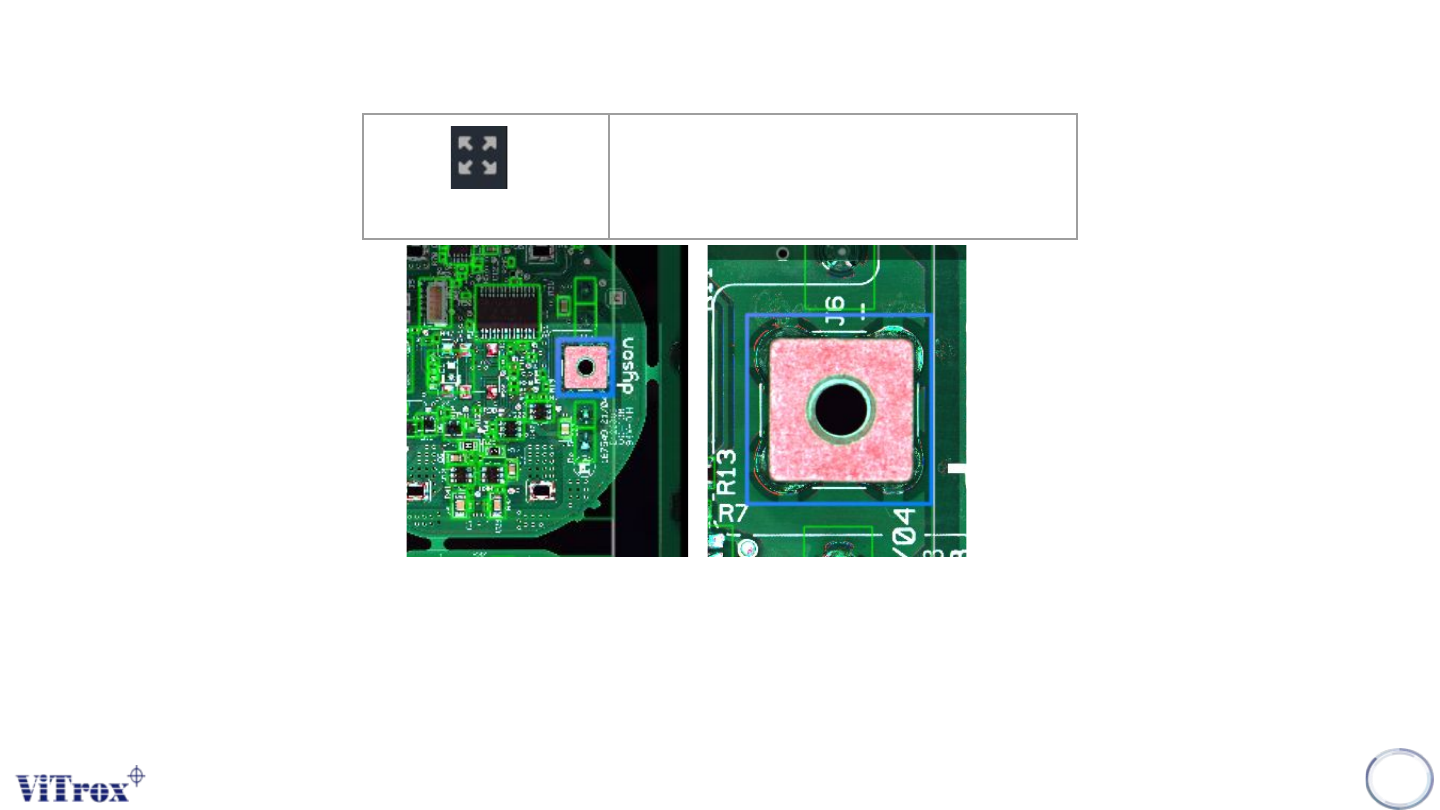
Zoom 1 to 1
When click at the Zoom 1 to 1 button in the tool box, the camera view moves to the selected component (Blue bracket) and this
component stays in center of camera view.
Note: If there is no component selected, no action will be performed. Zoom 1 to 1 performed in component camera view and full
board view shows different sizes.
99
Zoom 1 to 1
Zoom at component in centroid of
camera view
Figure 85: Before and after click Zoom 1 to 1
Copyright © ViTrox All Rights Reserved.
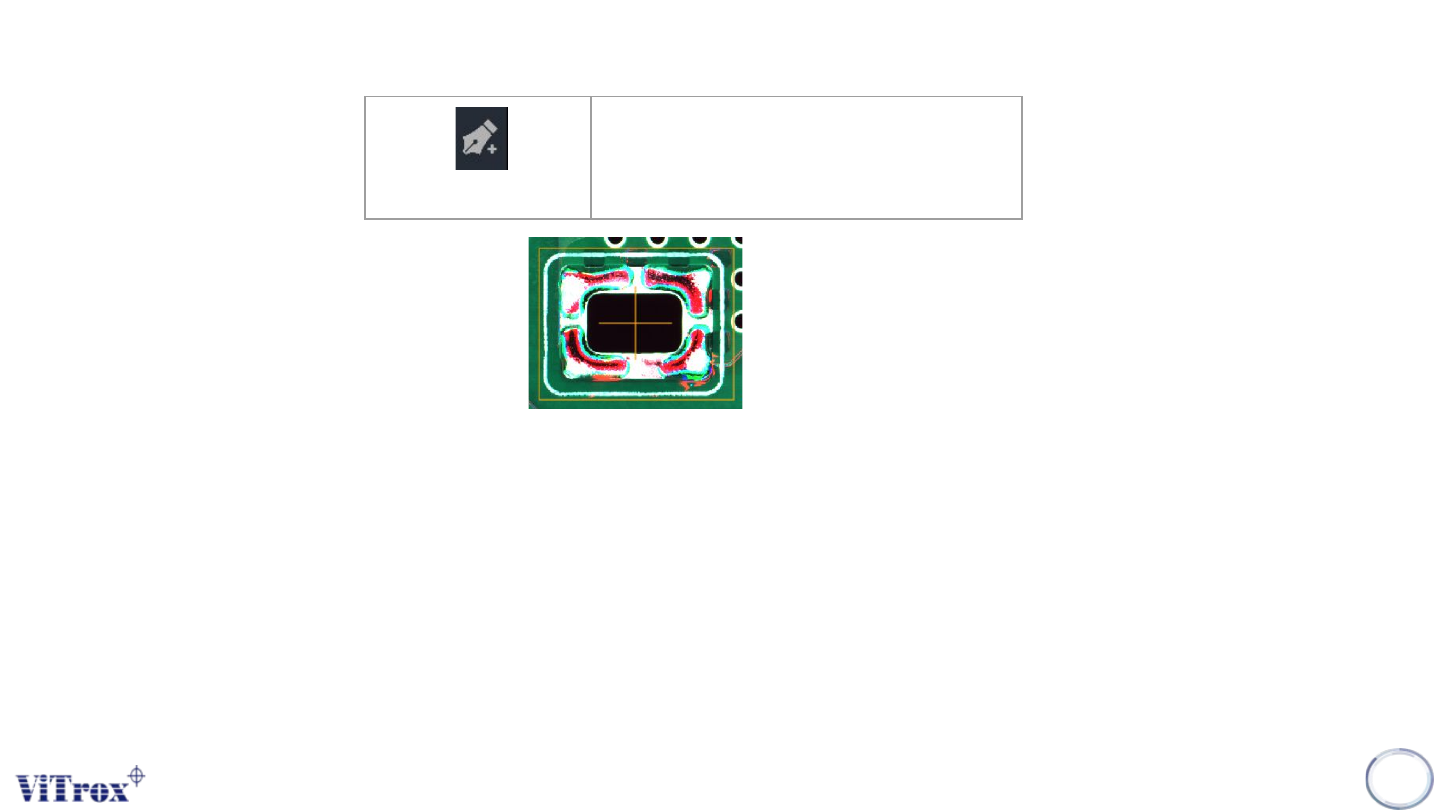
Add Component
Add Component is used to add single or multiple components in camera view. This feature is helpful for customized inspection
including gold pad inspection, THT inspection, gap detector inspection, foreign material inspection, or components that are not
in cad file.
Note: User can add single or multiple component by using this feature
100
Add Component
Add component by drag and draw
Figure 86: Draw and Drag for add component