Smart Graphical User Interface (SmartG) Overview_rev1.pdf - 第107页
Copyright © ViT rox All Rights Reserved . Adjust brightness Adjust the Opacity of Board Image is a feature used to adjust the transparency between board graphic and board image. This feature comes with an adjustable bar …
Copyright © ViTrox All Rights Reserved.
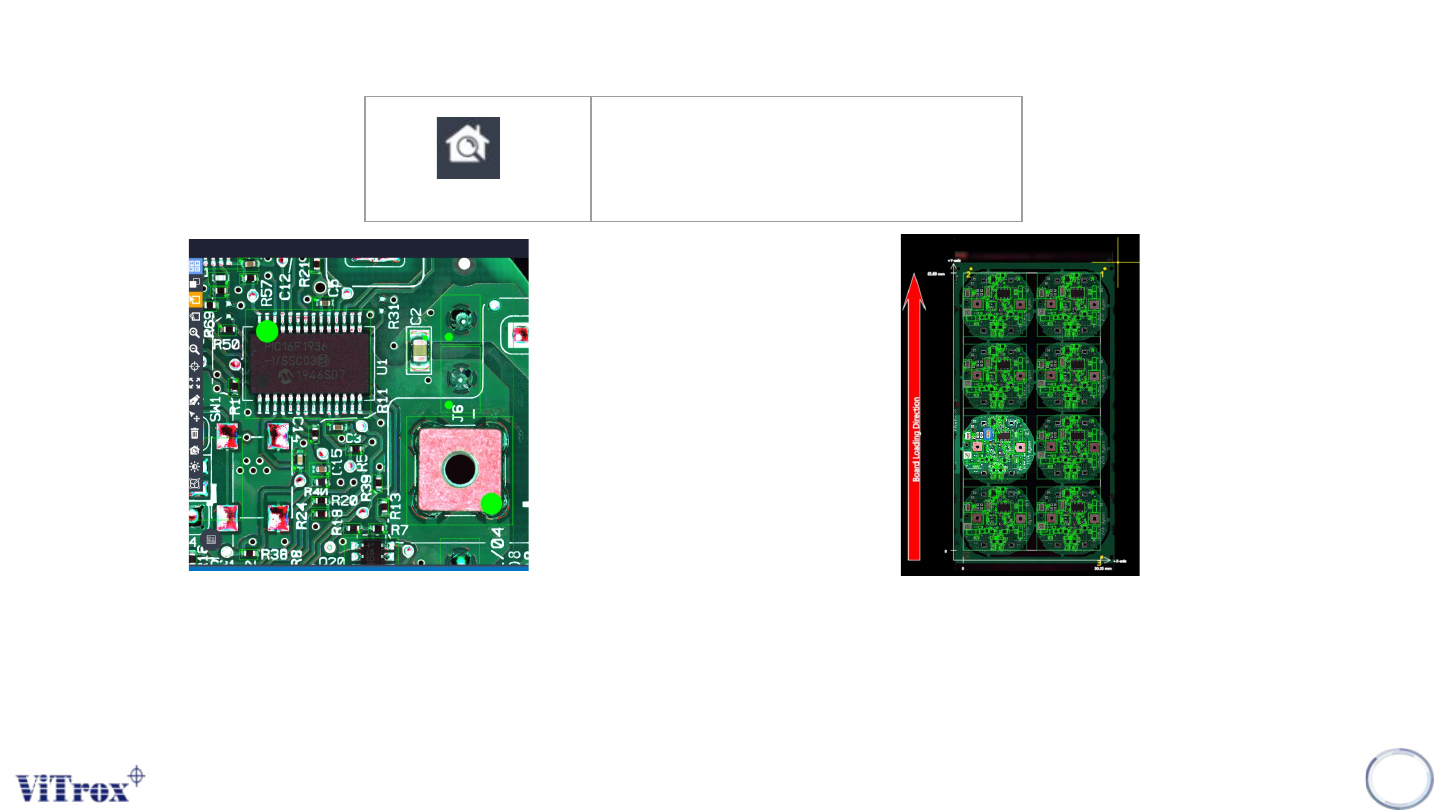
Fit To Screen
Fit to Screen is a feature to set the current FOV into full screen camera view. This feature helps user to find out the
full-board image.
Note: This button is very useful when user need to see the entire program.
106
Fit to Screen
Fit the current FOV into camera
view
Figure 96: Before selecting Fit to Screen (Zoom In) Figure 97: After selecting Fit to Screen
Copyright © ViTrox All Rights Reserved.
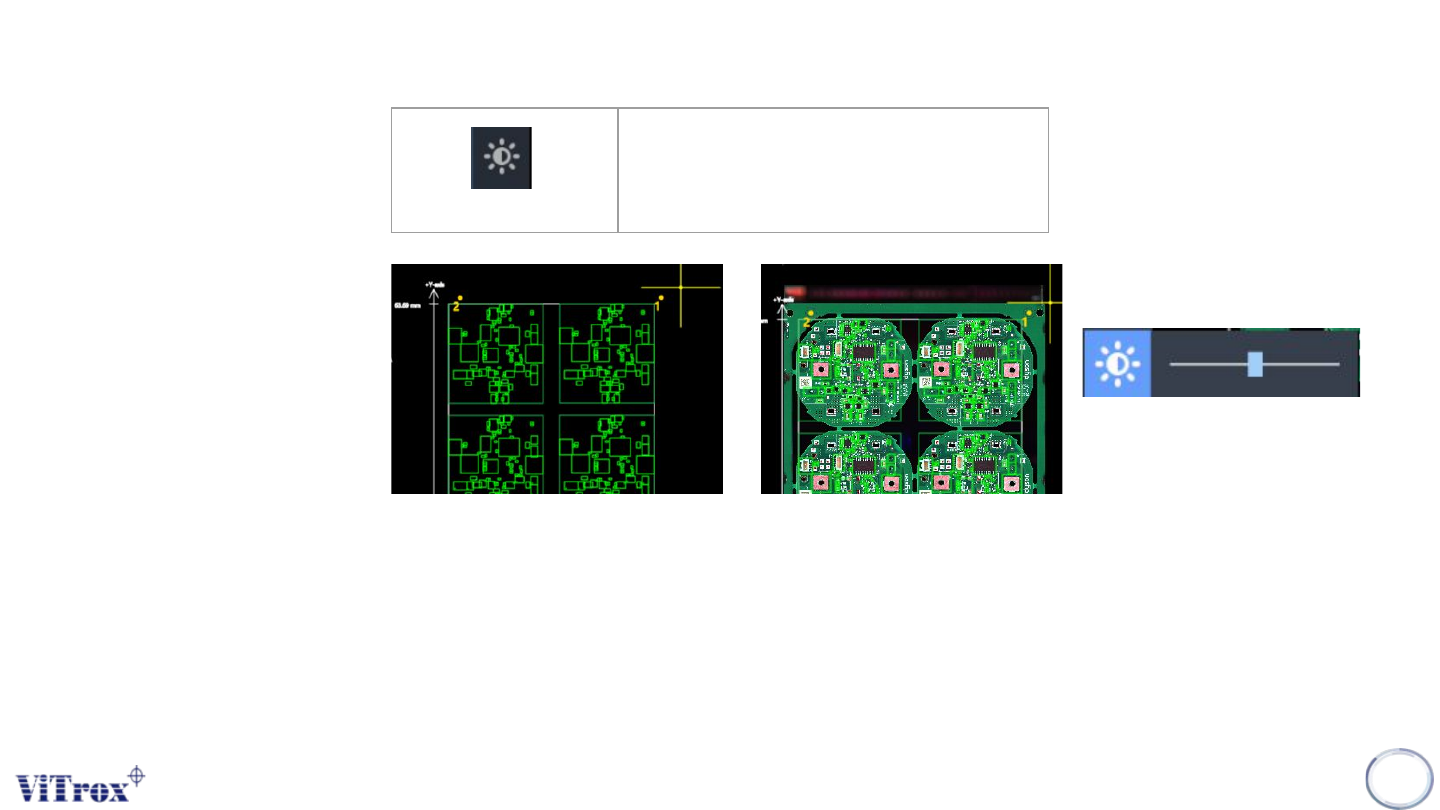
Adjust brightness
Adjust the Opacity of Board Image is a feature used to adjust the transparency between board graphic and board image. This
feature comes with an adjustable bar shown after clicking the button. This is used to set the percentage of transparency between
board graphic and image. The default value is 70%.
Note: Drag the slider to set the transparency value between 0% and 100%.
107
Adjust brightness
Adjust the brightness of full-board
image
Figure 98: From low to high
Copyright © ViTrox All Rights Reserved.
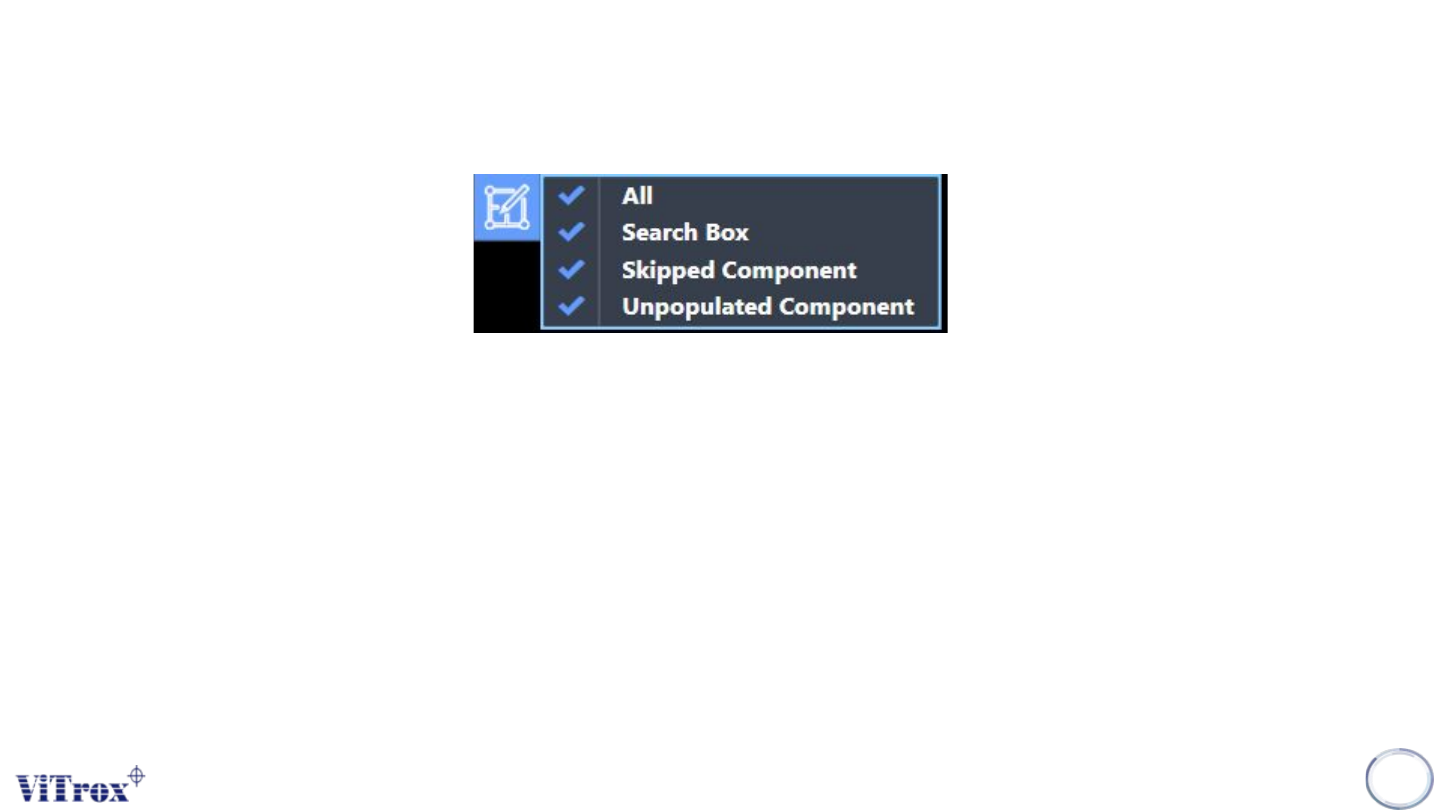
Filter Display
Filter Display of Component Geometry is used to set the display in board graphic. A drop-down menu shows after
clicking the button and comes with four selections which are:
● All
● Search Box
● Orientation Indicator
● Skipped Component
● Unpopulate components
Note: User can filter unnecessary item to display.
108