Smart Graphical User Interface (SmartG) Overview_rev1.pdf - 第154页
Copyright © ViT rox All Rights Reserved . Assign Main Device T ype There are 4 options to assign the the component, it can be complete assignment, it can be directly assign by part number , it can be assign by reference …

Copyright © ViTrox All Rights Reserved.
153
Trainer Main Button (Train Interface)
Copyright © ViTrox All Rights Reserved.
Assign Main Device Type
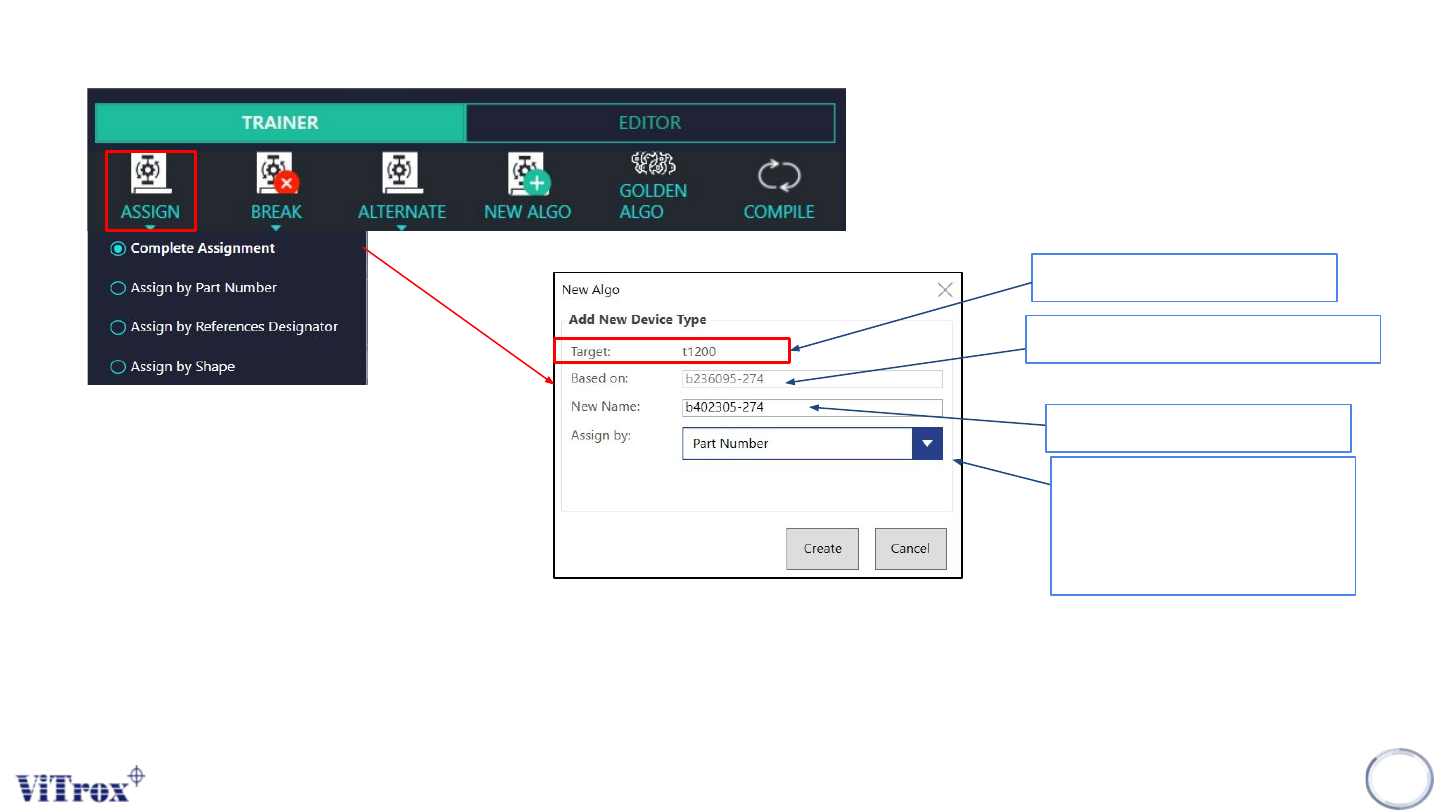
There are 4 options to assign the the component, it can be complete assignment, it can be directly assign by part number, it can
be assign by reference designator and it can be assign by shape.
Note: It depends on the user to train the device type.
154
Ref. Des.
Name of copy from other device
Name of New device
Assign by any:
1) Part number
2) Shape
3) Ref Des
Figure 138: Assign Main Device Type
Copyright © ViTrox All Rights Reserved.
Break Main Device Type Assignment
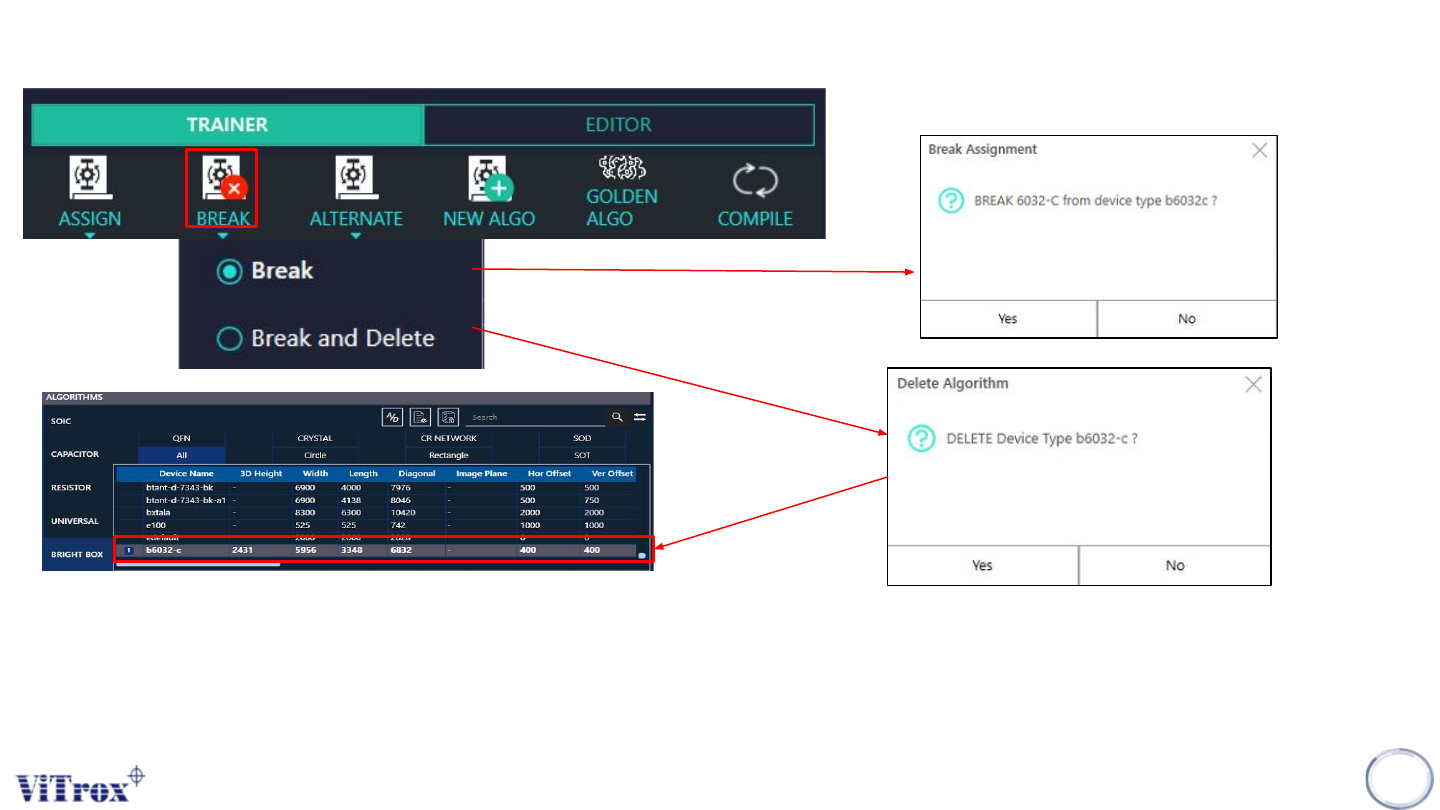
• There are 2 options to break the trained component, it can be Break, it can be Break and Delete.
• The Break means selected trained component will be switch to Untrain the selected device type without delete
the device name in list of algorithms
• For the Break and Delete means selected trained component will be delete the current device type and, it will
totally be delete in list of algorithms.
155
Figure 139: Break Main device type