VI User Manual.pdf - 第103页
.TST file creation Vision 2007 4.10 User Manua l Rev 01 4 - 29 4.8.4 TST file edition During tst file open ing some checks are done in order to find out the jedecs co ntained in the zones.dsc file an d present in the tst…
.TST file creation
4 - 28 Vision 2007 4.10 User Manual Rev 01
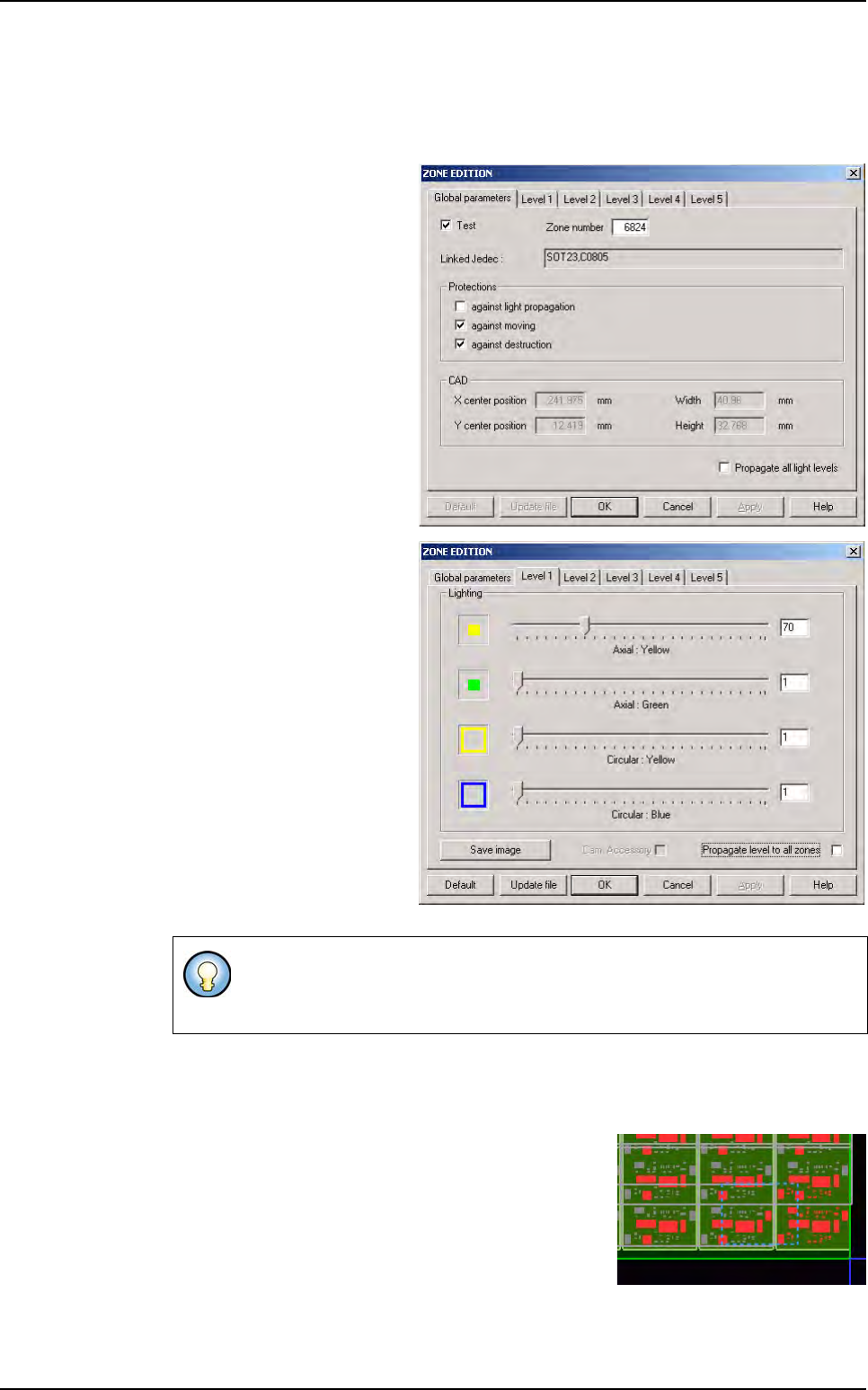
The Joker zones have been defined in order to get additional lightings for some compo-
nents or type of components which generate problems with the inspection.
The aim is to affect one specific zone Joker zone to one family of component to be able
to re-use this configuration in different tst. files.
Joker zones can be identified
by the Linked Jedec name
that represents one or sever-
al jedecs codifications struc-
turing the name of the zone
and the “name” of the layer,
these jedecs have exactly the
same light levels settings.
Joker zones get the same
properties as centered zones.
Joker zones allow for one je-
dec specific light levels.
Joker zones are centered by
default, meaning that only the
selected jedec belongs to this
zone and this particular com-
ponent linked the jedec is
centered in the zone.
Update file button (activated when a level tab is selected) allows the update of the
zones.dsc file following to the user modifications concerning light levels settings (the up-
date is not automatic and concern only the selected tab).
Joker zones are defined by a dotted blue line when the
moving and destruction protection are set, with a con-
tinuous blue line when the protections are removed
(description board below).
If the joker zone is not centered on the jedec associated, only the components
with the same jedec or different
jedecs present in the zone .dsc file needing
the same light levels
and not centered, are affected to this zone.
Zones creation
.TST file creation
Vision 2007 4.10 User Manual Rev 01 4 - 29
4.8.4 TST file edition
During tst file opening some checks are done in order to find out the jedecs contained in the
zones.dsc file and present in the tst file.
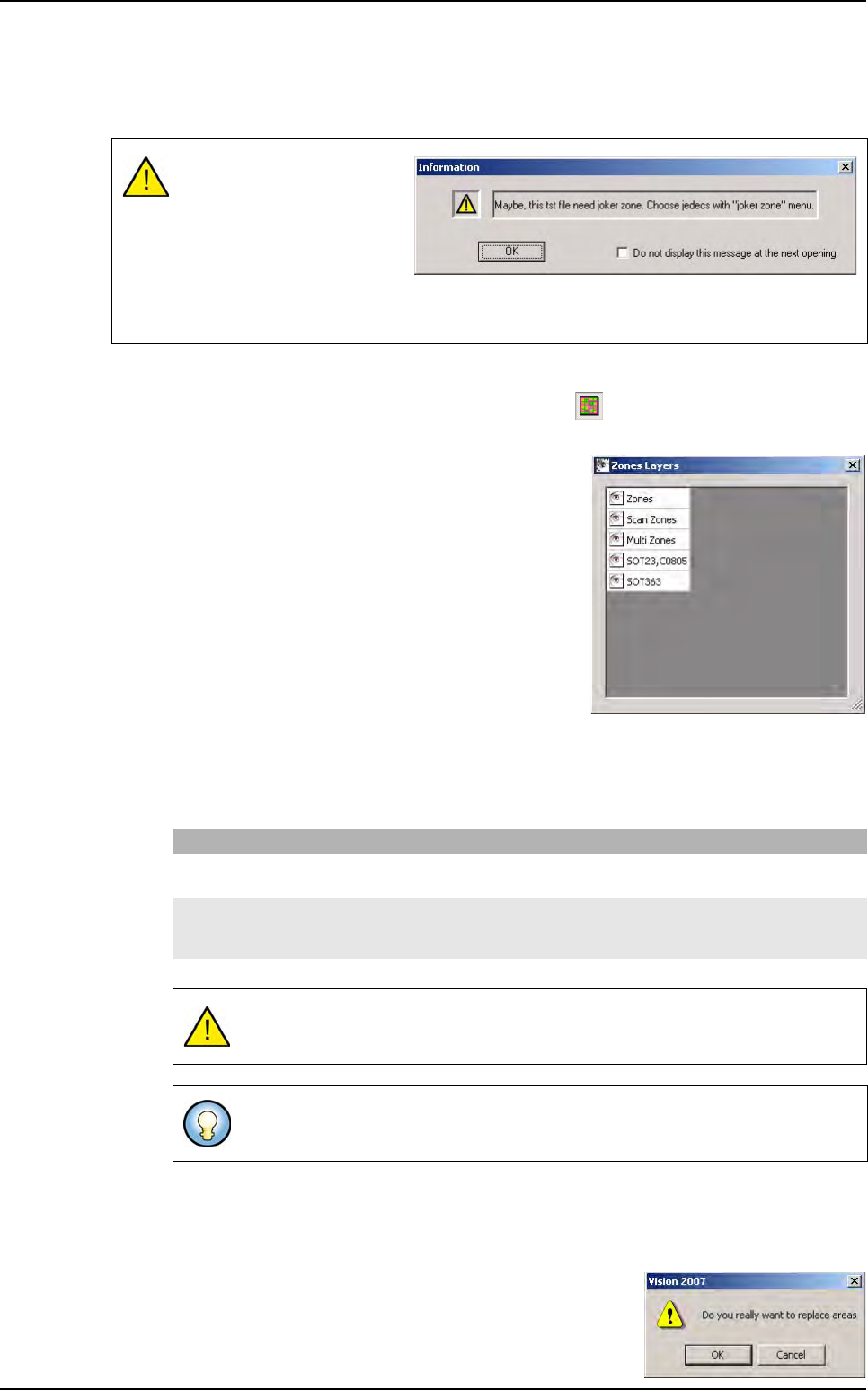
4.8.4.1 Zones layers
After the tst file opening, click on
Dysplay zones
button in order to display the zones already
associated with the tst file, if the operator unselect the menu, the zones will be no more dislayed.
This selection will also display the zones layers win-
dow.
The standard zones and centered zones are re-
grouped into one layer, same for Multi-zones.
Joker zones are dispatched into several layers fol-
lowing their light levels settings.
By clicking on the icon Eye the user can hide or dis-
play the zones linked to the layer (in order to show
only theses zones).
4.8.4.2 Automatic zones creation
After the tst file opening, in Edit menu, go to Board sub menu to create automatically,
re-create or delete the different zones. The menus allowing zones creation are:
4.8.4.3 Automatic centered zones creation
The menu Create zones allows the creation and the management of zones.dsc file con-
cerning the jedecs associated to centered zones.
1. Select Create zones in the pulldown menu. A warning
message will appear expecting a confirmation or not of
the zones creation.
2. Click on OK button. A list of jedecs already defined for
centered zone appears.
If there are some jedecs cor-
responding, an information
message will appear. This
message will appear each
time the user will modify the
zones.dsc file.
The user can check the box in order to avoid the message, he must save the tst file to
keep this modification.
Menu Description
Create zones Zones creation menu will first delete all the not protected zones like standard zones then
re-create them and will continue with centered zones and multi-zones creation.
Create Joker
zones
Zones creation menu will create Joker zones.
This menu choice will not delete the existing Joker zones, but will create Joker zones
over existing ones.
If the menu Executable component is checked, only the executables compo-
nents are attached to zones, if not, all components of the tst file are attached.
The contextual menu allowing zones creations is accessible by clicking with the
right mouse button on the panel in the .tst file.
Zones creation
.TST file creation
4 - 30 Vision 2007 4.10 User Manual Rev 01
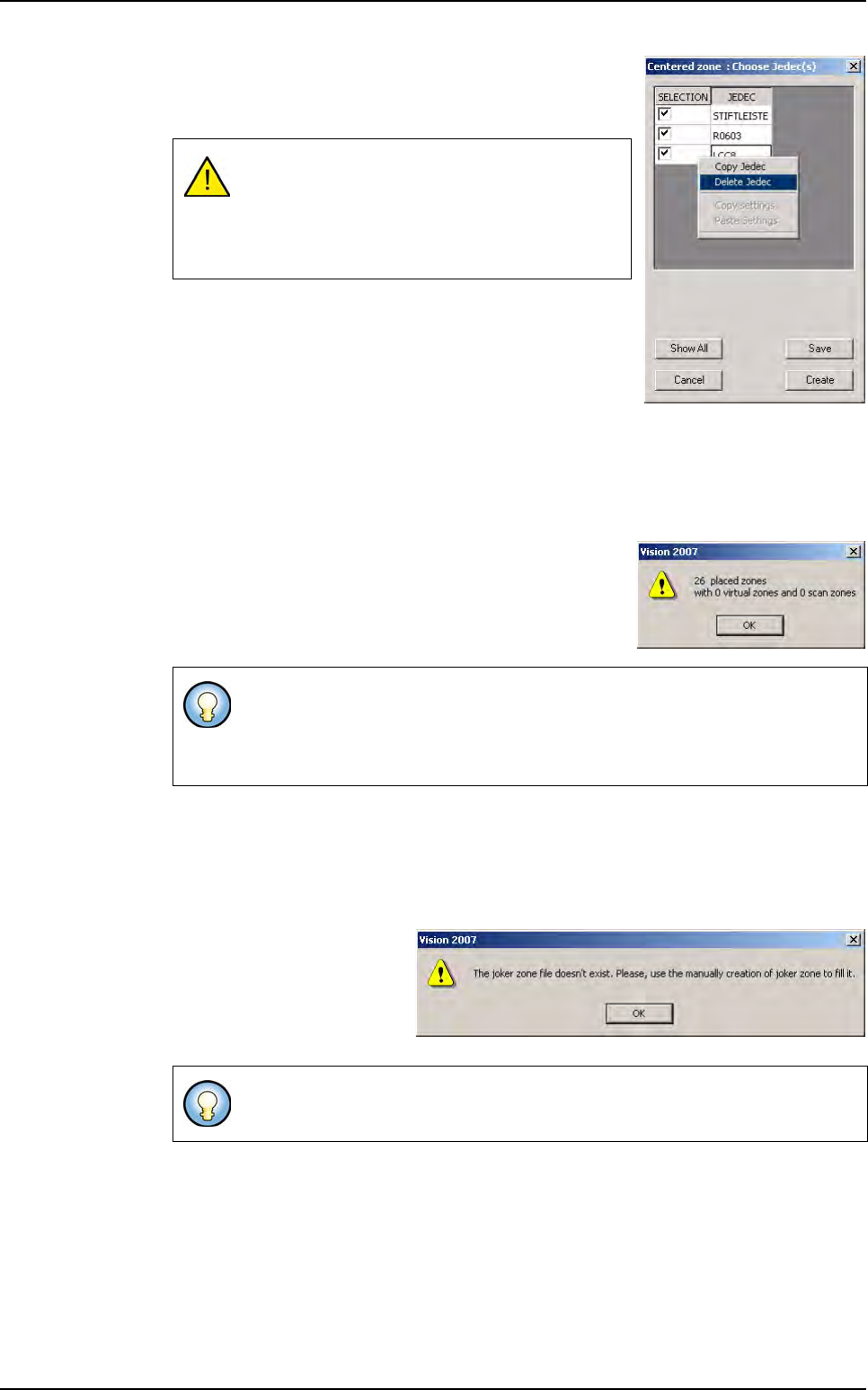
3. Select the jedecs by checking the left column.
4. Copy or delete jedecs if necessary by clicking on the je-
dec codification with the right button of the mouse.
5.
Click on
Cancel
button to close the dialog box without taking
the modifications into account and without creating centered
zones but the standard zones creation is still processing.
Click on Save button to keep of all the modifications in
the zones.dsc file.
Click on Create button to keep of all the modifications in the zones.dsc file and launch
the creation of the centered and standard zones.
Click on Show all button to display all the jedecs in the zones.dsc file concerned by
the centered zones even if they are not in the tst file.
6. Following the creation, a information message will ap-
pear with the number of created zones for standard and
centered ones, multi-zones.
Click on OK button to display zones.
4.8.4.4 Automatic Joker zones creation
The menu Create Joker zones allows the creation and the management of zones.dsc
file concerning the jedecs associated to Joker zones.
1. Select Create Joker zones in the pulldown menu.
Case 1
: A message will appear
meaning that the zones.dsc has
not been created yet or that the
zones.dsc file exist but there
are no jedecs corresponding to
the .tst file pending.
The new jedec set could not be a jedec already
associated to a centered zone nor a jedec asso-
ciated to a joker zone, nor a jedec associated to
a multi-zone, the operator must correct the list
before creating the zones.
In the window displayed in order to select the jedecs,
only the jedecs that
belongs simultaneously to the zones.dsc file and the tst files appear
.
If the zones.dsc file is empty, no centered zones will be created, only standard,
scan, multi-zones will be created directly.
In order to fill the zones.dsc file, create manually joker zones before activating
the menu.
Zones creation