VI User Manual.pdf - 第194页
Tools library 7 - 32 Vision 2007 4.10 User Manual Re v 01 7.7.5.2 Component’s leads detectio n Component’s leads detectio n po- sitions a double tran sition edge on each component lead in order to find its position and s…
Tools library
Vision 2007 4.10 User Manual Rev 01 7 - 31
7.7.5 SO
The SO tool returns the (X, Y, θ) position of the component with the joint faults and welding
bridge faults.
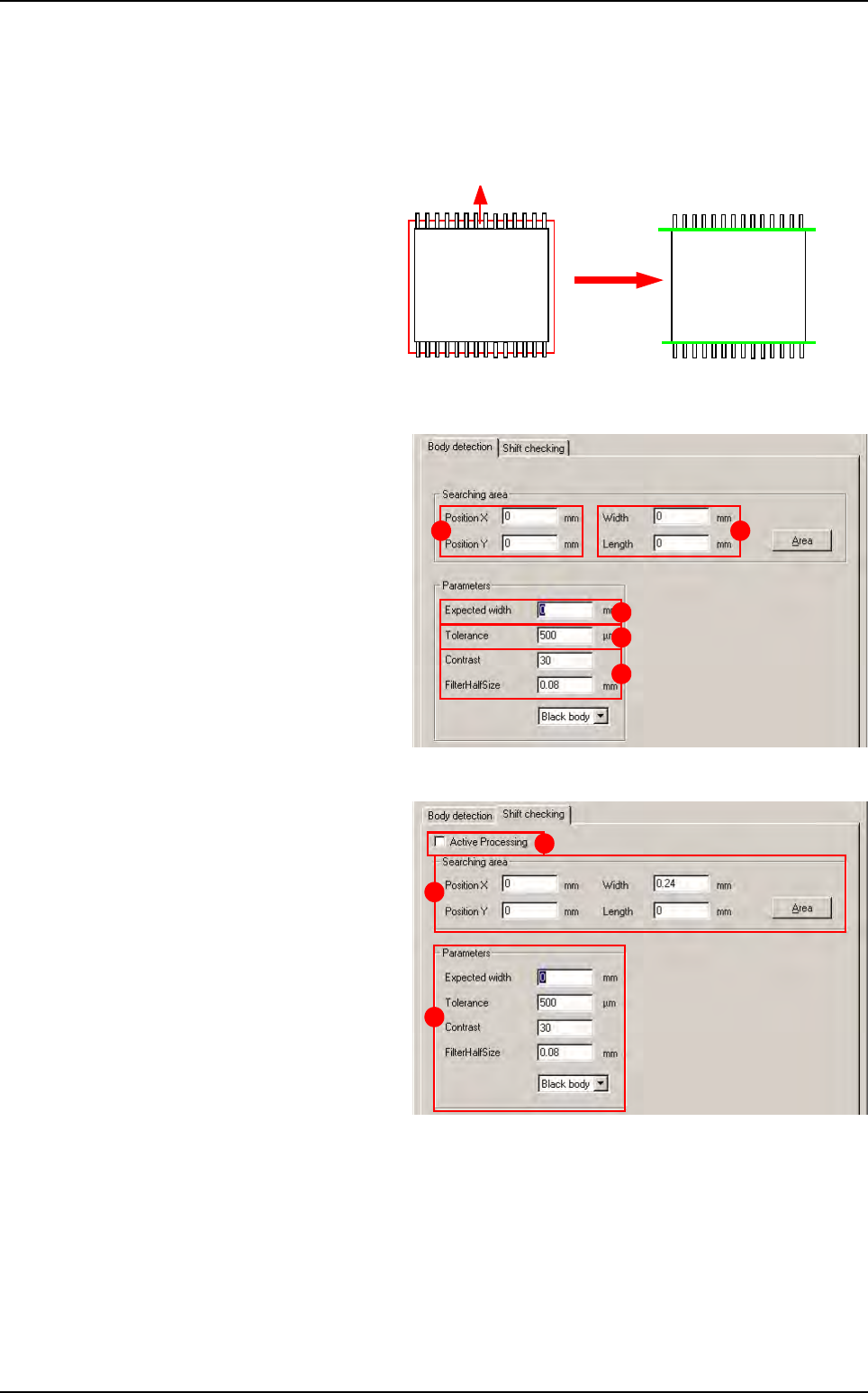
7.7.5.1 Body detection
Body detection of the SO
component is performed by
a double transition edge.
The window which appears
when you click on the Body
detection button gives ac-
cess to the parameters of
this edge.
Body detection tab
Position X & Y (A): double
edge position offset.
Width & Length (B): edge
size.
Expected width (C) of the
component body.
Tolerance (D) on the ex-
pected width.
Contrast & Filter Half Size
(E): edge parameters used.
Shift checking tab
This option processing is
used if the component is
shifted by one lead width.
Tick Active Processing (A)
box to activate the process if
you want to check the posi-
tion in X of your component
with the body and not the
lead.
In the Shift checking tab,
Searching area (B) and Pa-
rameters (C) are the same
that for Body detection tab
(see above).
Transition: white
Î
black and black
Î
white
Pos Y1
Pos Y2
Score by size
and contrast
A B
C
D
E
B
A
C
SO or QFP model
Tools library
7 - 32 Vision 2007 4.10 User Manual Rev 01
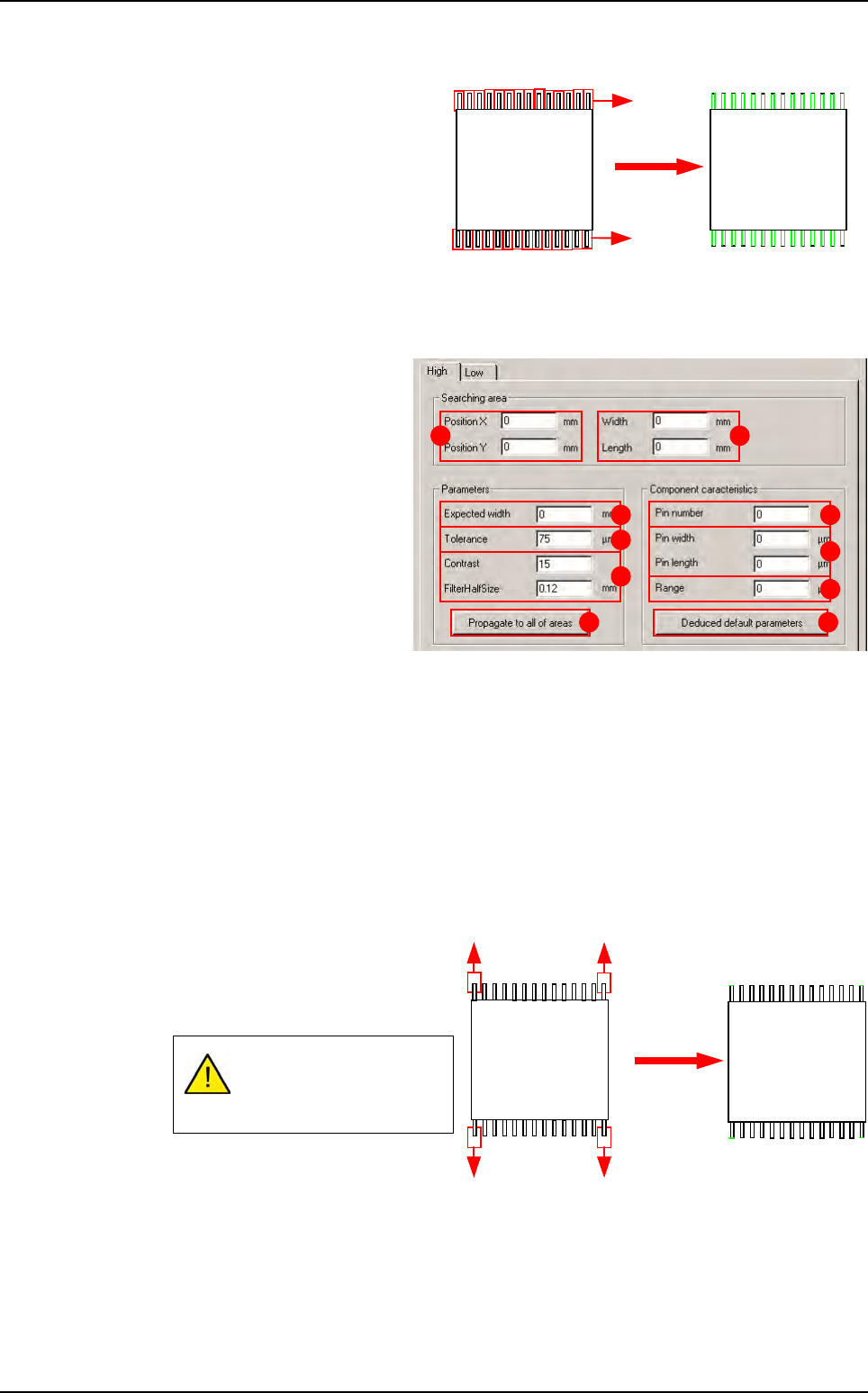
7.7.5.2 Component’s leads detection
Component’s leads detection po-
sitions a double transition edge
on each component lead in order
to find its position and send back
the averageIf this test fails, you
will have a missing error.
The component lead detection
button opens a window contain-
ing 2 tabs. One is for the leads at
the top of the component and one for the leads at the bottom.
Searching area
Position X & Y (A): all
edges offset.
Width & Length (B): edges
size.
Parameters
Expected width (C): lead
width.
Tolerance (D) on the ex-
pected width.
Contrast & Half size filter
(E): edge parameters used.
Propagate to all of areas
(F) button: propagation to the other tab.
Component characteristics
Pins number (G): number of pins.
Pin width & length (H): pin dimensions.
Range ( I ): distance between each pin.
Deducted default parameters (J) button: change the edge characteristics according to
the component.
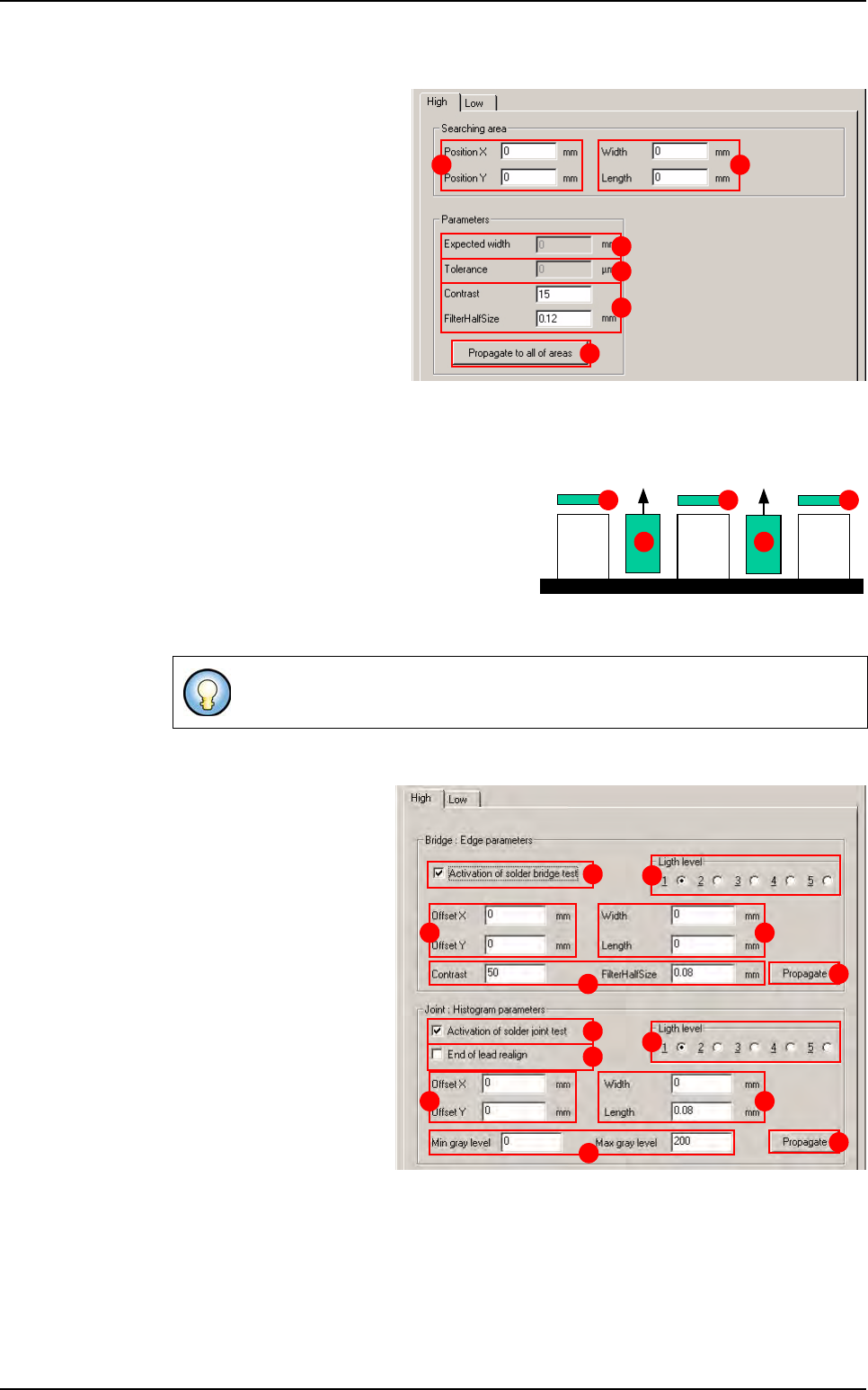
7.7.5.3 End of leads detection
End of leads detection places an
edge at each end of the component
leads and allows the Y position and
the component angle to be found.
If you click on the End of leads de-
tection button opens a window
containing 2 tabs. One is for the
leads at the top of the component and one for the leads at the bottom.
This diagram shows 4
edges. In fact, there are
edges on all the leads.
2N transition: black
Î
white and white
Î
black
Score by size
and contrast
N1
A B
C
D
E
F
G
I
H
J
Transition: white
Î
black
Score
by contrast
SO or QFP model
Tools library
Vision 2007 4.10 User Manual Rev 01 7 - 33
Searching area
Position X & Y (A): offset for
all edges.
Width & length
(
B
): edges size.
Parameters
Expected width (C): lead
width.
Tolerance (D) on the ex-
pected width.
Contrast & Half size filter
(E): edge parameters used.
Propagate to all of areas
(F) button: propagation to
the other tab.
7.7.5.4 Solder joint and bridge detection
With Solder joint and bridge detection, a
histogram (A) is automatically positioned at
the end of each lead for the weld joints and an
edge (B) between each lead for solder bridge
detection.
With this window, you can adjust the parameters of the histograms and the edges which
check the joints and solder bridges.
Bridge: Edge parameters
Activation of solder
bridge test (A): activate or
deactivate the bridge test.
Light level (B): light level
for the bridge detection.
Offset X & Y (C): offset for
all edges.
Width & Length (D): edg-
es size.
Contrast & Half size filter
(E): edge parameters
used.
Propagate (F) button:
propagate the edge pa-
rameters to the other sides
of the component.
Declare 2 sides of the model.
A B
C
D
E
F
A A A
BB
C D
E
B
A
F
J K
L
I
G
M
H
SO or QFP model