VI User Manual.pdf - 第167页
Tools library Vision 2007 4.10 User Manua l Rev 01 7 - 5 3. After completing creation of your sy nthetic mod el, click Save as in the File menu, or click on the icon in the tool bar of the Bu ildModel window. Create or s…
Tools library
7 - 4 Vision 2007 4.10 User Manual Rev 01
will be saved in all synthetic images you are going to create using BuildModel.
7.1.3.3 Creating synthetic models with BuildModel
1. Select New (Ctrl+N) in the File menu to start creation of a syn-
thetic image or click on the icon in the tool bar of the BuildMod-
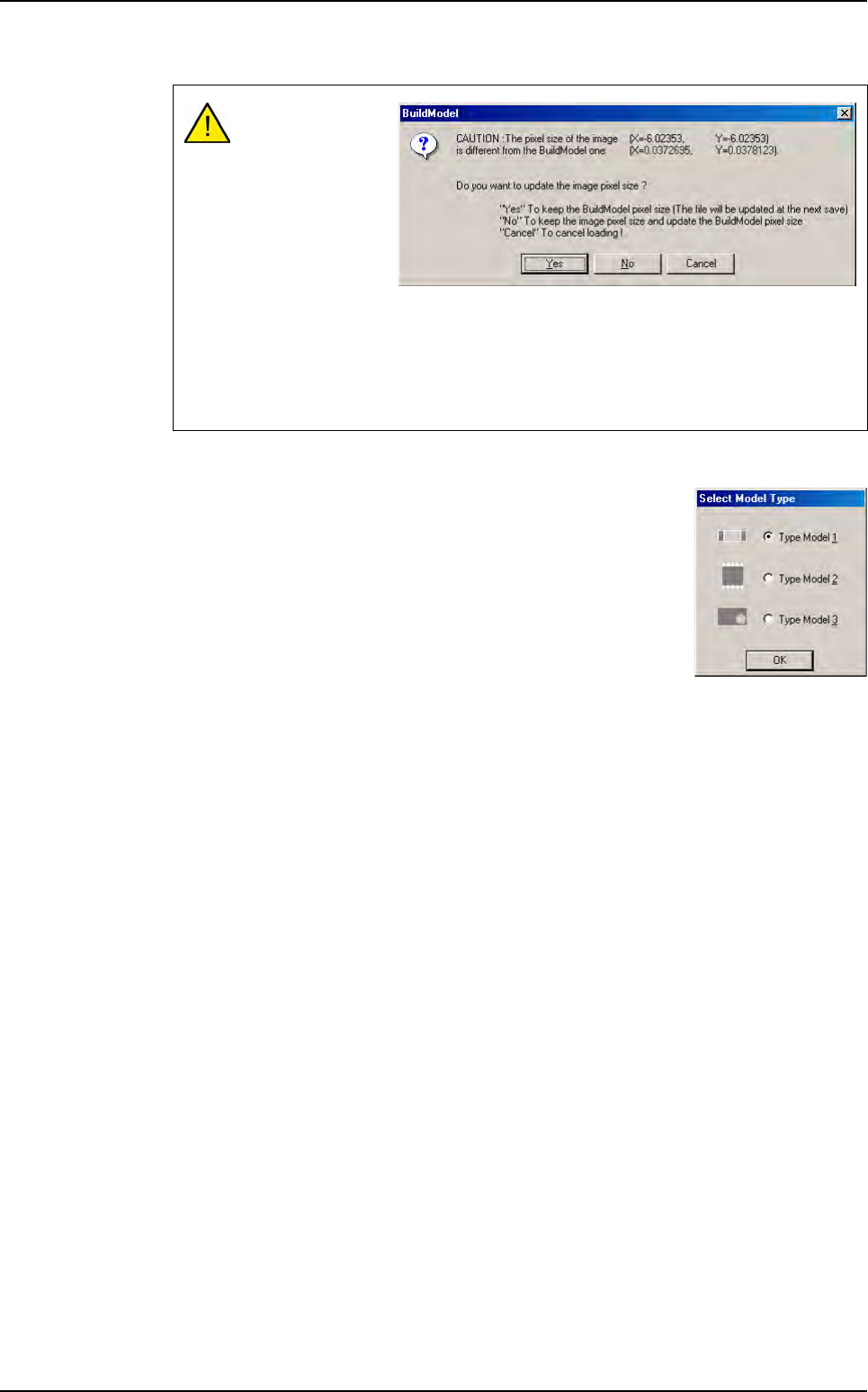
el window. The Select Model Type window appears.
2. Select the type of model (type of component) that you want to
create:
Type Model 1 for components without leads (e.g.: R0603),
Type Model 2 for components with leads (e.g.: SOT23),
Type Model 3 for components with circle.
When opening a
.bmp file created
with a different pix-
el size than the tol-
erance you have
set in the .ini file, a
message reminds
this difference and
the software sug-
gests 3 choices:
Yes: change information of the pixel size contained in the picture.
No: change the setting of BuildModel.
Cancel: do not open the picture.
Component library
Tools library
Vision 2007 4.10 User Manual Rev 01 7 - 5
3. After completing creation of your synthetic model, click Save as in the File menu, or
click on the icon in the tool bar of the BuildModel window. Create or select a folder in
which you want to save your synthetic model, changing its name. Click Save to save
your model.
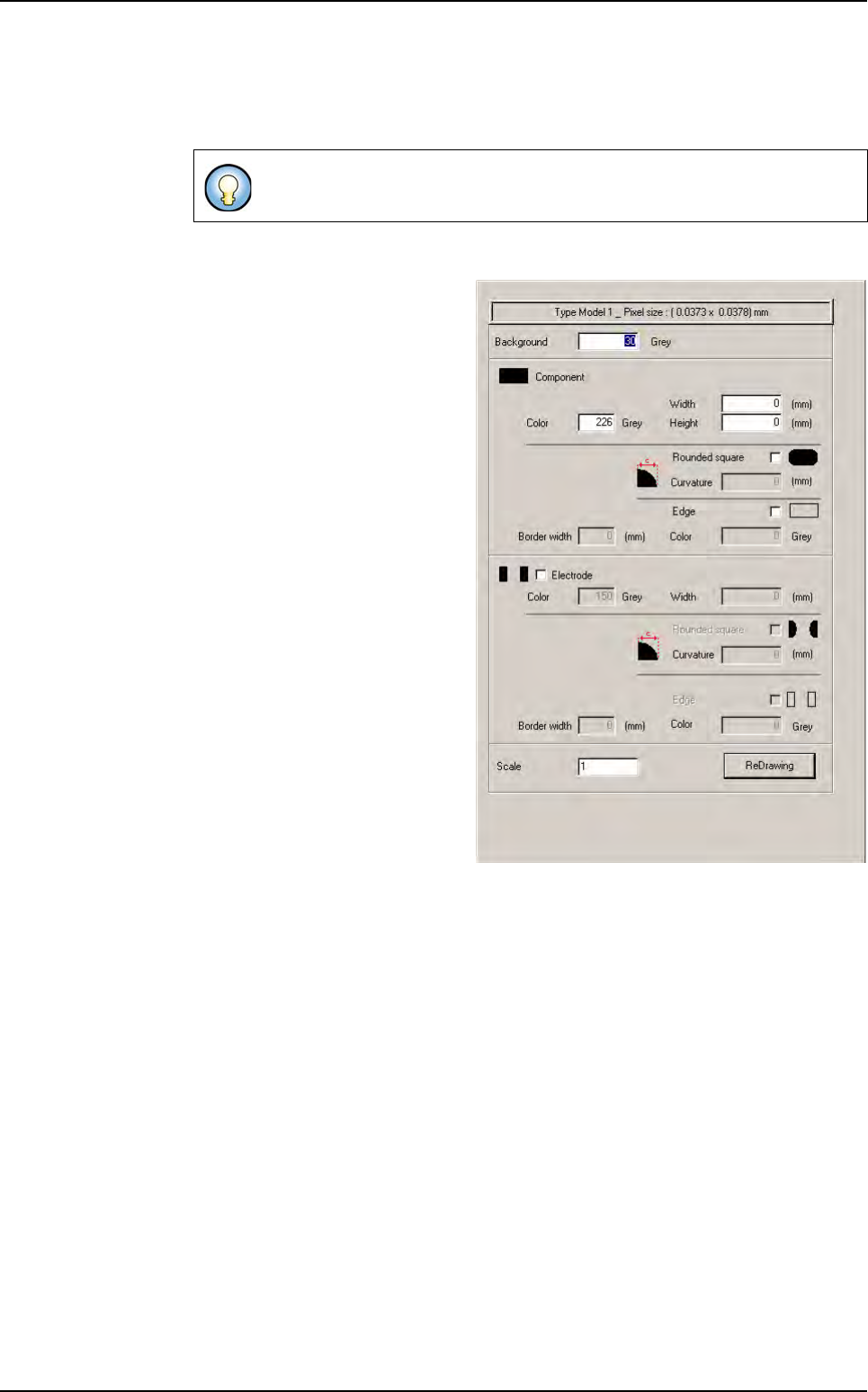
TYPE 1 component (without leads)
Specify the Background color in
gray levels (between 1 and 255).
Specify the component and color in
gray levels (between 1 and 255).
Tick Rounded square if your com-
ponent has rounded corners, in
which case, you should indicate the
radius in mm.
Tick Edge if your component has an
edge, in which case, you should indi-
cate the color in gray levels and the
border width.
Tick Electrode if you want to include
the characteristics (dimensions, col-
or) of the electrodes in the image of
your component.
If the component’s electrodes are
rounded on the inside, tick Rounded
square and indicate the radius in
mm.
Tick Edge if your electrodes have
edges and indicate the color and
width of this border.
Specify the Scale of the component
you want to create (1 by default).
Press ReDrawing button at any time to view the changes in the creation of your compo-
nent after modifications.
To understand the importance of the gray levels used,see page 7 - 7.
Component library
Tools library
7 - 6 Vision 2007 4.10 User Manual Rev 01
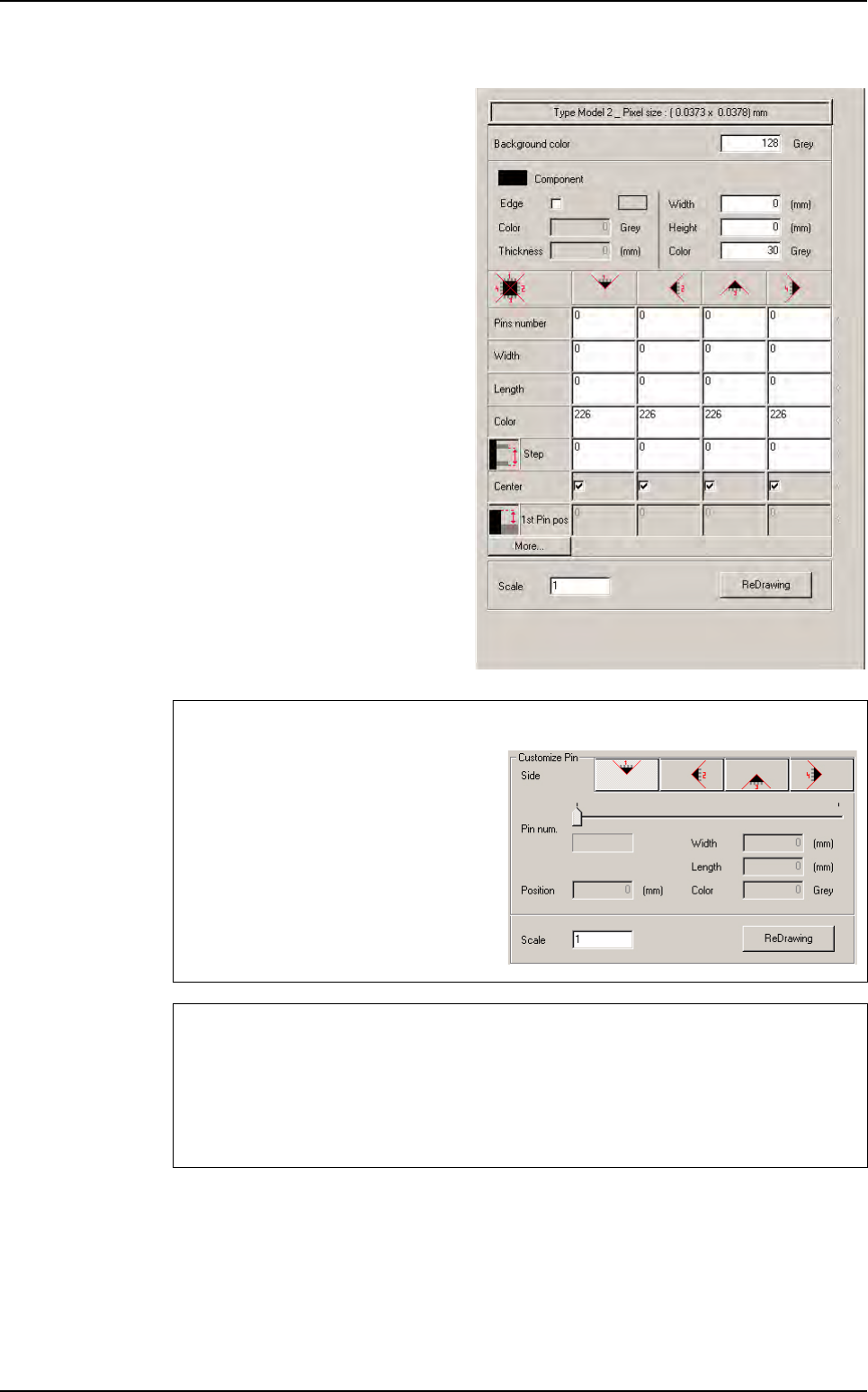
TYPE 2 component (with leads)
Specify the Background color in
gray levels (between 1 and 255).
Specify the dimensions and color in
gray levels of the component body
(between 1 and 255).
Specify the lead characteristics:
number, dimensions (width, length),
color, distance for each side.
Use this button to propagate a value
to the whole line. Click on the box
you want to propagate and then on
the arrow.
Specify the Scale of the component
you want to create (1 by default).
Press ReDrawing button at any time
to view the changes in the creation of
your component after modifications.
Customize Pin
Use More parameters to customize
your component and see each pin char-
acteristics. The opposite screen ap-
pears.
You can have a different number of pins
on each side of the component. Each
pin can be different and at any position.
Use the cursor to have the following pin
parameters.
Leads properties
Double-click on leads or right-click to see the leads properties. You can remove some leads
using Cut option.
Select several leads, keeping pressing Shift or Ctrl.
Right-click and select properties to see only the common properties of these leads.
Component library