VI User Manual.pdf - 第258页
Tools library 7 - 96 Vision 2007 4.10 User Manual Re v 01 7. Click on the button => to initialize the connection and refresh the screen. 8. Tick Ask Edit or View to have a message which ask y ou if you want edit or ju…
Tools library
Vision 2007 4.10 User Manual Rev 01 7 - 95
2. Launch Vision 2007. Make sure all your libraries can be opened with this version
and have the compatible format.
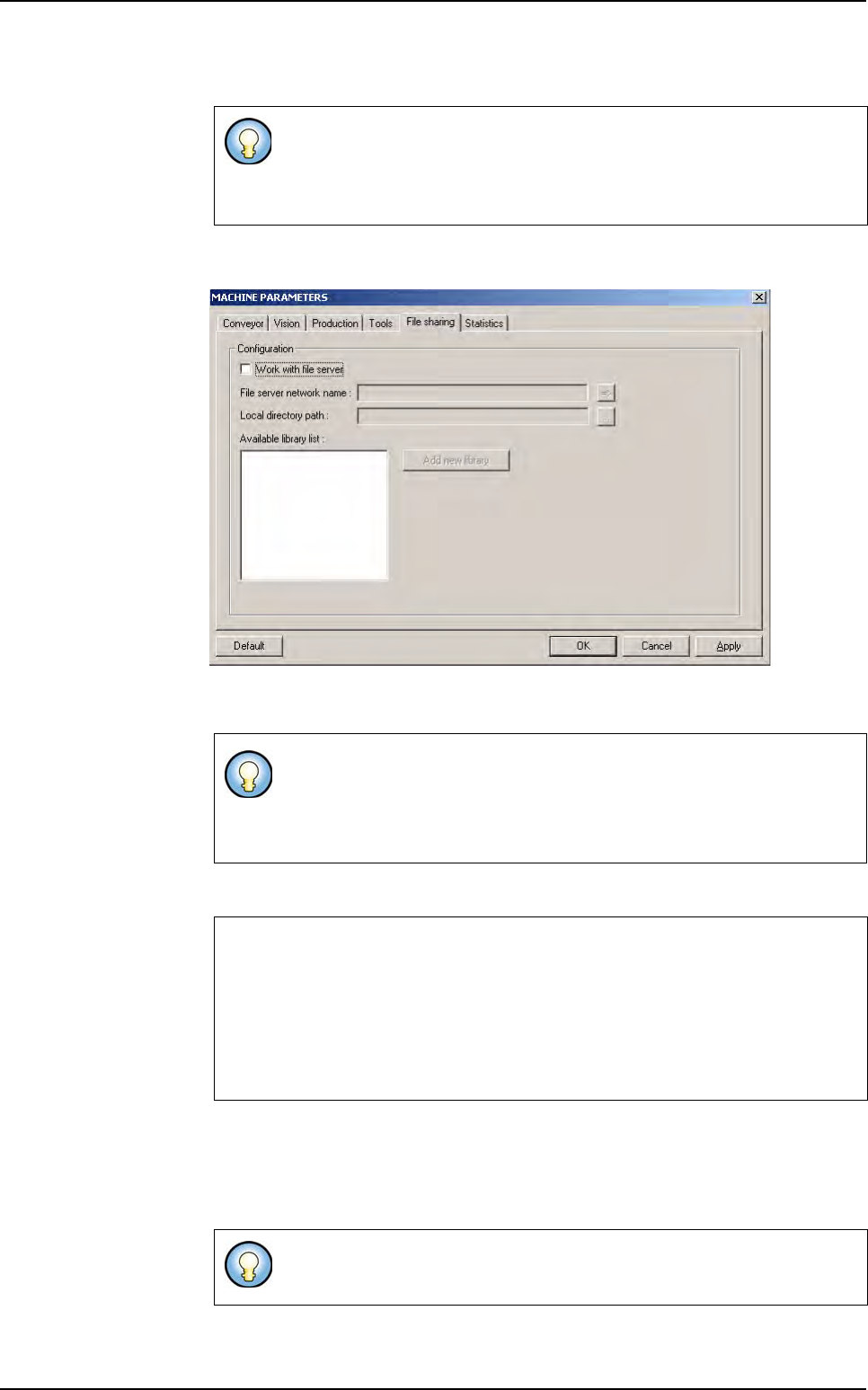
3. Go to Maintenance/Parameters/File Sharing menu.
4. Tick Work with file server to select a library .bm file on the file server and use it
locally on an AOI system.
5. Fill the field File server network name accordingly.
6. Fill the field Local directory path. This path indicates to the system where to
copy the library on the client hard disk.
When using the library in share mode, the system will create a read only copy on
the client hard disk in the specified folder.
If you open a library created with a previous version, it will be automatically
converted to the new format and a backup will be created (remove the
work with file server option from maintenance/parameters/File shar-
ing to be able to open a non-shared library).
A copy of the used .bm is made on the AOI sytem and when a modification
is saved, this one is made locally and on the file server.
During the use of a .bm file by a first AOI system, models of this .bm file
could be only read and not modified by the other AOI systems.
Example
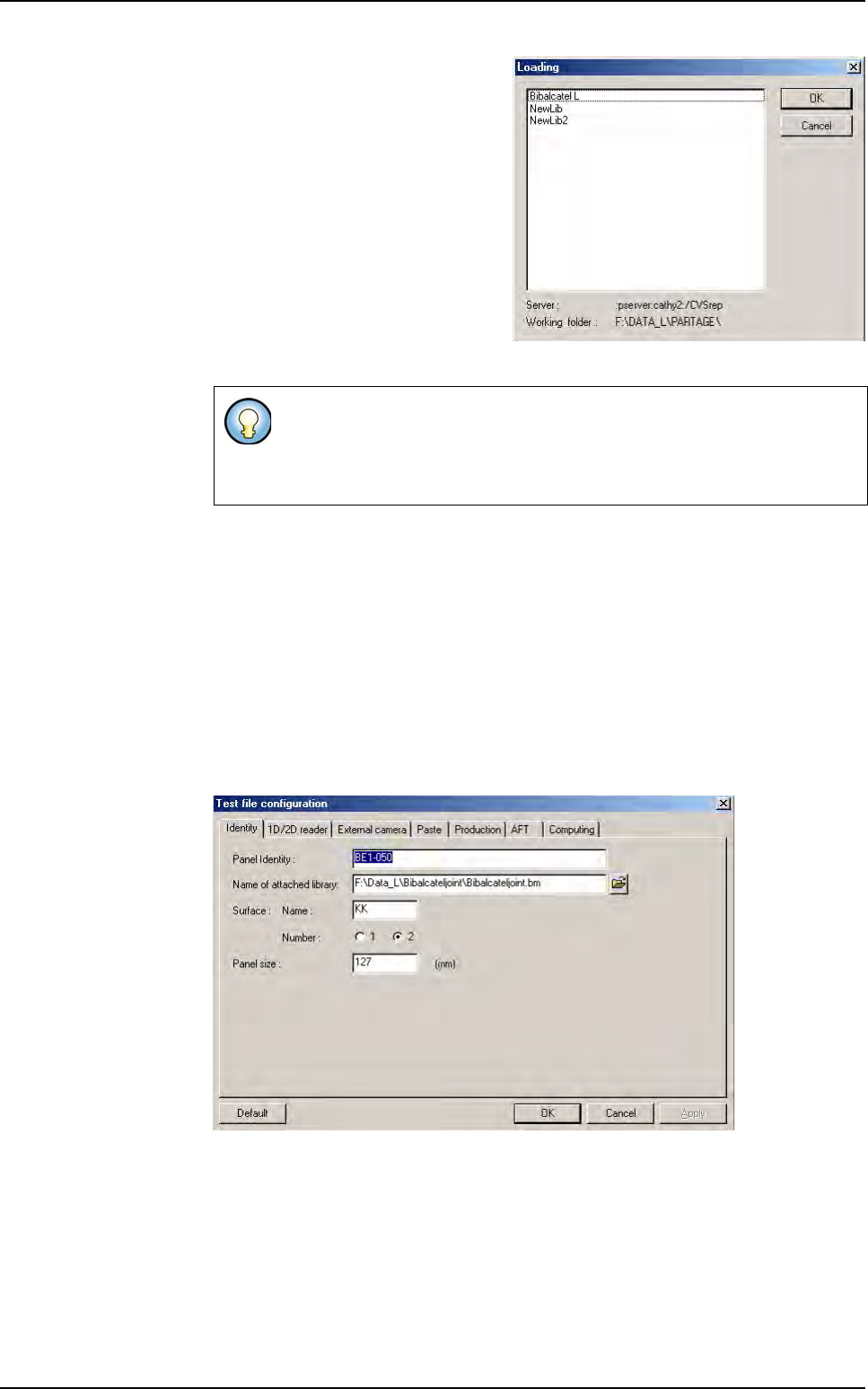
:pserver:cathy2:/CVSrep
:pserver: is the protocol name used
cathy2: is the server name
/CVSrep is the repository name
It is recommended to use a different location for the local copy of the
shared library than the others library that you do not want to share.
Shared library
Tools library
7 - 96 Vision 2007 4.10 User Manual Rev 01
7. Click on the button => to initialize the connection and refresh the screen.
8. Tick Ask Edit or View to have a message which ask you if you want edit or just
view a model when you open a model (see below
7.16.2.4 View model and
7.16.2.5 Edit a model).
9.
Click on the button Add new library to define the library that will be used in
shared mode.To add a library on the server, it must be have the good format.
10.
The list of the models included in the library is displayed.
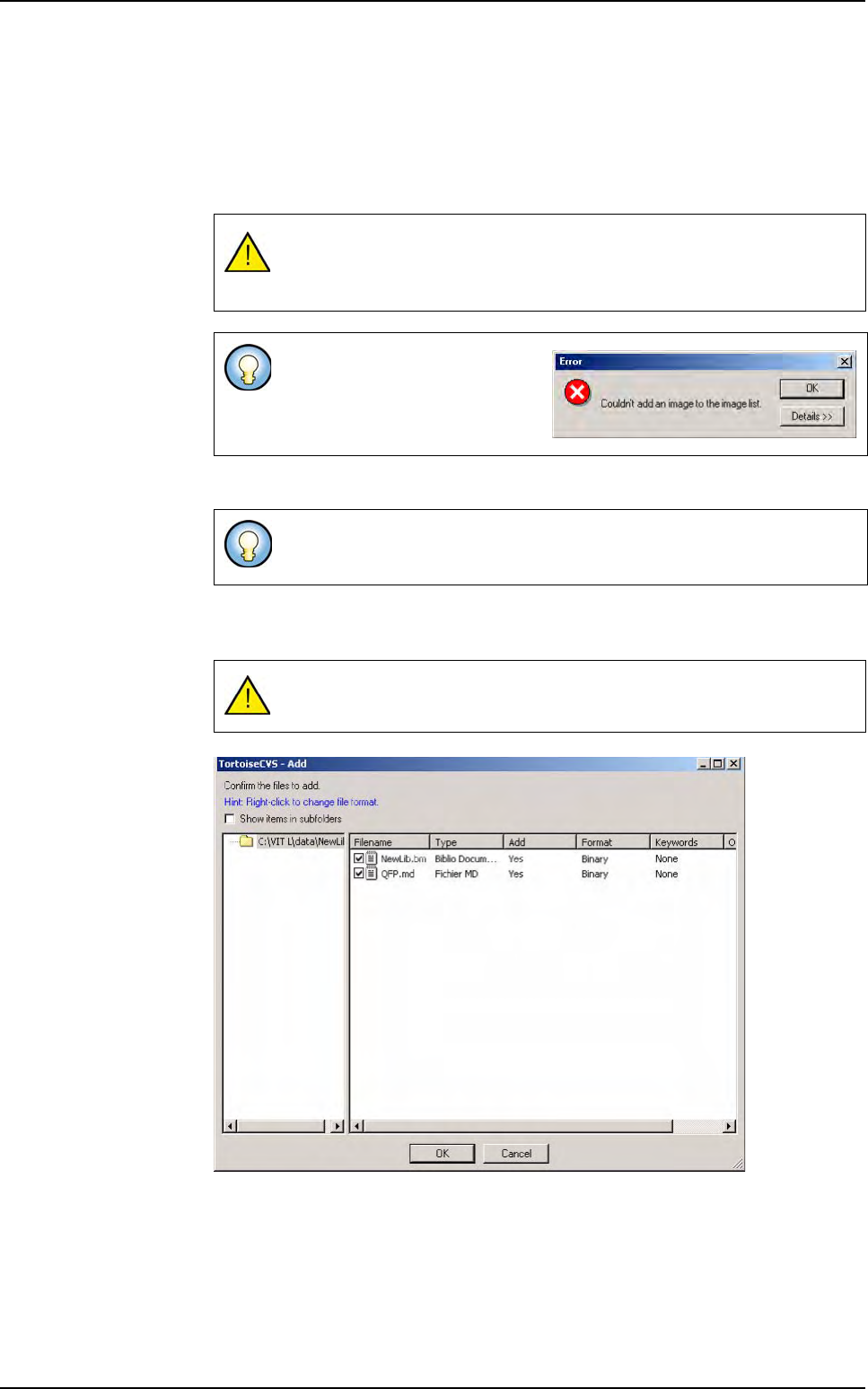
When you click on OK, the library is removed from its previous location and includ-
ed on the server repository with the new format.
11. The configuration is complete! The library can be used in shared mode.
7.16.2 Using the shared library
7.16.2.1 Open a library
The application contacts the server to obtain a library list.
This library will be removed from its original location and converted to the
shared mode format on the server. So, it is recommended to backup the
library before adding it in the list of the shared libraries.
A non blocking error message ap-
pears. It is related to icons display
on the CSV application. Click OK
to continue.
If you remove some models to not be available in the shared library they
will be lost.
Do not modify the format of the created files on the server.
Shared library
Tools library
Vision 2007 4.10 User Manual Rev 01 7 - 97
If the connection with the server is
successful, it displays the list of the
available libraries. Select the library
to open within the list of the available
libraries on the server.
The application always gets the lat-
est version of the server library and
copy it into the working folder on lo-
cal disk.
If the connection is not successful
the operator will be informed that it is
not possible to get the latest server
version of the library but it is still pos-
sible to work with the current local version.
7.16.2.2 Close a library
When closing a library, if there are still modifications not saved to any model, the
operator will be asked to save or discard changes. If saving library, refer to section
7. Saving library, else the changes will be discarded and all reserved models will
become free.
7.16.2.3 Configure the .tst file
1.
Specify the name of the attached library for all the .tst files.
2. Open the Test file configuration window and click on the icon to specify the path
of the attached library.
If the connection to the server fails, the operator can not obtain the library’s
latest version from the server. A dialog box informs him that the server is
not available. The operator will work locally but all modifications will be dis-
carded at the next connection to the server
.
Shared library