VI User Manual.pdf - 第326页
Optimization 12 - 8 Vi sion 2007 4.10 User Manual Rev 01 12.1.2.8 Optimization results This graph represen ts the false faults (i n PPM) before an d after o ptimization for each Jedec on full and empty panels. It makes t…
Optimization
Vision 2007 4.10 User Manual Rev 01 12 - 7
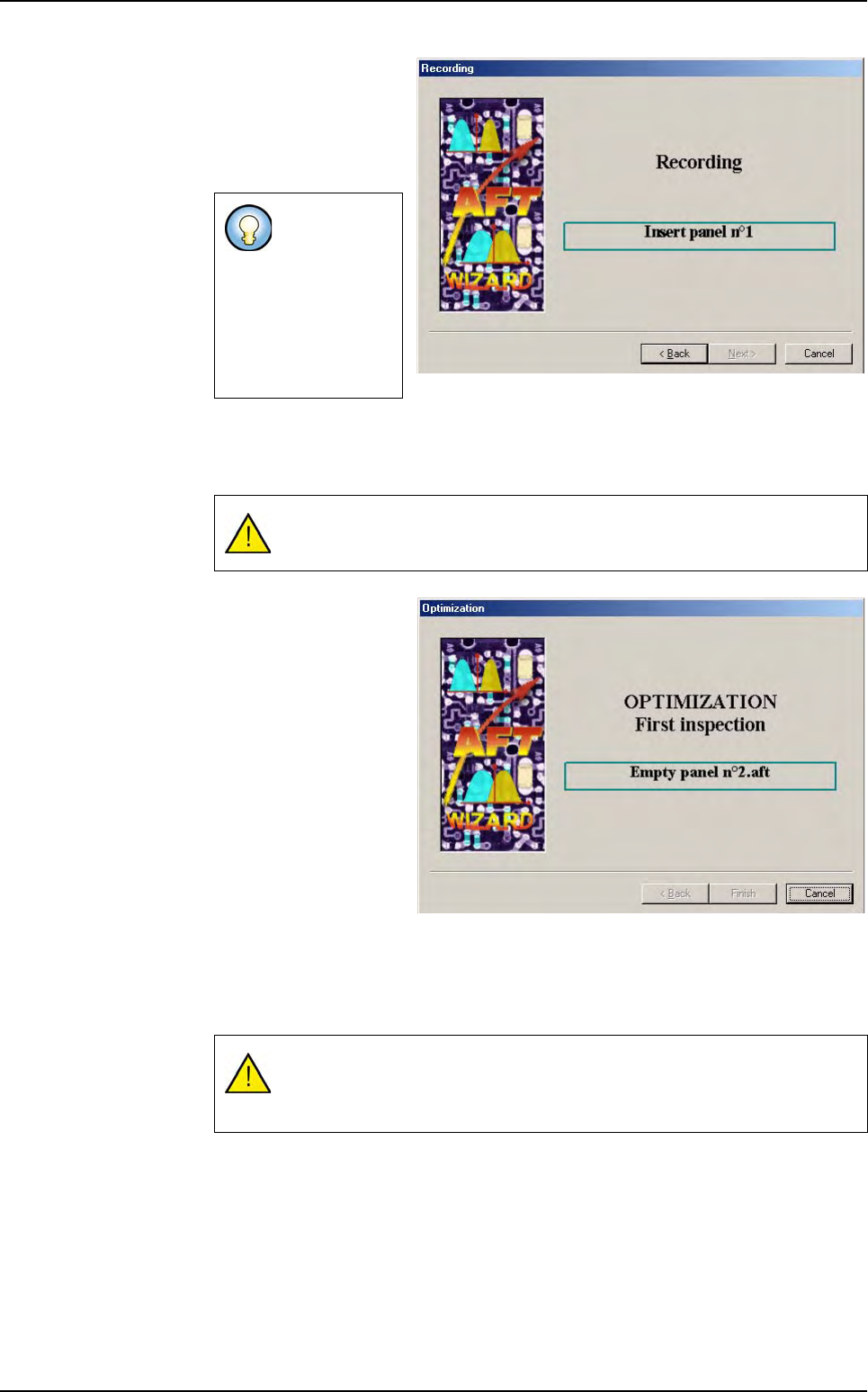
The system asks for full
panels until the quota is
reached. Insert full pan-
els in the machine as
long as the wizard asks
for full panels.
12.1.2.7 Optimization process
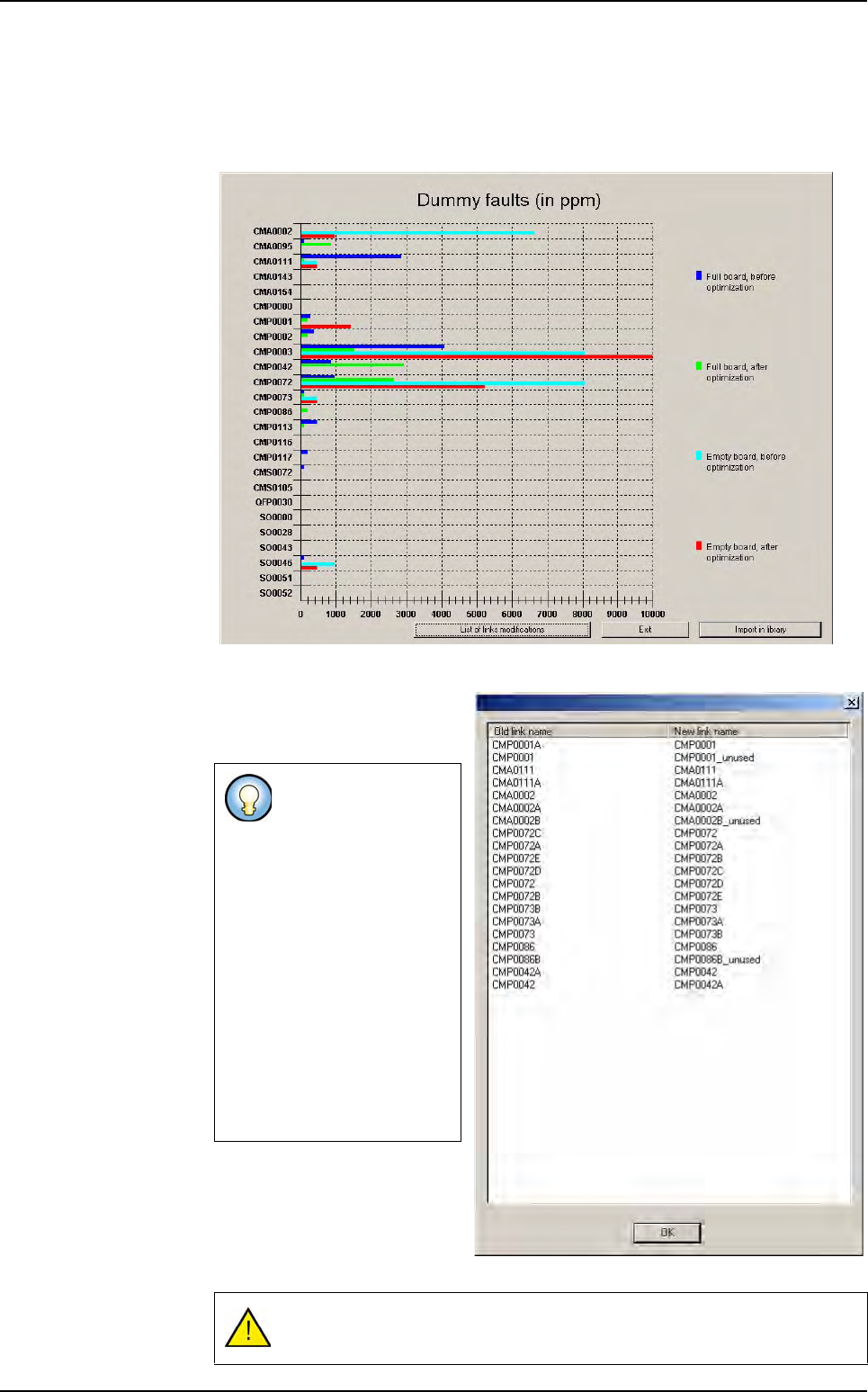
Once the recording step is over, the optimization process starts automatically
The optimization process
will execute several pass-
es on the records:
1.
Computation of the num-
ber of false faults for
each Jedec (including
all links) before the opti-
mization.
2.
Uniform and X/Y scale
optimization.
3.
Contrast threshold and
score optimization.
4.
Presence and Polarity
Histograms.
5. Links arrangement and unused link deletion.
6. Computation of the number of false faults for each Jedec (including all links) after
the optimization.
Once the optimization process is over, a graph will appear.
If the machine
is on a produc-
tion line, it will
automatically
load the boards
using the up-
stream SME-
MA.
If the machine is on a production line, it will automatically switch to
passthrough mode.
The optimization process may take several hours (depending on the pa-
rameters selected for optimization, the number of recorded panels, and
the number of components to be optimized).
Auto Fine Tune (AFT)
Optimization
12 - 8 Vision 2007 4.10 User Manual Rev 01
12.1.2.8 Optimization results
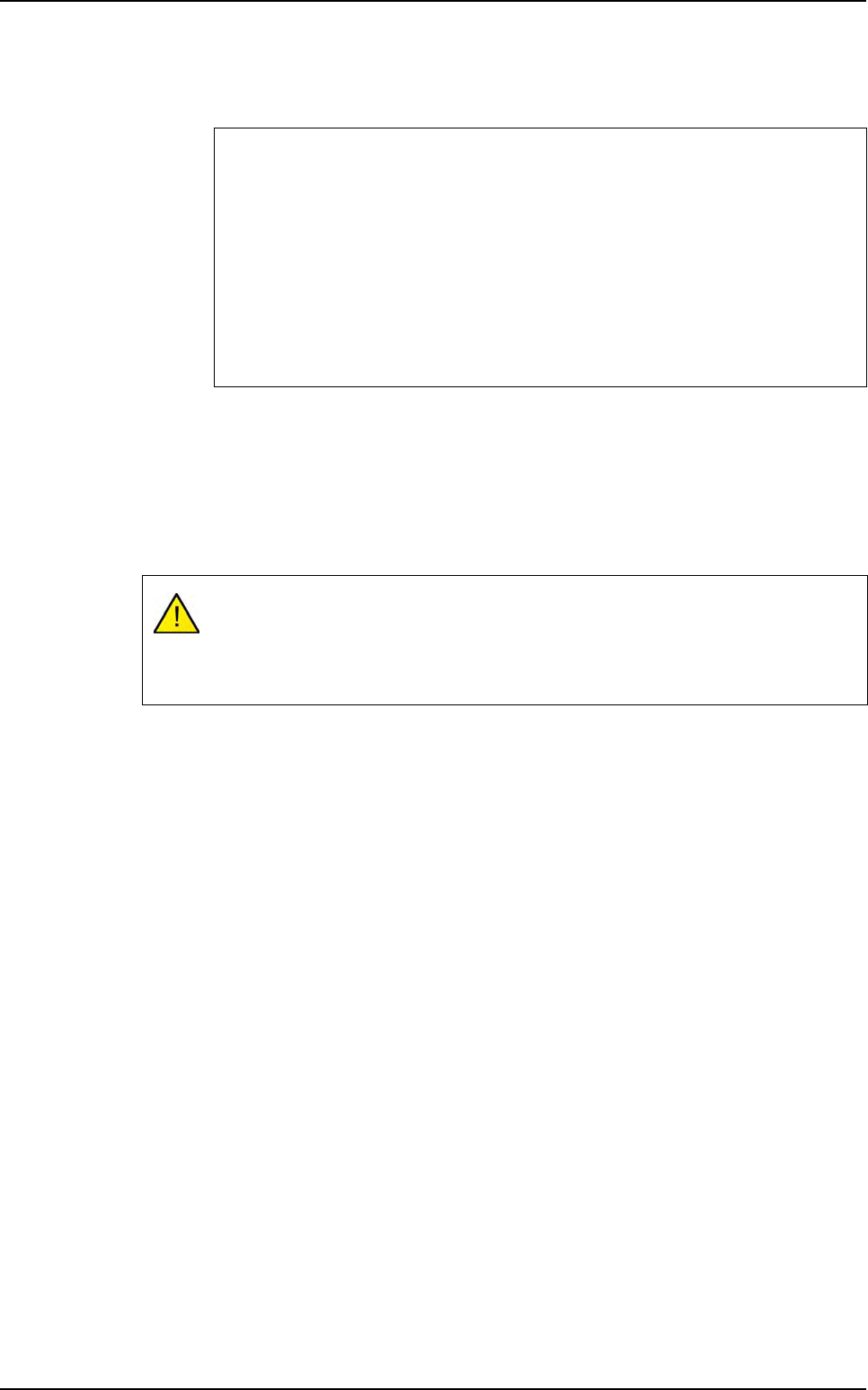
This graph represents the false faults (in PPM) before and after optimization for
each Jedec on full and empty panels. It makes the AFT results easy to visualize,
independently of all the modified parameters.
The
List of link modifications
button opens a box that lists the
Jedecs that have links.
The Exit button closes the AFT
Wizard without modifying the li-
brary.
The
Import in library
button
imports the results in the library.
The link optimization
permutes the links and
renames them so that
in the optimized library
the links are:
ROOT001,
ROOT001A,
ROOT001B, …
This list contains the
old name and the new
name of each model
(link).
The links that will be
deleted are renamed
with _unused.
The library will be saved with the optimized parameters.
Auto Fine Tune (AFT)
Optimization
Vision 2007 4.10 User Manual Rev 01 12 - 9
Only the upgraded Jedecs will be imported in the library. For each upgraded Jedec,
all the modified parameters will be imported. The links arrangement will be modi-
fied, and the unused links will be deleted.
12.1.3 AFT panel player
Auto Fine Tune enables running recorded panels in process mode (for example on an offline
station). To record panels, please consult the AFT Recording and optimization wizard.
With the .tst file window active, select the Play option from the AFT menu. This will open the
AFT player toolbar.
Select the panel you wish to run in the scroll list and press the LOAD button. The AFT record
is read from the hard drive. Now you can run the panel in debug mode (step by step, contin-
uous, Ctrl E, Ctrl B).
You can modify the .tst file as long as you do not modify the zones and fiducials.
You can change the attached library and anything in the library (except the light levels).
A Jedec is considered as upgraded when:
The number of false faults is lower (or equal) after optimization than it was
before (on both empty and full panels).
The number of false faults is greater than before on empty panels and lower
on full panels, but the overall increase in false faults for this Jedec is lower than
the criterion.
The number of false faults is lower than before on empty panels and greater
on full panels, but the overall increase in false faults for this Jedec is lower than
the criterion.
To run a .tst file on recorded panels, you will need the same .tst file that was used
for recording the panels (same fiducials and zones).
Open this .tst file, and make sure the path to the records is correct (.tst file
configuration, AFT tab).
Auto Fine Tune (AFT)