VI User Manual.pdf - 第238页
Tools library 7 - 76 Vision 2007 4.10 User Manual Re v 01 Time before firs t Acq (ms) ( J ) is a delay between the SMEMA acknowledge (when board go in the mach ine) and the first acquisi t ion. Time betw een Acq ( ms) ( …
Tools library
Vision 2007 4.10 User Manual Rev 01 7 - 75
7.12.3.2 .tst file configuration
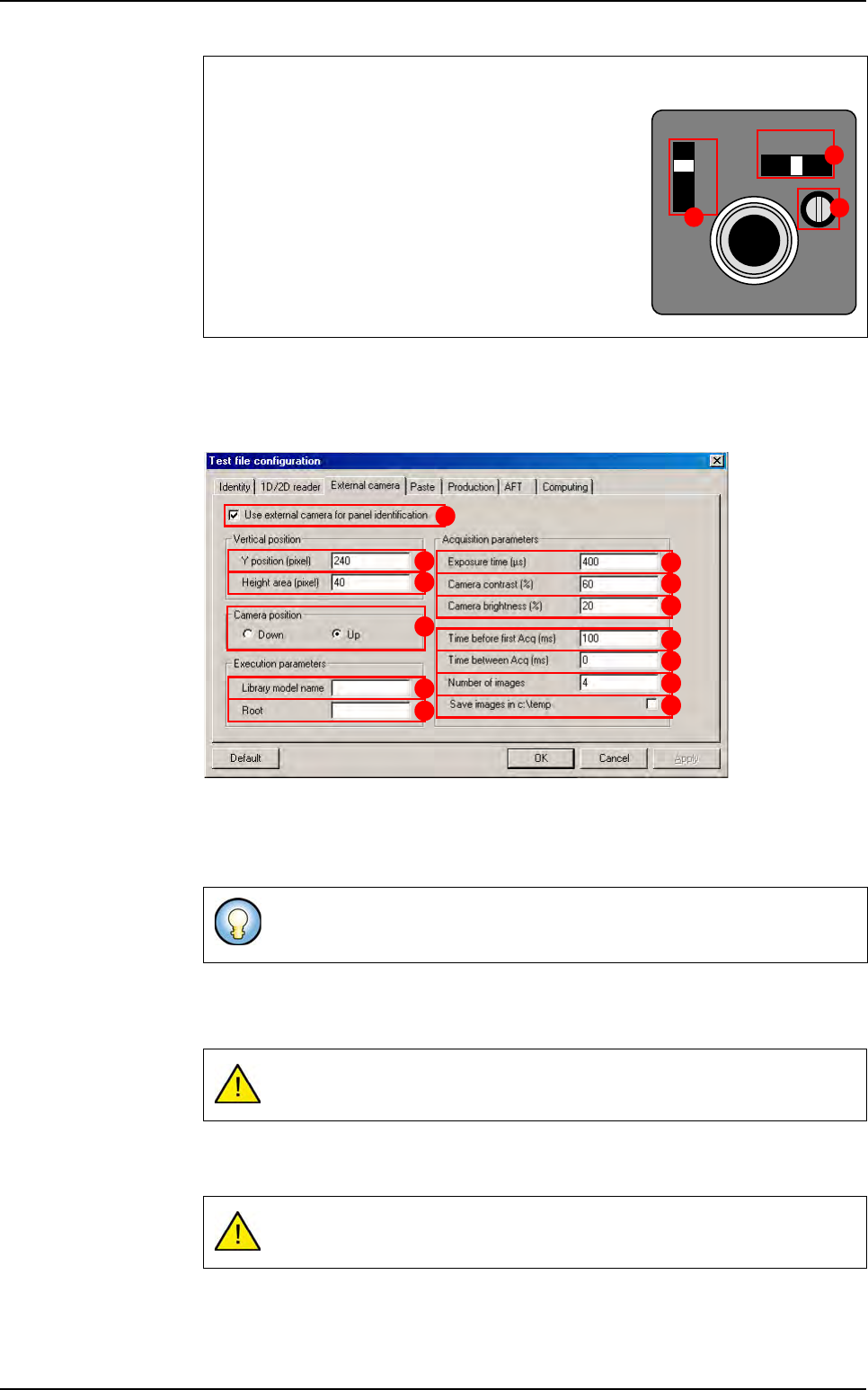
To define use of the external camera for Data Matrix decoding open the Test file
configuration
window. These parameters are only dedicated to one .tst file.
Tick
Use external camera for panel identification (A).
Y position (pixel) (B) determine the Data Matrix centre position in the picture.
Height area (pixel) (C) determine the Data Matrix height.
In
Camera position (D) section, choose which camera is used: top or bottom.
Enter the Data Matrix
Library model name (E) you want to use to detect Data Matrix.
Root (F) of Data Matrix used during production run. If the Data Matrix red has not the
same root, Vision 2007 will display a root error.
Exposure time (µs) (G) is the exposition time of the camera. If your picture is too
blur you will have to reduce it.
You can change the
Camera contrast (H) and the Camera brightness ( I ).
Camera settings
A The Signal switch must be in the 1N position.
B The Gain switch can be in the F or M position:
F is the fixed gain.
M is the manual gain, you can adjust it with the
Manual gain control volume (
C) if your picture is
too bright or too dark.
These 2 parameters will be used to cut the camera image so the processing
time is reduced.
If the
Library model name field is empty, there will be no inspection.
If the
Root field is empty we do not check Data Matrix root.
SIGNAL
A F M
GAIN
VIDEO OUT/DC IN/SYNC
1N
1 l
A
B
C
A
B
C
D
E
F
G
H
I
J
K
L
M
Data Matrix
Tools library
7 - 76 Vision 2007 4.10 User Manual Rev 01
Time before first Acq (ms) (J) is a delay between the SMEMA acknowledge (when
board go in the machine) and the first acquisition.
Time between Acq (ms) (K) is a delay between 2 pictures.
Number of images (L) to take (maximum 20).
Tick
Save image in C:\temp (M), if you want to save pictures during Data Matrix in-
spection.
7.12.4 Maintenance mode
In Maintenance mode, press Video ac-
quisition
button, the Live image window
appears.
If you select
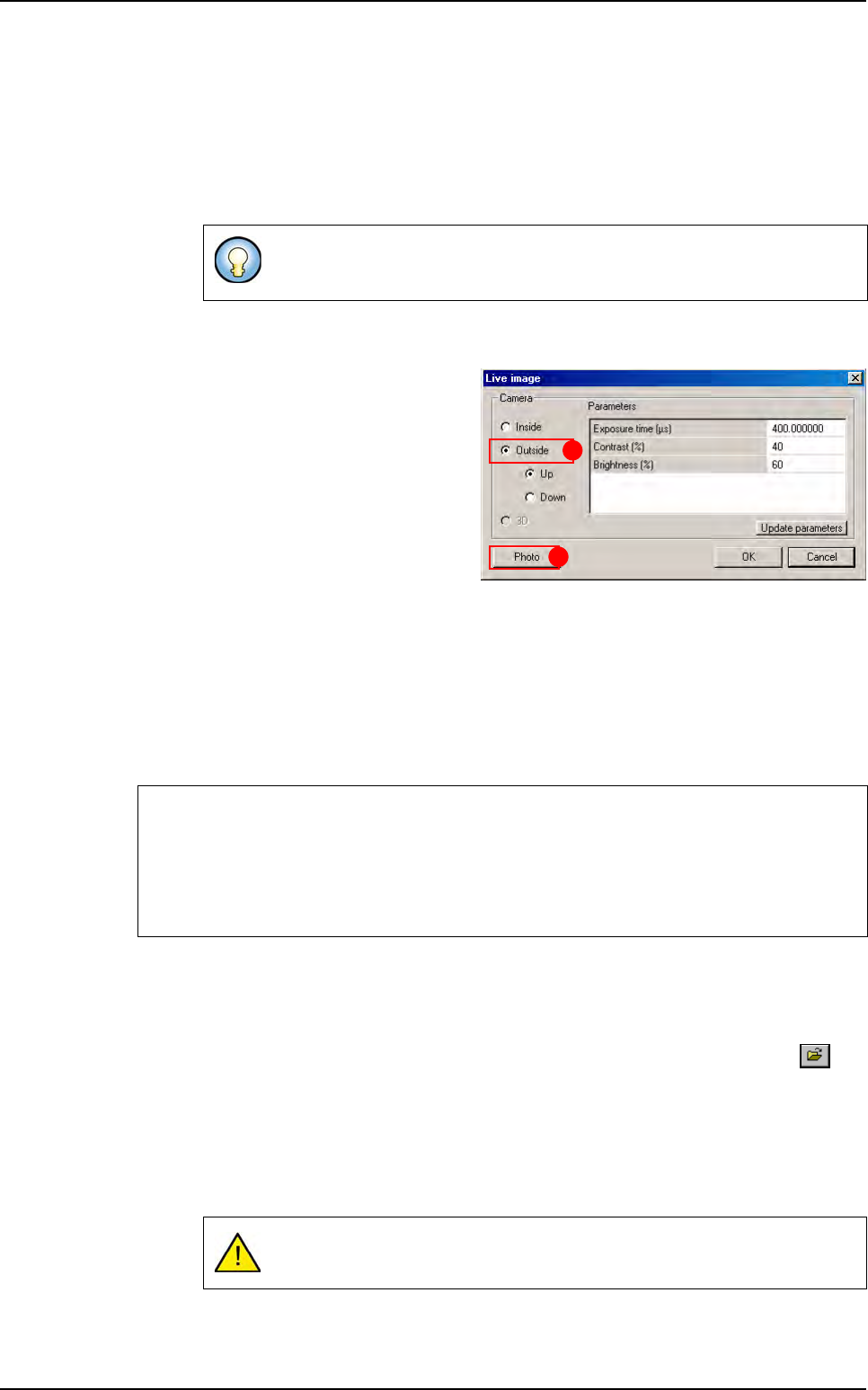
Outside (A), you can see a
live image from the camera used to read
the Data Matrix. You can choose
Up or
Down because there is an option to read
data matrix on the both side of a board.
The
Photo (B) button take an image with
the selected camera. The picture is saved
in
C:\vit\data folder and named:
Cam1.bmp if you have selected Inside camera,
Data Matrix.bmp for the outside camera,
3D.bmp for the 3D camera (3D option only).
It is helpful to store a good quality image of your Data Matrix because you will need it in library
to learn your Data Matrix type to the system.
7.12.5 Cognex Data Matrix model creation
7.12.5.1 Model description tab
1.
On the Model description tab, in the Edit a model window, click on the but-
ton. The .bmp file name to add in picture list window appears.
2. Select the image on which load the treatment.
3. Click on Edit area button to define the component size.
4. Choose the treatment operation: a new DMatrix tab appears behind the Model
description
tab.
Use this option to set and adjust the acquisition parameters. When your set-
tings are OK, you can remove the check box to save time.
If you have a poor quality picture you can:
Adjust the camera settings.
Tune the diaphragm and focus ring of the lens.
Tune the camera gain potentiometer in manual mode.
Be sure to select DM icon in the model description window.
A
B
Data Matrix
Tools library
Vision 2007 4.10 User Manual Rev 01 7 - 77
7.12.5.2 DMatrix tab
1.
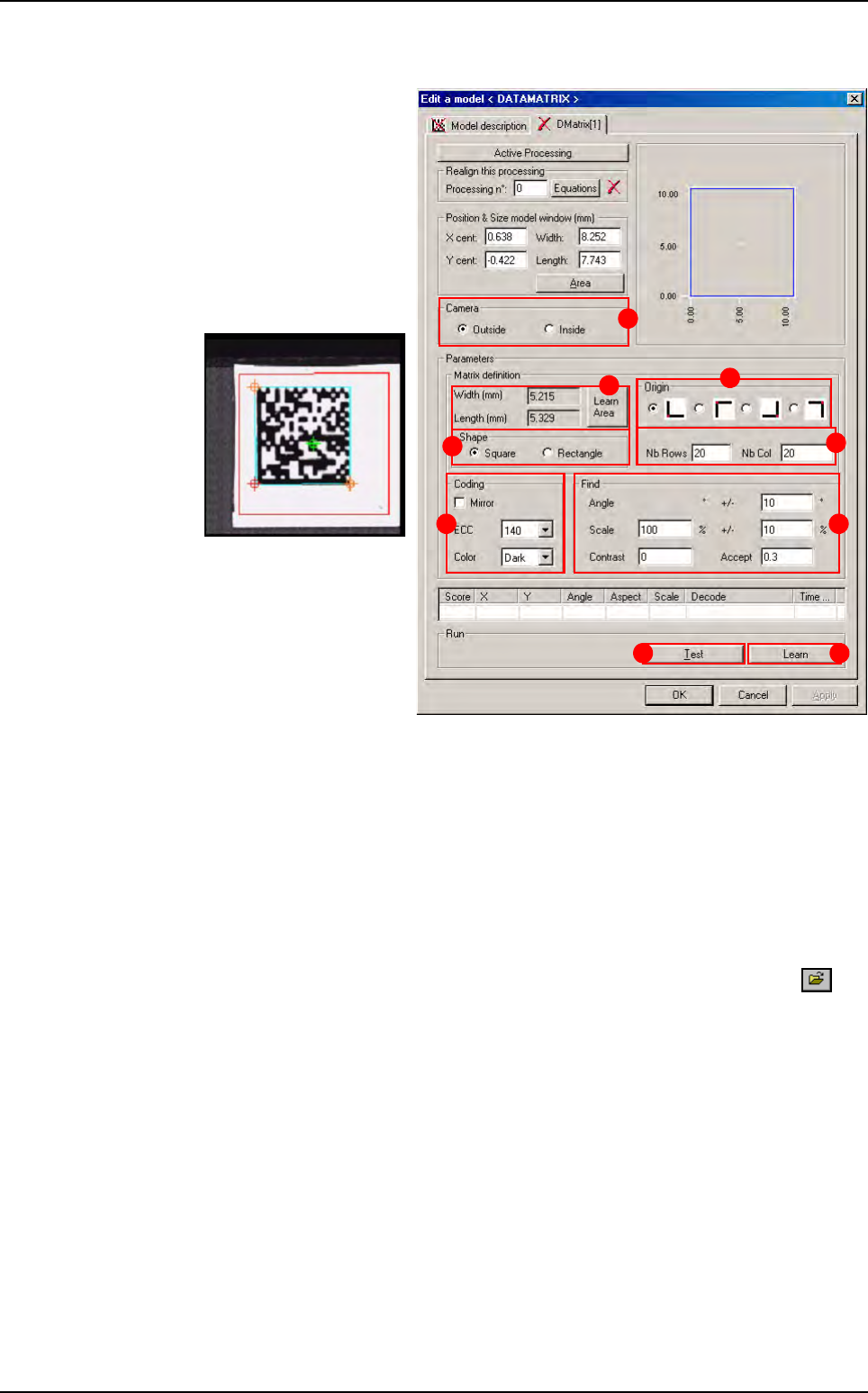
In Camera (A) section,
select the camera used
to read the Data Matrix.
2. Adjust the tool learn
area around the Data
Matrix in the Cognex con-
sole, the search area will
automatically be setted
when pressing
Learn
Area
(B) button.
3. In Origin (C) section,
select the Data Matrix or-
igin position,
4. In Shape (D) section,
select the Data Matrix
shape.
5. Enter the number of
rows and columns (
E).
6. In Coding (F) section, select the coding type (ECC), and color.
7. Press Learn (G) button.
8. Once the model is learnt, press Test (H) button and adjust the detection parame-
ters (
I ): angle tolerance, scale, contrast and acceptance.
7.12.6 Data Matrix CVB model
7.12.6.1 Model description tab
1.
On the Model description tab, in the Edit a model window, click on the but-
ton. The .bmp file name to add in picture list window appears.
2. Select the image on which load the treatment.
3. Click on Edit area button to define the component size.
4. Choose the treatment operation: DMatrix CVB. A new DMatrix tab appears be-
hind the
Model description tab.
7.12.6.2 DMatrix tab
A
B
C
D
E
F I
GH
Data Matrix