VI User Manual.pdf - 第95页
.TST file creation Vision 2007 4.10 User Manua l Rev 01 4 - 21 4. The Locatio n window appears. Input the coordi nates where the conn ector should be crea ted, then click on Next but- ton. 5. The Specifications window ap…
.TST file creation
4 - 20 Vision 2007 4.10 User Manual Rev 01
4.7.2 Create a pad / a reference pad
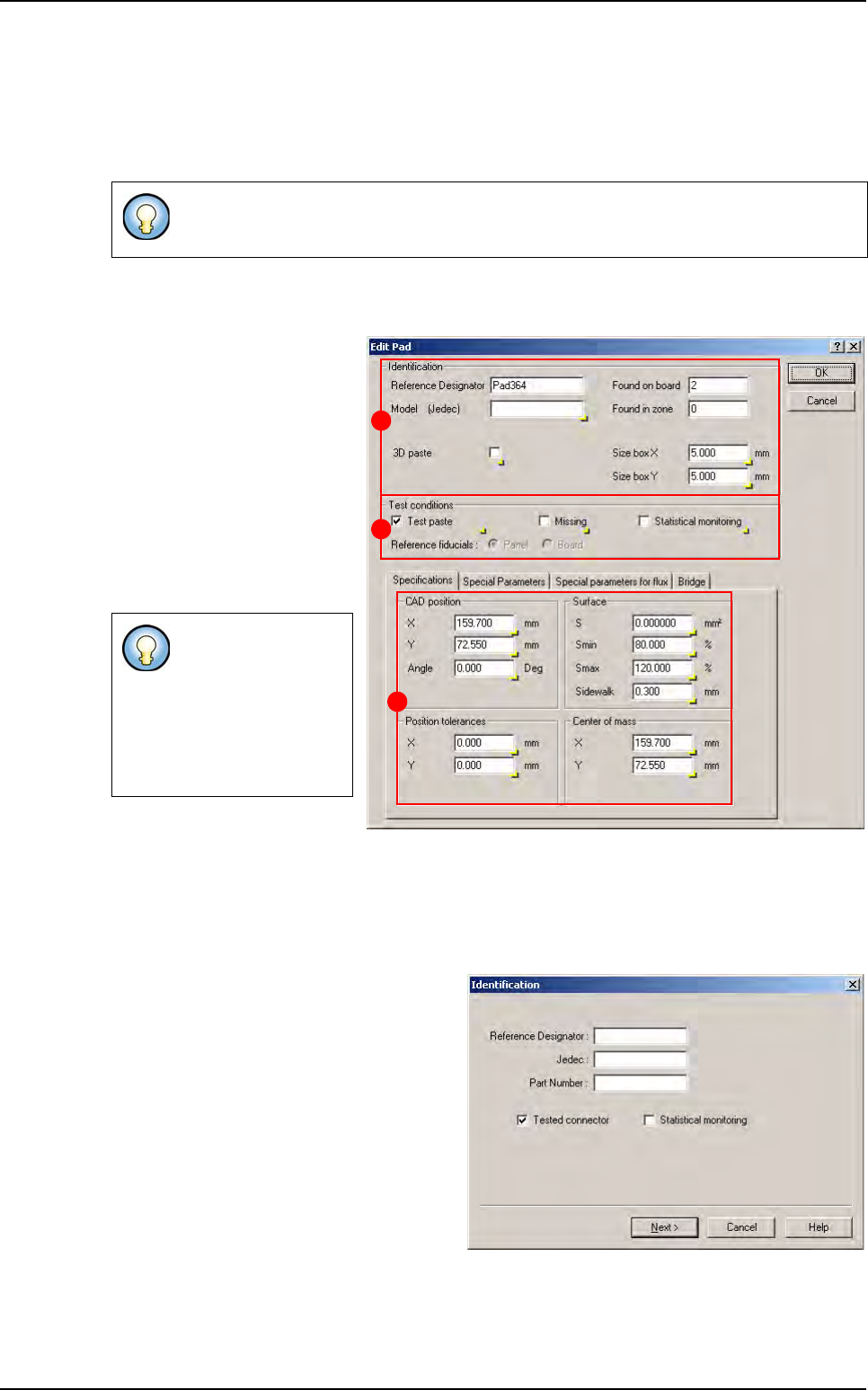
1. Open a .tst file then load the corresponding panel.
2. In Edit menu, select Pad, then Add a pad to open New element window.
3. The window New element appears after the fiducials inspection.
4. Set the parameters as described on chapter 4.7.1, then click on Add & edit button, the con-
figured pad is added on the .tst file, and the Edit Pad window appears.
5. The Identification parame-
ters can be set on the (A) part.
6. The Test conditions can
be selected in the (B) part.
7. The CAD position parame-
ters can be modified in the
Specifications tab (C).
8. The modifications can be
applied by clicking on OK but-
ton, or discarded by clicking on
Cancel button.
4.7.3 Create a connector
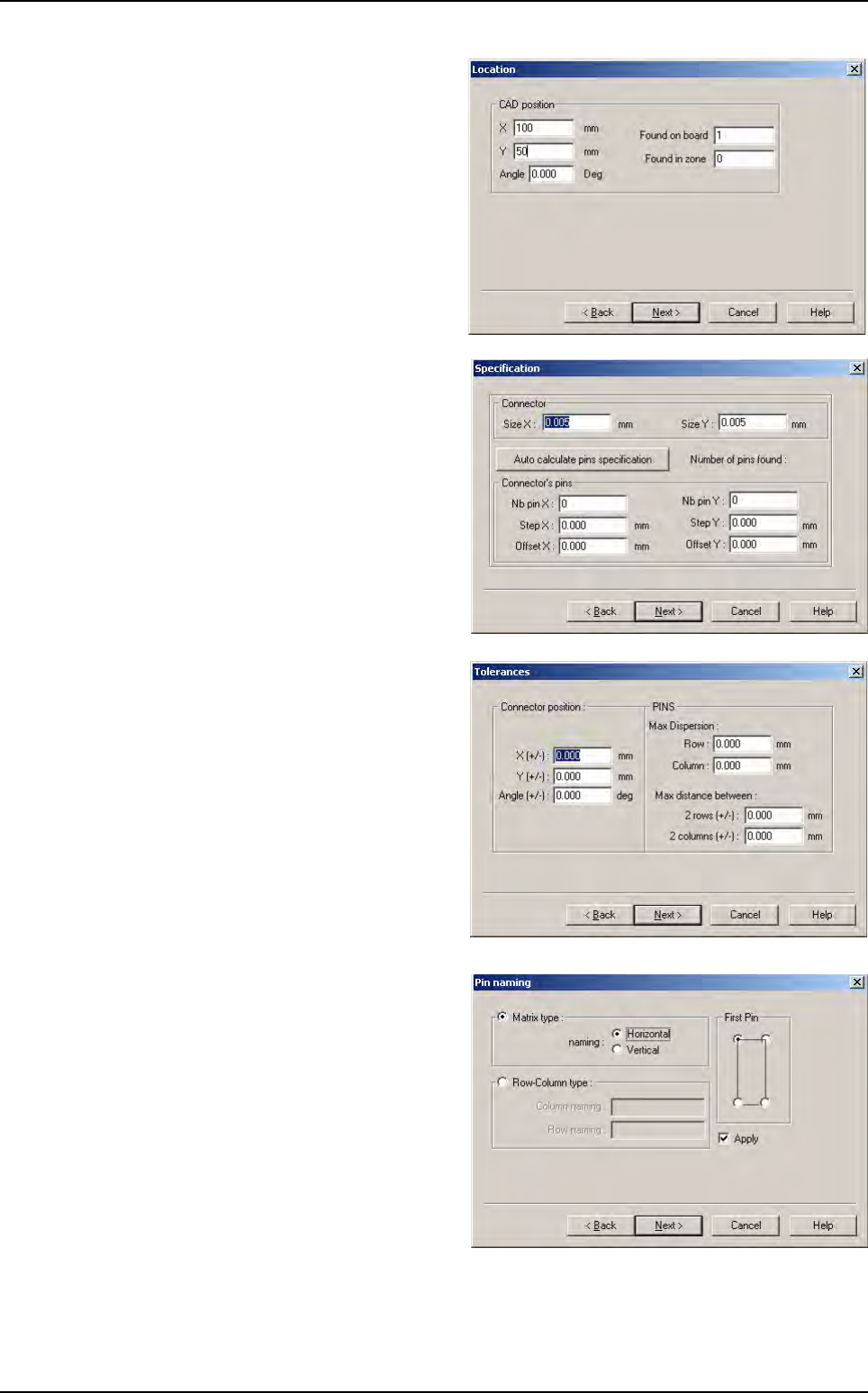
1. Open a .tst file then load the corresponding panel.
2. In Edit menu select Connector then Add a connector to open Identificiation window.
3. The Identification window appears after
the fiducials inspection.
Input the connector identification parame-
ters in Identification window, and then click
on Next button.
If fiducials are not correctly acquired a shorter version of the New element window is
displayed.
Reference pad
menu is only
available for 3D
machines.
3D paste check box
is only available for
3D machines.
A
B
C
New element creation
.TST file creation
Vision 2007 4.10 User Manual Rev 01 4 - 21
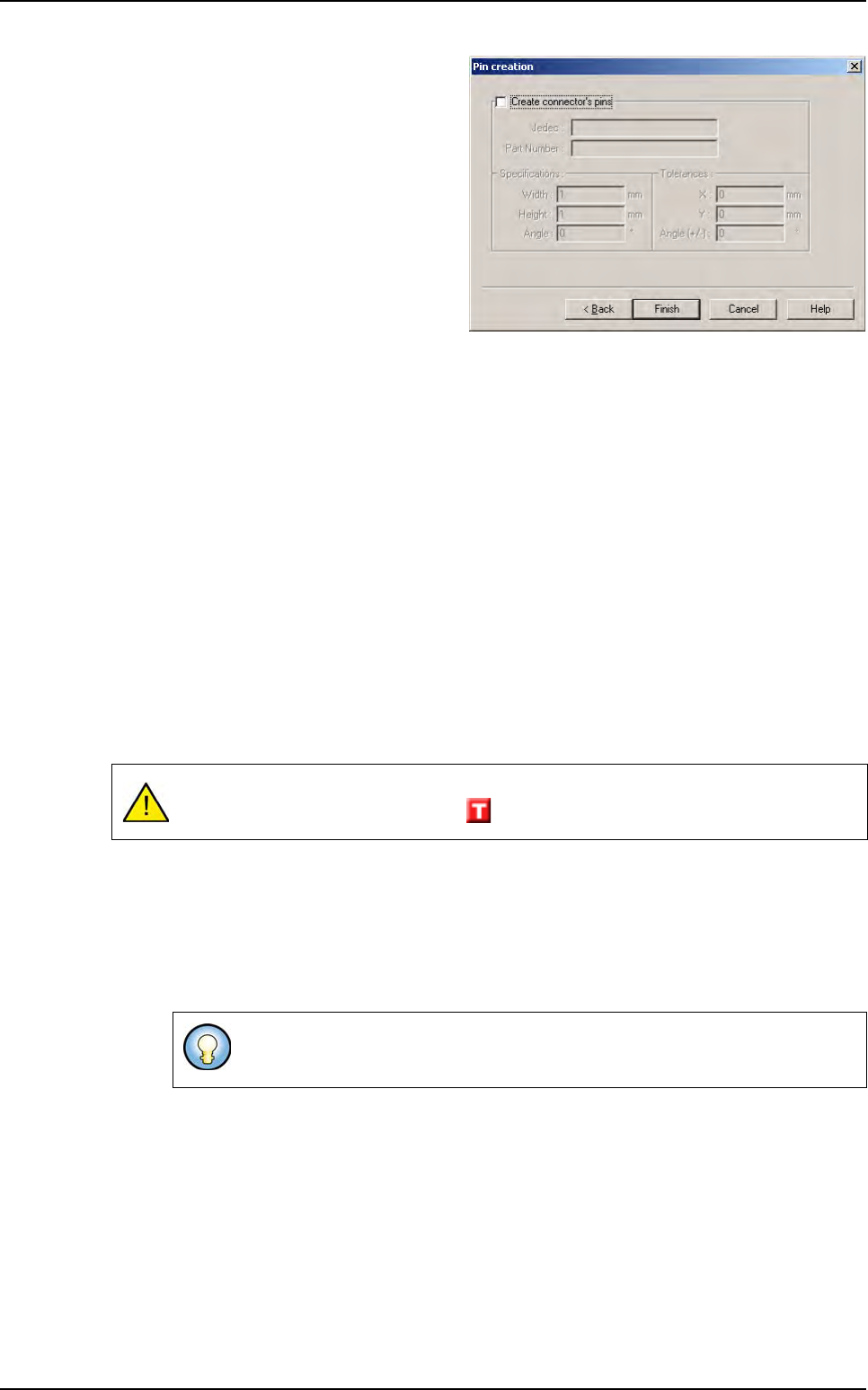
4. The Location window appears.
Input the coordinates where the connector
should be created, then click on Next but-
ton.
5. The Specifications window appears.
Input the connector parameters: size and
pins number and position, then click on
Next button.
6. The Tolerances screen appears.
Input the connector and pins positions, then
click on Next button.
7. The Pin naming screen appears.
In the Pin naming window, select the pins
naming rule to apply, then click on Next but-
ton.
New element creation
.TST file creation
4 - 22 Vision 2007 4.10 User Manual Rev 01
8. The Pin creation screen appears.
Activate or not the connector pins creation,
then click on Complete button: the corre-
sponding connector is created on the .tst
file.
4.7.4 Create a text object
A text object can be added from the menu Edit \ Text \ Add a text object. To see the detailed
procedure please go to chapter 8.2.1 Add a new text object in a test file.
4.7.5 Create a trace object
The trace object allows identifying a component which is associated to a datamatrix or a bar
code. Its identifier is a string resulting from the datamatrix (or barcode) execution.
The trace object is necessary linked to a component and associated to a datamatrix or barcode
model defined in the library. It is identified by a topology (unique per card) and associated to a
card number and a zone number.
In debug mode the trace object can be executed by a global inspection or a board inspection or
a zone inspection.
The identification string of the trace object appear in the execution report (in debug mode) or in
the supervisor data base (in production mode) if and only if the execution result of the component
linked to the trace object is not a presence error.
4.7.5.1 Creation procedure
1. Open a .tst file then load the corresponding panel.
2. In Edit menu select Trace Object then Add a Trace Object to open New element
window.
3. The window New element appears after the fiducials inspection.
If the identification string could not be read, the execution result of the component linked
to the trace object raises a text error .
If fiducials are not correctly acquired a shorter version of the New element
window is displayed.
New element creation