VI User Manual.pdf - 第330页
Optimization 12 - 12 Vision 2007 4.10 User Manual Re v 01 12.2.2.3 Paste The dialog contains the resu lts of the paste de tection. The tools are placed and ex- ecuted at the same position as they were in Production m ode…
Optimization
Vision 2007 4.10 User Manual Rev 01 12 - 11
12.2.2 Creating dbg archives
Once the production debug tool is active, it will create an archive for each fault on compo-
nents or paste (except multizone components) during production. The dbg directory will con-
tain archives of both real faults and false calls.
The production debug tool will not modify the production mode behavior. It may slow down
the cycle time if you have many faults.
12.2.2.1 Using dbg archives
The dbg directory contains the dbg archives obtained in production mode. The dbg
archives name format is:
ReferenceDesignator_FirstLightLevel_YearMonthDayTime.dbg
To open a dbg archive, go on Process menu and select Open a debug file (*.dbg)
(Ctrl+D).
In the Open window select the .dbg file you wish to open. This will open the produc-
tion debug tool's dialog box and the Cognex console.
12.2.2.2 Components
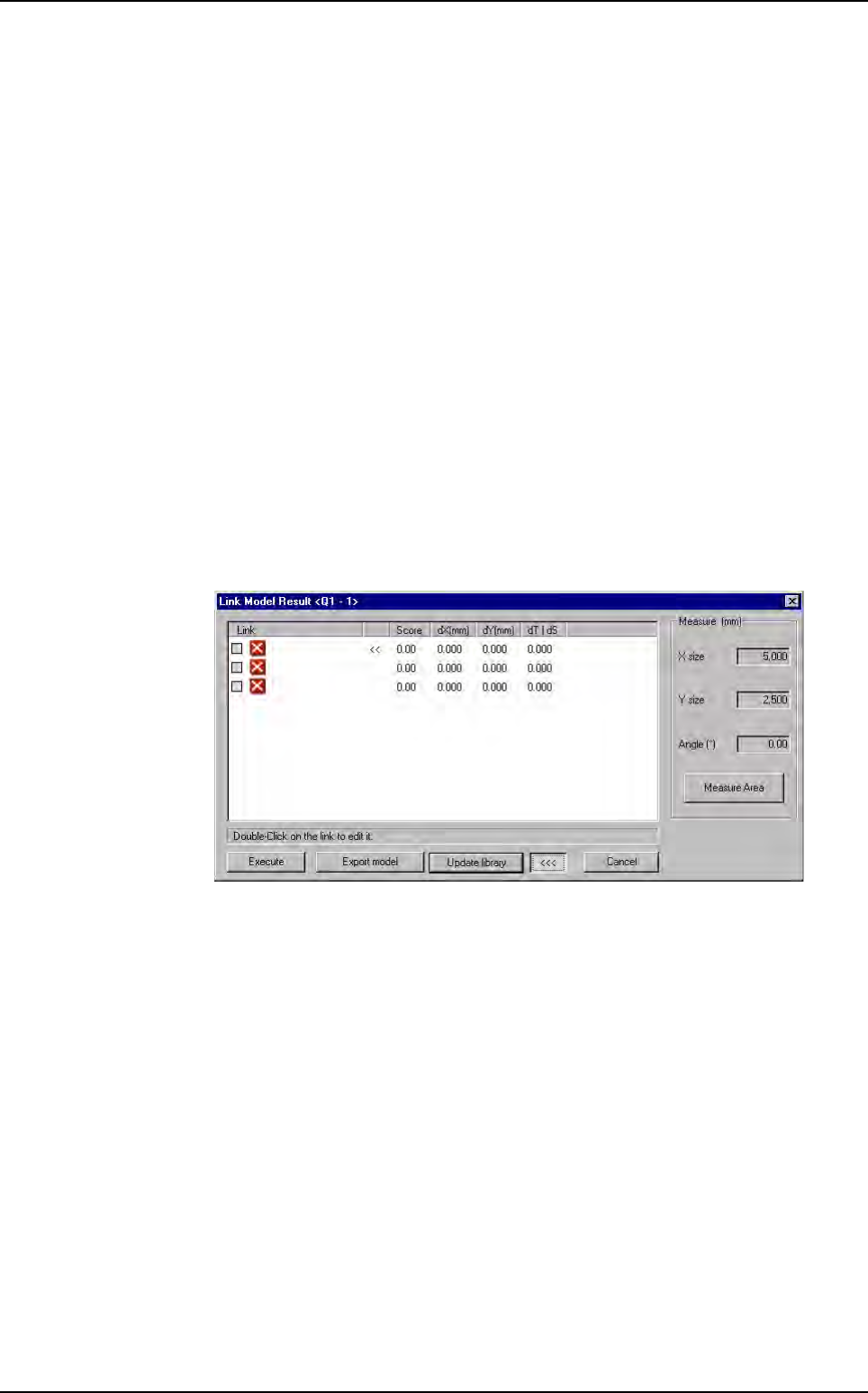
The dialog box contains the results of all the model's links. The tools are placed and
executed at the same position as they were in production mode.
To edit the models, double click on a link result in the dialog box. This opens the
model's library page. You can then modify parameters and fine tune the model. If
you modify the model and click OK, the checkbox in the link result appears ticked.
Re-executes all the links to check the global result. If you modified a model, press
this button to update the dialog.
Exports the models as a .mdl file. Only the modified links are included in the .mdl
file.
Copies all the links to a library. This opens a browser dialog to choose the destina-
tion library.
Opens / closes a Ruler tool at the right part of the dialog. Useful to measure objects
directly in the image.
1. Adjust the area around the object you wish to measure.
2. Gives the dimensions and angle of the area.
Production debug tool
Optimization
12 - 12 Vision 2007 4.10 User Manual Rev 01
12.2.2.3 Paste
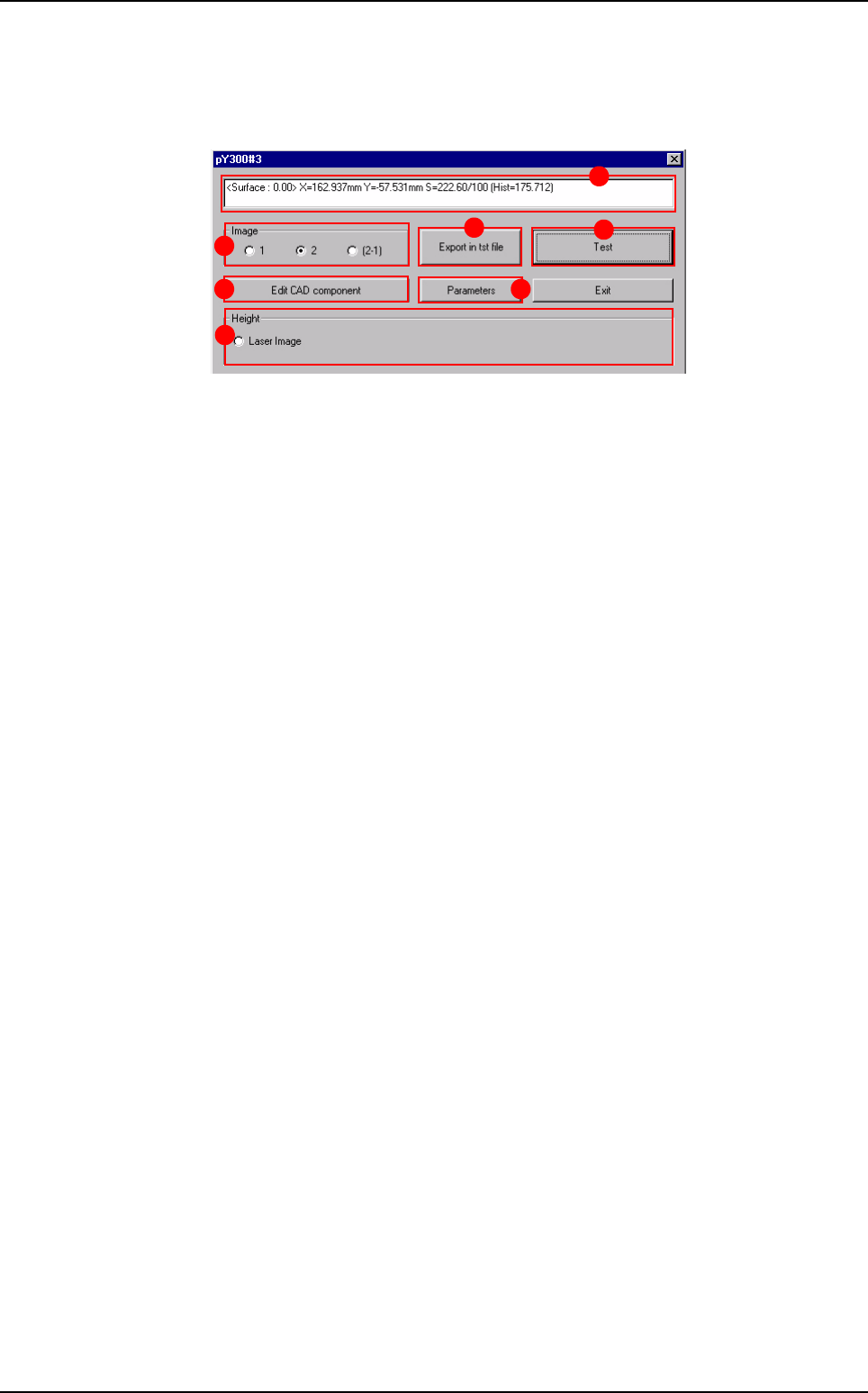
The dialog contains the results of the paste detection. The tools are placed and ex-
ecuted at the same position as they were in Production mode.
In the upper field (A) are displayed the paste detection results.
In Image (B) section, select the image type displayed in the console.
Press
Edit CAD component
(
C
) button to edit the pad's paste detection parameters.
Press
Parameters
(
D
) button to edit the global .tst file's paste detection parameters.
Press Test (E) button to re-execute the paste detection. If you modified detection
parameters, press this button to update the results.
Press Export in tst file (F) button to export the results to a .tst file. This opens a
browser dialog to choose the destination .tst file.
The Height (G) section is unused.
A
B
F
E
C D
G
Production debug tool
Optimization
Vision 2007 4.10 User Manual Rev 01 12 - 13
12.3 Auto Defect Correction (ADC)
This tool has 2 mains goals:
It gives you a precise status of the customer library:
• Links which are never used.
• The best links arrangement to reduce the cycle time and to increase the accuracy.
It allows you to improve the customer library by downloading models from the standard library.
12.3.1 Principle
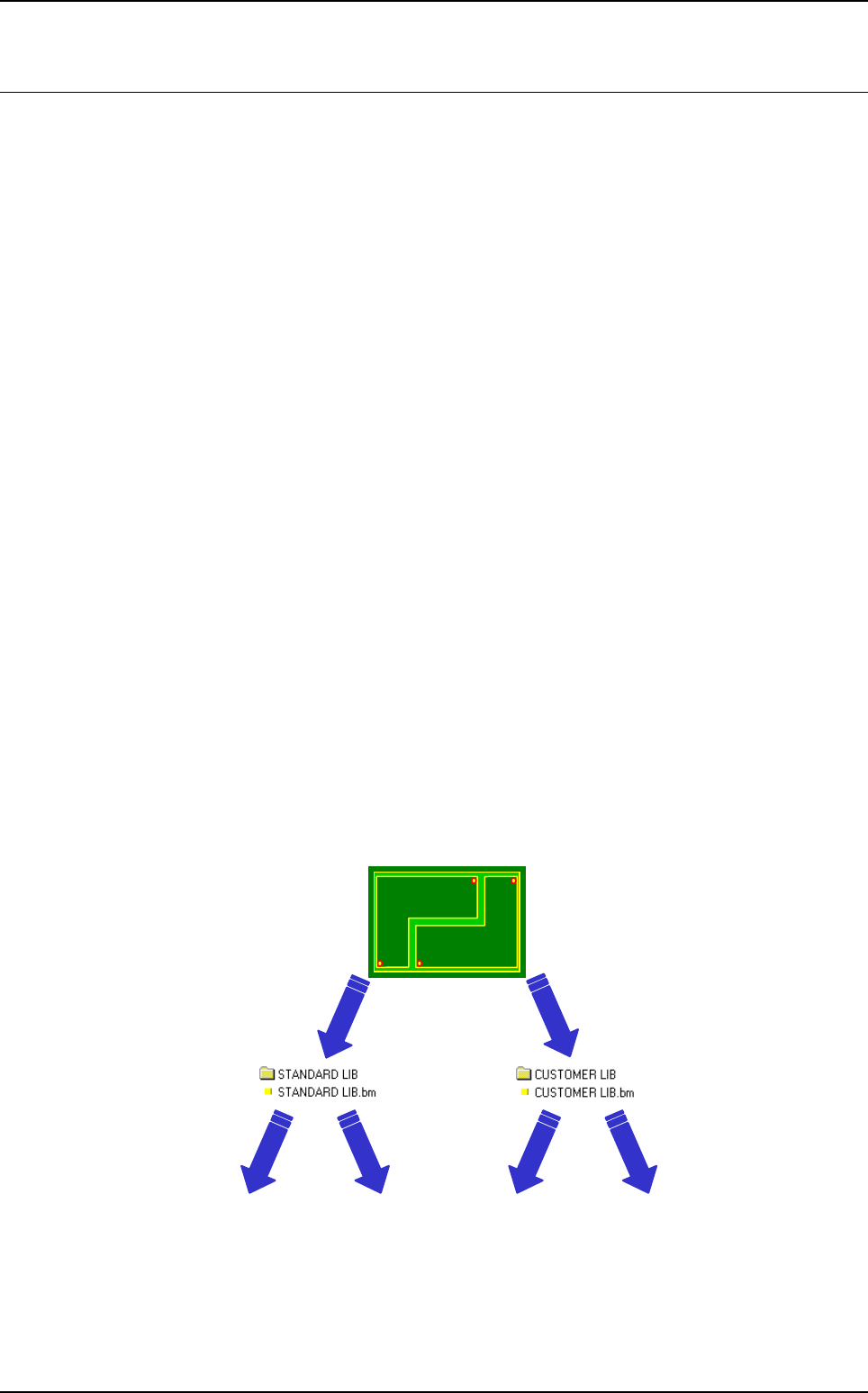
Running boards from the production line with the customer and/or the standard library.
The ADC mode gives you a verdict about the best models to use from the customer or from
the standard library.
After testing several panels, it informs you about customer models which are never used and
about standard models we can use.
Then, you have the possibility to:
Remove unused customer models from the customer library.
Add standard models to the customer library.
12.3.2 Algorithm
Possibility to run empty boards with customer and standard libraries to detect models which
give false acceptance.
Test full panels with the customer library. If a Ref. Designator fails we try with the standard
model in the standard library.
12.3.2.1 1st step (if empty boards needed)
PRODUCTION
Component
found
= false
acceptance
• Save image
• Sort bad models
Missing
• Sort bad models
Missing Component
found
= false
acceptance