VI User Manual.pdf - 第141页
Match Maker Vision 2007 4.10 User Manua l Rev 01 6 - 7 6.4 Match Maker graphical user interface The Graphical User Inte rface ( GUI ) is organized in several steps in order to guide the user. In the Top part of the windo…
Match Maker
6 - 6 Vision 2007 4.10 User Manual Rev 01
6.3.1 Match Maker opening conditions (Fiducial inspection)
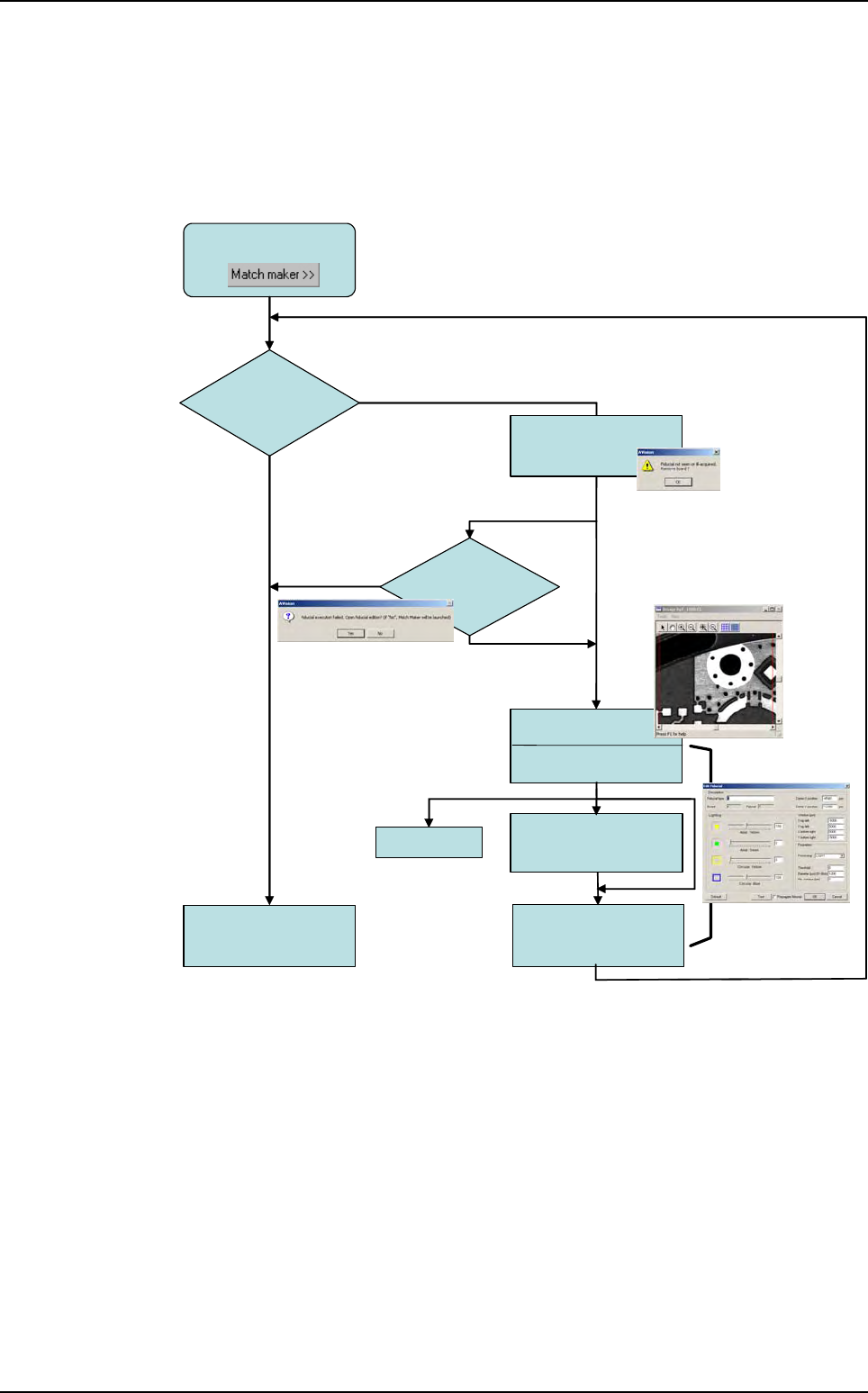
When clicking on the Match Maker button, the fiducials are executed with the default settings.
If the execution of the fiducials fails, several windows appear.
6.3.1.1 Opening conditions diagram
Click on
Fiducials
execution
NOT OK
Adjustment
Edit Fiducial
Click on
button OK
OK
Click on
button YES
Click on
button NO
1st execution
Camera console
Edit Fiducial
2nd execution
Match Maker
Interface opens
Test
Warning screen
Click on
button OK
Open
Fiducial Edition ?
Match Maker in the Wizard TST
Match Maker
Vision 2007 4.10 User Manual Rev 01 6 - 7
6.4 Match Maker graphical user interface
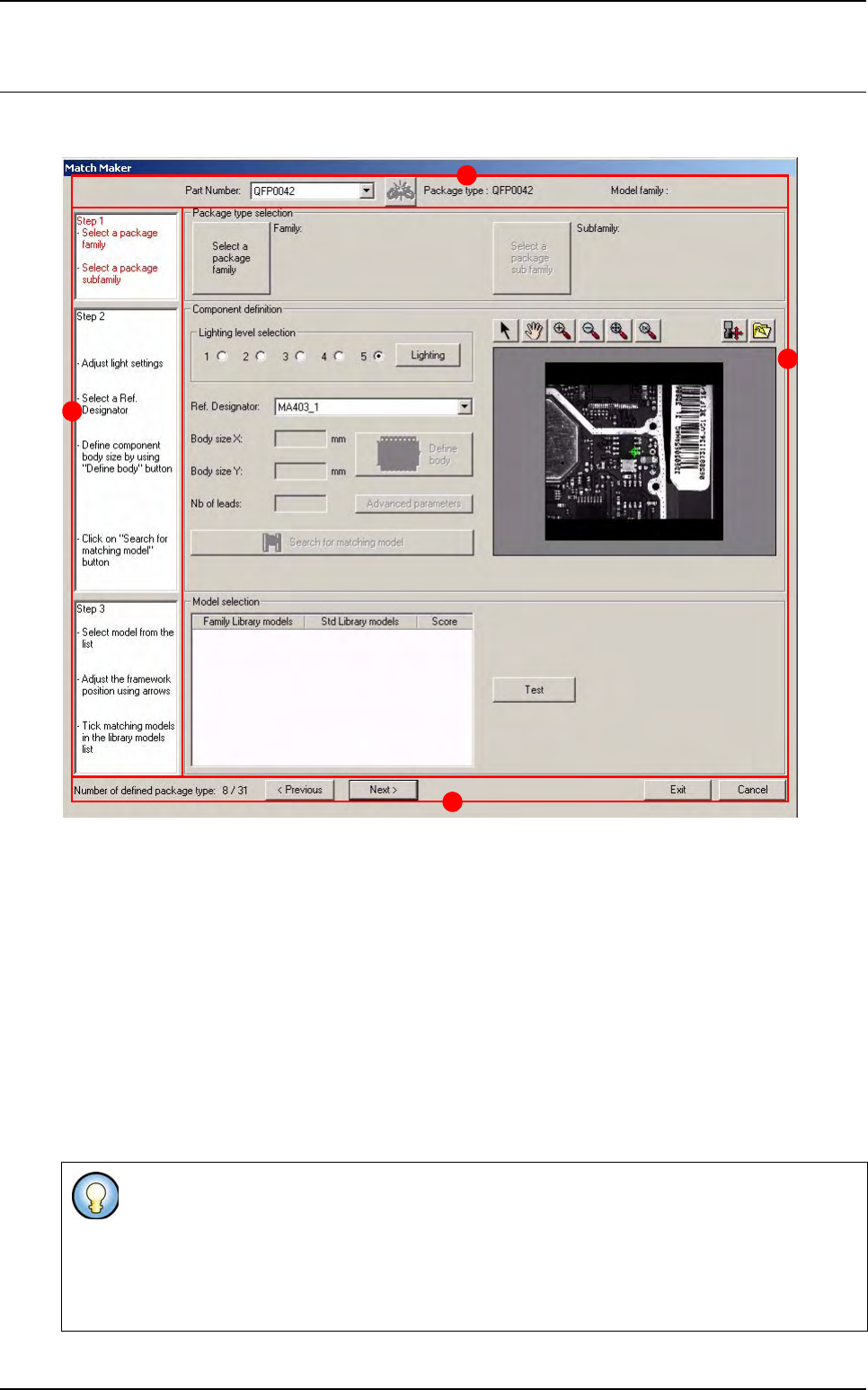
The Graphical User Interface (GUI) is organized in several steps in order to guide the user.
In the Top part of the window three informations and one button are displayed (A):
Part Number
«unlink» Part Number to Package type button
Package type
Model family.
On the left part a white bar contains the three steps (B) to be followed.
Step 1 Package type selection
Step 2 Component definition
Step 3 Model selection
Next to each step, a frame (C) enables to realize the actions.
In the Bottom part of the window one information and four buttons are displayed (D).
Each step contains several informations indicating the actions to realize. The status of the step
is defined with a color:
- Black: step on standby
- Red: step to be realized in first
- Green: step realized and validated
D
B
A
C
Match Maker
6 - 8 Vision 2007 4.10 User Manual Rev 01
6.4.1 Top part
6.4.1.1 Part Number field
The field indicates the Part Number of components existing in the VIS file.
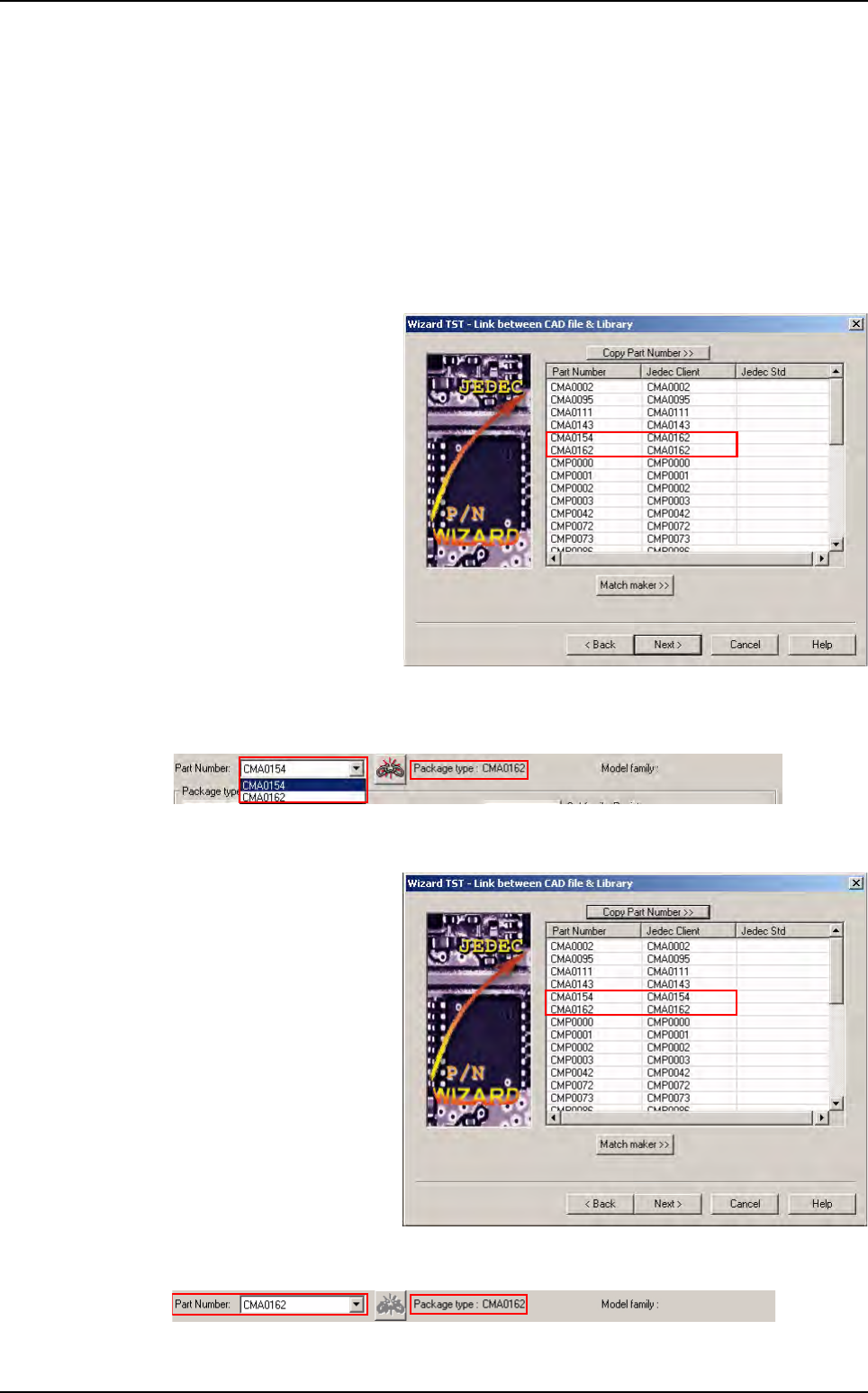
6.4.1.2 «unlink» Part Number to Package type
The button can be active or inactive:
The button is active (red)
In Wizard TST
two
Part
Number
have the same
Je-
dec Client
.
In Match Maker the button is active (red) and a Package type is linked to several Part
Number.
The button is inactive (grey)
In Wizard TST each Part
Number have a Jedec Cli-
ent.
In
Match Maker
the button is inactive and a
Package type
is only linked to a
Part Number
.
Match Maker graphical user interface