VI User Manual.pdf - 第281页
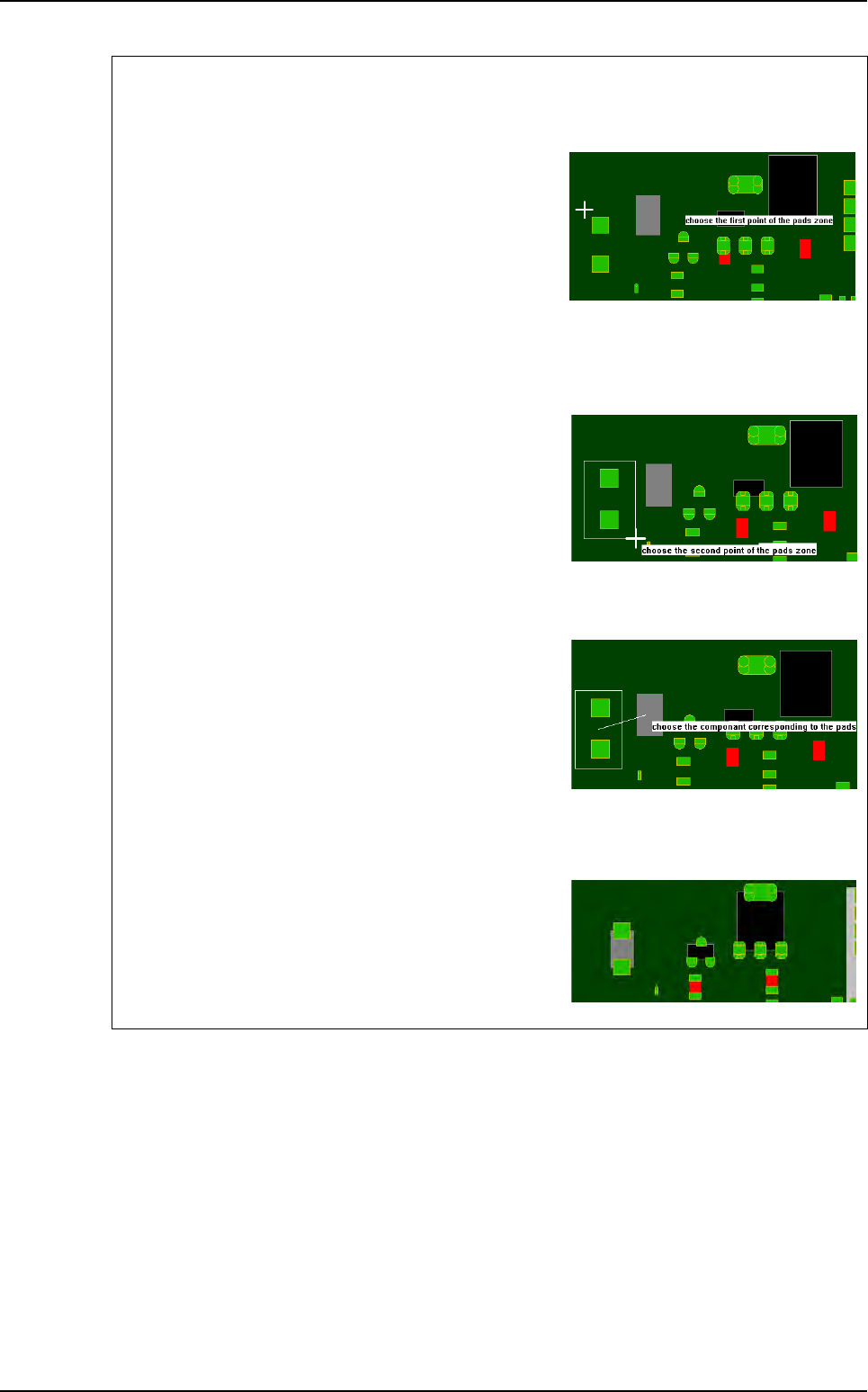
2D solder paste inspection Vision 2007 4.10 User Manua l Rev 01 9 - 3 Graphic selection of the pa ds and the correspondin g component 1st step Click on the 1st point to describe the encompassing rectangle of the pads gro…
2D solder paste inspection
9 - 2 Vision 2007 4.10 User Manual Rev 01
3. In Position file name (C), show the address of the gerber file.
4. The Board (D) section allows an offset between the gerber mask and the panel.
5. Tick Calculate pad angle (E) to compute the pad angle. The pad angle is important if you
have, for example, component at 45° on your board. By default the pad angle is set at 0°. This
option make the gerber file importation longer.
6. Click OK to start importing.
9.1.3 Gerber offset adjustment
Overall movement of the gerber representation according to the required offset. Often, the refer-
ence point (0,0) of the gerber does not correspond to the .tst file (0,0), which is the lower edge
in contact with the machine stop.
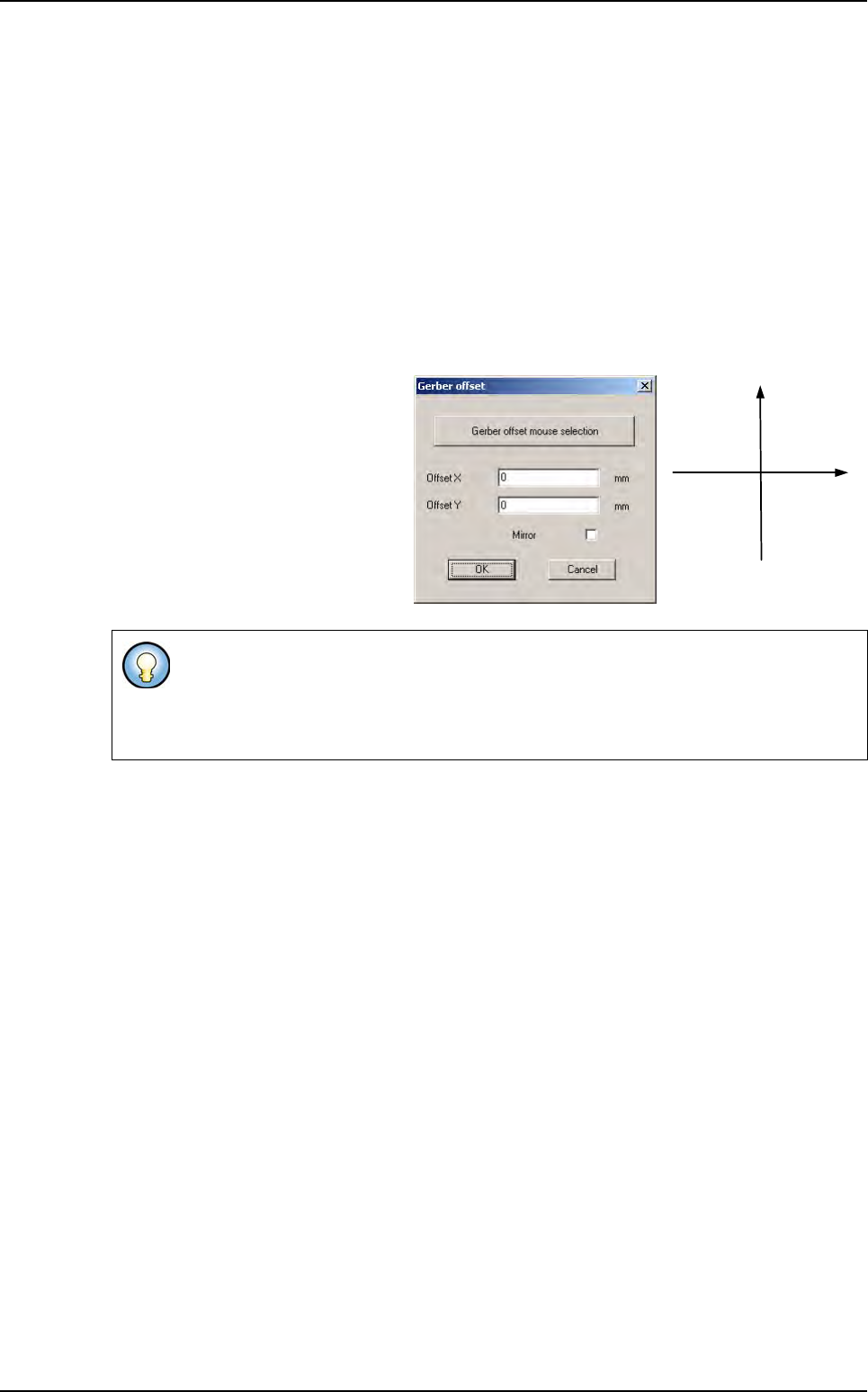
To adjust the reference point go to
the Test file menu and in the Import
sub menu select Gerber offset, the
next dialog box appears.
This dialog box enables all the paste
pads to be moved according to the
offset required, as well as a mirror to
be performed, as sometimes the ger-
ber file represents a view of the mask
from below.
If you know the exact offset between the gerber mask and the .tst file enter it directly
and click on OK to apply the offset.
If not, click on Gerber offset mouse selection to start the graphic selection of the pads
and the corresponding component (see next page).
- X + X
+ Y
- Y
Gerber file
2D solder paste inspection
Vision 2007 4.10 User Manual Rev 01 9 - 3
Graphic selection of the pads and the corresponding component
1st step
Click on the 1st point to describe the encompassing
rectangle of the pads group.
To exit the mode:
- During the pads group selection, select an empty rect-
angle.
- During the component selection, click outside of a compo-
nent.
2nd step
Click on the 2nd point to describe the encompassing
rectangle of the pads group.
You must still use offset to set gerber in view.
3rd step
Click on the component corresponding to the pads
group.
During the selection, you still can use the zoom and the
scroll bars.
Result
The software analyses the center of gravity of all the se-
lected pads and moves the gerber mask to make this
point coincide with the center of gravity of the selected
component.
Gerber file
2D solder paste inspection
9 - 4 Vision 2007 4.10 User Manual Rev 01
9.2 Solder paste in the .tst file
9.2.1 Put pads in test
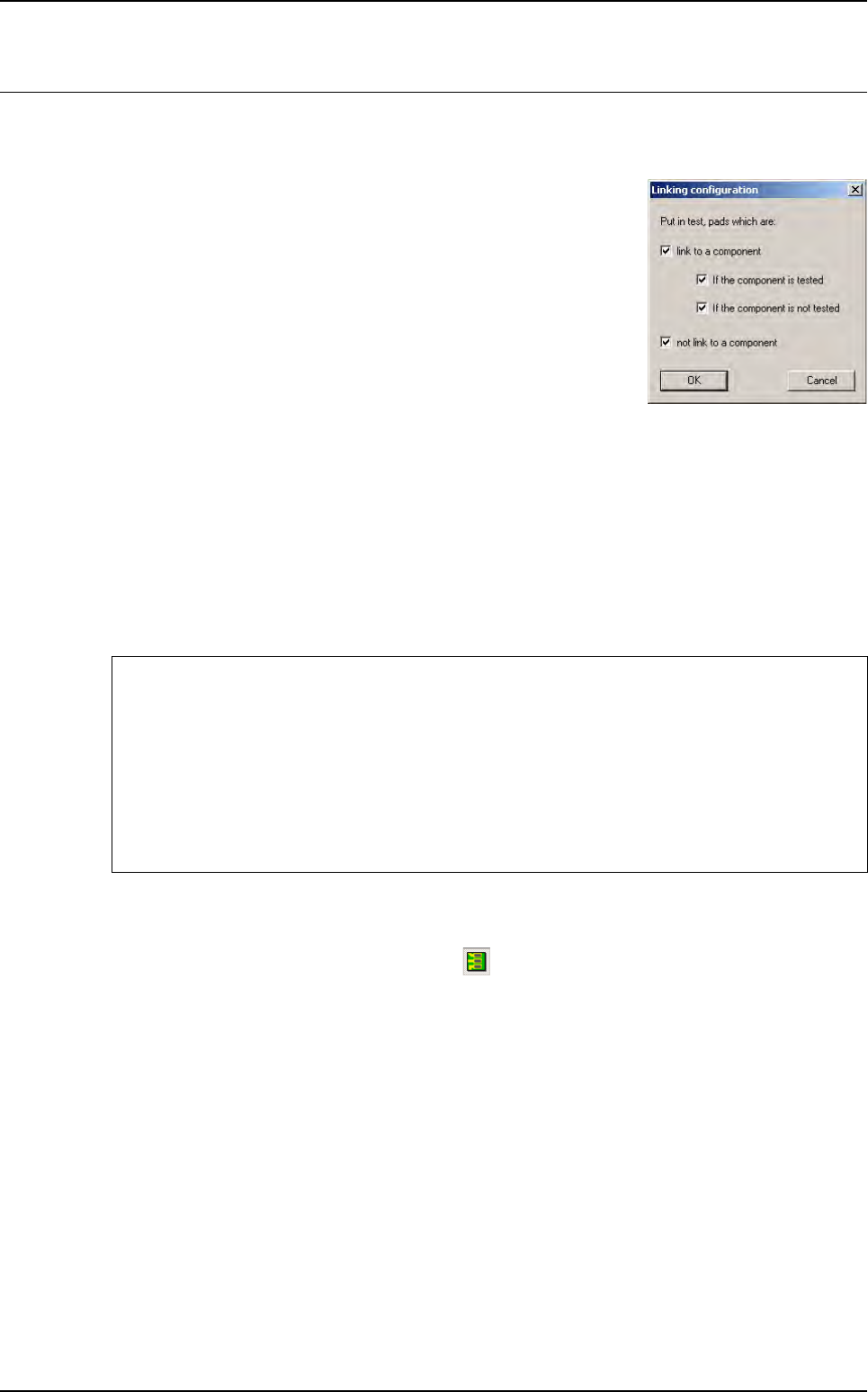
This function enables consideration of the feeder files that can be
imported for the components.
If a component is excluded from the test, its paste pads can be sent
for testing automatically.
9.2.2 Link pads to components
After linking the paste pads to components, you can choose to test some of the paste pads using
the precedent dialogue box.
This function enables a paste pad to be linked to its component. Directly after import, the paste
pads are all named arbitrarily.
The names are of the following type:
Jedec: C#5104 Topology: C#4217
9.2.3 Color code
To display the paste pads, click on this icon in the tool bar.
Yellow: paste pad tested and linked to a zone.
Green: paste pad tested and not linked to a zone.
Red: paste pad not tested and not linked to a zone.
Purple: paste pad not tested and linked to a zone.
After Link pad to component the pads can be re-named in 2 ways:
If no paste pad has been associated with a component
Jedec: pPaste Topology:p#2159
The paste pad has been associated with a component
Jedec: pCMP0117 Topology: pC308#2 (paste pad no. 2 for the component)
In this case, the pad has been associated with component
C308 from the CMP0117 family.