VI User Manual.pdf - 第159页
Match Maker Vision 2007 4.10 User Manua l Rev 01 6 - 25 6.6 Examples of link between Part Number and Library The models to import are ren ame according to the situation : The component is defined with a Part Number nam…
Match Maker
6 - 24 Vision 2007 4.10 User Manual Rev 01
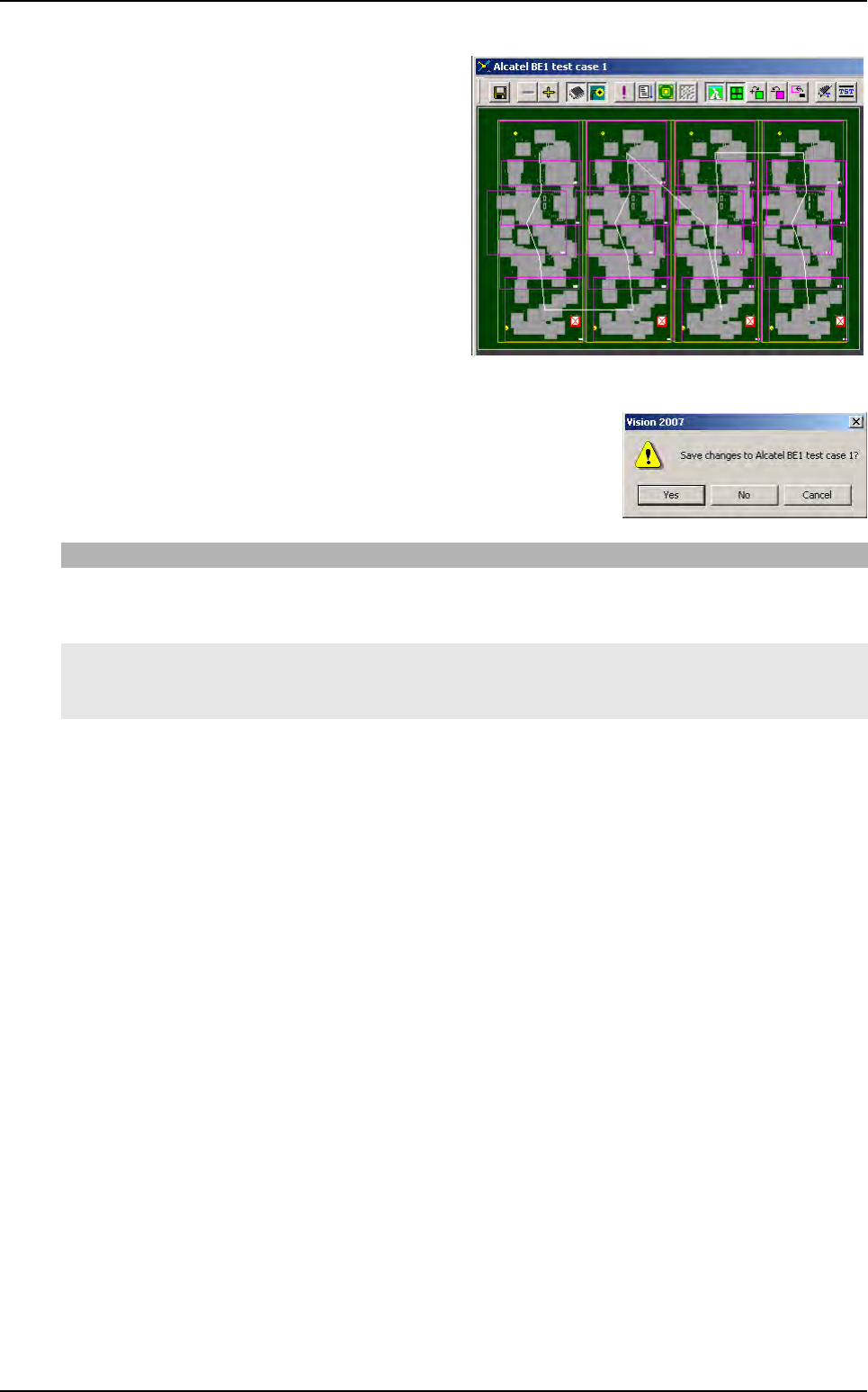
5. The TST file appears.
6. Close TST file.
An information displays.
If you click on Then
Yes - The TST file is saved (choose a directory)
- The library is saved
- The link Part Number_Jedec Standard is stored in the database BuildModel database.
No - The TST file is not saved and the process is finished
- The library is saved
- The link Part Number_Jedec Standard is stored in the database BuildModel database.
Cancel The request is cancelled.
Wizard TST after use of Match Maker
Match Maker
Vision 2007 4.10 User Manual Rev 01 6 - 25
6.6 Examples of link between Part Number and Library
The models to import are rename according to the situation:
The component is defined with a Part Number name and no Jedec Client
The component is defined with a Part Number name and a Jedec Client
The customer library already exists and new models must be imported in this library
6.6.1 VIS file does not contain Jedec Client
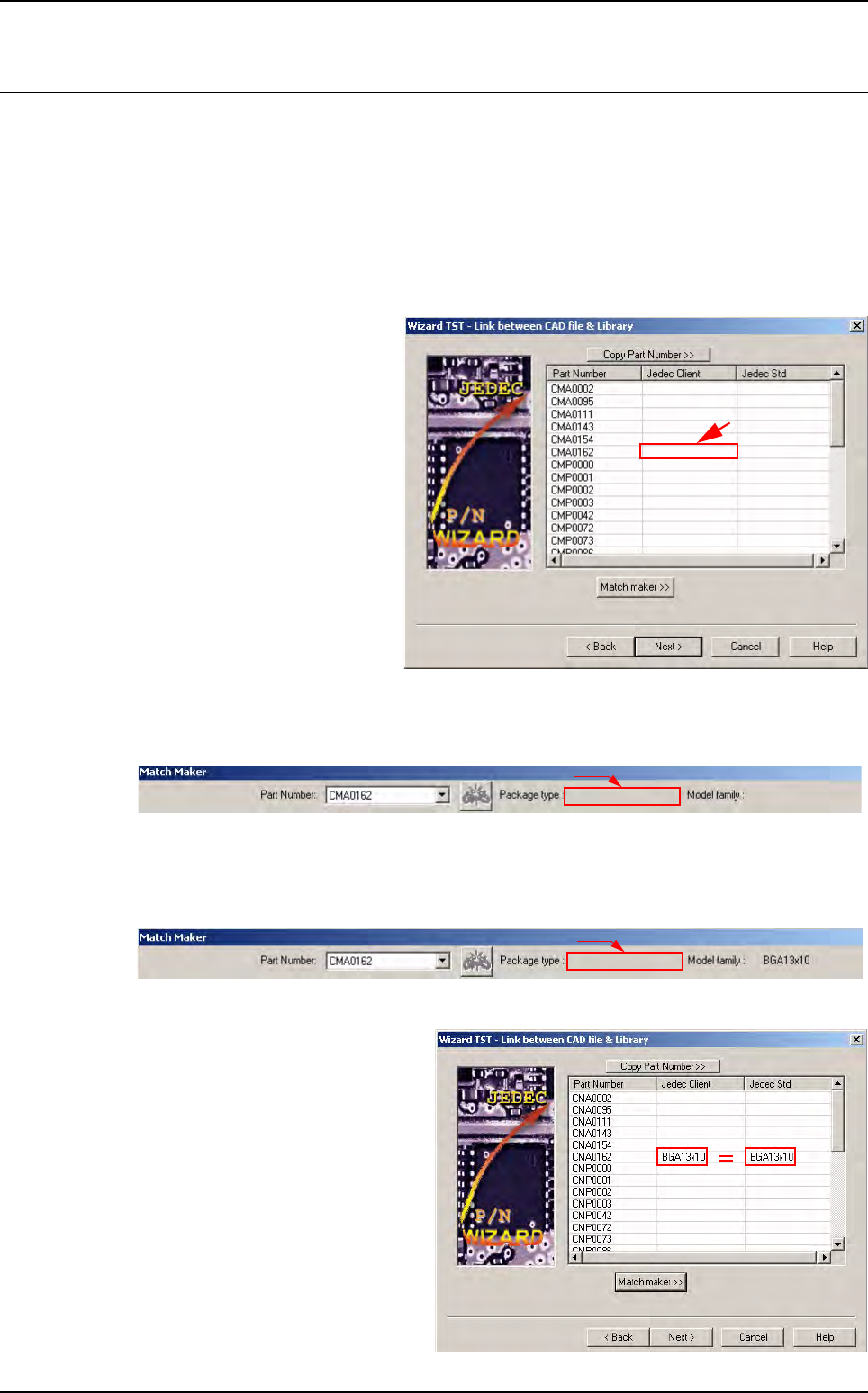
1. Run Wizard TST.
The user can see only one col-
umn (Part Number) in the Wiz-
ard TST - Link between CAD
file & Library window.
2. Launch Match Maker. Click on the Match Maker button. The Match Maker window ap-
pears:The Part Number are indicated at the top and the Package type miss.
3. Associate a model of the Standard Library to a Part Number (see § 6.4.4 Step 3: Model se-
lection). Once a model is selected, the reference
of the
Model family
appears in the window.
4. Leave Match Maker.
Click on the Exit button.
The families appear in the window:
Link between CAD file & Library
(Jedec Client = Jedec Standard =
model in the Standard Library).
This association is recorded: on the
same line the Part Number
(CMA0162) is related to the Jedec
client (BGA13x10) and the model
to be imported will be BGA13x10.
Not filled
Not filled
Not filled
Match Maker
6 - 26 Vision 2007 4.10 User Manual Rev 01
5. After having clicked on the Next button, continue in the Wizard TST such as (see § 6.5 Wiz-
ard TST before use of Match Maker).
In the Customer library there is the Standard Library model: BGA 13x10.
6.6.2 VIS file contains Jedec Client
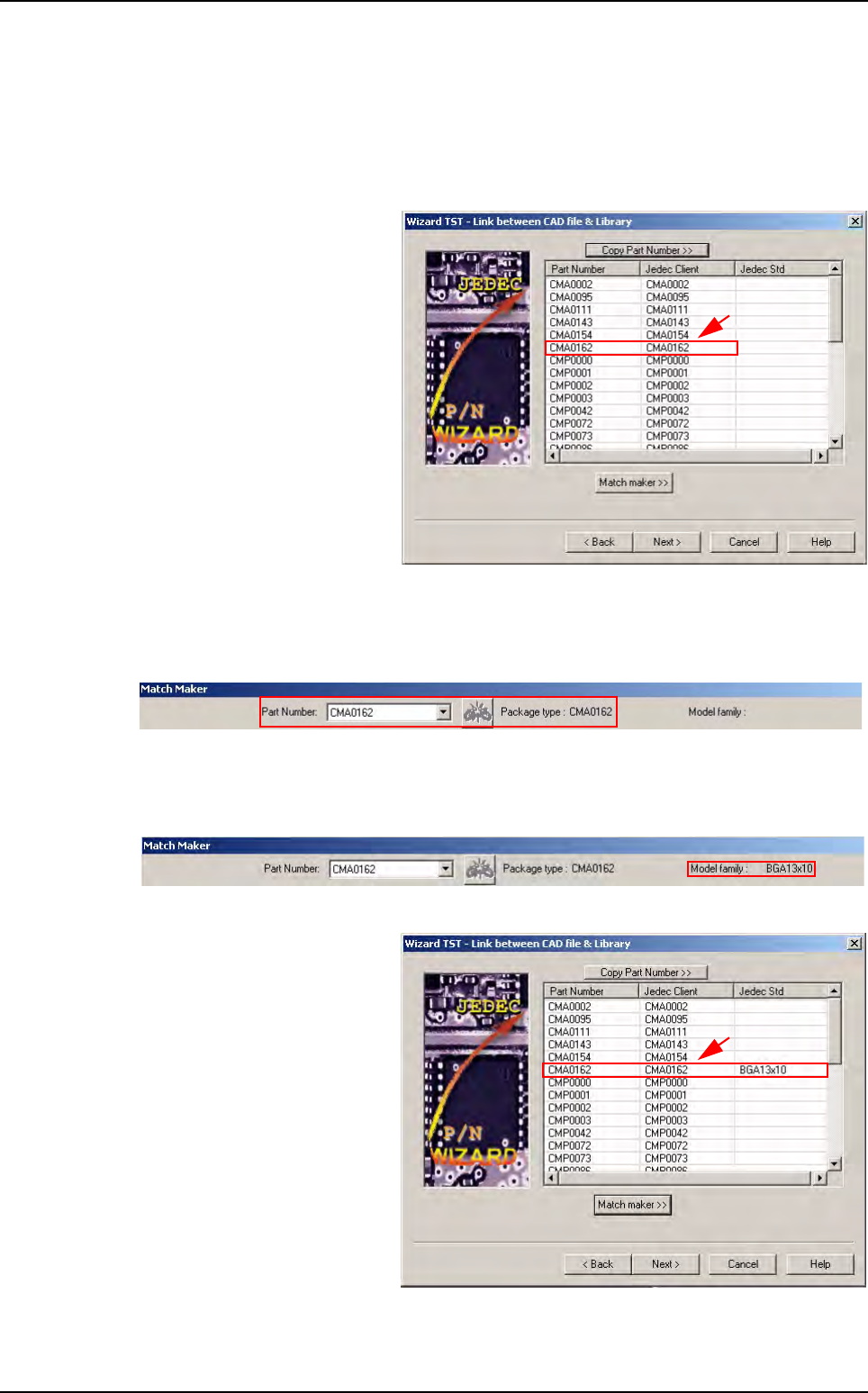
1. Run Wizard TST. The user can
see two columns (Part Num-
ber and Jedec Client) in the
window: Wizard TST - Link be-
tween CAD file & Library.
2. Launch Match Maker. Click on the Match Maker button. The Match Maker window appears.
Part Number and Package type are indicated at the top.
3.
Associate a model of the Standard Library to a Part Number (see §
6.4.3 Step 2: Component
definition
). Once a model is selected, the reference of the
Model family
appears in the window.
4. Leave Match Maker. Click on
the Exit button.
This family appears in the win-
dow: Wizard TST - Link be-
tween CAD file & Library
(Jedec Client = Jedec Stan-
dard = model in the Standard
Library).
Filled
Filled
Examples of link between Part Number and Library