VI User Manual.pdf - 第150页
Match Maker 6 - 16 Vision 2007 4.10 User Manu al Rev 01 2. A magenta square appe ars in the center of the screen. In the toolbar, all the b uttons are acti- vated except the button . 3. Resize the magen ta square and sur…
Match Maker
Vision 2007 4.10 User Manual Rev 01 6 - 15
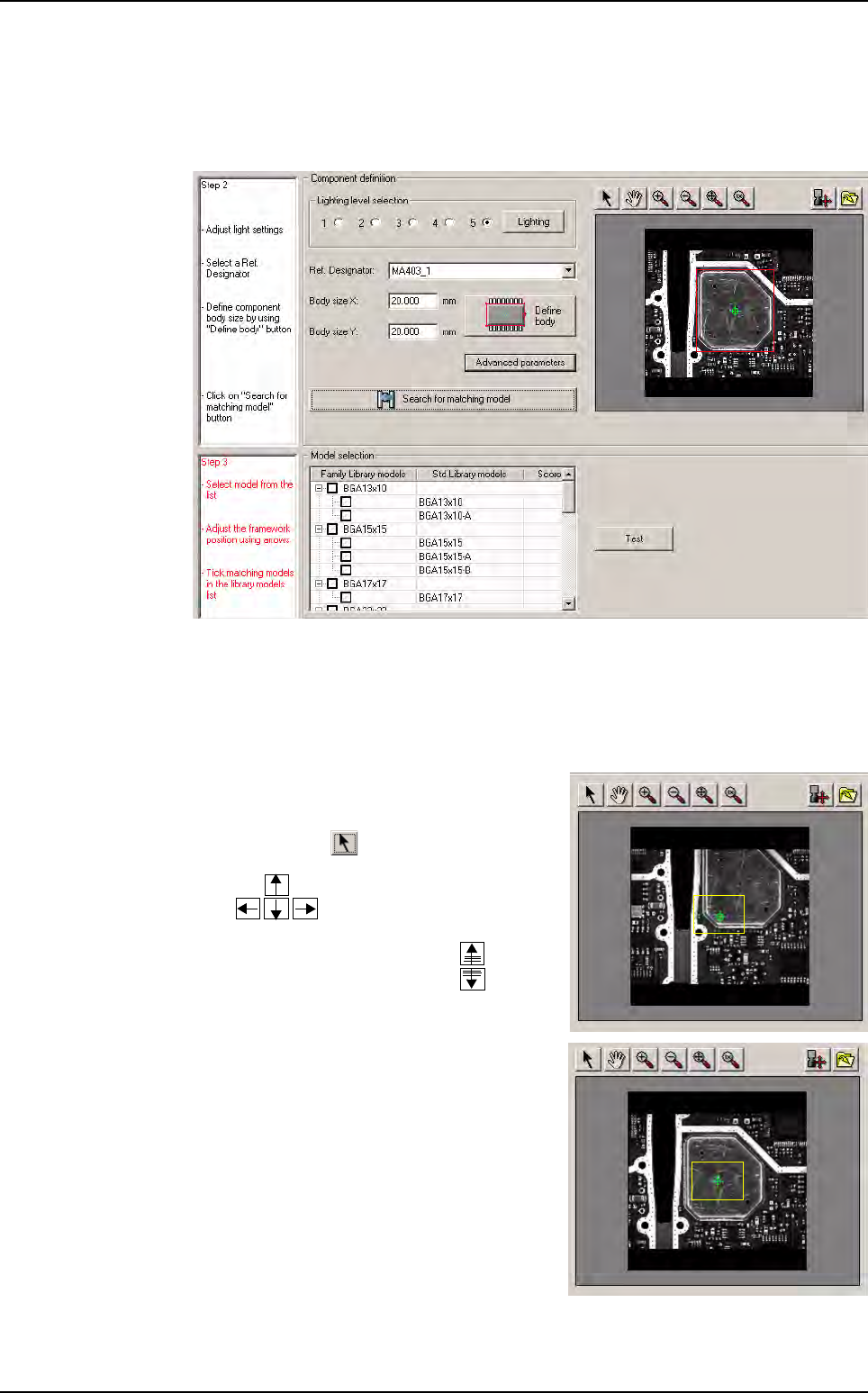
5. Click on the Search for matching model button.
The database is queried in agreement with the previous user selections (Step 1 and
2) and the result is displayed in a table withthree fields: Family Library models, Stan-
dard Library models and Score.
The Step 3 is activated (Step 2: black, Step 3: red) and it can be followed.
Case 2: the dimensions of the component are unknown
1. Check the position of the component in the camera, it depends on the result of the ex-
ecution of the fiducials:
If the
execution of fiducials fails,
the camera
is not centered on the component. The com-
ponent is far away from the center then click
on the button , the camera moves with
the keyboard arrows of your comput-
er:
Motion steps can be increased with the
page up and page down keys:
If the execution of fiducials is OK, the cam-
era is centered on the component then go
to Step 2. In the toolbar, all the buttons are
activated. Click on the Define Body button.
Match Maker graphical user interface
Match Maker
6 - 16 Vision 2007 4.10 User Manual Rev 01
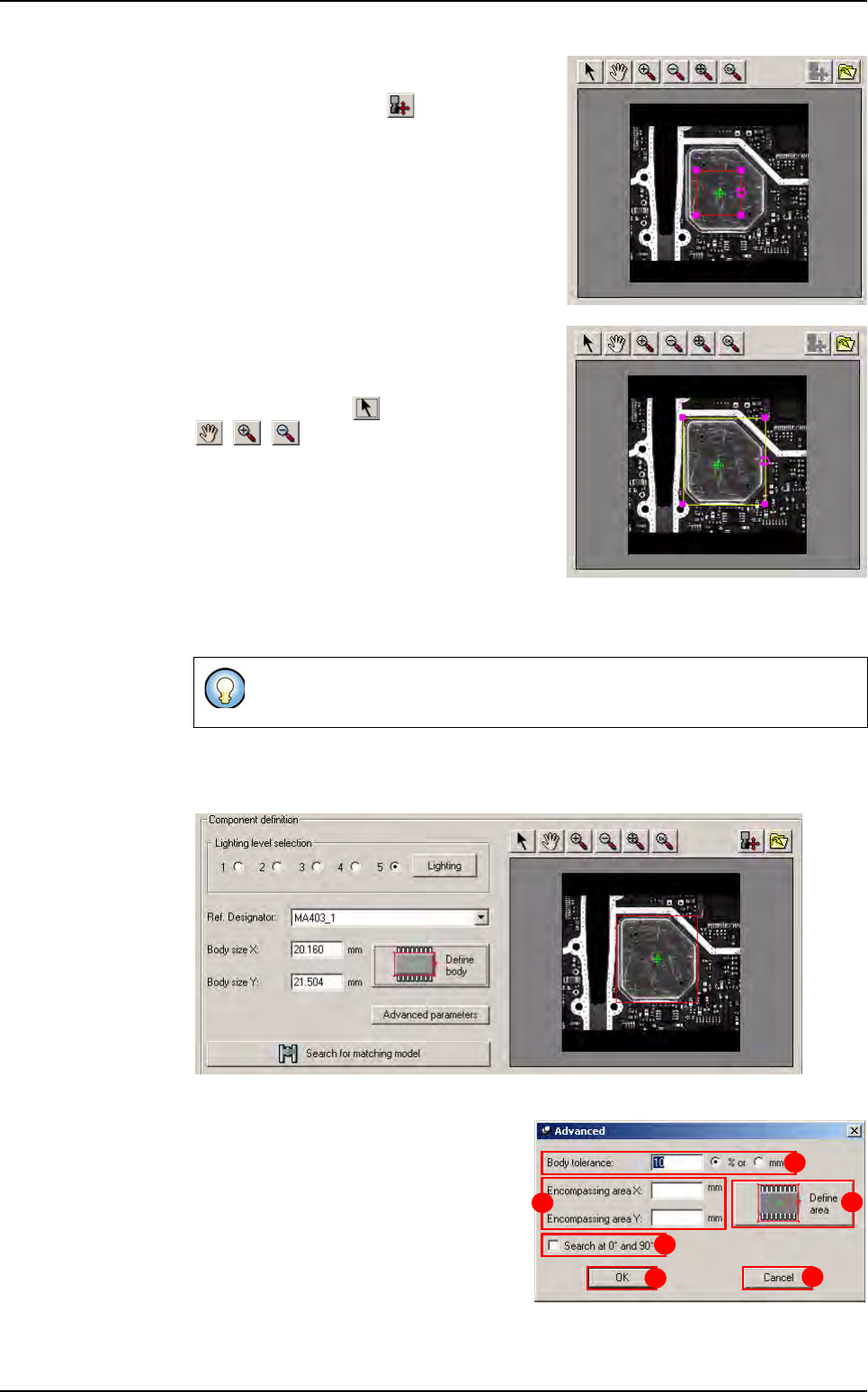
2. A magenta square appears in the center of the
screen. In the toolbar, all the buttons are acti-
vated except the button .
3. Resize the magenta square and surround the
body of the component correctly (do not in-
clude leads).
Click on the button provided, the buttons
, , were not selected before.
If not, the pointer mouse enables to move the
enchorage points of the contour.
4. Click on the Define Body button. Match Maker loads the capture (the square be-
comes red) and the Body size values: X,Y appear in the fields.
In the toolbar, all the buttons are activated. The Advanced parameters and the
Search for matching model buttons are activated.
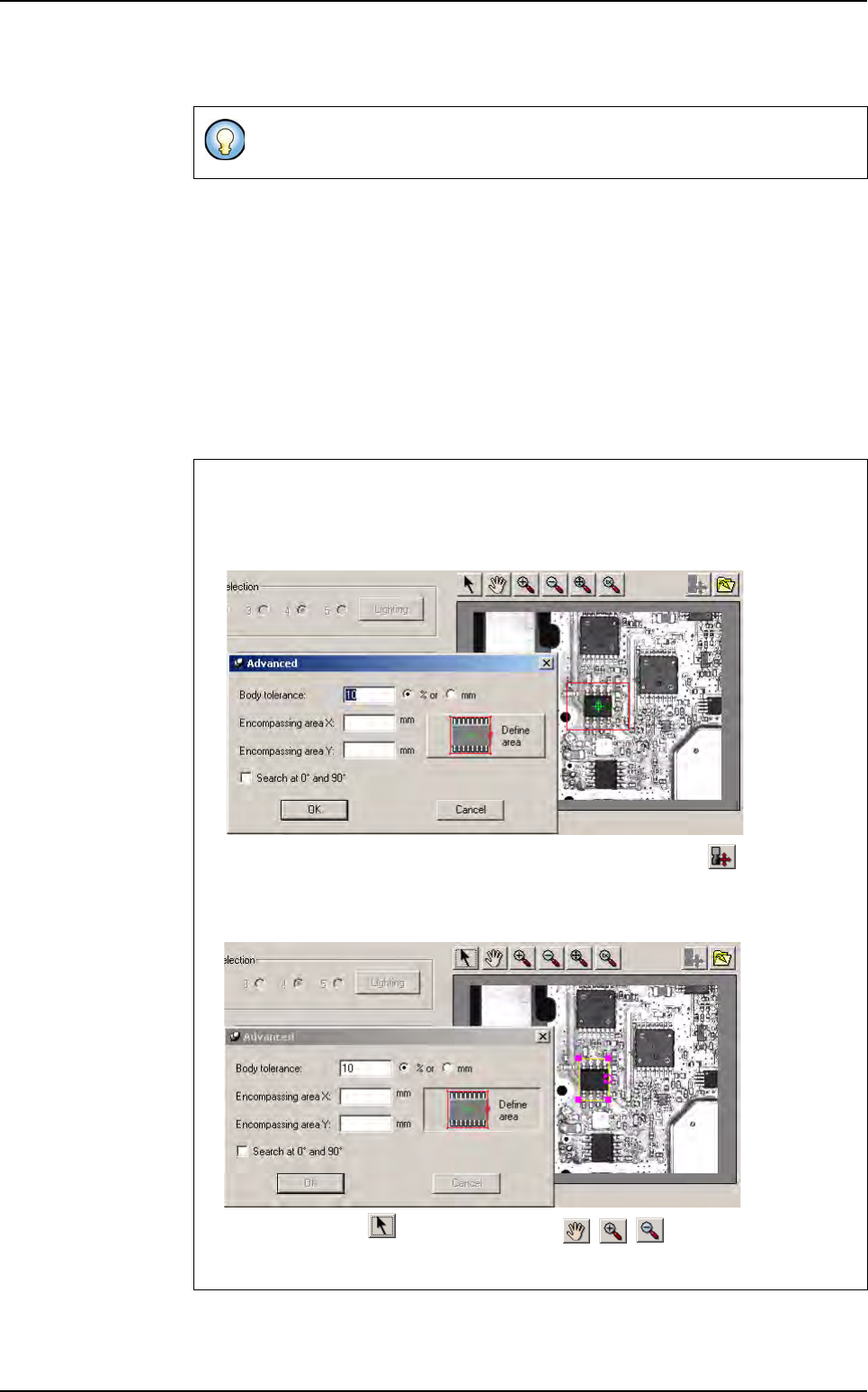
5. Click on the Advanced parameters but-
ton. A Advanced window appears (the
Model selection table (Step 3) and
Search for matching model button are
not activated).
The Body tolerance (A) indicates by de-
fault 10 %, it is possible to modify this val-
ue. This tolerance is given for body size
X and body size Y.
The Nb of leads is not filled automatically, the user must enter the value.
C
F
E
A
D
B
Match Maker graphical user interface
Match Maker
Vision 2007 4.10 User Manual Rev 01 6 - 17
In Encompassing area X/Y (B) define the length and the width of the component with
the leads.
Click on Define area button (C) to define the component body with the leads using a
magenta square located in the camera window.
It is possible to tick Search at 0° and 90° (D): Match Maker search a component in
the two positions (certain types of components are recorded with an angle different of
the component on the board).
The OK button (E) is always activated (except when the Define Area button is select-
ed). When the user clicks on, the filled fields are saved and the Step 3: Model selec-
tion can be followed.
The Cancel button (F) is always actived. When the user clicks on, the filled fields are
not saved and the Step 3: Model selection can be followed.
If the dimensions of the component are known then the user can enter the
fields and click on the OK button.
Component body size definition with leads
1. Click on the Define area button. A magenta square appears in the center of the
screen.
In the toolbar, all the buttons are activated except the button .
2.
Resize the magenta square and surround the body with the leads of the compo-
nent correctly.
Click on the button provided, the buttons , , were not selected before.
If not, the pointer mouse enables to move the enchorage points of the contour.
Match Maker graphical user interface