VI User Manual.pdf - 第182页
Tools library 7 - 20 Vision 2007 4.10 User Manual Re v 01 7.4.2 Edge tab 1. Use Realign this processing ( A ) section if you want to realign the po- sition of the tool with another one (not available for window 1) . 2. I…
Tools library
Vision 2007 4.10 User Manual Rev 01 7 - 19
7.4 Edge
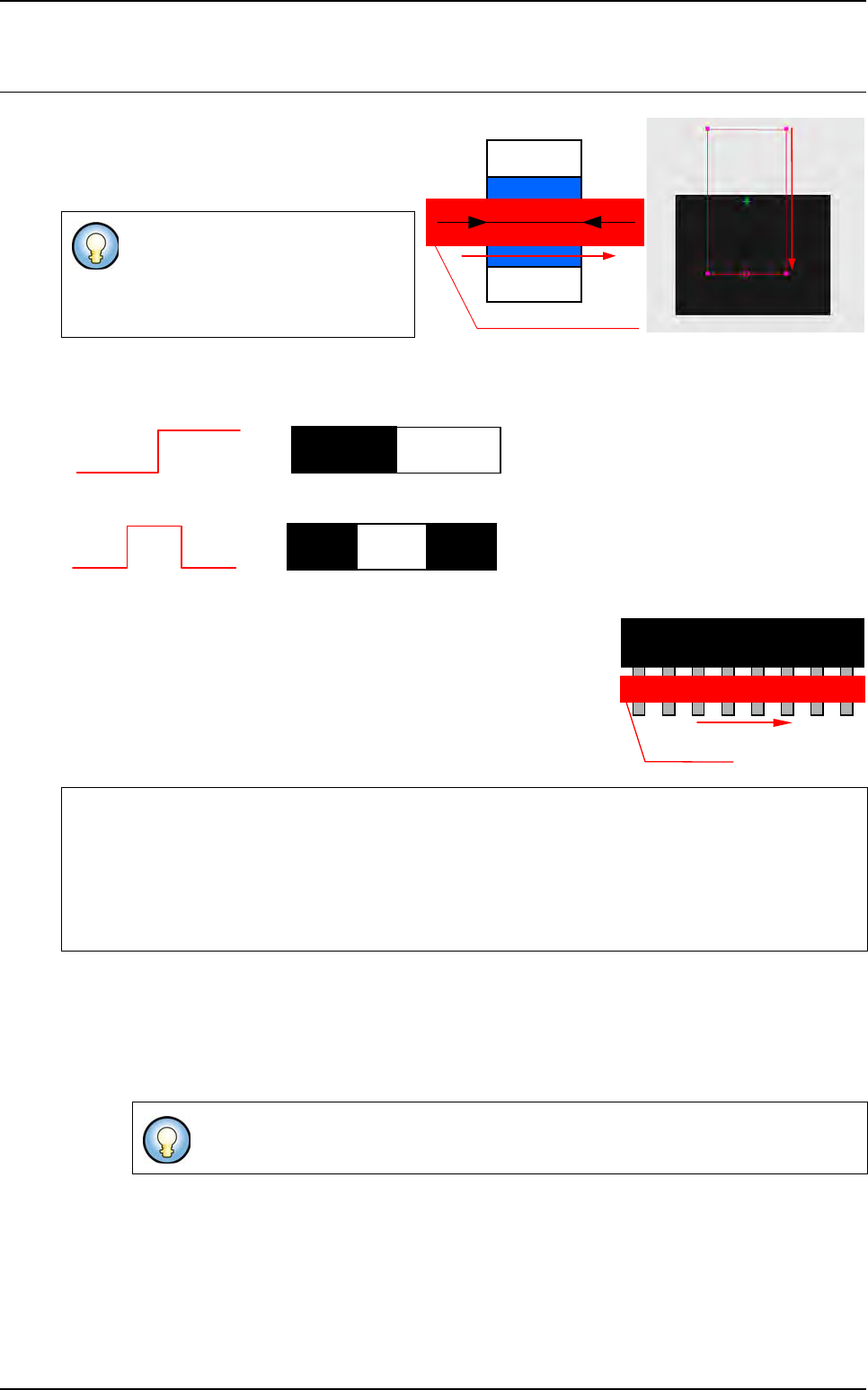
The Edge tool operates by detection of grey
level transitions. It is used to calculate an X or
Y position of a component or to check the po-
larity of the components.
You can detect 1 or 2 transitions:
1 transition
2 transitions
Enables you to find a defined number of identical transitions within a
limited area.
Enables you to find the center of 2 distant transitions of a pre-defined
length.
7.4.1 Model description tab
1. On the Model description tab, in the Edit a model window, choose the treatment operation:
a new Edge tab appears behind the Model description tab.
2. Click Edit area button to define the component location in the image.
The Edge tool measures only 1 di-
rection.
Very accurate measurement tool (1/
10 pixel).
If the edge tool is used to find a defined distance between
2 transitions, tolerance must not be 0.
If you use synthetic model you can use
Auto area button.
Detection area and direction
Component
Width
Detection
direction
0
255
0
255
0
255
0
00
255
Treatment direction
Treatment area
1
st
2
nd
N
th
Tools library
7 - 20 Vision 2007 4.10 User Manual Rev 01
7.4.2 Edge tab
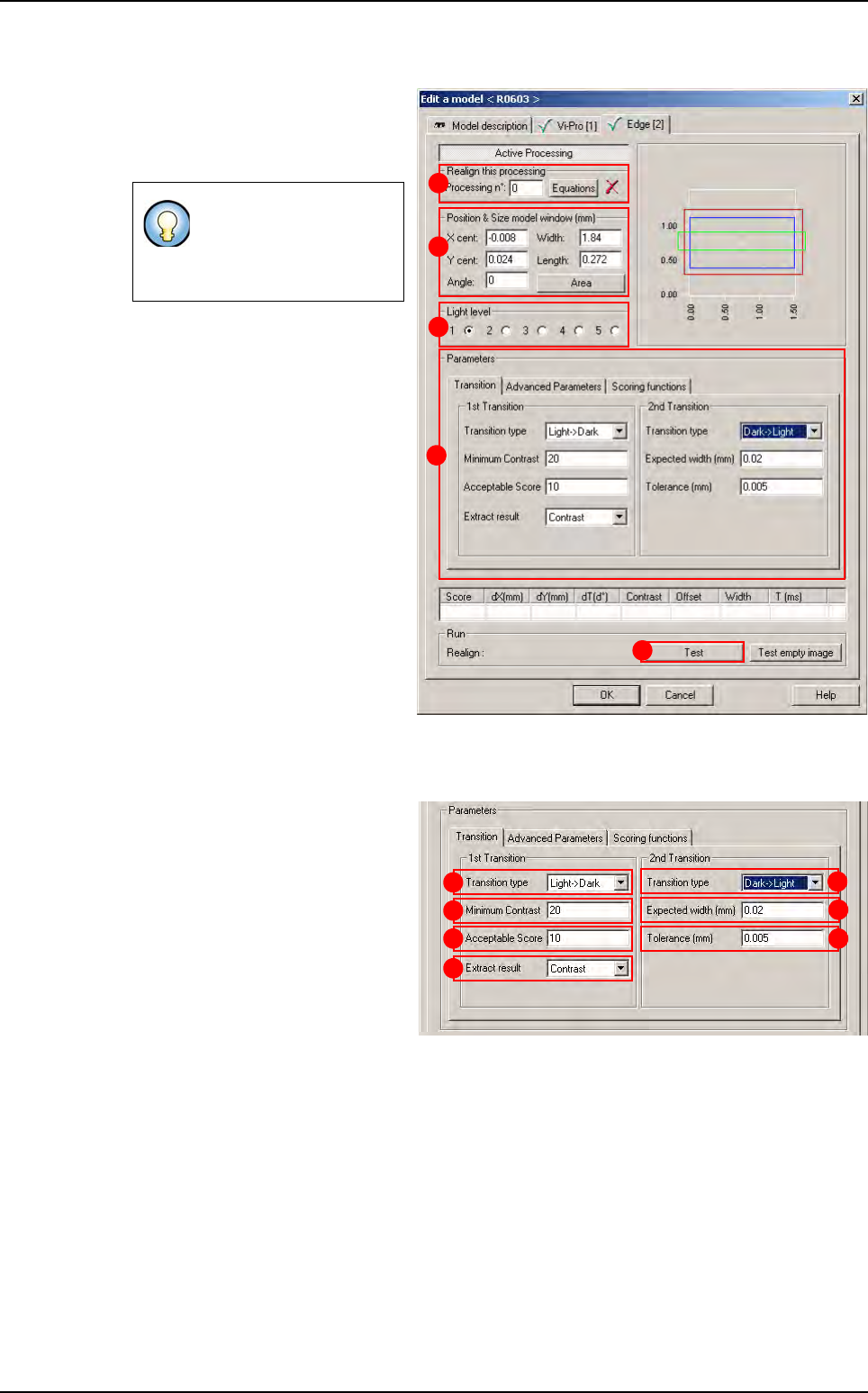
1.
Use
Realign this processing
(
A
)
section if you want to realign the po-
sition of the tool with another one
(not available for window 1)
.
2.
In
Position & Size model window
(mm)
(
B
) section, enter the size and
the position of the treatment win-
dow.
3.
In
Light level section
(
C
) section,
select the light level to use.
4. In Parameters (D) section, enter
the Edge tool parameters (see be-
low 7.4.2.1 Edge parameters).
5. Click Test (E) button to test the
Edge tool and display the results
(see below 7.4.2.2 Edge test).
7.4.2.1 Edge parameters
Transition tab
In 1st Transition, select for:
The Transition type (A)
searched.
The Minimum contrast (B)
threshold for edges.
The minimum Acceptable
score (C) for the result to be
considered OK.
The Extract result (D):
• Contrast: select contrast to specify the contrast scoring function. Use a contrast scor-
ing function to score edge based on edge contrast.
• Offset: extract the first transition.
• Size: you use a size scoring function to score edge pairs by comparing the edge pair
size to the edge pair width you specified in the expected width field.
In 2nd transition area:
• The Transition type (E) searched.
• The Expected width (mm) (F) between the 2 transitions.
If you need a special
equation to realign, you
can do so using the
Equations button.
B
C
A
D
E
A
B
C
D
E
F
G
Edge
Tools library
Vision 2007 4.10 User Manual Rev 01 7 - 21
• The Tolerance (mm) (G) of the expected width between 2 transitions.
Advanced parameters tab
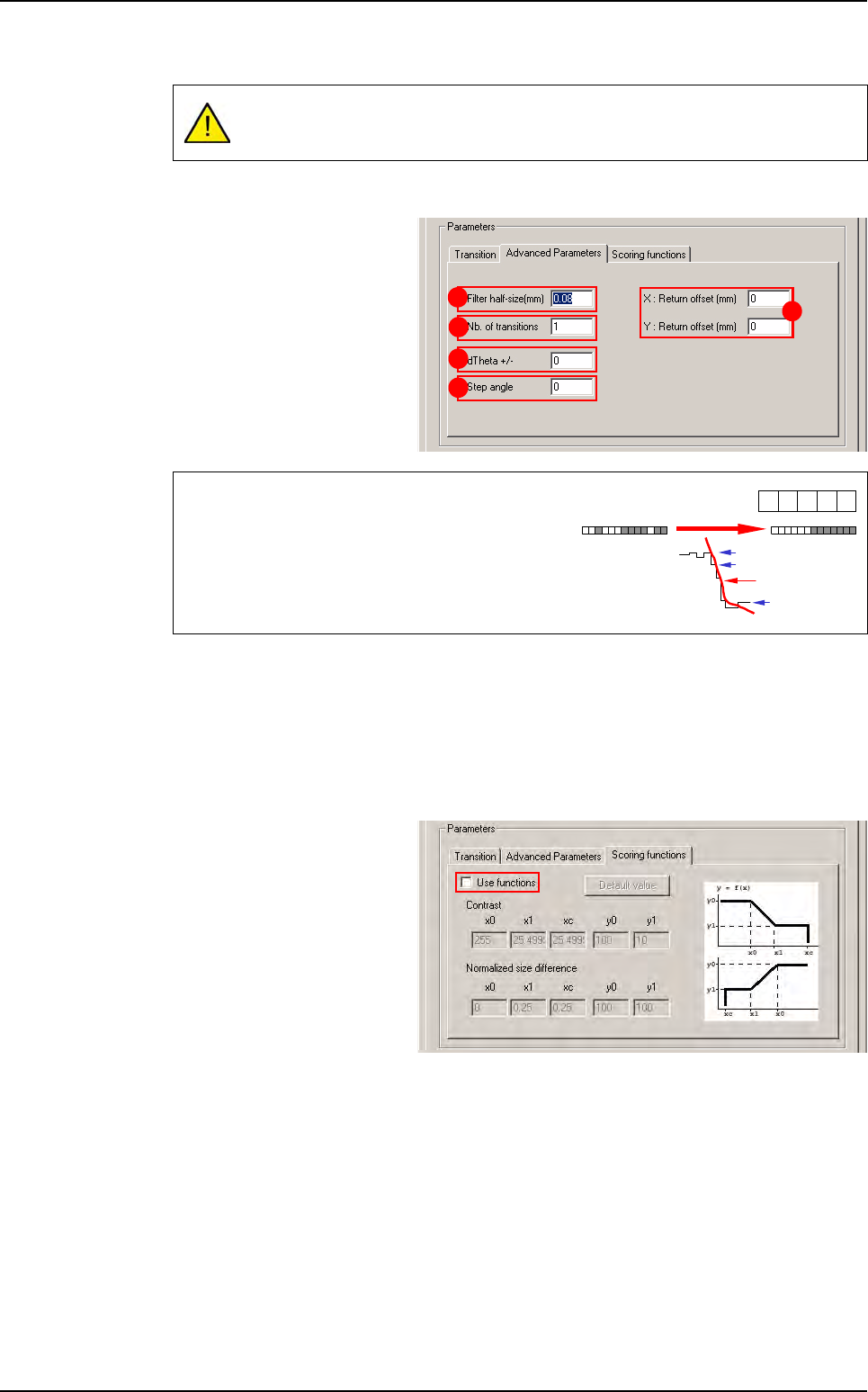
Filter half-size (mm)
(
A
): filter
size in microns. The sharper
the transition (short distance),
the smaller the filter, and vice
versa.
Nb of transitions
(
B
): defined number of objects that you are looking for in the treatment area.
XY: Return offset (mm) (C): X & Y offset position.
dTheta +/- (D): search angle of the treatment window.
Step angle (E): search angle step.
Scoring functions tab
Tick Use functions to adjust
Contrast and Normalized
size difference parameters
A zero value for Tolerance is not accepted and will generate many errors as
pixel size is different from
ε
0
.
The filter function enables you to:
• Regularize the gray levels and therefore avoid
detection of transitions due to image grain limit.
• Make a transition gradient.
A
B
D
E
C
-1 0
1
240
239
40
Filter result
1
-1
Edge