VI User Manual.pdf - 第138页
Match Maker 6 - 4 Vision 2007 4.10 User Manu al Rev 01 6.3 Match Maker in the Wizard TST Match Maker is available from the AOI system, but is not available from th e Offline station. Several steps are necessary to ac ces…
Match Maker
Vision 2007 4.10 User Manual Rev 01 6 - 3
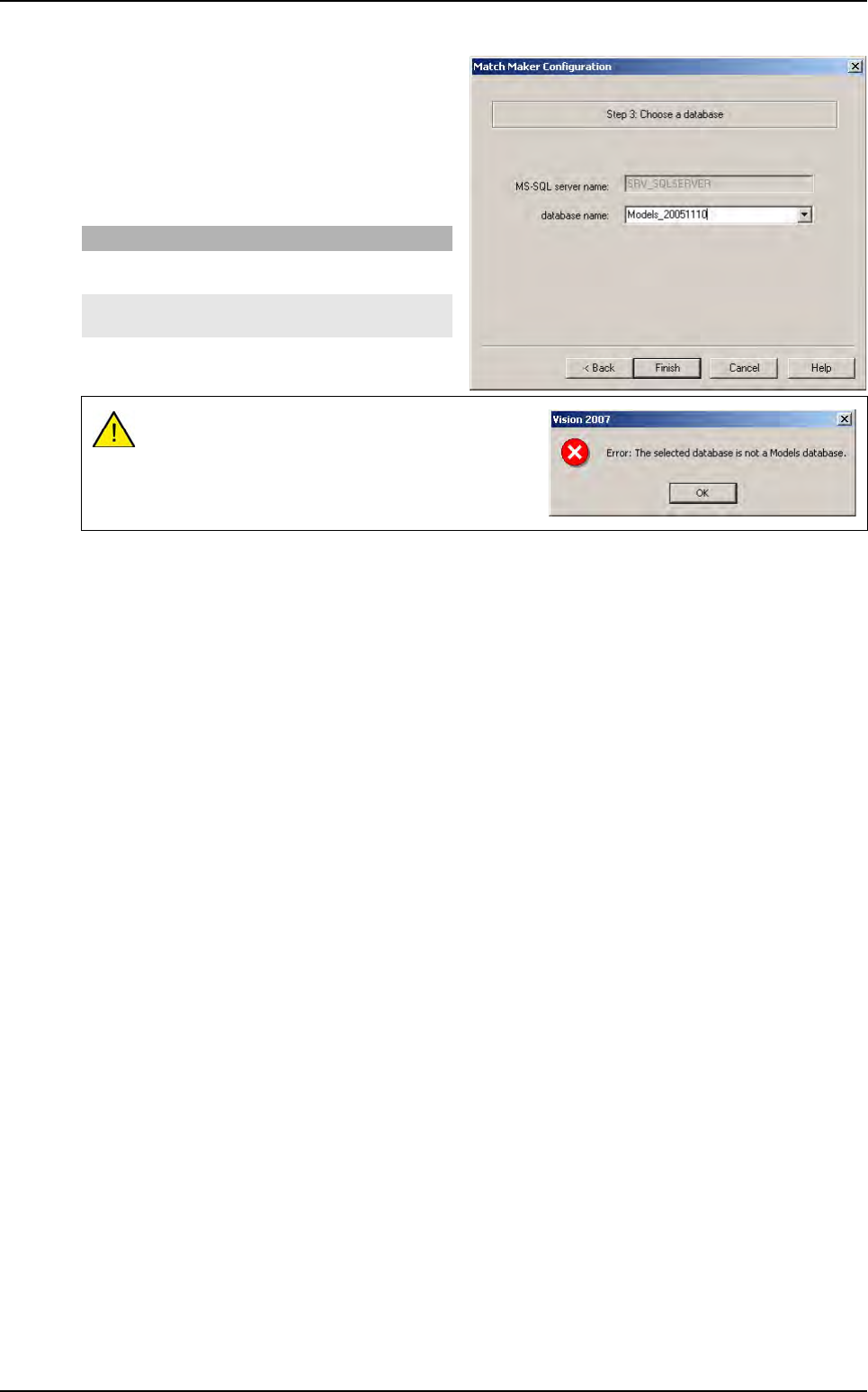
3. Choose a database (choose the BuildModel
database).
Select the BuildModel database (BMdb).
It is a database where the links between Part
Number and models in standard library are
stored.
If you click on Then
Finish the window closes and Match Maker
is configured
Cancel the window closes and the
configuration is not saved
After having clicked on Finish, if the database is
not a Model database, an error message ap-
pears.
The user must launch the configuration and select
a database containing the stored models.
Configuration
Match Maker
6 - 4 Vision 2007 4.10 User Manual Rev 01
6.3 Match Maker in the Wizard TST
Match Maker is available from the AOI system, but is not available from the Offline station. Several
steps are necessary to access to Match Maker interface.
1. Click on Process and select a new .tst file.
2. The Open a file to compose window opens.
3. Select a VIS file.
4. Click on the Open button.
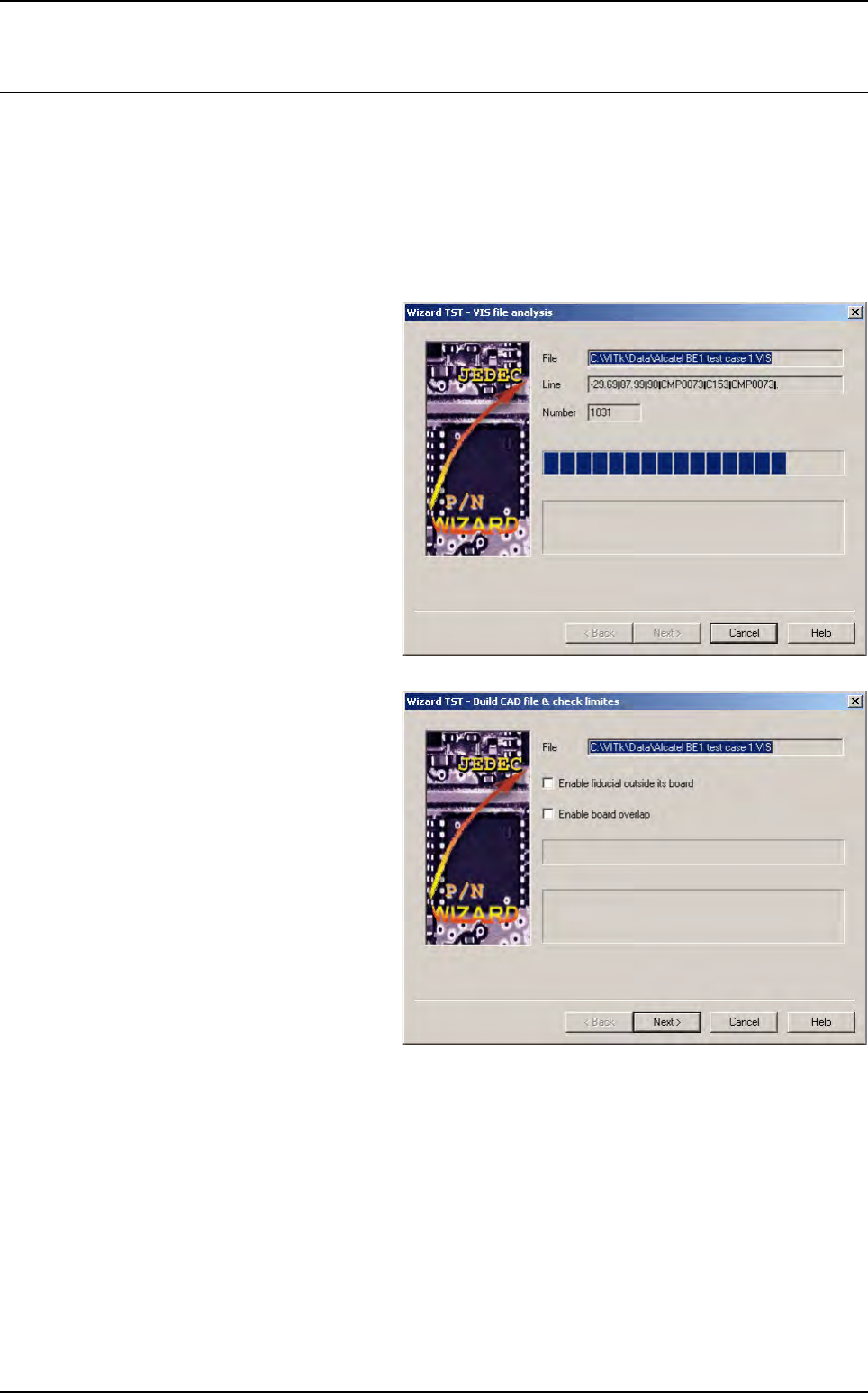
5. The Wizard TST - VIS file analysis
window appears.
Once finished analysis, a new window:
Build CAD file & check limits ap-
pears.
6. The Wizard TST - Build CAD file &
check limits window appears.
Click on the Next > button.
Match Maker
Vision 2007 4.10 User Manual Rev 01 6 - 5
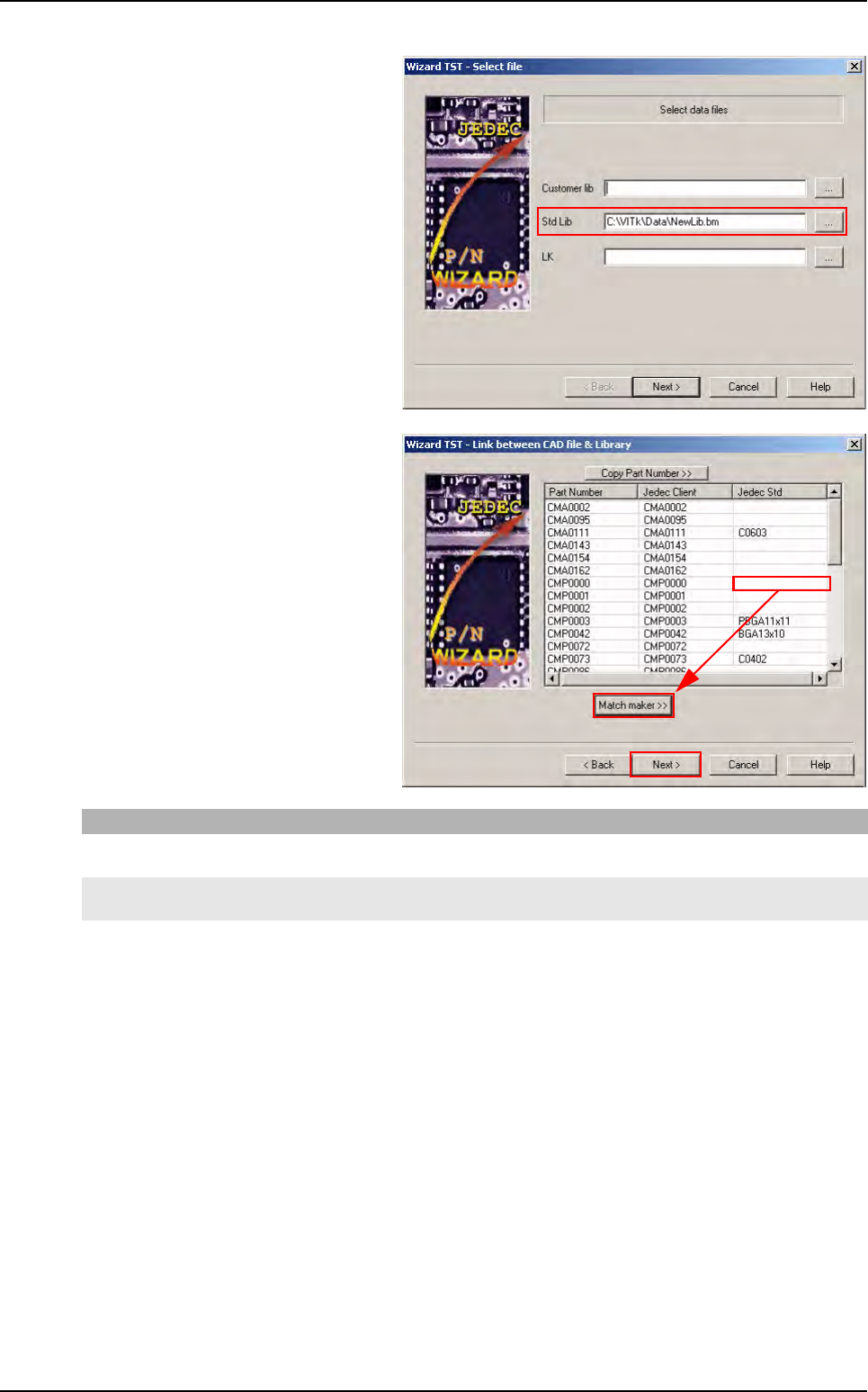
7. The Wizard TST - Select file window
appears.
This window indicates the Standard Li-
brary path, this value is defined in the
Match Maker configuration menu (if
not: see § 6.2 Configuration).
Click on the Next > button.
8.The Wizard TST - Link between CAD
file & library window appears.
At this step, if a Jedec Standard field
is empty, a Match maker >> button ap-
pears and it is possible to open the
Graphical User Interface (GUI).
If you click on Then
Match maker >>
button
The fiducials are inspected in order to correct the position of the board in the machine (see § 6.3.1
Match Maker opening conditions (Fiducial inspection)) then Match Maker opens.
Next > button The Wizard TST - Create missing treatments window opens (see § 6.5 Wizard TST after use of
Match Maker) and the user indicates the Part Number dimensions.
Match Maker in the Wizard TST