VI User Manual.pdf - 第232页
Tools library 7 - 70 Vision 2007 4.10 User Manual Re v 01 7.1 1.3 Multizones model programming Draw a synt hetic image with BuildMo del. Check the BuildModel pixel size configuration a nd make it match your vision calibr…
Tools library
Vision 2007 4.10 User Manual Rev 01 7 - 69
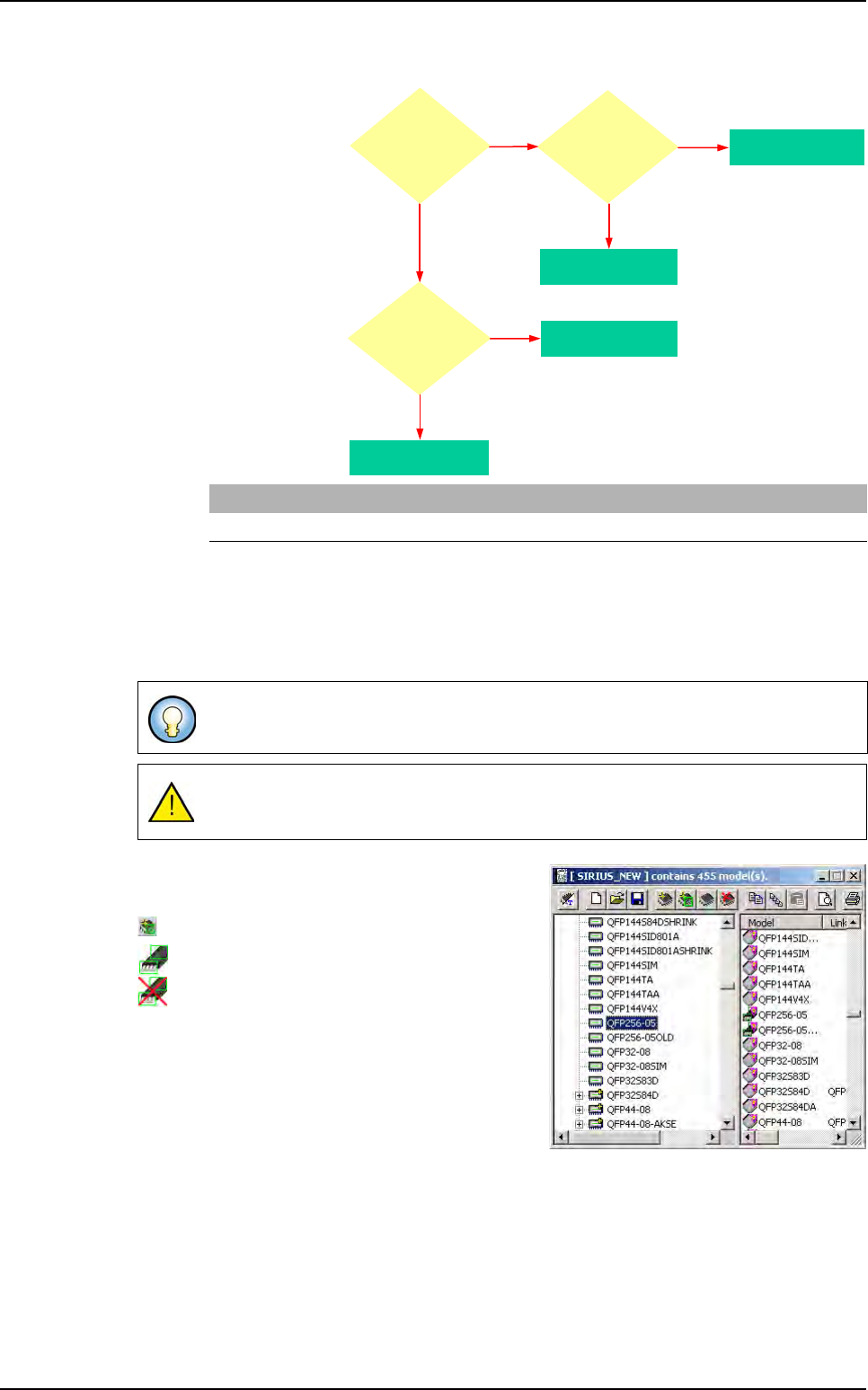
7.11.1.2 .tst file with no library or no model in the library
One parameter
in the
Default-
Value.ini
file
defines if we
make the com-
ponent rotate to
analyze it as a
multizones or
not.
7.11.2 In the library
There is a special menu item to create a multizones model. You must have a synthetic image
of your component to create a multizones model. This image is used to program all the treat-
ments for polarity, joints, bridges, ... So it must contain all the information you need.
You can link multizones together, but not normal
models with multi zones.
Icon to create a multizones model.
Icon of the model programmed.
Icon of the model not programmed.
[MultiZone]
Rotate component to consider as MZ (0,1) =0
To draw polarity mark on type 2 synthetic image, open the picture with
ImgEdit
software.
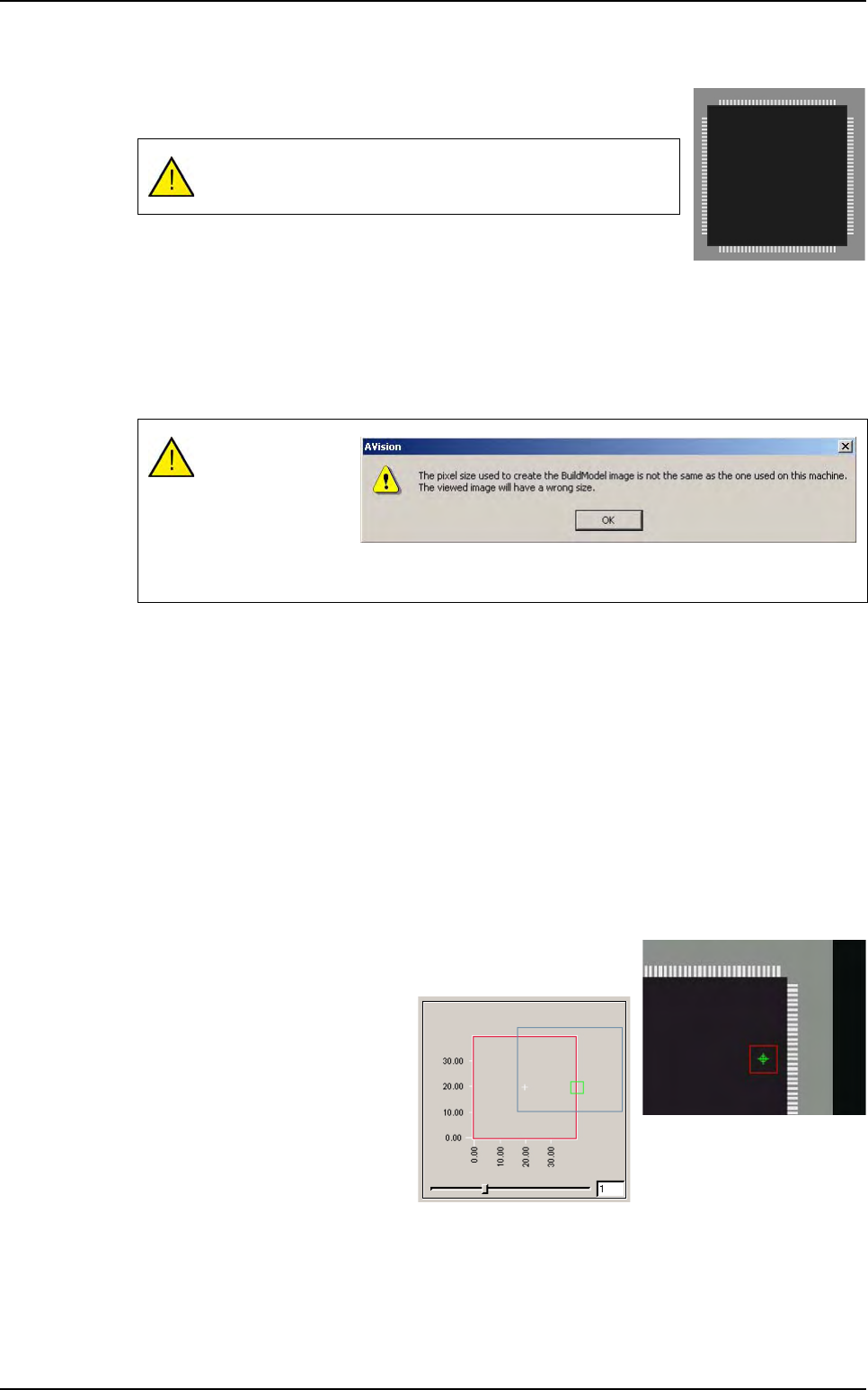
Be careful not to draw on the bottom part of the picture, because it contains the
BuildModel information.
NO
at least
one topo is too big
NO
YES
Component
fits in a zone
at any angle ?
YES
Component becomes
a Multi zones
Component
fits in a zone
at the CAD
angle ?
YES
Component becomes
a Mono zones
Component becomes
a Multi zones
NO
at least
one topo is too big
Component becomes
a Mono zones
Parameter:
Rotate component
to consider as
MZ = 1 (ini file)
Multizones
Tools library
7 - 70 Vision 2007 4.10 User Manual Rev 01
7.11.3 Multizones model programming
Draw a synthetic image with BuildModel. Check the BuildModel pixel
size configuration and make it match your vision calibration.
In the library window click on this icon in the tool bar. Then appears a
box where you specify the name of the component.
To create a multizones model, after you draw a synthetic image with BuildModel, in the
Mod-
els
menu go to New multi area model… sub menu, then appears the box where you specify
the name of the component.
Later select the synthetic image created with build (.bmp file) in the
Open a BuildModel file
window.
7.11.4 Model description
A lot of parameters can not be changed. They are automatically set when reading the Build-
Model image information:
You can not change the model icon.
Select tools among the list.
You can not edit the encompassing rectangle.
Enter the inspection tolerances for the current model.
You can not change the model image of the display camera associated to the model.
7.11.5 Vi-Pro, Edge, Histogram tools for multizones model
Program these tools exactly the same way you do for normal
model.
To place the treatments areas on
the right part of the component,
use the slider to see all the sub
zones created.
The multizones model can be only created with BuildModel
Type 2.
Comparison of the
image pixels size
and the machine
calibration.
This message is
just to aware you of
any possible difference.
Multizones
Tools library
Vision 2007 4.10 User Manual Rev 01 7 - 71
7.11.6 Custom tool for multizones model
The custom tool requires specific sub zones which are only used for this inspection. When
selecting the custom tool, the sub zones are automatically computed. In the custom tool for
multizones:
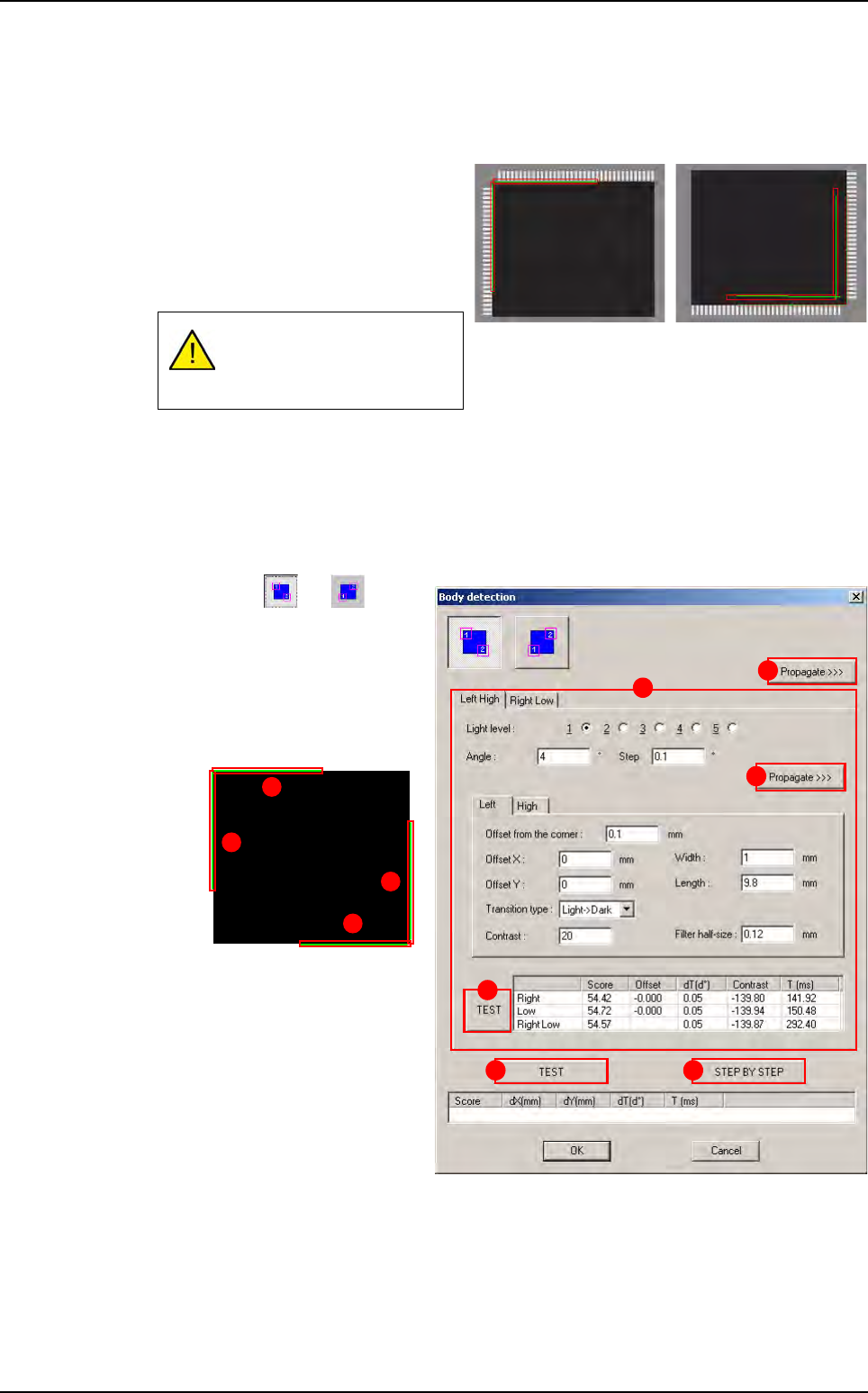
The body detection is done on 2 opposite
corners with 2 perpendicular helicopter
edges.
The component position and presence
is only computed with the body detec-
tion and not leads detection.
Only joints tools are realigned with the leads position. The bridges tools are realigned with
the body position.
7.11.7 Custom tool edition
7.11.7.1 Body detection
Press or button
to select the corners to use
for body detection.
In
Left Hight and Right
Low
(A) tabs the parame-
ters of the 4 rotating edges
are displayed.
Press
Propagate >>> (B)
button to propagate the pa-
rameters to the opposite
corner (Left/High sides on
this example).
Press
Propagate >>> (C)
button (in the tab) to propa-
gate the parameters to the
second edge of the same
corner (Right side on this
example).
Press
TEST (D) button (in the tab) to test the 2 rotating edges of the current corner.
Press
TEST (E) button to test the 4 rotating edges of the 2 corners.
Press
STEP BY STEP (F) button to test the 4 rotating edges of the 2 corners step
by step.
If no lead is detected on one
side, it does not return miss-
ing component.
A
B
C
D
E F
3
4
1
2
Multizones