VI User Manual.pdf - 第148页
Match Maker 6 - 14 Vision 2007 4.10 User Manu al Rev 01 2. Enter the value s : Body size X , Body size Y and Nb of leads if the field is present. The Search for matching model button is activat- ed. 3. Click on the Defin…
Match Maker
Vision 2007 4.10 User Manual Rev 01 6 - 13
Define Body button (B). Define the component body without the leads using a magenta
square located in the camera window.
The
Camera window
(
C
)
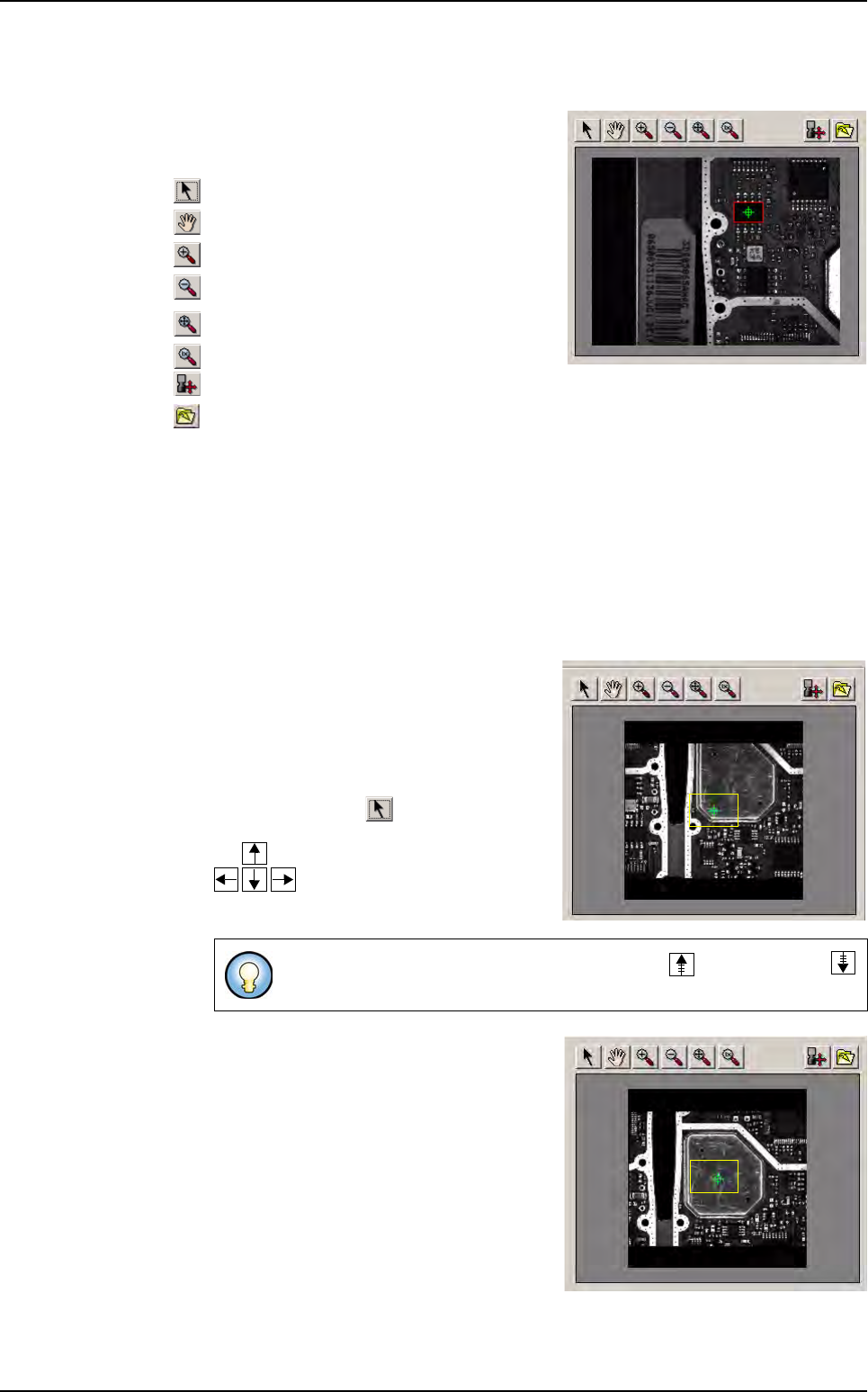
is composed of a
screen and a toolbar at the top which enables to
define the contour of the component precisely:
Select
Move
Zoom in
Zoom out
Fit image
Zoom 100%
Move camera
For offline station user (Save as)
Advanced parameters button (D) (optional). Set others parameters in order to optimize
the research.
Search for matching model button (E). Enable to find a list of model matching the un-
known component.
The component body size definition requires a logical sequence of actions described be-
low
and that depend of the situation: dimensions of the component known or unknown.
Case 1: the dimensions of the component are known
1. Check the position of the component in the
camera, it depends on the result of the execu-
tion of the fiducials:
If the
execution of fiducials fails,
the camera
is not centered on the component. The
component is far away from the center then
click on the button , the camera moves
with the keyboard arrows of your computer:
If the execution of fiducials is OK,
the cam-
era is centered on the component. In the
toolbar, all the buttons are activated.
Motion steps can be increased with the page up and page down
keys.
Match Maker graphical user interface
Match Maker
6 - 14 Vision 2007 4.10 User Manual Rev 01
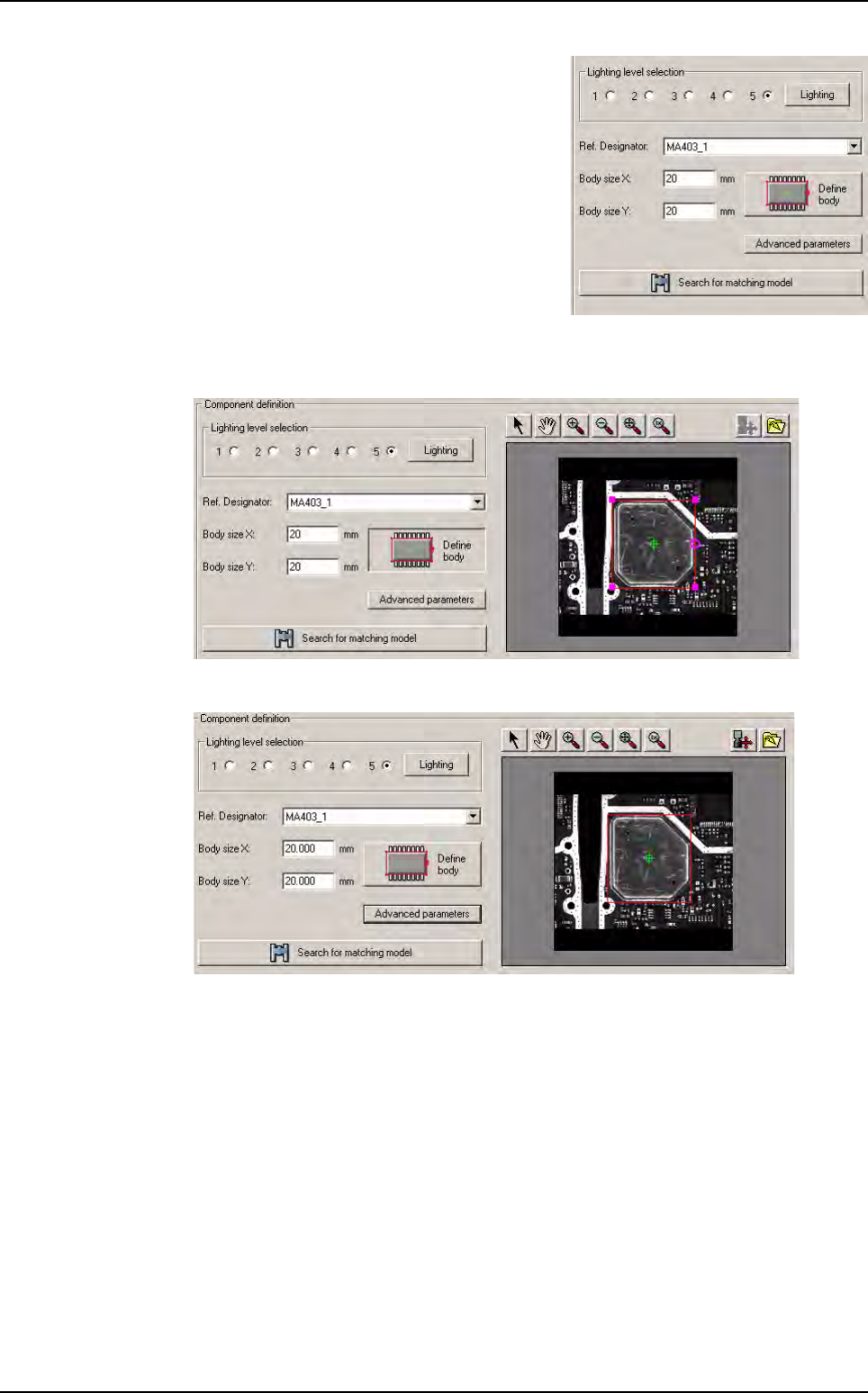
2. Enter the values: Body size X, Body size Y
and Nb of leads if the field is present. The
Search for matching model button is activat-
ed.
3. Click on the Define Body button. A magenta square appears in the center of the
screen and surrounds correctly the component.
4. Click on the Define Body button. Match Maker loads the capture.
Match Maker graphical user interface
Match Maker
Vision 2007 4.10 User Manual Rev 01 6 - 15
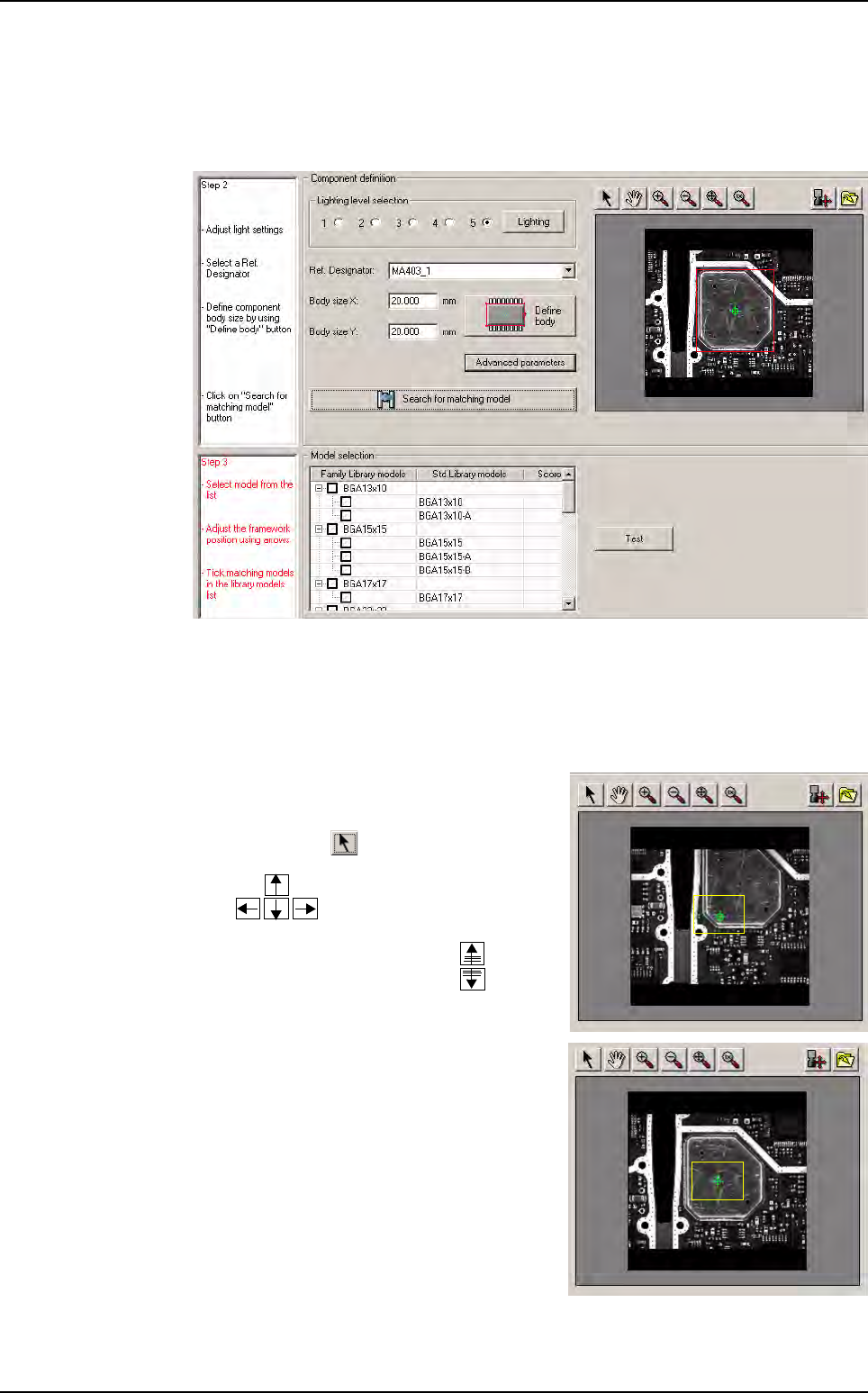
5. Click on the Search for matching model button.
The database is queried in agreement with the previous user selections (Step 1 and
2) and the result is displayed in a table withthree fields: Family Library models, Stan-
dard Library models and Score.
The Step 3 is activated (Step 2: black, Step 3: red) and it can be followed.
Case 2: the dimensions of the component are unknown
1. Check the position of the component in the camera, it depends on the result of the ex-
ecution of the fiducials:
If the
execution of fiducials fails,
the camera
is not centered on the component. The com-
ponent is far away from the center then click
on the button , the camera moves with
the keyboard arrows of your comput-
er:
Motion steps can be increased with the
page up and page down keys:
If the execution of fiducials is OK, the cam-
era is centered on the component then go
to Step 2. In the toolbar, all the buttons are
activated. Click on the Define Body button.
Match Maker graphical user interface