VI User Manual.pdf - 第21页
Vision 2007 4.10 User Manua l Rev 01 1 - 1 Chapter 1 Getting started 1.1 Vision 2007 setup Vision System setup is an application which guides you to automatically install the software on your computer. It copies all the …

Contents
XVI Vision2007 4.10 User Manual Rev 01
A.5.6 SO tool: body detection ........................................................................ 22
A.5.7 SO tool: leads detection ....................................................................... 23
A.5.8 SO tool: end of leads detection ............................................................ 23
A.5.9 SO tool: solder joint and bridge detection .......................................... 24
A.5.10 QFP tool: body detection .................................................................... 25
A.5.11 QFP tool: leads detection ................................................................... 25
A.5.12 QFP tool: solder joint and bridge detection ...................................... 26
A.5.13 Mono zone custom tool: body detection ........................................... 27
A.5.14 Custom tool: angle detection ............................................................. 28
A.5.15 Custom tool: leads detection ............................................................. 29
A.5.16 Custom tool: solder joints detection ................................................. 30
A.5.17 Custom tool: solder bridge detection ................................................ 31
A.5.18 OCV fonts ............................................................................................. 32
A.5.19 Data Matrix ........................................................................................... 33
Vision 2007 4.10 User Manual Rev 01 1 - 1
Chapter 1
Getting started
1.1 Vision 2007 setup
Vision System setup is an application which guides you to automatically install the software on your
computer. It copies all the necessary files on your hard disk and writes the necessary information in the
operating system registry file. The ViTechnology setup enables to install all the applications developed
by ViTechnology to run AOI system and its components:
AOI systems,
Offline station,
Supervisor and repair station.
The ViTechnology setup for AOI systems is divided into 2 parts:
ViTechnology - Vision System App: installs the ViTechnology software,
ViTechnology - Vision drivers
: installs the Cognex board drivers and the CVL Dll (Cognex Vision Li-
brary).
The Vision drivers setup is launched automatically by the Vision System setup.
1.1.1 When to use Vision System setup ?
To install software for the 1st time,
Or to upgrade software with the latest version,
Or to overcome a computer problem like a missing file: can't find.dll error message when
starting any
ViTechnology
application.
1.1.2 Recommendation
Before installing the ViTechnology setup, be sure to install all hardware boards drivers. You can
find the list of the drivers on the computer (for vision), and their drivers in the CD, in the Drivers
directory.
You can find the CVL Release version on the CD jacket or inside the Release Notes.
For more information, check the windows Event Viewer software.
In general, contact support before doing any software installation !
In the eventuality that you have to format your system, remember to list all drivers installed
on your computer.
Getting started
1 - 2 Vision2007 4.10 User Manual Rev 01
1.1.3 Uninstall
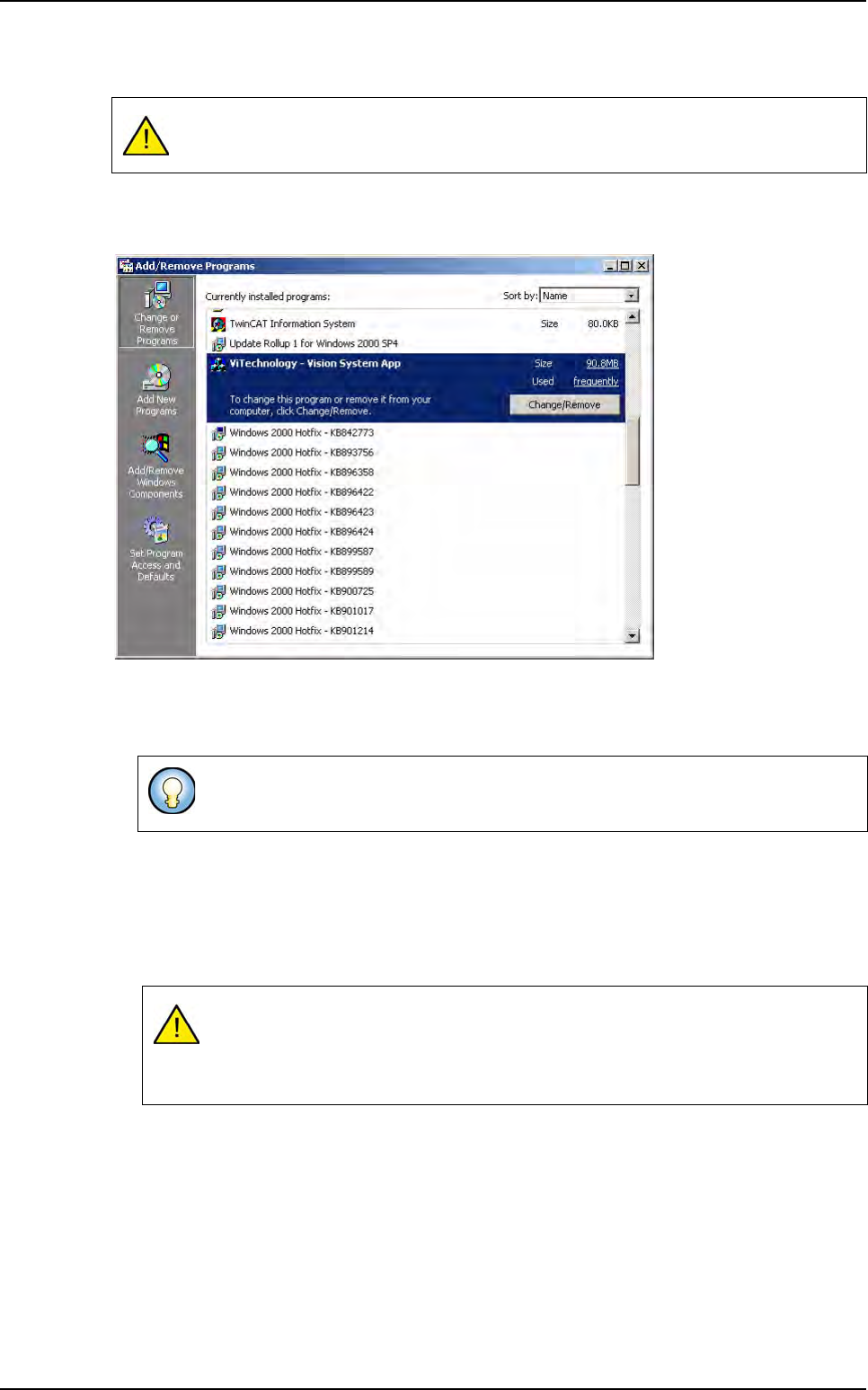
Run the Add/Remove Programs Properties window located in the Control Panel folder on
your system. The Control Panel folder can be found by selecting:
1. Start Settings in Control panel from the Windows task bar (Installing under Windows 2000
or Windows XP requires administrative privileges).
2. Uninstall ViTechnology - Vision System App.
1.1.4 Installation
1. Before running the setup program, make sure all other Windows applications are closed. To
install the ViTechnology software, place the CD in the appropriate drive to start the installa-
tion automatically.
2. At the Welcome screen, click Next to continue.
3. At the Destination screen choose a location on the local system hard drive to install ViTech-
nology software.
Before installing a new version of the ViTechnology software you must uninstall the
previous versions.
If the new Vision System software uses the same CVL drivers, it is not necessary
to uninstall ViTechnology - Vision drivers.
If Auto-Start is not enabled, select Run from the Windows Start menu and type:
<CD drive >:\SETUP.EXE. The setup automatically detects your system
(Windows 2000 Professional or Windows XP), and checks the Windows service
Pack.
Vision 2007 setup