VI User Manual.pdf - 第236页
Tools library 7 - 74 Vision 2007 4.10 User Manual Re v 01 7.12.2.2 Data Matrix CA D edition When you click on a Data Matrix in the CAD repr esentation, the Data Matrix edit ion window ap- pears. In Identifica tion ( A ) …
Tools library
Vision 2007 4.10 User Manual Rev 01 7 - 73
7.12 Data Matrix
7.12.1 Description
Data Matrix are 2D codes used for board identification. With the AOI system, there are difer-
ent way to read Data matrix according to the application:
Using the internal camera,
Using an external camera,
Using an external 2D scanner (no library model is needed).
7.12.2 Data Matrix using the internal camera
7.12.2.1 Data Matrix creation
Load the .tst file in which you need to create Data Matrix. Load a board with the Data
Matrix in the machine. With the .tst file active, go in
Edit menu, and in Board sub
menu, select
Create Data Matrix. This starts the Data Matrix creation Wizard.
Edition of Data Matrix area
1. Click in the CAD representation to move the camera to the Data Matrix location on
the panel.
2. Press the Edit area button and adjust the area around the Data Matrix in the cam-
era real image.
3. Enter the CAD angle of the Data Matrix in the Theta field.
4. Press Next.
Description of the new Data Matrix
1.
Enter the reference designator of the Data Matrix and the name of the library model.
2. If the board number is not the right one, select the board number (or Panel) from
the drop down list.
3. To propagate the Data Matrix to all the boards, tick the check box.
4. Press Next.
Image capture for the library
1. Adjust the lights to obtain a good contrast.
2. Press Image capture for the library button and save
the Data Matrix image.
3. Press Finish.
4. The Data Matrix appears in the CAD representation.
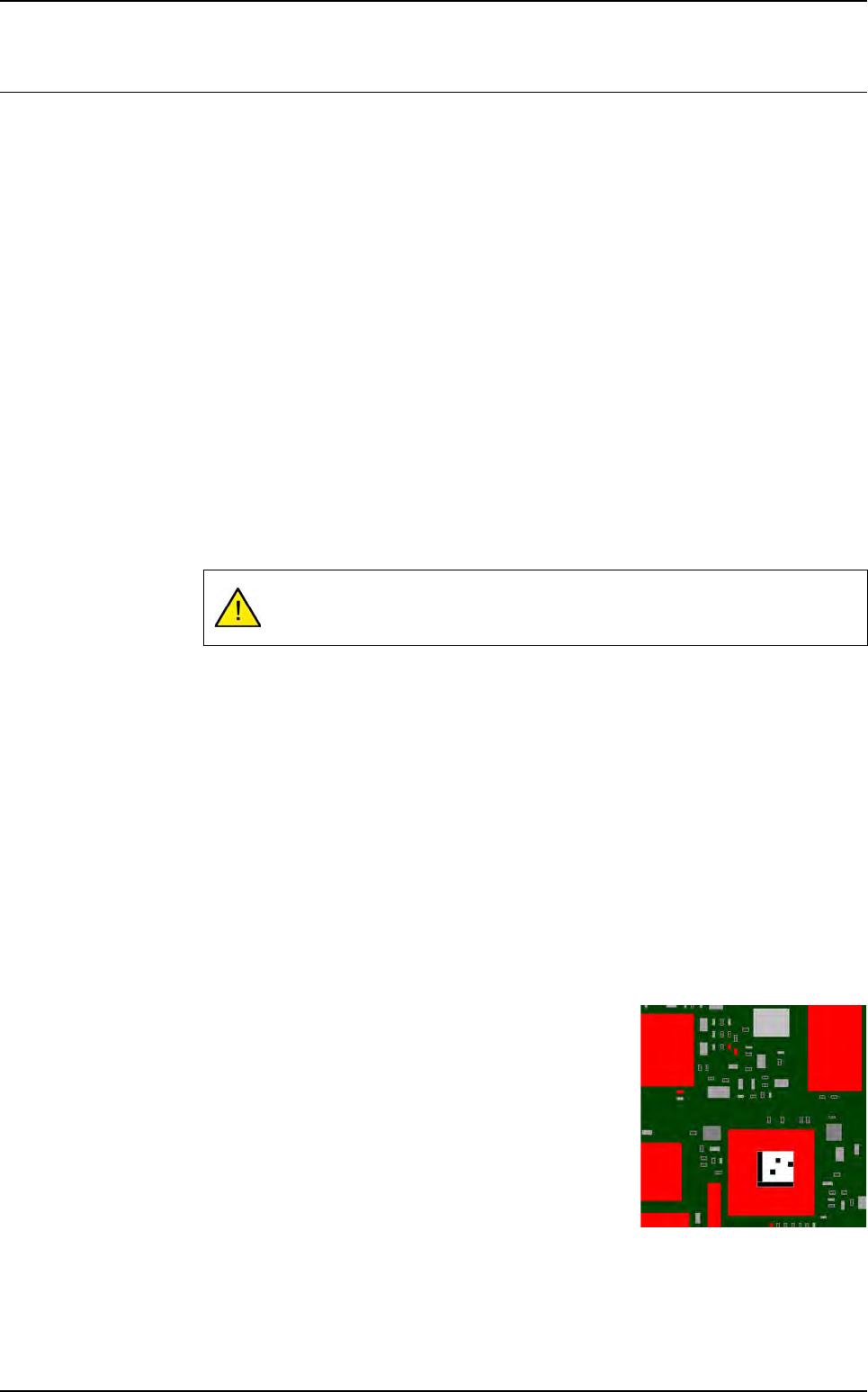
Repeat this operation until you see the Data Matrix code on the camera pic-
ture.
Tools library
7 - 74 Vision 2007 4.10 User Manual Rev 01
7.12.2.2 Data Matrix CAD edition
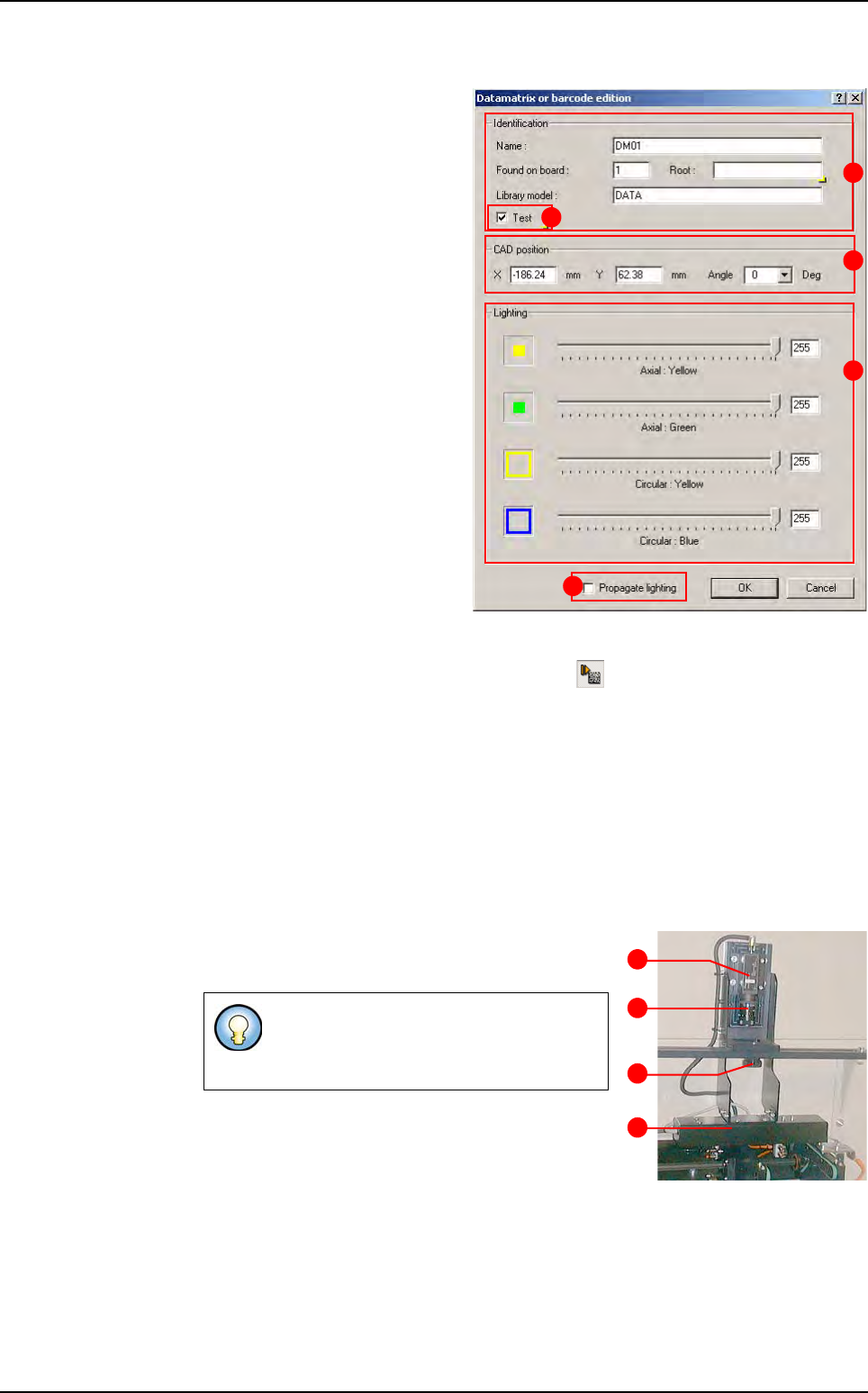
When you click on a Data Matrix
in the CAD representation, the
Data Matrix edition window ap-
pears.
In
Identification (A) section, ap-
pear the reference designator,
board number, and library mod-
el. The root is the 1st characters
that should be decoded by the
Data Matrix tool.
In
CAD position (B) section,
position and angle of the Data
Matrix are displayed.
In
Lighting (C) section, use the
cursors to adjust the ligthing.
Tick
Test (D) conditions.
Tick
Propagate lighting (E) to
propagate the lighting for all
Data Matrix.
7.12.2.3 Data Matrix execution
Click on the Execute internal data matrix icon in the Execution tools bar. When
the Data Matrix pass, the decoded string is displayed in the console.
7.12.3 Data Matrix using an external camera
The external Data Matrix inspection uses an external camera that is able to take picture dur-
ing the board loading. This camera, Sony XC_55, supply images to the Cognex Data Matrix
tool, which read the code before board stopping.
This option does not take time but you can only read one Data Matrix per panel.
7.12.3.1 Hardware description
A
Sony XC_55 camera,
B 50 mm lens,
C Fastening screw,
D White lighting.
You can adjust the focus with focus ring
and the picture brightness with the dia-
phragm.
A
B
C
D
E
A
B
C
D
Data Matrix
Tools library
Vision 2007 4.10 User Manual Rev 01 7 - 75
7.12.3.2 .tst file configuration
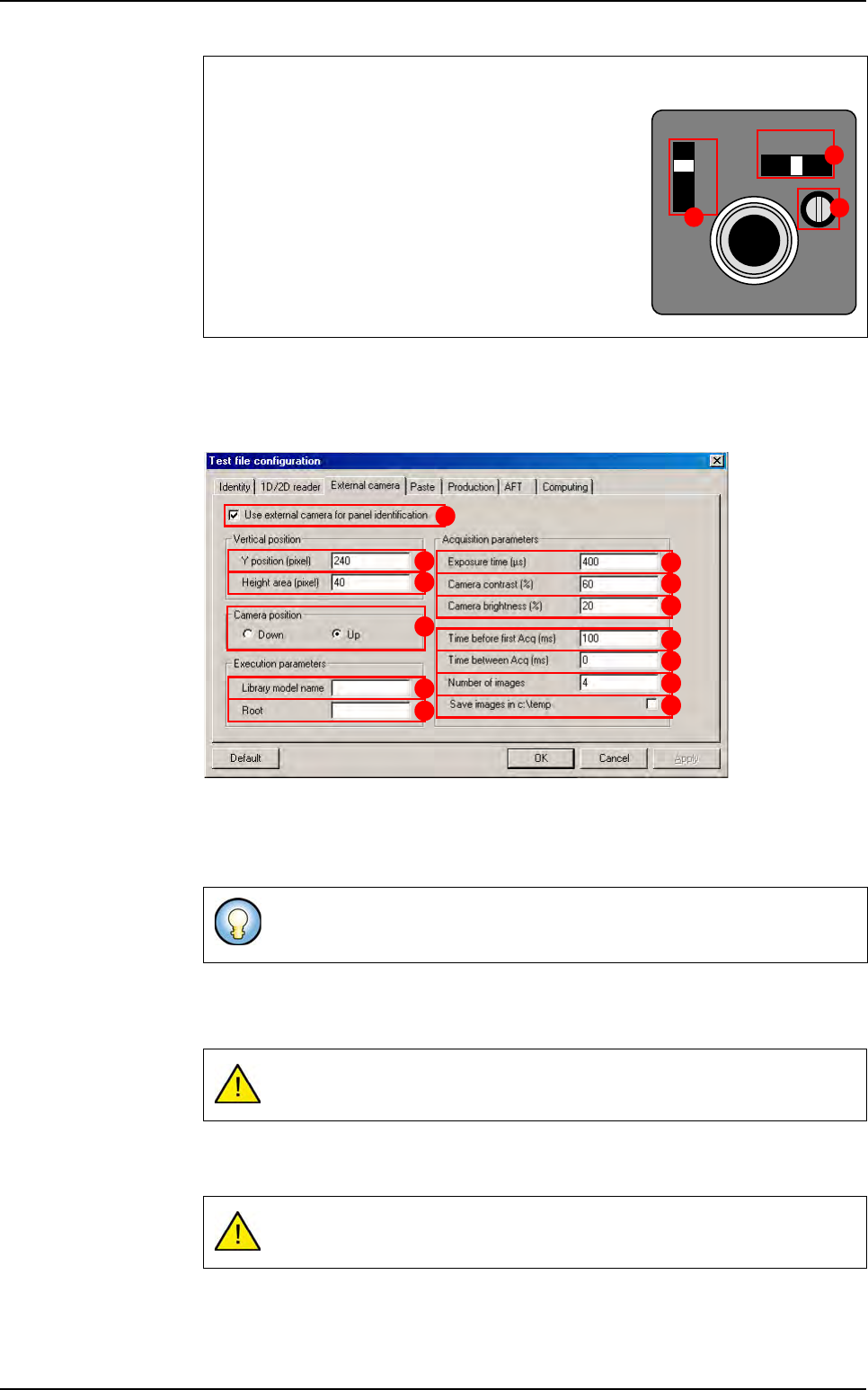
To define use of the external camera for Data Matrix decoding open the Test file
configuration
window. These parameters are only dedicated to one .tst file.
Tick
Use external camera for panel identification (A).
Y position (pixel) (B) determine the Data Matrix centre position in the picture.
Height area (pixel) (C) determine the Data Matrix height.
In
Camera position (D) section, choose which camera is used: top or bottom.
Enter the Data Matrix
Library model name (E) you want to use to detect Data Matrix.
Root (F) of Data Matrix used during production run. If the Data Matrix red has not the
same root, Vision 2007 will display a root error.
Exposure time (µs) (G) is the exposition time of the camera. If your picture is too
blur you will have to reduce it.
You can change the
Camera contrast (H) and the Camera brightness ( I ).
Camera settings
A The Signal switch must be in the 1N position.
B The Gain switch can be in the F or M position:
F is the fixed gain.
M is the manual gain, you can adjust it with the
Manual gain control volume (
C) if your picture is
too bright or too dark.
These 2 parameters will be used to cut the camera image so the processing
time is reduced.
If the
Library model name field is empty, there will be no inspection.
If the
Root field is empty we do not check Data Matrix root.
SIGNAL
A F M
GAIN
VIDEO OUT/DC IN/SYNC
1N
1 l
A
B
C
A
B
C
D
E
F
G
H
I
J
K
L
M
Data Matrix