VI User Manual.pdf - 第78页
.TST file creation 4 - 4 Vision 2007 4.10 User Manual Re v 01 4.2 Wizard .tst To create a new .tst file, select New test file ( Ctrl+T ) in the Process menu, the window Op en a file to compose appears. Then, select a .vi…
.TST file creation
Vision 2007 4.10 User Manual Rev 01 4 - 3
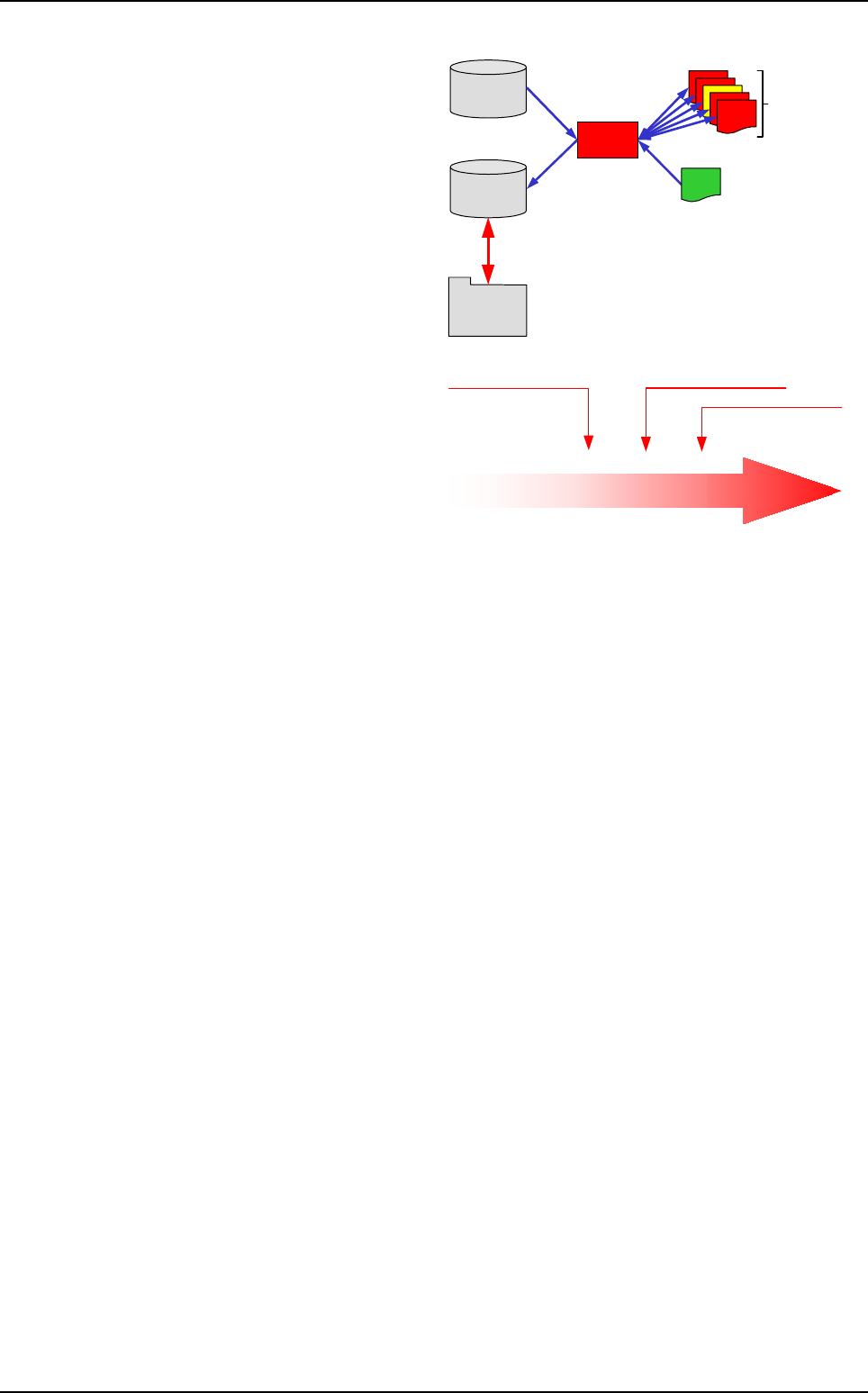
The .lk file is a text file which contains the
correspondence between the names of
the components in the .vis file (called
Part Number) and the names of the mod-
els in the libraries (customer and stan-
dard library).
The .lk file is helpful to easily create the
.tst file. Anyway it is optional, and the
links can be done manually during the
.tst file creation (wizard).
.lk file characteristics:
Identical libraries for all users,
Contains all common components,
Each user can update his/her own li-
brary,
Components are shared as they are
not linked to an environment,
Easy creation of new components.
The .lk file must consist only of numbers and let-
ters. The user name of the Jedec and your Jedec
name must contain no /, -, _ to allow use of the .lk
file.
Comments line begin with an @ (you can use # in
your component names).
The .lk file can be located where you want.
It can be opened in Word Pad.
The .lk file must contain the user name of the
Jedec followed by a space and your Jedec
name.
Standard
library
Image file
New program
.lk file
converter
Existing
programming
(.tst files)
Customer
library
User interface
User names
Standard library
Standard names
CMP0072
CMP0073
SO0000
CMA0111
Part number names
Names of the Jedec
used in the standard library
R0402
C0402
SO8
SOT23
R10 05
C10 05
SO8
SOT23
VIT names
How to create a .tst file
.TST file creation
4 - 4 Vision 2007 4.10 User Manual Rev 01
4.2 Wizard .tst
To create a new .tst file, select New test file (Ctrl+T) in the Process menu, the window Open a file to
compose appears. Then, select a .vis file from any source. When you double click on this file or click
Open, the Wizard .tst is loading:
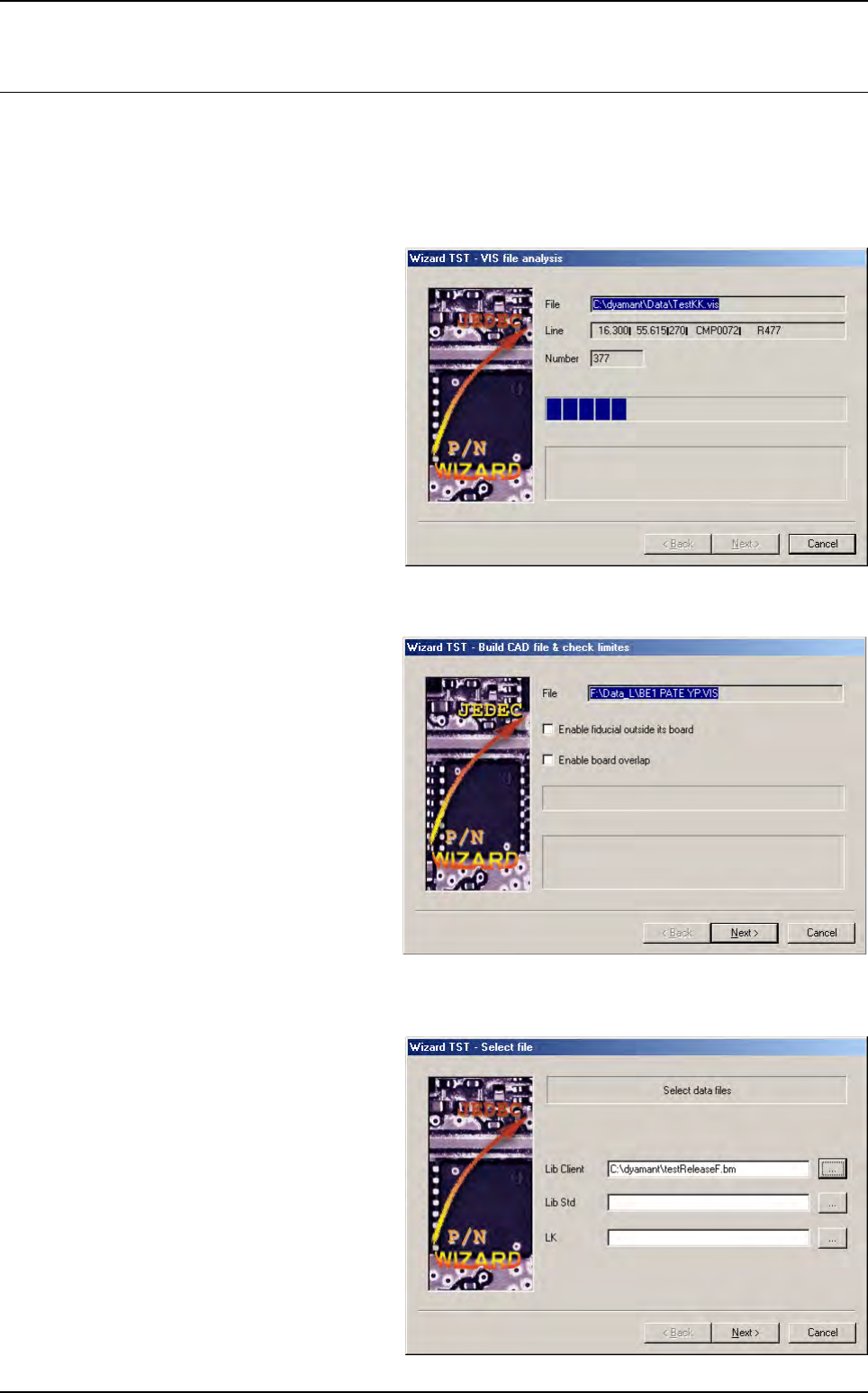
4.2.1 .vis file analysis
The syntax analyzer will tell you if all
is OK. You will be advised if there is
a problem and where the error is.
Then, click Next >.
4.2.2 Build CAD file & check limits
Tick the check boxes to:
Enable fiducial presence outside
boards.
Enable overlapping boards.
4.2.3 Select file
Enter:
A customer library (optional),
A standard library (optional),
A .lk file (optional).
Then, click Next >.
.TST file creation
Vision 2007 4.10 User Manual Rev 01 4 - 5
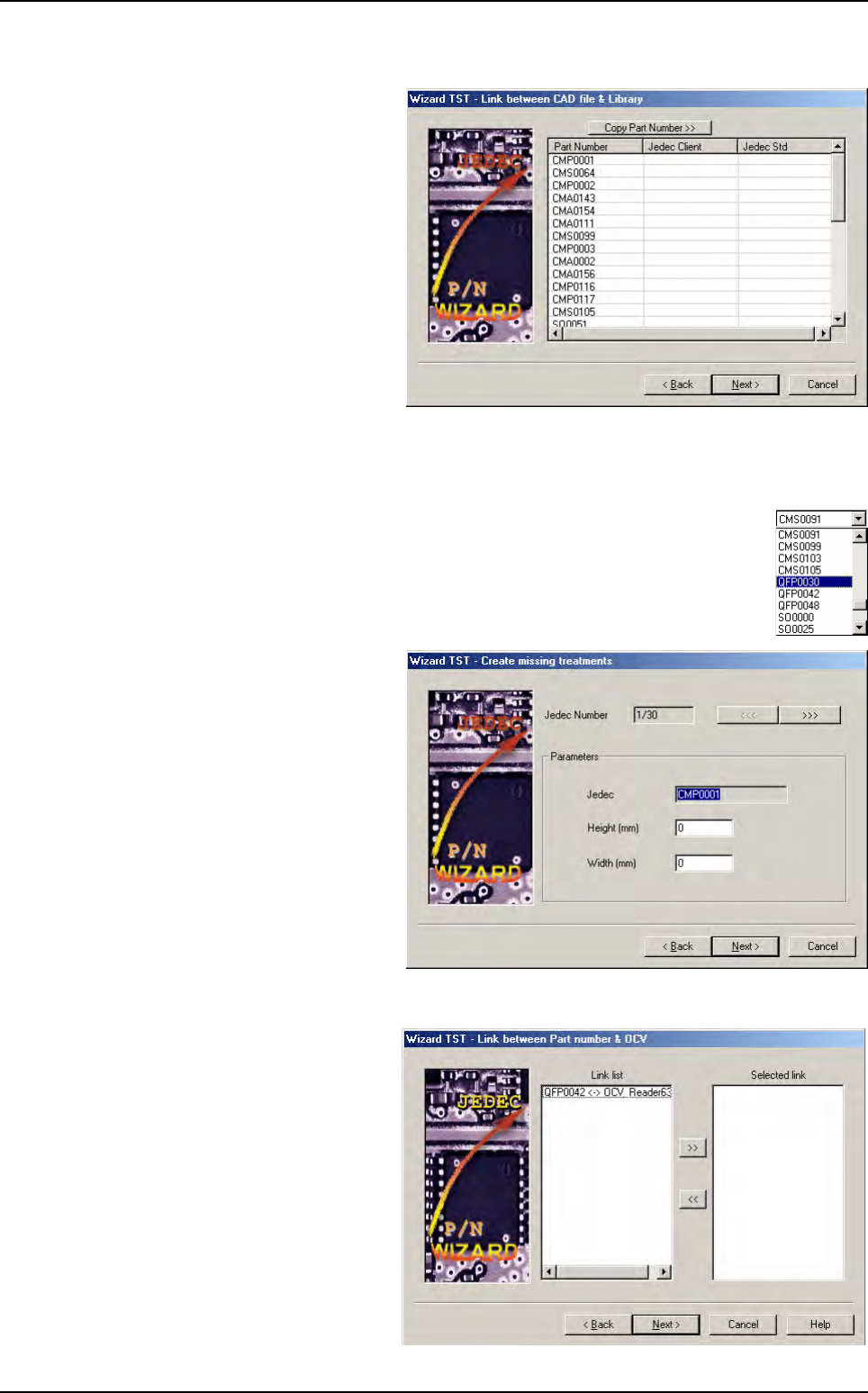
4.2.4 Link between CAD file & library
This page will show the links made
according to the information found
in .lk, standard and customer li-
brary.
Part Number column: list of all
part numbers found in the .vis
file.
Jedec Client column: name of
the model used to inspect the
corresponding part number. This
name will appear into the final cli-
ent library and in the Jedec field
of the component edition.
Jedec Std column: name of the
standard model used to create the model in client library.
When you click on the Copy Part Number >> button, the part number list is copied to the next
column.
You can edit each field with the left mouse button, and with the right button choose
among all available Jedec names.
Then, click Next >.
4.2.5 Create missing treatments
The system can ask you for models
not found in the standard nor in the
customer library.
Enter the size, and an empty model
will be created for this Jedec name.
4.2.6 Link between part number & OCV
If the OCV file exists, the Wizard
.TST will ask you which text object
you want to create automatically.
The Wizard .TST shows part num-
ber/OCV links and you only have to
make your choice with arrow but-
tons.
Wizard .tst