VI User Manual.pdf - 第79页
.TST file creation Vision 2007 4.10 User Manua l Rev 01 4 - 5 4.2.4 Link between CAD file & library This page will show the links made according to the information fo und in .lk, standard and customer li- brary. Pa…
.TST file creation
4 - 4 Vision 2007 4.10 User Manual Rev 01
4.2 Wizard .tst
To create a new .tst file, select New test file (Ctrl+T) in the Process menu, the window Open a file to
compose appears. Then, select a .vis file from any source. When you double click on this file or click
Open, the Wizard .tst is loading:
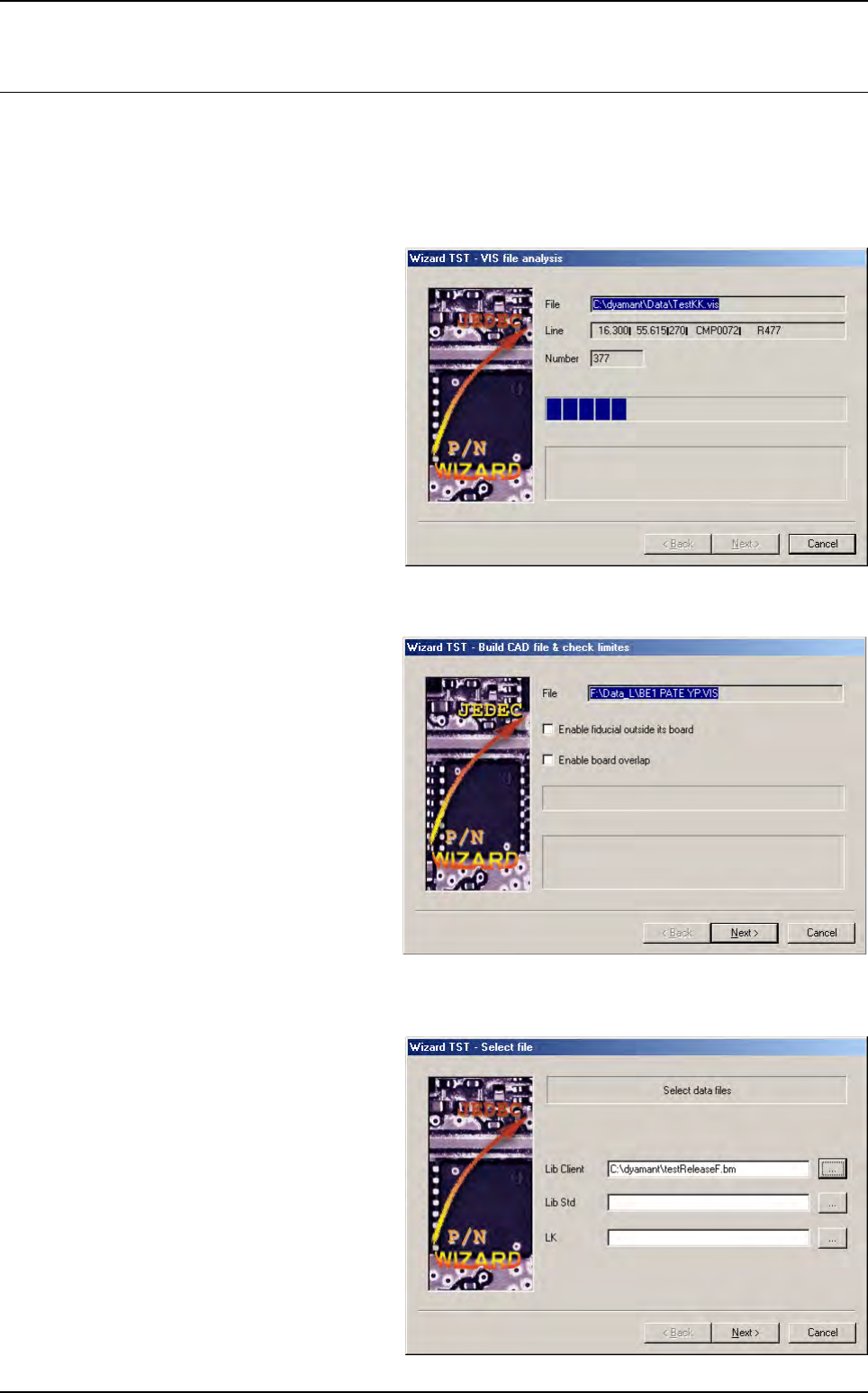
4.2.1 .vis file analysis
The syntax analyzer will tell you if all
is OK. You will be advised if there is
a problem and where the error is.
Then, click Next >.
4.2.2 Build CAD file & check limits
Tick the check boxes to:
Enable fiducial presence outside
boards.
Enable overlapping boards.
4.2.3 Select file
Enter:
A customer library (optional),
A standard library (optional),
A .lk file (optional).
Then, click Next >.
.TST file creation
Vision 2007 4.10 User Manual Rev 01 4 - 5
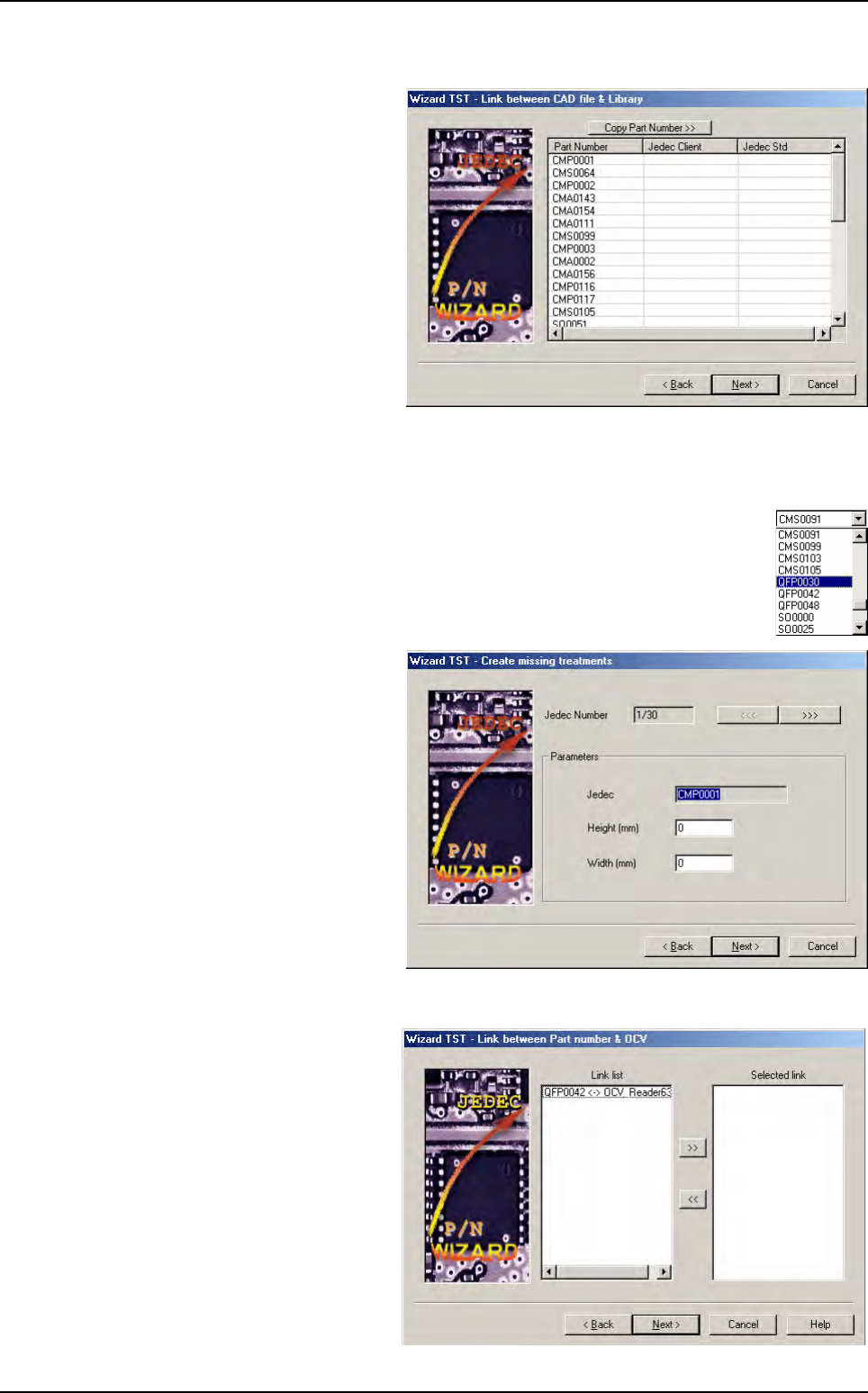
4.2.4 Link between CAD file & library
This page will show the links made
according to the information found
in .lk, standard and customer li-
brary.
Part Number column: list of all
part numbers found in the .vis
file.
Jedec Client column: name of
the model used to inspect the
corresponding part number. This
name will appear into the final cli-
ent library and in the Jedec field
of the component edition.
Jedec Std column: name of the
standard model used to create the model in client library.
When you click on the Copy Part Number >> button, the part number list is copied to the next
column.
You can edit each field with the left mouse button, and with the right button choose
among all available Jedec names.
Then, click Next >.
4.2.5 Create missing treatments
The system can ask you for models
not found in the standard nor in the
customer library.
Enter the size, and an empty model
will be created for this Jedec name.
4.2.6 Link between part number & OCV
If the OCV file exists, the Wizard
.TST will ask you which text object
you want to create automatically.
The Wizard .TST shows part num-
ber/OCV links and you only have to
make your choice with arrow but-
tons.
Wizard .tst
.TST file creation
4 - 6 Vision 2007 4.10 User Manual Rev 01
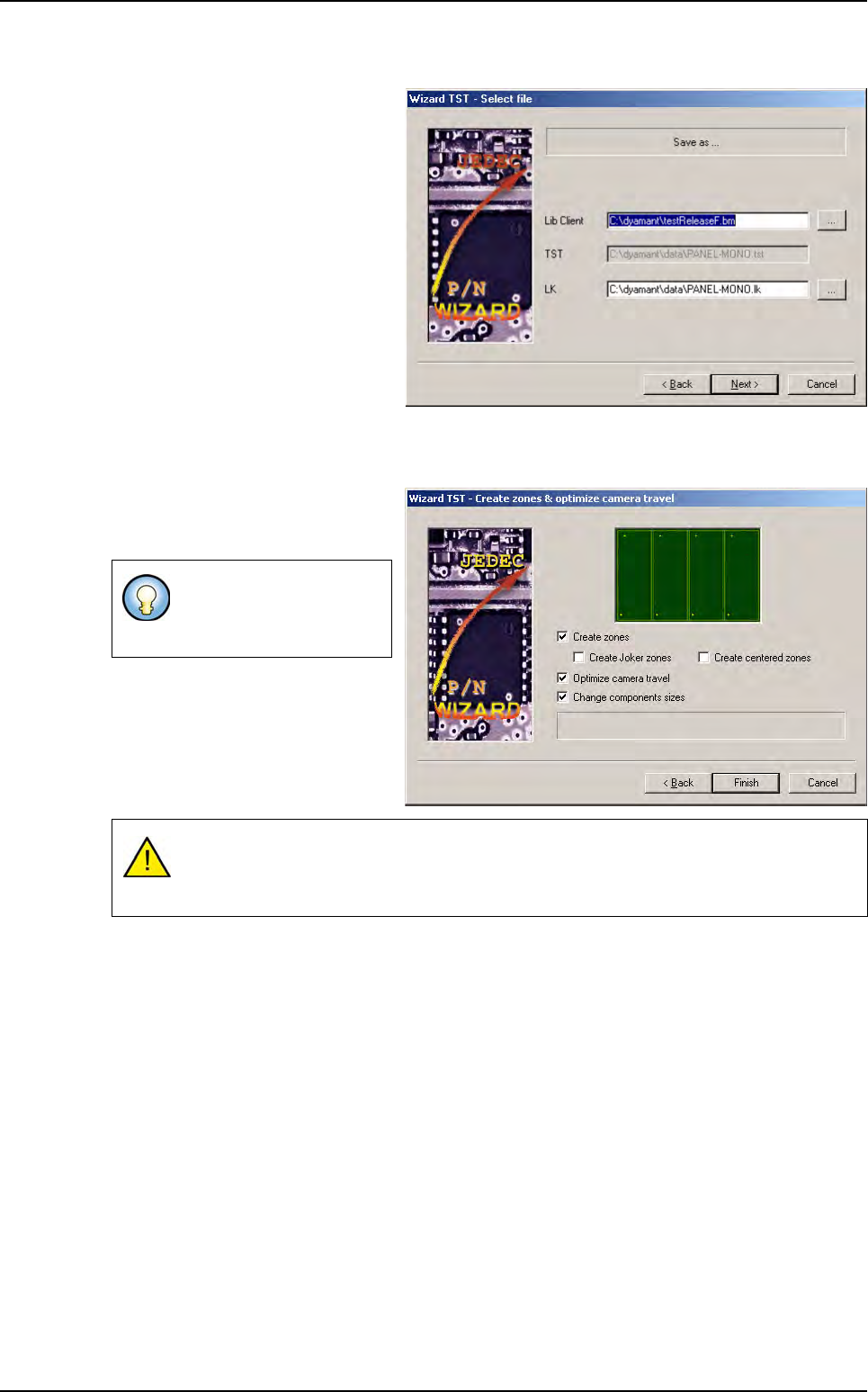
4.2.7 Select file
Enter the names of files you want to
be created or rewritten.
4.2.8 Create zones and optimize camera travel
Zones can be automatically created
from the .tst file creation by check-
ing proposed boxes.
This process uses the jedecs
present in the zone.dsc file and the
jedecs present in the .vis file to cre-
ate the associated zones.
You can deselect options
if the .tst file already ex-
ists.
During the tst file creation if there is no model associated to a component, check if the
component with a angle at 45° can be contained in a standard zone, if not a multi-zone
will be assigned to the component.
Wizard .tst