VI User Manual.pdf - 第122页
.TST file edition 5 - 14 Vision 2007 4.10 User Manual Re v 01 5.5.2 T est conditions 5.5.2.1 Test component By default, all the comp onents will be te sted. To igno re a component, deselect Test com- ponent . You can des…
.TST file edition
Vision 2007 4.10 User Manual Rev 01 5 - 13
5.5 Components edition
5.5.1 Searching for a component
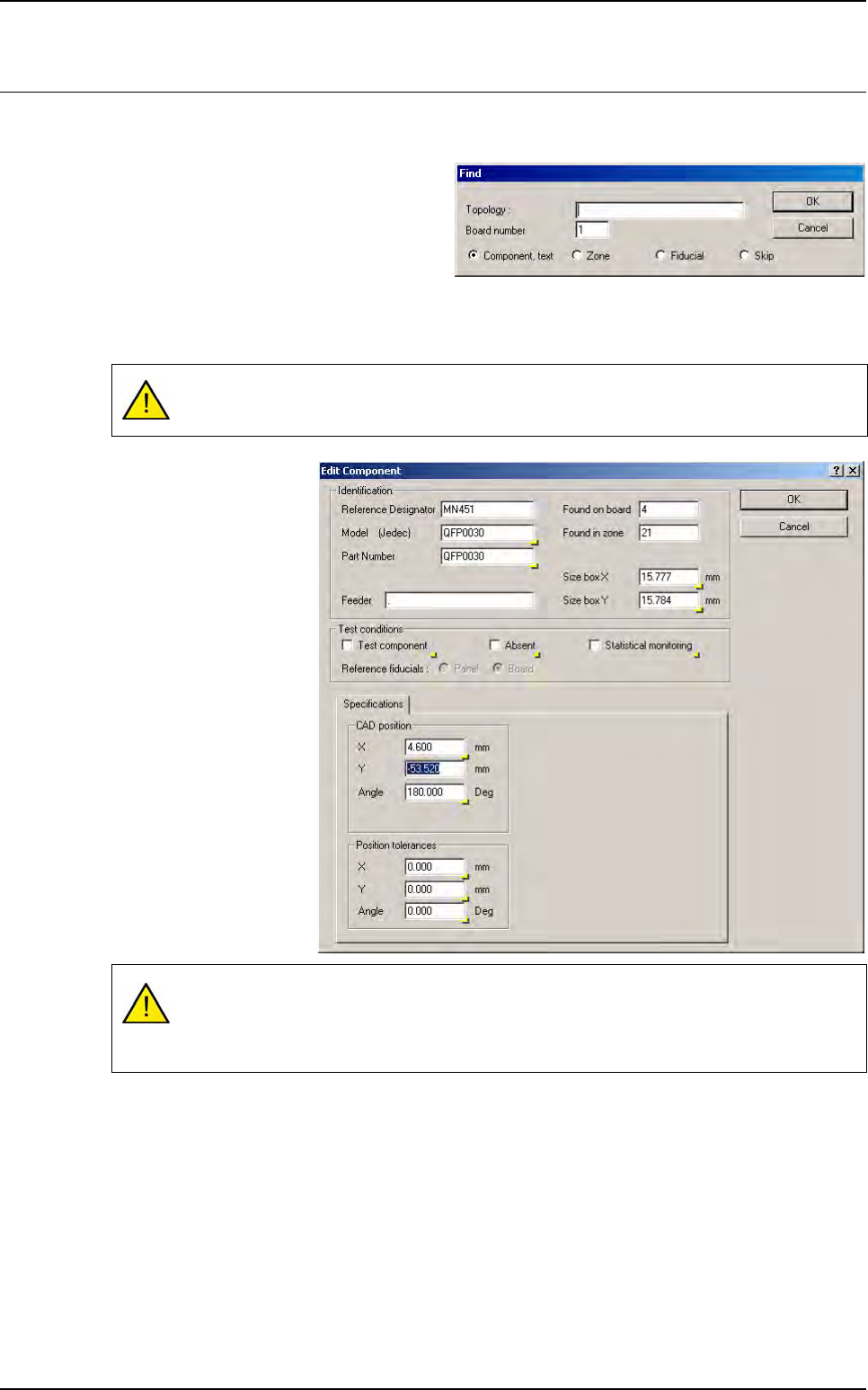
In the Edit menu select Search (Ctrl+F)
to locate a component. The Find window
appears.
Enter the Component topology and the
Board number if it is part of a multi-board
panel.
To edit the zones, the fiducials and the skips, enter the zone number, the fiducial number or the
skip type (0 is for panel). Then, click OK to run the search.
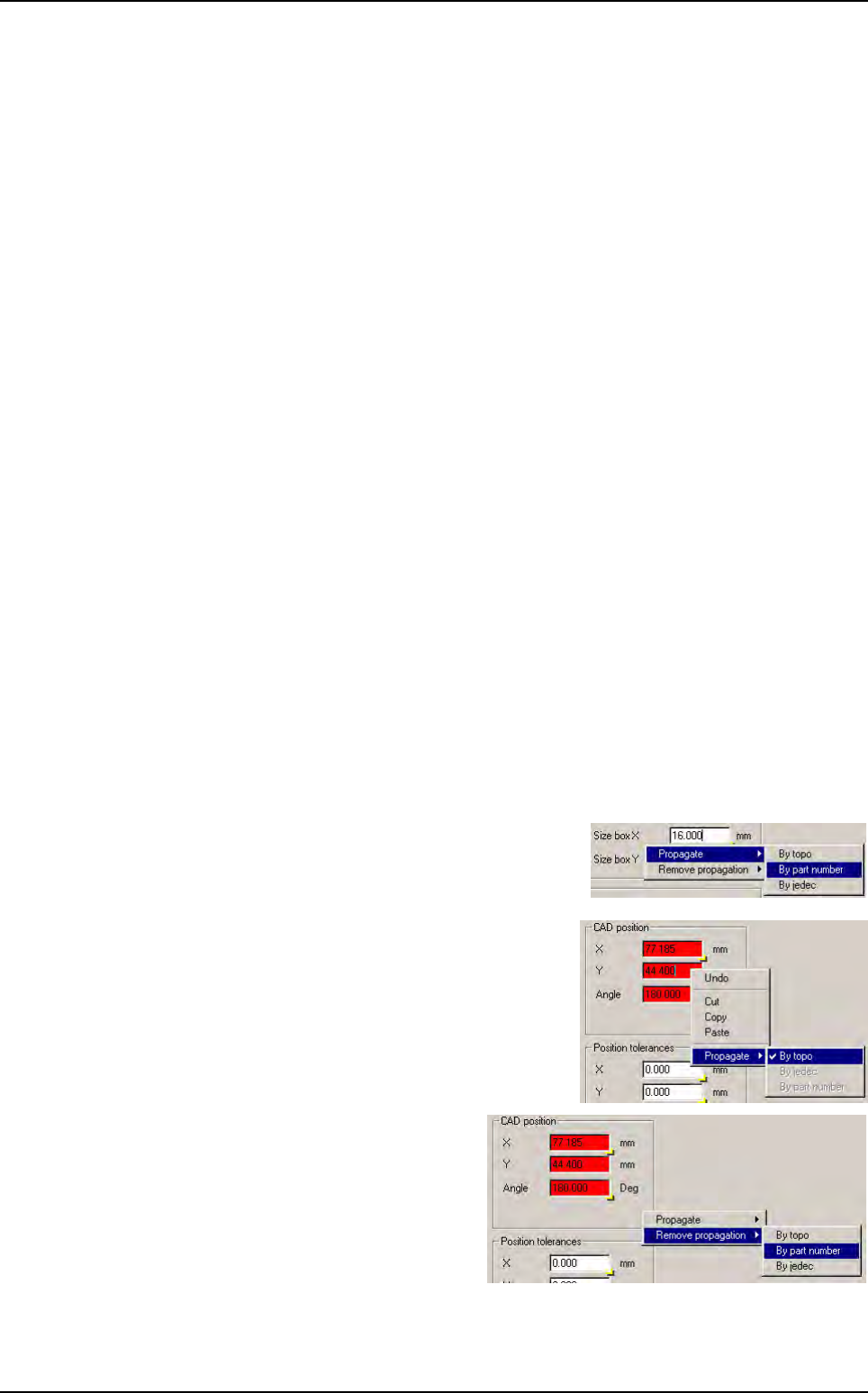
The component will be
displayed in yellow and
the Edit Component
window will appear.
To view the selected
component, click on the
title bar of the Edit Com-
ponent window and
slide it so that the .tst file
window appears again.
Once you have moved
the Edit Component
window, the component
you are looking for is vis-
ible.
The component name must be entered correctly (respect CAPS and lower cases).
The topological reference is Case sensitive.
If the component that you are looking for does not exist, the message Component not
found appears.
.TST file edition
5 - 14 Vision 2007 4.10 User Manual Rev 01
5.5.2 Test conditions
5.5.2.1 Test component
By default, all the components will be tested. To ignore a component, deselect
Test com-
ponent
. You can deselect a component for inspection. The component to ignore during
inspection appears in red in the .tst file, like the components associated with no zone.
5.5.2.2 Absent
You can check that a component has not been placed. This can help you to verify the
version of the PCB. Your .tst file must contain the topologies supposed to be absent. Tick
Absent to indicate that a topology is not placed. The software executes the component
and return the opposite result:
If the component is missing = No error,
If the component is found = Missing error.
5.5.2.3 Statistical monitoring
By default, the components will not be selected for Statistical monitoring. You can
place a component in Statistical monitoring using the optional software SPC Software,
VieWeb or Supervisor.
If you want to activate this option, tick the relevant box. When a component is in Statis-
tical monitoring, all the information from production will be transferred to the supervisor
(even if it is not in error). The component selected in Statistical monitoring appears in
blue in the .tst file. Set the sampling rate to transfer statistical data in the Maintenance/
Parameters/Statistics menu.
5.5.2.4 Reference fiducials
In the .tst file, components can be realigned with panel or board fiducials. If you have
both types in the .tst file, you can choose. The fiducial type comes from the .vis file. The
type indicated in the fiducial edition is only for the model name in the library.
5.5.3 Propagating component data
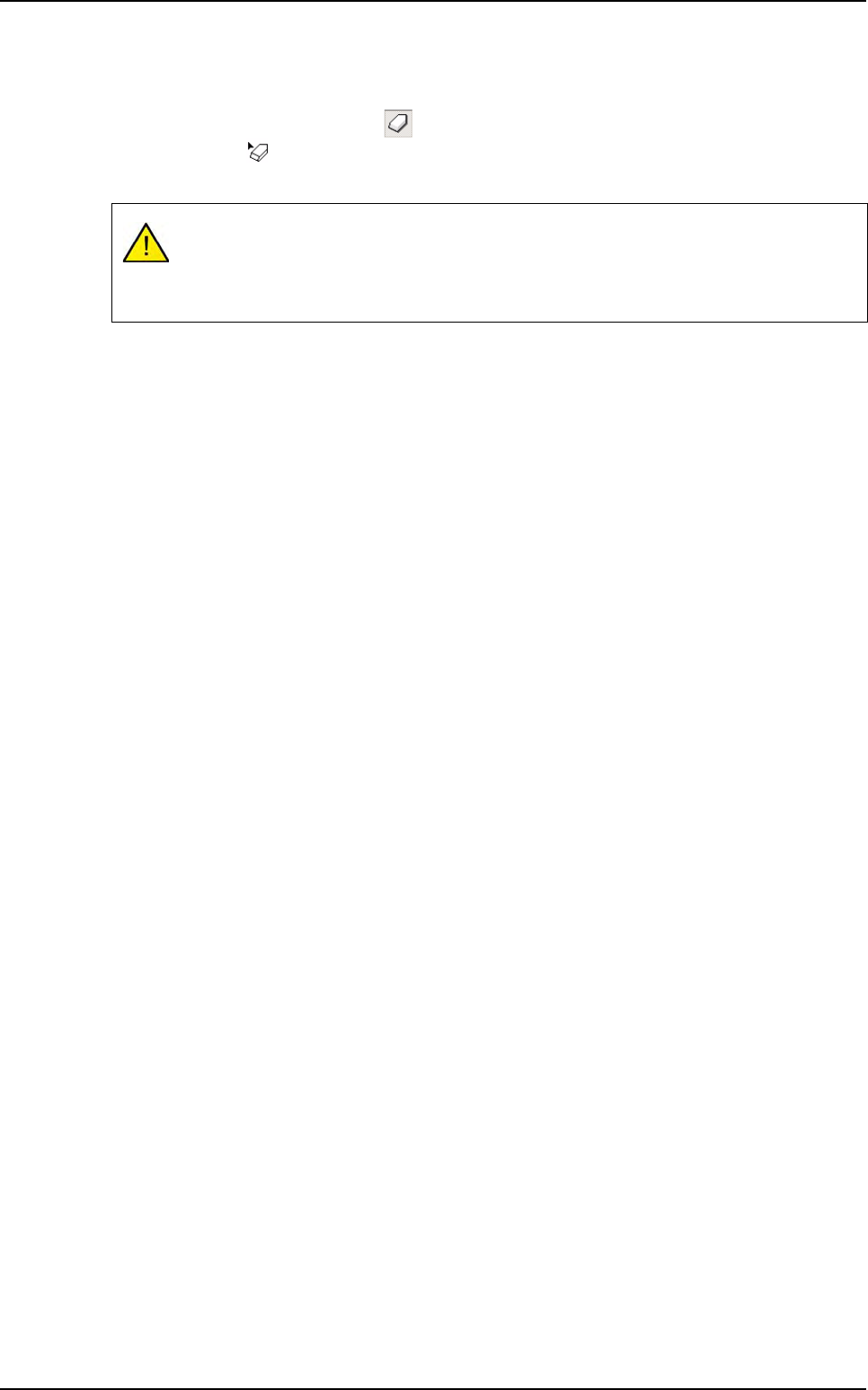
To propagate component data, use the mouse right click
button to see the available propagation oportunities: by To-
po, Part number or Jedec, according to parameters you in-
tend to propagate.
Parameters, that will be propagated, appear in red.
To remove the propagation tag, right click on
the text field or on the gray area around it and
select remove propagation.
Components edition
.TST file edition
Vision 2007 4.10 User Manual Rev 01 5 - 15
5.5.4 Delete a component
You can permanently delete a component from the .tst file:
1. After having selected the Erase button, accessible from the Tools palette, the mouse cur-
sor change to .
2. Then click directly on the component to delete, it appears in yellow.
Once deleted, a component cannot be restored.
Click OK to confirm the changes.
Click Cancel to interrupt the current changes.
Components edition