VI User Manual.pdf - 第230页
Tools library 7 - 68 Vision 2007 4.10 User Manual Re v 01 There are 2 case s for multizone affecta tion: 7.11.1.1 .tst file linked to a librar y with model programmed in the library We first consider the model defined in…
Tools library
Vision 2007 4.10 User Manual Rev 01 7 - 67
7.11 Multizones
To inspect components larger than the field of view, use the specific model in the library: multizone.
This model allows you to inspect:
Accurate component position,
Solder joints presence on each lead,
Bridges presence between 2 leads,
Component polarity.
7.11.1 In the .tst file
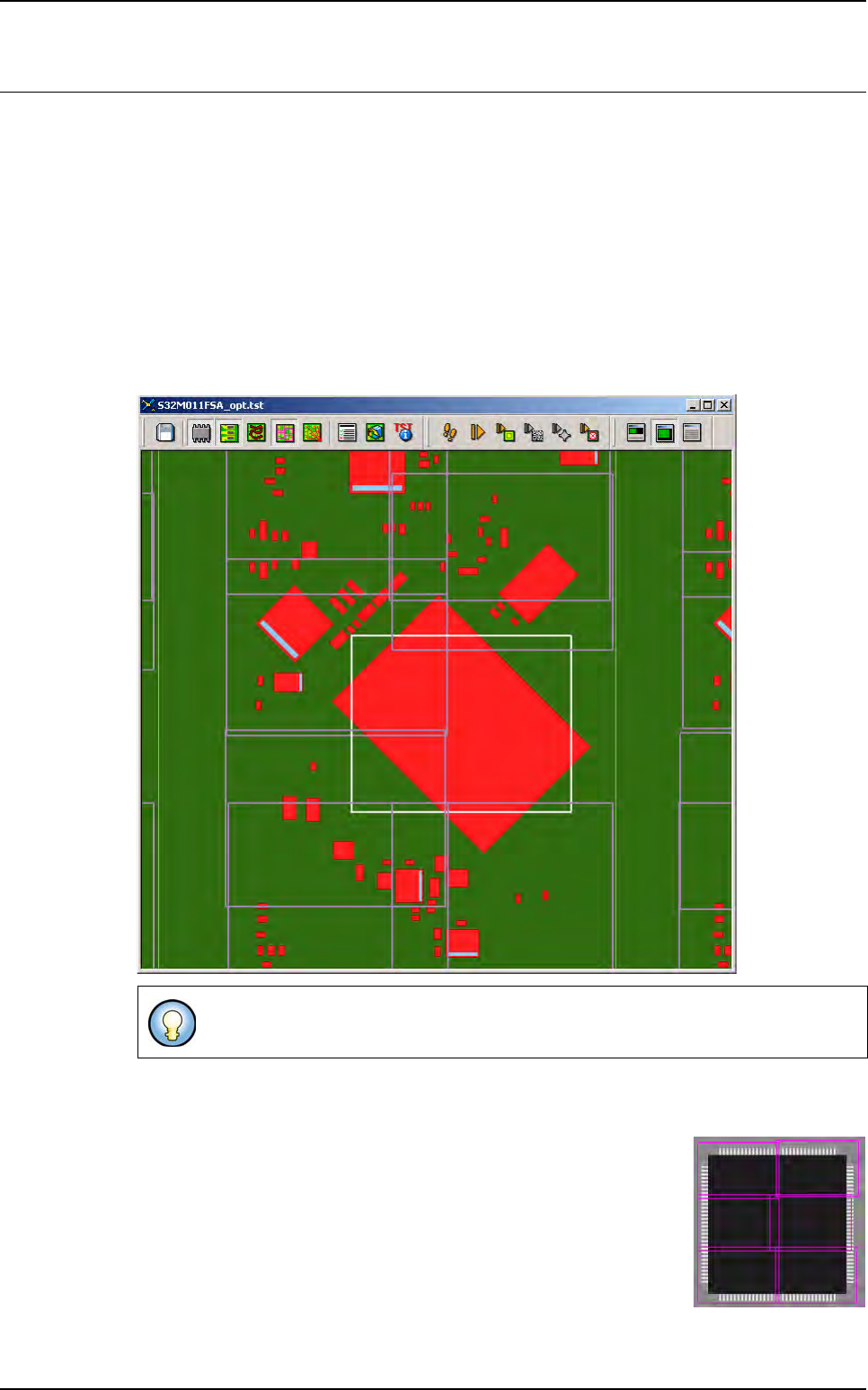
When creating areas, virtual zones are automatically added in white for big components.
The virtual zone is centered on the big component and can not be moved. You can edit the
zone parameters and adjust the light levels used to inspect the big component.
When running multizones component, real zones are created dynam-
ically regarding the treatments programmed in the library. The cam-
era acquisitions use light levels setting as defined in the virtual zone.
The position, the number of real zones and the light levels needed,
are calculated regarding the model programmed in the library. Each
real zone is dedicated to only the component.
When running a multizones component, all the real sub-zones are ac-
quired, even if one treatment has failed (because of multi threads).
Only 1 component is associated to 1 virtual zone.
Tools library
7 - 68 Vision 2007 4.10 User Manual Rev 01
There are 2 cases for multizone affectation:
7.11.1.1 .tst file linked to a library with model programmed in the library
We first consider the model defined in the library
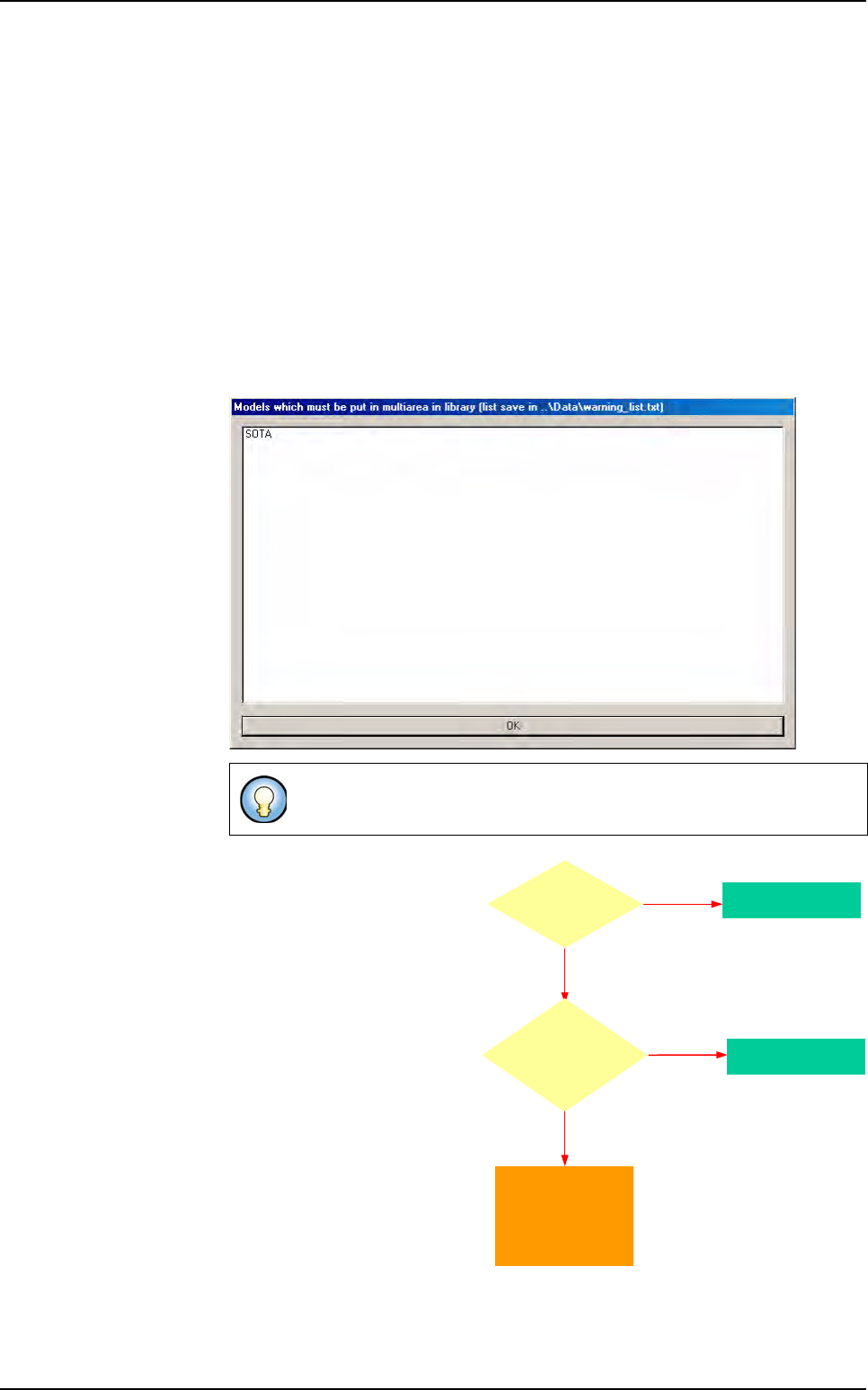
If the model in the library is a mono-zone, then the component in the .tst file will
be a mono-zone.
A test will be performed to check that the component fit in a zone. If some com-
ponents do not fit in a zone, a warning message is displayed and these compo-
nents are affected inside virtual zones. They are considered as multizones
components in the .tst file, and the user will have to create multizones models in
the library.
A message box with the list of the models that must be created as mutlizones, is
displayed.
If the model in the library is a
multizones, then the compo-
nent in the .tst file will be a
multizones.
If one topo is too big, then the whole family will be multizones.
Model in
library is a
Multi zone ?
Component becomes
a Multi zones
YES
NO
it is a Mono zone
Component fits
in a zone at
the CAD
angle ?
YES
NO
at least
one topo is too big
Component becomes
a Mono zones
Display a warning
message and the
component is affected to
a virtual zone.
(the user has to create
a Multi zones model
in the library)
Multizones
Tools library
Vision 2007 4.10 User Manual Rev 01 7 - 69
7.11.1.2 .tst file with no library or no model in the library
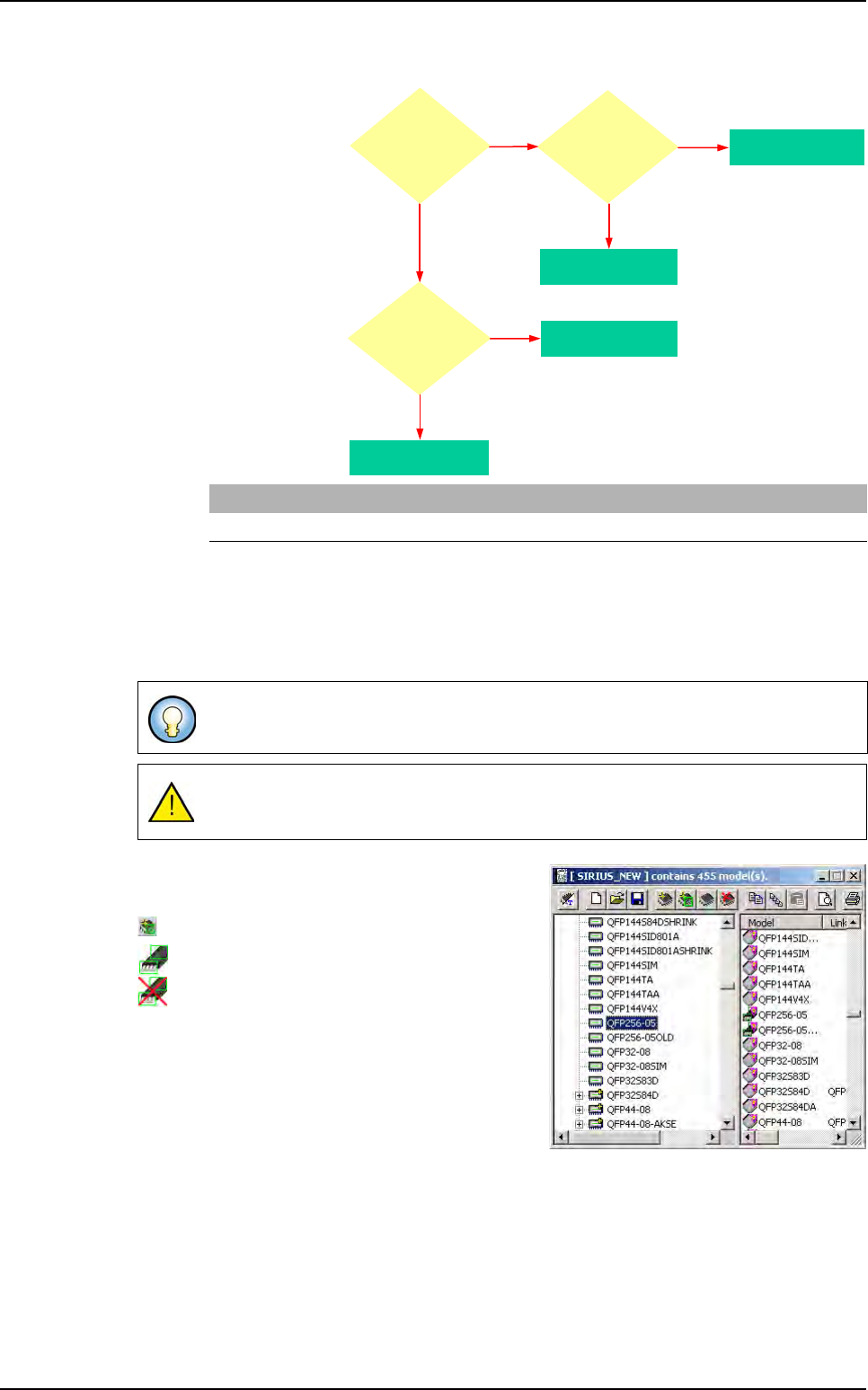
One parameter
in the
Default-
Value.ini
file
defines if we
make the com-
ponent rotate to
analyze it as a
multizones or
not.
7.11.2 In the library
There is a special menu item to create a multizones model. You must have a synthetic image
of your component to create a multizones model. This image is used to program all the treat-
ments for polarity, joints, bridges, ... So it must contain all the information you need.
You can link multizones together, but not normal
models with multi zones.
Icon to create a multizones model.
Icon of the model programmed.
Icon of the model not programmed.
[MultiZone]
Rotate component to consider as MZ (0,1) =0
To draw polarity mark on type 2 synthetic image, open the picture with
ImgEdit
software.
Be careful not to draw on the bottom part of the picture, because it contains the
BuildModel information.
NO
at least
one topo is too big
NO
YES
Component
fits in a zone
at any angle ?
YES
Component becomes
a Multi zones
Component
fits in a zone
at the CAD
angle ?
YES
Component becomes
a Mono zones
Component becomes
a Multi zones
NO
at least
one topo is too big
Component becomes
a Mono zones
Parameter:
Rotate component
to consider as
MZ = 1 (ini file)
Multizones